You bought the domain, installed WordPress, and the ideas are flowing – but the site is not ready for visitors yet. Showing a half-built homepage to the world is a wasted first impression, while a clean coming soon page turns that waiting period into an asset: it collects emails, builds curiosity, and tells Google that something is on the way. The good news is you do not need another plugin for this. In this guide you will learn how to create a coming soon page in WordPress without a plugin using three practical methods, plus what to put on the page so it actually helps your launch.
What Is a Coming Soon Page (and How Is It Different from Maintenance Mode)?
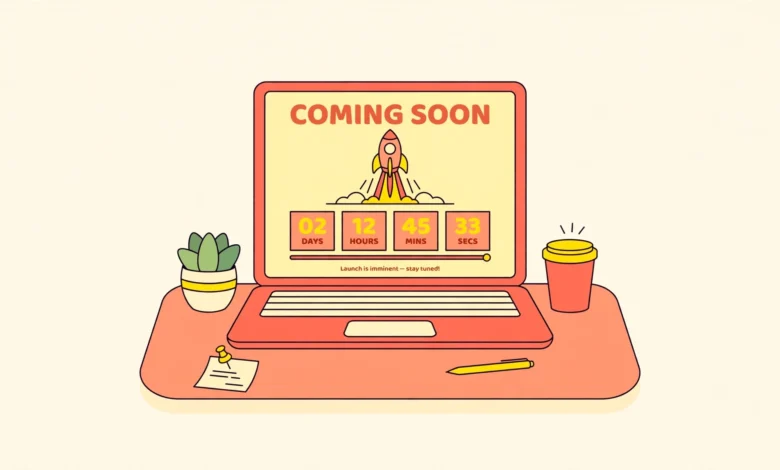
A coming soon page is a temporary landing page shown to visitors while your site is being built, before it has ever launched. It usually has a headline, a short description, an email signup form, and social links. Maintenance mode is different: it is for a site that is already live and temporarily down for updates. If you want the maintenance side of this, our guide on putting WordPress in maintenance mode without a plugin covers that scenario. Coming soon is for the pre-launch phase, and it is a marketing opportunity, not just a closed door.
Method 1: Build a Coming Soon Page with the Block Editor (Easiest)
This method uses only the tools WordPress already gives you. No code, no extra plugins.
Step 1: Create the page
- Go to Pages – Add New in your WordPress dashboard.
- Title it Coming Soon.
- Click the page settings icon and set the template to a full-width or blank canvas layout if your theme offers one (this hides the header, footer, and sidebar so the page looks like a real landing page).
Step 2: Design it with blocks
- Add a Cover block with a background image or gradient for the hero section.
- Add a Heading block with your announcement, for example “Something Great Is Coming”.
- Add a Paragraph block with one or two sentences about what the site will offer.
- Add a Buttons block linking to your social profiles or contact email.
- If your theme or a form block is available, add a simple email signup form so interested visitors can get launch updates.
Step 3: Set it as your homepage
- Go to Settings – Reading (see the official documentation on the Reading Settings screen if your dashboard looks different).
- Under “Your homepage displays”, select A static page.
- Choose your Coming Soon page as the homepage.
- Save changes. Visitors now land on your coming soon page, while you keep building the rest of the site behind the scenes.
One limitation: visitors can still guess other page URLs, since this method only changes the homepage. If that worries you, combine it with Method 3 below, which redirects everyone to the coming soon page.
Method 2: Use Elementor’s Built-In Coming Soon Mode (No Extra Plugin)
If you already use Elementor, you do not need a separate coming soon plugin. Elementor has the feature built in, and our tutorial on editing the header in Elementor free shows how comfortable the workflow is.
- Create a new page and design it with Elementor (use the Canvas page layout for a clean, full-screen look).
- Go to Elementor – Tools in the dashboard.
- Set Maintenance Mode to Coming Soon and choose your page.
- Save. Logged-in admins see the full site; everyone else sees your coming soon page.
Method 3: Redirect All Visitors with a Small Code Snippet (Most Control)
If you want every visitor sent to your coming soon page no matter which URL they type, a tiny snippet does the job. This is the same approach developers use, and it needs no plugin.
- Create your coming soon page with Method 1 and note its slug (for example
/coming-soon/). - Add this snippet using the Code Snippets plugin or your child theme’s
functions.php(never edit a parent theme’s files directly):
add_action( 'template_redirect', function () {
    if ( ! is_user_logged_in() && ! is_page( 'coming-soon' ) ) {
        wp_redirect( home_url( '/coming-soon/' ) );
        exit;
    }
} );
Replace coming-soon with your page slug. Now logged-out visitors always land on your coming soon page while you browse the full site normally. When launch day comes, delete the snippet and switch your homepage back in Settings – Reading.
What Should You Put on a Coming Soon Page?
A coming soon page is not just a prettier “closed” sign. The best ones include:
- A clear headline – say what is coming, not just “coming soon”. “A WordPress tutorial hub for Pakistani students launches soon” beats a vague announcement.
- One short paragraph – who the site is for and what they will get.
- An email signup form – this is the single most valuable element. Ten emails before launch beat a thousand silent visitors.
- Social links – give people a way to follow your progress.
- Branding – add your logo so the page looks intentional. Our guide on adding a logo to your WordPress header covers the logo side.
SEO Notes for Your Coming Soon Phase
Do not ask Google to index a thin coming soon page as your main content – there is nothing to rank yet. Keep the page simple, and when you launch, follow a proper checklist. Our WordPress website launch checklist walks through everything from permalinks to Search Console submission. Also make sure your hosting is solid before launch day traffic arrives; our web hosting guide explains what to look for in a host that can handle growth.
How to Collect Emails on Your Coming Soon Page
An email signup form is what separates a coming soon page that builds your launch from one that just fills space. Even fifty subscribers before launch day means fifty people to email the moment you go live – and launch-day traffic is the fastest way to get your first backlinks, comments, and social shares.
You do not need a premium email tool to start. The free version of WPForms or the form block in newer WordPress versions can collect addresses into your dashboard, and free Mailchimp or Brevo accounts handle the first few hundred subscribers at no cost. Place the form directly under your headline, not buried at the bottom of the page, and keep it to a single field: the email address. Every extra field you add measurably drops the signup rate.
Two details beginners often miss. First, use a professional sender address for your launch emails – a hello@yourdomain.com address converts better and lands in inboxes more reliably than a Gmail address. Our guide on creating a professional email in Hostinger hPanel walks through the setup in minutes. Second, write the confirmation email before launch day. When someone subscribes, the first message they receive should confirm what they signed up for and hint at what is coming – “You are on the list. Launching next month with 30 step-by-step WordPress tutorials.” That single email sets expectations and dramatically reduces unsubscribes later.
Finally, add a simple privacy note under the form: “We will only email you about the launch. No spam, unsubscribe anytime.” It takes ten seconds to write and removes the biggest reason people hesitate to hand over their address.
Frequently Asked Questions
Do I need a plugin to create a coming soon page in WordPress?
No. You can build one with the block editor and set it as a static homepage, use Elementor’s built-in coming soon mode, or redirect visitors with a small code snippet. Plugins add convenience features like countdown timers, but they are optional.
Will a coming soon page hurt my SEO?
Not if you handle it right. Do not try to rank the coming soon page itself. Once the real site launches, replace it with real content, set your homepage back, and submit your sitemap to Google Search Console.
Can visitors still access my other pages during coming soon mode?
With the static homepage method, yes – anyone who guesses a URL can see that page. With Elementor’s coming soon mode or the redirect snippet (Method 3), all logged-out visitors are sent to the coming soon page.
How do I remove the coming soon page after launch?
Go to Settings – Reading and switch your homepage back to your real homepage (or to “Your latest posts”), delete the redirect snippet if you used Method 3, then delete or unpublish the coming soon page.
Last updated: October 2026.