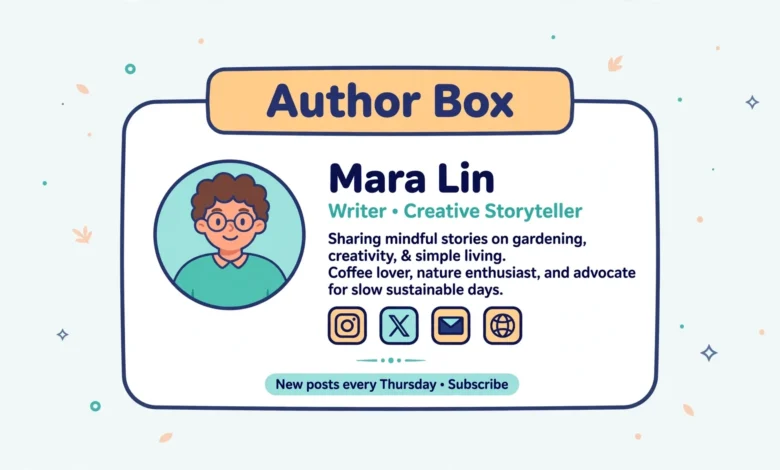
An author box – that small bio section with your photo, name, and credentials below each post – does quiet heavy lifting for a blog. It tells readers a real person wrote the content, builds trust, and sends Google the expertise signals that matter more with every algorithm update. Many tutorials reach for a plugin, but WordPress already gives you everything you need. In this guide you will learn how to add an author box in WordPress without a plugin using three methods, from the two-minute block editor approach to a fully custom coded version.
First: Fill In Your Author Profile (All Methods Need This)
Every method below pulls from the same source: your WordPress user profile. Before anything else, go to Users – Profile in your dashboard and complete these fields:
- Biographical Info – write 2-3 sentences about who you are and why you are qualified to write on your topics.
- Profile picture – WordPress uses Gravatar, so make sure the email on your profile has a Gravatar image set at gravatar.com.
- Display name – set “Display name publicly as” to your real name or pen name.
Skip this step and your author box will show up empty or with a mystery-man avatar – the most common reason people think “it is not working”. For the full picture on making your content look professional, our WordPress image SEO tips cover the visual side of trust.
Method 1: Use the Built-In Author Block (Fastest, No Code)
The block editor ships with an Author block that renders your profile info automatically.
- Open any post or page in the editor.
- Click the + inserter where you want the box (usually after the last paragraph).
- Search for Author and insert the block.
- It will show your avatar, display name, and bio – pulled straight from your profile.
The catch: you must add it manually to each post, and the styling follows your theme. For a site with a few key pages this is perfect; for a blog with hundreds of posts, Method 3 is better.
Method 2: Enable Your Theme’s Built-In Author Box
Many themes (including popular ones like Astra, GeneratePress, and Kadence) include an author box option in the Customizer. Go to Appearance – Customize and look under single post or blog settings for “Author Box” or “Post Author”. Enable it, and the box appears on every post automatically. This is the best option when your theme supports it: zero code, zero maintenance, and the styling matches your theme. If your theme does not offer it, move on to Method 3 rather than switching themes over this one feature.
Method 3: Add an Author Box with a Code Snippet (Full Control)
This snippet automatically appends a styled author box to every single post. Add it via the Code Snippets plugin (never edit theme files directly – updates will erase your work).
function vtg_author_box( $content ) {
    if ( is_single() && get_the_author_meta( 'description' ) ) {
        $box  = '<div class="vtg-author-box" style="display:flex;gap:16px;';
        $box .= 'padding:20px;margin-top:32px;border:1px solid #e2e8f0;border-radius:12px;">';
        $box .= get_avatar( get_the_author_meta( 'ID' ), 90 );
        $box .= '<div><strong>About ' . esc_html( get_the_author_meta( 'display_name' ) ) . '</strong>';
        $box .= '<p>' . esc_html( get_the_author_meta( 'description' ) ) . '</p></div></div>';
        return $content . $box;
    }
    return $content;
}
add_filter( 'the_content', 'vtg_author_box' );
The snippet checks that the post actually has an author bio before showing anything, so author archive pages and posts with empty bios stay clean. The inline styles give you a decent default look; move them to your Customizer’s Additional CSS panel when you want finer control over colors and spacing to match your branding – the same branding thinking behind adding a proper logo and setting your site title and tagline correctly. If you prefer the block route, the official documentation for the Author block explains its settings, including which profile fields it displays.
A final tip for multi-author blogs: make author profiles part of your onboarding checklist for every new writer. A post published under a blank profile looks unfinished no matter how good the content is, while a complete bio with a real photo instantly raises the perceived quality of the whole site. Ask writers for a 160-character bio and a square headshot of at least 300 pixels when they join; both take minutes to provide and save you from chasing them down later.
Why Author Boxes Matter for SEO and Trust
Google’s quality guidelines reward content that demonstrates experience, expertise, authoritativeness, and trust – and a visible author with a real bio is one of the simplest ways to signal all four. For solo bloggers it answers the reader’s unspoken question (“who is this person and why should I listen?”); for multi-author sites it gives each writer a clear identity. An author box will not single-handedly rank a thin post, but on a site with genuinely helpful content it removes a trust barrier that otherwise costs you readers.
How to Style Your Author Box with CSS
The Method 3 snippet ships with basic inline styles so it looks acceptable immediately, but you will eventually want it to match your theme. The clean way: move the styles out of the snippet and into Appearance – Customize – Additional CSS, where they survive updates and are easy to tweak.
.vtg-author-box {
    display: flex;
    gap: 20px;
    align-items: center;
    padding: 24px;
    margin-top: 40px;
    background: #f8fafc;
    border: 1px solid #e2e8f0;
    border-radius: 14px;
}
.vtg-author-box img {
    border-radius: 50%;
    flex-shrink: 0;
}
@media (max-width: 600px) {
    .vtg-author-box { flex-direction: column; text-align: center; }
}
Three styling tips from experience. First, keep the avatar round – circular photos read as “person” instantly, while square ones blend into thumbnails. Second, match the box background to your theme’s subtle surfaces (a very light gray or your brand color at 5% opacity) rather than a loud color that fights the article. Third, always check the mobile view: the media query above stacks the photo over the text on small screens, because a side-by-side flex box at 360 pixels wide looks cramped. A two-minute styling pass turns a generic box into something that looks designed rather than bolted on.
Frequently Asked Questions
How do I add an author box in WordPress without a plugin?
Three ways: insert the built-in Author block in the editor, enable your theme’s author box option in the Customizer, or add a code snippet that appends an author box to every post automatically. All three pull from your Users – Profile fields.
Why is my WordPress author box not showing my photo?
WordPress avatars come from Gravatar. If no photo appears, your profile email has no Gravatar image set – create one at gravatar.com with the exact email address used on your WordPress profile.
Do author boxes help SEO?
Indirectly. They strengthen trust and expertise signals by attaching a real, qualified person to the content, which supports Google’s quality guidelines. They work best combined with genuinely helpful content, not as a replacement for it.
Can I show different author boxes for multiple authors?
Yes. All three methods pull from the profile of whoever is set as the post’s author, so each writer gets their own name, photo, and bio automatically as long as their profile is filled in.
Last updated: October 2026.