When a reader finishes one of your posts, what do they do next? If there is no clear next step, many of them simply leave. Previous and next post navigation fixes that problem with two small links at the bottom of each post: one pointing to the older post, one pointing to the newer post. Readers can keep browsing without returning to the homepage or the archive, and search engines get another set of internal links to follow. It is a small feature with a real effect on time on site and pages per visit.
In this guide you will learn how to add previous and next post navigation in WordPress without a plugin. We will cover the block theme method using the Post Navigation Link block in the Site Editor, the classic theme method using the_post_navigation(), previous_post_link(), and next_post_link(), how to keep navigation inside the same category, how to style the links with CSS, and the common mistakes that make navigation disappear or point to the wrong post.
What Is Previous and Next Post Navigation?
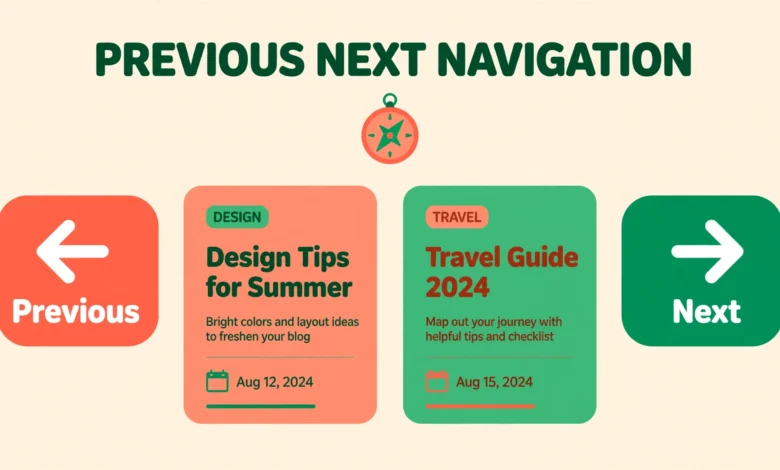
Previous and next post navigation is a pair of links that appears at the end of a single post. The previous link points to the post published just before the current one, and the next link points to the post published just after it. The order is chronological, based on the publish date, not on the menu order or the category order. On most blogs the links show the post title, sometimes with a small Previous Post or Next Post label above it, and sometimes with an arrow to show the direction.
This is different from archive pagination, which is the numbered page links at the bottom of a blog archive, category page, or search results page. Archive pagination moves between pages of many posts, while previous and next navigation moves between single posts, one at a time. The two features solve different problems, and they use different code. If you are looking for numbered pagination on archive pages, that is a separate tutorial, and the code in this guide will not add it. Keep the distinction in mind when you search for help, because mixing the two features up is one of the most common sources of confusion.
Method 1: Add Navigation in a Block Theme
Block themes, such as Twenty Twenty-Four and Twenty Twenty-Five, do not use PHP template files for single posts. Instead, they use the Site Editor, where you edit the Single Post template visually. This is the easiest method in this guide, because it needs no code at all, and it works on any block theme.
- Go to Appearance, then Editor, in the WordPress admin area.
- Click Templates in the left sidebar, then open the Single Posts template, sometimes called Single Post.
- Click below the Post Content block, where the navigation should appear, usually after the comments area or just before it.
- Click the block inserter, search for Post Navigation Link, and add the block.
- Add a second Post Navigation Link block next to it, so you have one for the previous post and one for the next post.
- Select the first block, set its type to Previous Post in the block settings, and turn on Show title so readers see the post title.
- Select the second block, set its type to Next Post, and turn on Show title as well.
- Click Save to save the template, then open any single post and check that both links appear.
How to Filter Block Navigation by Category or Taxonomy
By default, the Post Navigation Link block moves through all posts in chronological order, regardless of category. That is fine for a single topic blog, but it feels wrong on a site with several topics. A reader finishing a WordPress tutorial should not be sent to a hosting review next. The block settings include a filter by taxonomy option, which limits the navigation to posts that share the same term as the current post.
Method 2: Add Navigation in a Classic Theme
Classic themes print single posts from a PHP template file, usually single.php. To add navigation there, you use the the_post_navigation() function, which prints both links at once with default labels and arrows. Add it to your child theme copy of single.php, in the loop, after the post content and before the comments template. Never edit the parent theme file directly, because a theme update will overwrite it.
if ( function_exists( 'the_post_navigation' ) ) {
    the_post_navigation(
        array(
            'prev_text' => '<span>Previous Post</span> %title',
            'next_text' => '<span>Next Post</span> %title',
        )
    );
}
How to Use previous_post_link() and next_post_link()
If you want full control over each link separately, use previous_post_link() and next_post_link() instead of the_post_navigation(). These two functions print one link each, so you can place them in different parts of the template, wrap them in different HTML, or show only one of them. They are the right choice when your design needs the previous link in one column and the next link in another, or when you want different markup for each side.
<nav class="vtg-post-navigation">
<div class="vtg-nav-previous">
<?php previous_post_link( '%link', '← %title' ); ?>
</div>
<div class="vtg-nav-next">
<?php next_post_link( '%link', '%title →' ); ?>
</div>
</nav>Both functions accept extra arguments that change which posts count as neighbours. The most useful one is in_same_term, which limits navigation to posts in the same category or taxonomy term. Pass true for in_same_term and the taxonomy name, usually category, and the links will stay inside the current category. The official previous_post_link() documentation on developer.wordpress.org lists the full argument list, including the option to exclude specific categories or terms, which is handy if you have a category you never want in navigation, such as an announcements category.
<?php previous_post_link( '%link', '← %title', true, '', 'category' ); ?>
<?php next_post_link( '%link', '%title →', true, '', 'category' ); ?>How to Style Previous and Next Links with CSS
Default navigation links often look plain, with small text and no visual separation from the post. A few CSS rules turn them into a clear, tappable next step. Add the CSS below to Appearance, then Customize, then Additional CSS, which stores it in the database and keeps it safe from theme updates. Adjust the class names to match your own markup if you used a different wrapper.
.vtg-post-navigation {
    display: flex;
    justify-content: space-between;
    gap: 24px;
    margin: 48px 0;
    padding-top: 24px;
    border-top: 1px solid #e5e7eb;
}

.vtg-nav-previous,
.vtg-nav-next {
    flex: 1;
}

.vtg-nav-next {
    text-align: right;
}

.vtg-post-navigation a {
    text-decoration: none;
    font-weight: 600;
    line-height: 1.5;
}
This CSS puts the two links side by side with space between them, adds a light divider line above the navigation, and right aligns the next link so the layout feels balanced. The previous link sits on the left and the next link sits on the right, which matches how readers expect to move through a series. On a phone screen, the flex layout still works, but you may want to reduce the gap and the top margin so the navigation does not take too much vertical space. If you used the_post_navigation() instead of the custom markup, the default classes are nav-links, nav-previous, and nav-next, so target those classes instead. Use your browser inspector to check which classes your theme actually outputs before you write the CSS.
Common Mistakes with Post Navigation
The first common mistake is expecting a link on the first or last post. The oldest post on your site has no previous post, and the newest post has no next post, so one side of the navigation will be empty on those two posts. That is normal WordPress behaviour, not a bug. Do not try to fix it by linking the newest post back to the oldest post, because that loop confuses readers. Leave the empty side blank, or add a link back to the blog archive on those edge posts if your design needs a balanced layout.
The second mistake is navigation that shows the wrong category. This usually happens when the same term filter is turned on in one place but not the other, for example in the previous link but not the next link, or in the block settings for one block but not the other. Check both sides and make sure the filter settings match. It can also happen when a post belongs to several categories and WordPress picks a different shared category for each direction. Keeping one primary category per post, as mentioned earlier, prevents most of this confusion.
Finally, remember that navigation links are only useful if the posts they point to are worth reading. Pair this feature with good internal linking inside your posts, so readers have more than one path to related content. Our guide on how to understand WordPress cron jobs and our guide on how to disable XML-RPC in WordPress are useful next reads if you are tightening up a classic theme site, and our web hosting guide explains how hosting speed affects every page a reader visits through these navigation links. For background on the template functions used here, see the the_post_navigation() documentation on developer.wordpress.org.
Frequently Asked Questions
Do I need a plugin to add previous and next post navigation?
No. Block themes include the Post Navigation Link block, and classic themes include the_post_navigation(), previous_post_link(), and next_post_link() functions. All of these are built into WordPress, so no plugin is needed to add basic previous and next navigation.
Why is there no next link on my newest post?
The newest post has no newer post to link to, so WordPress shows no next link. The same applies to the previous link on the oldest post. This is normal behaviour. Only the two edge posts on your site are affected, and every post in between will show both links.
How do I keep navigation inside the same category?
In a block theme, turn on the taxonomy filter in the Post Navigation Link block settings and choose Category. In a classic theme, pass true for the in_same_term argument of previous_post_link() and next_post_link(), with category as the taxonomy name, as shown in the code example above.
Is previous and next navigation the same as numbered pagination?
No. Previous and next navigation moves between single posts, one at a time, from the bottom of a post. Numbered pagination moves between pages of many posts on an archive, category, or search results page. They are different features with different code, and this guide covers only the single post navigation.
Last updated: November 2026.