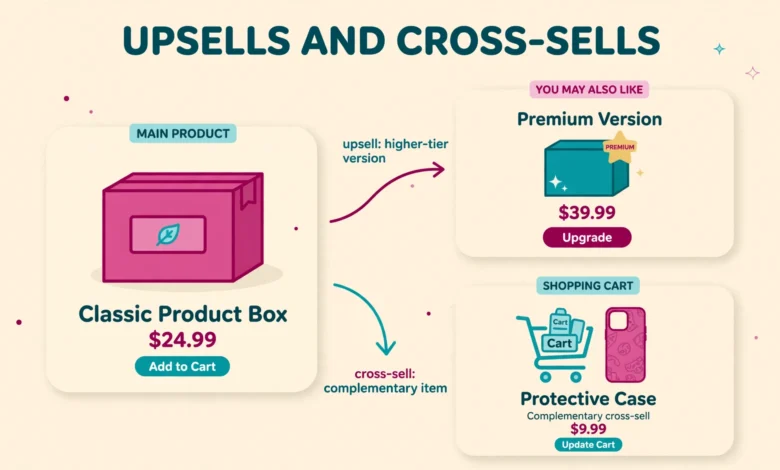
Most WooCommerce stores leave money on the table at the exact moment a customer is ready to buy. The shopper has already chosen a product, entered the store with intent, and decided to spend. A well placed suggestion at that moment can add a second item to the order or move the shopper to a better version of the product. That is the whole idea behind upsells and cross-sells, and WooCommerce includes both features for free.
This guide explains the difference between upsells, cross-sells, and related products, shows you how to set them up with the built-in Linked Products feature, and helps you pick suggestions that shoppers actually buy. You will also learn where each type appears, what the native feature cannot do, and how to measure whether your suggestions are working. No plugin is needed to start, and the whole setup takes only a few minutes per product.
What Is the Difference Between Upsells, Cross-Sells, and Related Products?
An upsell offers a better or more expensive version of the product the shopper is viewing. A cross-sell offers a different product that goes well with the one in the cart. Related products are a separate WooCommerce feature that shows similar items from the same category or with the same tags. The three features look similar on the surface, but they serve different goals, so mixing them up leads to suggestions that feel random.
- Upsell: a higher tier version of the same product. A customer viewing a basic coffee maker sees the premium model with a built-in grinder and a larger capacity.
- Cross-sell: a complementary product that pairs with the main item. A customer who buys a coffee maker sees coffee beans, filters, and a travel mug.
- Related products: similar items WooCommerce picks automatically based on shared categories and tags. A customer viewing one coffee maker sees other coffee makers in the same category.
Think of it this way. An upsell upgrades the choice. A cross-sell completes the choice. Related products give the shopper more choices. All three can raise the average order value, but upsells and cross-sells work best when you pick the products yourself, because you know which combinations make sense for your store.
Where Do Upsells and Cross-Sells Appear in WooCommerce?
Placement matters as much as the product you suggest. WooCommerce shows upsells on the single product page, in a section usually labelled “You may also like”. The shopper sees them before adding anything to the cart, which makes upsells ideal for steering a decision toward a better version. Cross-sells appear on the cart page, in a section usually labelled “You may be interested in”. The shopper has already committed to buying, so cross-sells work best for useful add-ons that complete the purchase.
Related products also appear on the single product page, below the main product details, usually under the upsells. Because WooCommerce picks them automatically, they can feel generic on stores with broad categories. That is why many store owners rely on upsells and cross-sells for their best suggestions and let related products fill the remaining space. To learn how product options affect what shoppers see, read our guide on WooCommerce product variations.
How Do You Add Upsells and Cross-Sells in WooCommerce?
You set up both features in the same place, the Linked Products tab inside the product editor. The process is identical for simple products and variable products, and it takes about two minutes per product once you know where to look.
- Open Products and then All Products in your WordPress dashboard, then click Edit under the product you want to change.
- Scroll to the Product data box and click the Linked Products tab on the left side.
- In the Upsells field, type the name of the better product and select it from the list that appears.
- In the Cross-sells field, type the name of a complementary product and select it the same way.
- Click Update in the top right corner to save the product.
You can add more than one upsell and more than one cross-sell to the same product, but keep the lists short. Two or three strong suggestions beat ten weak ones, because a long list looks like a sales wall and shoppers ignore it. Check the front end after saving to confirm the sections appear where you expect them.
WooCommerce shows upsells and cross-sells in the order you add them, so add your best suggestion first. If a product does not appear in the search field, check that it is published and not set to hidden in its catalogue visibility setting. Draft products and hidden products never appear as suggestions.
How Do You Choose Products That Actually Sell?
The best suggestions feel helpful, not pushy. A shopper who just added a camera to the cart expects to see a memory card or a camera bag, not a random gadget from another category. Start with products that solve the next problem the shopper will face after buying the main item.
- Complements: items the shopper needs to use the main product, such as batteries, cables, cases, or refills.
- Higher tiers: a better version with a clear benefit, such as more storage, a longer warranty, or a stronger material.
- Bundles and sets: a matching item that completes a set, such as a spare part, a matching accessory, or a second unit.
- Frequently bought together: pairs you already see in real orders, which you can find in your order history or analytics.
Price matters too. A cross-sell that costs more than the main product rarely converts, because it changes the decision from a small add-on to a second big purchase. Keep cross-sells under about half the price of the main product, and keep the price gap between an upsell and the original product small enough that the upgrade feels easy. A discount can help: a coupon code for the suggested item gives shoppers one more reason to add it. Our guide on how to create a coupon code in WooCommerce shows how to set one up in minutes.
Relevance beats volume. If you sell handmade soap, the right cross-sell is a soap dish or a gift box, not a candle from another supplier. Review your suggestions every few months and remove the ones that never sell, because a stale suggestion list trains shoppers to ignore the whole section.
What Are the Limits of the Native WooCommerce Feature?
The built-in Linked Products feature is simple and free, but it has clear limits. Upsells only appear on the product page and cross-sells only appear on the cart page. You cannot show suggestions at checkout, on the thank you page, or after the order is placed without extra code or a plugin. You also cannot set rules, such as showing a suggestion only when the cart total passes a certain amount, or offering a discount on the suggested product automatically.
The native feature also shows the same suggestions to every shopper. There is no way to target suggestions by customer group, order history, or cart contents. For a small store with a focused catalogue, these limits rarely matter. For a larger store, or one that wants post-purchase offers, a dedicated plugin is the next step.
One more limit is worth knowing. WooCommerce does not track upsell and cross-sell performance separately in its built-in reports. You can see overall sales, but you cannot see how many orders included a suggested product unless you check order details manually or use an analytics tool. Keep that in mind when you judge whether your suggestions are working.
Which Free Plugins Add More Upsell Placements?
If the native placements are not enough, several free plugins add more options. Cart funnel plugins add offers at checkout and after purchase, while product recommendation plugins can show suggestions based on cart contents. The official WooCommerce marketplace lists several options, and the free versions usually cover one extra placement, such as a checkout offer or a frequently bought together box. You can browse the options at WooCommerce.com and check the WooCommerce developer docs if you want to understand how these features work under the hood.
Start with the native feature and add a plugin only when you have a clear gap. A plugin that adds ten new placements will not help if your basic suggestions are weak. Test one plugin at a time, check that it works with your theme, and remove it if it slows the checkout or creates errors. A clean checkout matters more than any extra offer.
How Do You Test and Measure Your Upsells and Cross-Sells?
Set up a small test before you roll suggestions out across the whole store. Pick five products with steady sales, add one upsell and one or two cross-sells to each, and leave them live for two to four weeks. Then compare the average order value and the number of items per order against the previous period. A clear improvement means the suggestions are working.
- Track average order value before and after you add suggestions.
- Check how many orders include a suggested product by reviewing recent orders.
- Test one change at a time, so you know which suggestion caused the change.
- Remove suggestions that never sell and try a different pairing.
Watch the conversion rate too. If a suggestion section pushes the add to cart button too far down the page on mobile, it can hurt sales even while order values rise. Check your product pages on a phone after adding upsells, and keep the suggestion section compact. If you use a custom product layout, our guide on how to add a custom tab to a WooCommerce product page without a plugin shows how small layout changes can be made safely.
Frequently Asked Questions
What is the difference between upsells and cross-sells in WooCommerce?
An upsell is a better or more expensive version of the product the shopper is viewing, and it appears on the product page. A cross-sell is a different but complementary product, and it appears on the cart page. Related products are similar items WooCommerce picks automatically from the same category or tags.
How many upsells and cross-sells should I add to a product?
Two or three of each is a good limit. A short list of strong, relevant suggestions converts better than a long list of weak ones. Add your best suggestion first, because WooCommerce displays them in the order you add them.
Can I add upsells and cross-sells without a plugin?
Yes. WooCommerce includes both features in the core plugin. Open the product editor, go to Product data, then Linked Products, and add products to the Upsells and Cross-sells fields. No extra plugin is needed for these two placements.
Why are my upsells not showing on the product page?
Check four things: the product is published, the upsell product is published and visible in the catalogue, you clicked Update after adding it, and your theme supports the upsells section. Some custom themes move or hide the section, so test with a default theme if the section is missing.
Last updated: November 2026.