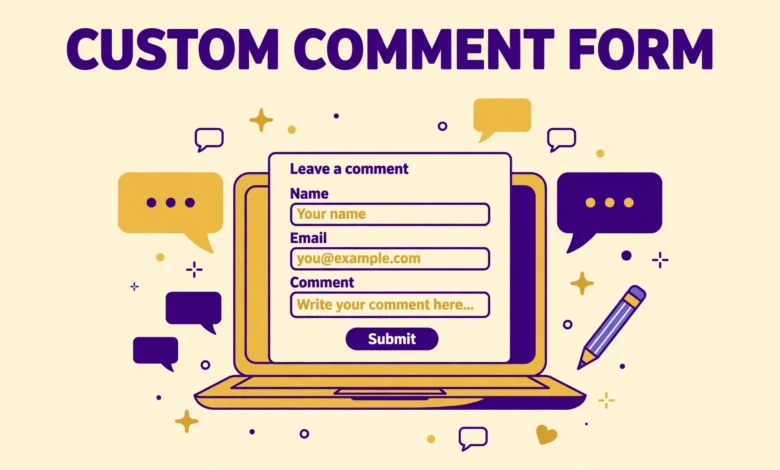
The default WordPress comments form works, but it rarely matches the site around it. The title says Leave a Reply when you want a friendlier invitation. The form asks for a website URL you do not need. A long privacy note sits above the button, and the comment box sits at the top when you would rather have the name and email fields first. Many beginners reach for a plugin to fix these small annoyances, but every change in this guide can be made with built in WordPress code, and none of it needs a plugin.
In this tutorial you will learn how to customize the WordPress comments form without a plugin. We will cover how comment_form() works, how to change the title and the submit button text, how to remove the website URL field, how to hide the email privacy note, how to move the comment box to the bottom, and how to style the result with CSS. We will also explain the difference between classic themes and block themes, so you can use the right method for your own site.
How Does comment_form() Work?
In a classic theme, the comments form is printed by a single WordPress function called comment_form(). Your theme calls it from the comments.php template file, usually with no arguments at all, which means WordPress uses its default settings. Those defaults decide the title, the field order, the labels, the submit button text, and the notes that appear above and below the form. The official comment_form() documentation on developer.wordpress.org lists every argument you can change.
Change the Title and Submit Button Text
The default title, Leave a Reply, is polite but generic. A blog that wants discussion might prefer Share your thoughts, while a support site might prefer Ask a question below. The submit button says Post Comment by default, which is fine, but a shorter label like Send Comment or Post Reply can fit your design better. Both changes take only a few lines with the comment_form_defaults filter.
function vtg_custom_comment_form_text( $defaults ) {
    $defaults['title_reply'] = 'Share your thoughts';
    $defaults['label_submit'] = 'Post Comment';
    return $defaults;
}
add_filter( 'comment_form_defaults', 'vtg_custom_comment_form_text' );
How to Remove the Website URL Field
The website URL field is the most commonly removed part of the comments form. It was useful when blogs linked to each other, but today it mainly attracts spam, because automated spammers fill it with links to low quality sites. Removing it does not stop all spam, but it removes one easy target, and it shortens the form for genuine readers, which usually increases the number of comments you receive.
function vtg_remove_comment_url_field( $fields ) {
    unset( $fields['url'] );
    return $fields;
}
add_filter( 'comment_form_fields', 'vtg_remove_comment_url_field' );
How to Remove the Email Privacy Note
Under the name and email fields, WordPress prints a small note that reads Your email address will not be published. Required fields are marked with an asterisk. That note reassures new visitors, but many site owners find it noisy, especially when the form already explains the privacy policy elsewhere. You can remove or replace it with the comment_notes_before argument in the comment_form_defaults filter.
function vtg_remove_comment_notes( $defaults ) {
    $defaults['comment_notes_before'] = '';
    return $defaults;
}
add_filter( 'comment_form_defaults', 'vtg_remove_comment_notes' );
Setting comment_notes_before to an empty string removes the note entirely. If you would rather replace it with your own message, put your text in that value instead, for example a short line that says Be kind, stay on topic, and no links please. Keep a replacement note short and friendly, because a long paragraph above the form pushes the fields down the page and makes the form feel heavier than it is. You can also use the comment_notes_after argument in the same way to add a note below the form, which is a good place for a brief comment policy or a link to your full policy page.
How to Move the Comment Box to the Bottom
By default, WordPress puts the large comment textarea at the top of the form, above the name, email, and website fields. Many visitors find that order confusing, because they start typing before they have entered their name, and on mobile the keyboard opens before they have seen the other fields. Moving the comment box below the name and email fields is one of the most requested comments form changes, and it takes only a few lines with the comment_form_fields filter.
function vtg_move_comment_field_to_bottom( $fields ) {
    $comment_field = $fields['comment'];
    unset( $fields['comment'] );
    $fields['comment'] = $comment_field;
    return $fields;
}
add_filter( 'comment_form_fields', 'vtg_move_comment_field_to_bottom' );
How to Add a Checkbox or a Custom Note to the Form
Sometimes you want more than a shorter form. A newsletter checkbox, a consent checkbox, or a short custom note can make the form work harder for your site. The simplest way to add a note is the comment_notes_after argument shown earlier, which prints text below the form. For a checkbox, you can add a new field to the comment_form_fields array, but remember that a custom field will not be saved with the comment unless you also add code to save it, so keep custom fields informational unless you are ready to handle the saving code as well.
function vtg_add_comment_form_note( $fields ) {
    $fields['vtg_note'] = '<p class="comment-form-note">Please keep your comment friendly and on topic. Comments with links may be held for moderation.</p>';
    return $fields;
}
add_filter( 'comment_form_fields', 'vtg_add_comment_form_note' );
How to Style the Comments Form with CSS
Once the fields and text are right, the form still needs to look like it belongs on your site. The good news is that you can style it with plain CSS, without editing any theme file. Go to Appearance, then Customize, then Additional CSS, and add your rules there. Additional CSS is stored in the database and survives theme updates, which makes it the safest place for small style changes.
.comment-form input[type="text"],
.comment-form input[type="email"],
.comment-form input[type="url"],
.comment-form textarea {
    width: 100%;
    padding: 12px;
    border: 1px solid #d1d5db;
    border-radius: 8px;
    font-size: 16px;
}

.comment-form input[type="submit"] {
    background: #2563eb;
    color: #ffffff;
    padding: 12px 24px;
    border: 0;
    border-radius: 8px;
    cursor: pointer;
}

.comment-form-note {
    font-size: 14px;
    color: #6b7280;
}
This CSS makes the text fields and the comment box full width with soft rounded corners, gives the submit button a solid colour with white text, and styles the custom note in a smaller grey font. Adjust the colours to match your theme, and use your browser inspector to find the exact class names your theme uses, because some themes add their own classes to the form. Avoid setting a fixed height on the textarea, because visitors write comments of very different lengths, and a tall box wastes space on short replies. Also check the form on a phone after styling it, because full width fields and a large button are especially important on small screens, where a cramped form is the fastest way to lose a comment.
Block Themes vs Classic Themes: What Is Different?
Everything above applies to classic themes, which print the form with comment_form() from a PHP template. Block themes work differently. A block theme, such as Twenty Twenty-Four or Twenty Twenty-Five, shows comments through the Post Comments Form block inside the Single Post template, which you edit in Appearance, then Editor, then Templates. In the Site Editor you can click the Post Comments Form block, change its settings in the sidebar, and adjust the button text and colours with block settings, all without code.
The filters in this guide still run in block themes, because the Post Comments Form block calls comment_form() behind the scenes. That means the code snippets for removing the URL field, moving the comment box, and changing the title will usually still work, but the visual styling may come from block settings rather than your Additional CSS. If a filter seems to have no effect on a block theme, check the block settings first, because a setting in the Site Editor can override the filter. When in doubt, test on a staging copy, and keep your changes in one place, either in code or in block settings, rather than splitting them across both, so you always know where to look when something changes.
Common Mistakes to Avoid
The most common mistake is editing the parent theme comments.php file directly. A theme update will replace that file and erase your changes, so always use a child theme or the filter method in this guide. The second mistake is adding code to the wrong place and then wondering why nothing changed. Filters belong in functions.php of a child theme or in a code snippet manager, not in a post or a page. The third mistake is removing the email field to shorten the form, which breaks notifications and Gravatars. Keep the email field and remove the note instead if the form feels too long.
Another mistake is forgetting to check whether comments are actually working after a change. A small PHP error in a snippet can break the form or the whole page, so after every change, open a post, scroll to the form, and submit a test comment from a logged out browser window. If the form is missing or the page shows an error, deactivate the snippet and check the code again. If your comments are not appearing at all, the problem may not be the form. Our guide on how to fix WordPress comments not showing walks through the settings, moderation queue, and theme issues that hide comments, and our guide on how to add Google reCAPTCHA to WordPress without a plugin shows how to protect the same form from spam once it is customized. For a broader look at keeping a site fast and safe while you customize it, see our web hosting guide, which explains how hosting choice affects comment performance and security.
Frequently Asked Questions
Can I customize the WordPress comments form without a plugin?
Yes. WordPress provides the comment_form() function and the comment_form_defaults and comment_form_fields filters, which let you change the title, button text, fields, and field order with a few lines of PHP in a child theme or a code snippets manager. No comments plugin is required for any of the changes in this guide.
How do I remove the website field from the comments form?
Use the comment_form_fields filter and unset the url field, as shown in the code example above. The field disappears from every post and page at once. This also reduces spam, because spammers often fill the URL field with links to low quality sites.
Why is the comment box at the top of the form by default?
WordPress places the comment textarea first in the fields array, so it renders above the name and email fields. You can move it to the bottom by saving the comment field, removing it from the array, and adding it back at the end with the comment_form_fields filter, as shown in the example above.
Do these code snippets work in block themes?
Mostly yes, because the Post Comments Form block calls comment_form() behind the scenes, so the same filters still run. However, block settings in the Site Editor can override some filter changes, so check the block settings if a snippet seems to have no effect, and test the form on the live site after every change.
Last updated: November 2026.