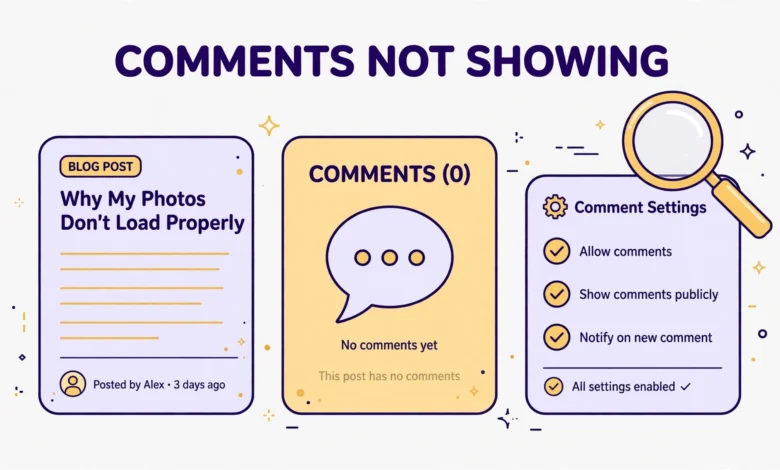
You publish a post, invite readers to share their thoughts, and then nothing happens. No comment form appears, no old comments show up, and readers email you to say they cannot reply. Missing comments are a quiet problem, because your site looks fine at first glance, yet the conversation underneath every post has gone silent. The cause is usually a small setting, a theme gap, a moderation queue, or a cache that keeps showing an old version of the page.
WordPress controls comments in several places. A global switch in Settings decides the default for new posts. A per-post switch can turn comments off for one post even when the global switch is on. Your theme must print the comment template, or nothing appears no matter what the settings say. Plugins can hide the form or replace it with their own system. Caching can hide new comments from guests even after everything else is fixed. Work through this guide step by step, testing in a private window after each step.
Why are my WordPress comments not showing?
Comments can vanish for many reasons. A global setting can turn comments off for every new post. An old post can pass its auto-close date, so its form closes. A comment can sit in moderation or spam, invisible to guests but visible in your dashboard. A theme can skip the comments template entirely, so the form never prints. A plugin conflict can break the form, and a cache can serve an old copy of the page. Start at the top and stop as soon as comments return.
How do I check the discussion settings that control comments?
Open Settings, then Discussion, in your WordPress dashboard. The first box on the page controls the default for new posts. It reads “Allow people to submit comments on new posts”. If that box is unticked, every new post is created with comments off, even though older posts may still show their forms. Tick the box and save the page, then check a new post you publish after the change.
Read the rest of the Discussion page while you are there. “Users must be registered and logged in to comment” hides the form from every guest, so a logged out visitor sees a login message instead of a form. “Automatically close comments on posts older than X days” shuts the form on old posts. The moderation and blacklist lists can hold comments that contain certain words or links. Note that the Discussion defaults only affect new posts. Changing them does not reopen comments on posts that already exist, because each post stores its own comment setting.
Why is the comment form missing on one post only?
Open the post in the block editor and look for the Discussion panel. In the editor sidebar, under the Post tab, you may need to open Preferences, then Panels, to turn the Discussion panel on. When it is visible, it has a single checkbox that reads “Allow comments”. If that box is unticked, that post has comments off, whatever the global settings say. Tick it, update the post, and check the live page.
You can fix many posts at once with bulk edit. Go to Posts, then All Posts, tick the checkboxes for those posts, choose Edit from the Bulk Actions dropdown, and click Apply. In the bulk edit panel, set the Comments dropdown to Allow, then click Update. Pages behave differently from posts by design. WordPress turns comments off for pages by default, and many themes never show a comment form on a page at all. If your missing comments are on a page rather than a post, that may be normal theme behaviour rather than a bug.
How do I check whether comments are closed or auto-closed after X days?
When a post is older than the limit in Settings, then Discussion, WordPress closes its comments automatically. The post still shows old comments, but the reply form disappears and a line appears that reads “Comments are closed”. This catches many site owners by surprise, because the setting is easy to turn on and easy to forget. A value of 14, 30, or 60 days is common, and every post older than that limit loses its form.
Check the setting first. If “Automatically close comments on posts older than X days” is ticked, decide whether you still want it. Turn it off if you want comments open forever, or raise the number to cover your oldest active posts. Then open the affected post, tick “Allow comments” in the Discussion panel, and update it, because turning off the global rule does not reopen a post that was already closed. Also check the post date, because a date changed during an import can behave in odd ways with the auto-close rule.
How do I check the moderation and spam queues?
Your comments may be working perfectly, yet invisible, because they are waiting in a queue. Open Comments in your dashboard and look at the counts at the top of the screen. Pending means a comment is waiting for your approval, usually because the author is new or the comment contains a link. Spam means a filter caught it, often Akismet or your security plugin. A comment in either queue is hidden from guests until you approve it.
Open the Pending tab and read the waiting comments. Approve the genuine ones, delete the obvious spam, and check whether they now appear on the live post. Then open the Spam tab and skim it for real comments that were caught by mistake, especially short comments with a link or a comment from a first-time author. Mark any genuine comment as Not Spam and approve it. Also check your notification email, because WordPress sends an email for every comment that needs moderation.
How do I check whether my theme is missing comments_template()?
Your theme must print the comment area, or no setting can bring it back. The function that does this is called comments_template, and it usually lives in the single post template. If your theme is missing that call, or if it is wrapped in a condition that never runs, the comment form never appears. This is common after a theme update, a child theme edit, or a switch to a theme that hides comments on purpose. The official reference for this function is on developer.wordpress.org.
<?php if ( comments_open() || get_comments_number() ) : comments_template(); endif; ?>Before you blame the theme, switch to a default theme such as Twenty Twenty-Four for a quick test. Open the same post and look for the comment form. If the form appears, your own theme is the cause, and you should contact the theme author or restore the missing template call. If the form is still missing, the cause is a setting or a plugin, not the theme. For a safe way to run theme checks, read our guide to WordPress Site Health check explained.
How do I test for a plugin conflict?
Plugins can hide the comment form. A comment plugin can replace the WordPress form with its own system and then fail to load. A security plugin can block comment submissions. An optimization plugin can delay or break the JavaScript that the form needs. A membership plugin can restrict comments to members only. When several plugins touch comments at once, the form can vanish without any error message.
Test this with a short conflict check. Deactivate all plugins, then open the post in a private window. If it appears, reactivate your plugins one by one until the form disappears again. The last plugin you reactivated is the cause. Check its settings, update it, or replace it if it is no longer maintained. If the form never appears even with all plugins off, the cause is a setting or the theme, not a plugin. Check your browser console too. Press F12, open the Console tab, and look for red JavaScript errors. If you see a white screen where the form should be, our guide to fix the WordPress white screen of death covers the next steps, and our guide to enable WordPress debug mode shows you how to find the error.
How do I clear the cache that hides new comments?
Cache is the most overlooked cause of missing comments. Your caching plugin, your CDN, and your host can each store a copy of a post page, and guests see that saved copy instead of the live page. If the saved copy was made before you enabled comments, it shows no form, even though your dashboard says comments are on. Logged in users often bypass the cache, so the form looks fine to you and broken to every guest.
Purge every layer after you change a comment setting. Clear your caching plugin cache, purge your CDN cache, and ask your host to purge the server cache if you have one. Then open the post in a private window and check again. Also clear your own browser cache, or test in a fresh private window, because your browser may show a saved copy too. If comments vanish again later, ask your host about a shorter cache time for posts with active discussion. A fast host with sensible caching is worth more than a cheap host with a stale cache, and our web hosting guide explains how to compare hosts on caching and speed.
How do I test comments while logged in and logged out?
Always finish with a real submission test. Open the post in a private window while logged out, fill in the fields and submit a short test comment. Then open the same post in your normal browser while logged in and submit a second test comment. Compare the two results. If the logged out test fails but the logged in test works, check the setting that requires registration to comment, and check whether a security plugin blocks guest submissions.
If both tests fail with an error, read the error message carefully, because it often names the cause. If both comments succeed but neither appears on the live page, check the moderation queue, because both may be waiting for approval. Delete your test comments after the check, so your live post stays clean for real readers. WordPress.org has more detail on comment settings if you need it.
Frequently asked questions
Why are comments not showing on my WordPress posts?
The most common causes are the global Discussion default being off, the per-post Discussion switch being off, comments auto-closing after a set number of days, comments waiting in moderation or spam, a theme missing the comments template, a plugin conflict, or a stale cache. Work through the checklist in this guide in order.
How do I enable comments on a WordPress post?
Open the post in the editor, open the Discussion panel in the sidebar, tick “Allow comments”, and update the post. For many posts at once, use bulk edit from Posts, then All Posts, and set the Comments dropdown to Allow. Also tick “Allow people to submit comments on new posts” in Settings, then Discussion.
Why do my comments go to spam or moderation?
WordPress holds comments from first-time authors, comments with links, and comments that match your moderation word list. Spam filters can also catch short genuine comments by mistake. Check Comments, then Pending and Spam, in your dashboard, approve the genuine ones, and mark any real comment in spam as Not Spam.
Can a caching plugin hide WordPress comments?
Yes. A caching plugin, a CDN, or your host can serve an old copy of a post that was saved before comments were enabled, so guests see no form even though your settings are correct. Purge the plugin cache, the CDN cache, and the hosting cache after every comment setting change, then test the post in a private window.
Last updated: November 2026.