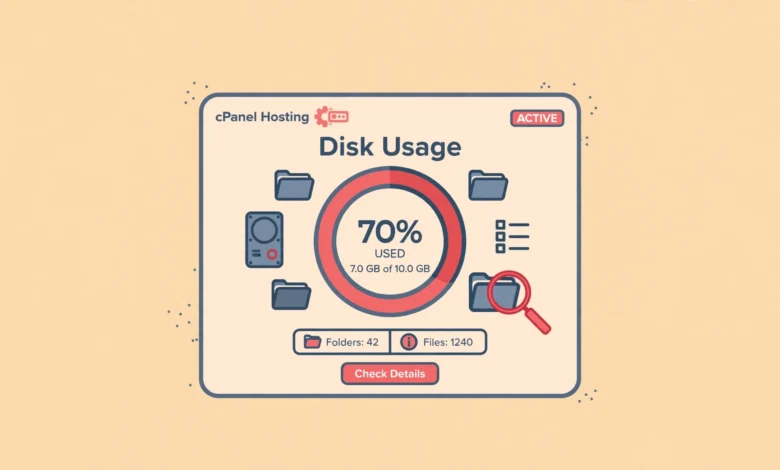
Every hosting plan comes with a storage limit, and on shared hosting that limit is smaller than most beginners expect. One day your site works perfectly, the next day uploads fail, emails bounce, and WordPress refuses to update, all because the disk filled up silently in the background. The good news is that cPanel includes a built in Disk Usage tool that shows exactly where your storage is going. This beginner guide shows you how to check disk space usage in cPanel step by step, how to read the report, what usually eats the space, and how to free it up safely without breaking your site.
Why Disk Space Matters More Than You Think
Disk space is not just about storing files. When your hosting account runs out of space, a surprising number of things break at once. WordPress cannot create temporary files during updates, so plugin and core updates fail halfway. Email accounts stop receiving messages because there is nowhere to store them. Backups fail, which is exactly when you need them most. Caching plugins cannot write cache files, so your site gets slower at the same time.
The tricky part is that disk usage grows quietly. Every image you upload, every backup your plugin creates, every email with an attachment, and every error log entry adds up. Most hosts send a warning email when you approach your limit, but those emails are easy to miss. Checking your usage yourself every month or two takes three minutes and prevents all of this.
How to Check Disk Usage in cPanel Step by Step
The Disk Usage tool is available in every standard cPanel installation:
- Log in to your cPanel. Your host usually provides the login link in your welcome email, and it often looks like yourdomain.com:2083.
- Scroll to the Files section of the cPanel dashboard.
- Click Disk Usage.
- You will see a summary of your total usage at the top, plus a breakdown by directory below.
Before you even open the tool, glance at the Statistics sidebar on the right side of the main cPanel dashboard. It shows your Disk Usage as a simple bar with used and available space. That one glance tells you whether you have a problem right now. The Disk Usage tool is for finding out what is causing it.
How to Read the Disk Usage Report
The report has two parts. At the top is a summary table listing the major locations in your account: your home directory files, MySQL databases, mailing lists, and email accounts, each with its size. This immediately tells you which area deserves attention.
Below the summary is the directory tree, which is the genuinely useful part. It lists every folder in your account with its size, and you can expand each folder to drill down into subfolders. Use the sort option to order directories by disk usage instead of by name, so the biggest space hogs rise to the top. Clicking a folder name opens it directly in File Manager, which makes cleanup much faster.
One quirk to know: the numbers may not update instantly after you delete files. cPanel recalculates disk usage on a schedule, so if you clean up and the total looks unchanged, wait a few hours and check again. Also, files often take slightly more space on disk than their actual size, so small differences between File Manager sizes and the Disk Usage totals are normal.
What Usually Eats Your Disk Space
After helping with many full accounts, the culprits are almost always the same:
- Backup files. Backup plugins that store archives inside your hosting account are the number one cause. A single full backup of a media heavy site can be several gigabytes, and plugins often keep multiple copies. Always download backups to your computer or cloud storage, then delete them from the server.
- Email. Old emails with attachments accumulate for years, especially catch all addresses and unused accounts. The mail folder is frequently the largest directory on small business accounts.
- WordPress uploads. The wp-content/uploads folder grows with every image. Unoptimized images, duplicate uploads, and thumbnails generated by old themes pile up. Image optimization helps going forward, but old bloat needs manual cleanup.
- Error logs. A PHP error log on a site with a recurring problem can grow to hundreds of megabytes. The file is usually called error_log and sits in public_html. It is safe to delete after you have reviewed it.
- Old staging or test sites. Subdomain installs created for testing and forgotten are surprisingly common. Each one is a full WordPress copy eating space.
- Cache files. Normally small, but a misconfigured cache plugin can generate enormous cache folders. Clearing the cache from the plugin settings fixes this instantly.
If you created test installs on subdomains, our guide on creating a subdomain and installing WordPress in cPanel will feel familiar, and it is worth revisiting your subdomain list to remove anything you no longer need.
How to Free Up Disk Space Safely
Work through this checklist in order. Stop as soon as you have comfortable headroom, ideally at least 20 percent of your quota free.
- Move backups off the server. Download any backup archives to your computer, verify the download opens correctly, then delete the copies in your hosting account. Change your backup plugin settings to send future backups to cloud storage.
- Clean up email. Open webmail and delete old messages with large attachments, then empty the trash. Better yet, remove email accounts nobody uses. If email storage is a recurring problem, consider moving email to a dedicated provider.
- Delete error logs. Download error_log files if you want to investigate the errors later, then delete them from the server. A fresh log will be created automatically.
- Remove unused installations. Delete old staging sites, test WordPress installs, and abandoned subdomains. Delete both the files and their databases.
- Optimize your media library. Use a media cleaner plugin to find unattached images, and compress what remains. Do this carefully and keep a backup first.
- Clear caches. Purge your caching plugin and check for oversized cache folders afterward.
What not to delete: anything inside system folders you do not recognize, the .htaccess file, wp-config.php, and any folder your host documentation tells you to leave alone. When in doubt, rename a suspicious folder instead of deleting it, wait a day to confirm nothing breaks, then delete it.
What About Inode Usage?
Disk space is only half the storage story. Hosting accounts also have an inode limit, which is the maximum number of files and folders you can have, regardless of their size. You can run out of inodes while still having gigabytes of free disk space, and the symptoms look identical: failed uploads, broken updates, bounced emails.
Check your inode usage in the same Statistics sidebar in cPanel. The biggest inode consumers are usually cache folders, email accounts with thousands of messages, and node_modules folders accidentally uploaded from local development. Deleting old caches and emails fixes inode problems the same way it fixes disk problems.
If you consistently hit either limit on a growing site, that is a sign your hosting plan no longer fits. Upgrading to a larger shared plan, or moving to cloud hosting, is cheaper than the downtime a full disk causes. Our web hosting guide explains how to evaluate plans by storage and other limits before you buy, and our shared vs cloud hosting comparison helps you decide which type fits a growing site.
Frequently Asked Questions
How much disk space does a WordPress site need?
A fresh WordPress install needs under 100 MB. A typical small business site with a few hundred images uses 1 to 3 GB. WooCommerce stores with large product catalogs can reach 5 to 10 GB. Email is the wildcard: it can dwarf everything else if you never clean it. As a rule, keep at least 20 percent of your quota free as a safety buffer.
Why does cPanel show different usage than my host dashboard?
Different tools count differently. cPanel Disk Usage may exclude databases from some totals, while your host billing panel counts everything including databases and email. The host panel number is the one that determines overage warnings, so treat it as authoritative and use cPanel to investigate the breakdown.
Is it safe to delete the error_log file?
Yes, as long as you have reviewed it or saved a copy. PHP creates a new error log automatically when the next error occurs. If the same errors keep appearing, fix the underlying problem, usually a conflicting plugin, instead of just deleting the log repeatedly. Our guide on creating a professional email address also touches on keeping email storage lean, which pairs well with this cleanup.
My disk is full but the Disk Usage tool shows plenty free. What is wrong?
You have probably hit your inode limit instead of your disk quota. Check the Inode Usage statistic in the cPanel sidebar. If it is at or near 100 percent, you need to reduce your file count, not your file sizes: clear caches, delete old emails, and remove unused installations.
Last updated: October 2026.