Nothing makes an online store look neglected faster than pages full of products nobody can buy. When a customer clicks through three “Out of stock” items in a row, most of them leave, and many do not come back. WooCommerce gives you several ways to hide out of stock products from your catalog, from a single built in checkbox to per product controls and a small code snippet for advanced setups. This guide walks through all three methods, explains when hiding is the right call versus showing, and covers the variations edge case that trips up most store owners.
Why Hide Out-of-Stock Products?
The case for hiding is simple: your catalog is your storefront window. A shop page cluttered with unavailable items frustrates buyers, dilutes your category pages, and can even hurt your search rankings, because Google notices when visitors keep bouncing from dead product pages. Hiding sold out items keeps every page a customer sees full of things they can actually purchase right now.
There are legitimate reasons to keep them visible too. If a product will be back soon, showing it with an “Out of stock” label and a back in stock notification signup can capture emails and future sales. Limited edition or seasonal items also benefit from staying visible, since their product pages may have backlinks and search traffic worth keeping. The right choice depends on the product, which is why WooCommerce lets you control this globally and per product.
Method 1: Hide All Out-of-Stock Products With One Setting
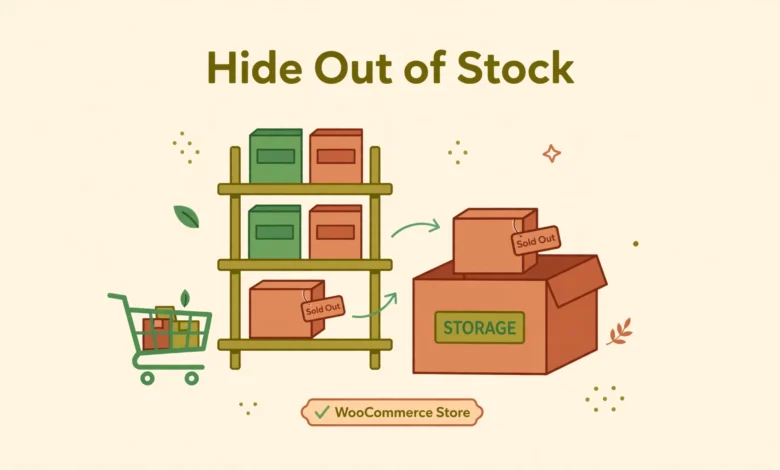
WooCommerce has a built in global setting that hides every out of stock product from your shop, category, and search pages in one click. It is the fastest method and the right one for most stores.
- In your WordPress dashboard, go to WooCommerce, then Settings.
- Click the Products tab, then the Inventory sub tab.
- Make sure Enable stock management is checked. The hide option does nothing if stock management is off.
- Check the box labeled Hide out of stock items from the catalog.
- Click Save changes at the bottom of the page.
That is all it takes. From now on, any product with an out of stock status disappears from your shop page, product categories, and on site search results. Two things to understand about this setting: it hides products from listings only, and the product page itself stays accessible through its direct URL. So if someone has the link bookmarked, they can still see it. Also, the setting applies storewide with no exceptions, which is exactly what method 2 solves.
If you are still setting up your store inventory basics, our guide on adding product variations in WooCommerce covers the stock settings at the variation level, which connects directly to what we discuss below.
Method 2: Hide Individual Products From the Catalog
Sometimes you want most out of stock products visible but a few hidden, or the reverse. WooCommerce lets you control catalog visibility per product:
- Go to Products, then All Products in your dashboard.
- Hover over the product and click Edit.
- In the Publish panel on the right, click Catalog visibility.
- Choose Hidden to remove it from shop and search results while keeping the page live at its URL.
- Click Update.
Hidden products are the middle ground between visible and trashed. Customers cannot find them by browsing or searching your store, but anyone with the direct link, for example from an old email campaign, still lands on a working page. This is useful for products you plan to restock, because you keep the page, its reviews, and its search ranking intact while it is unavailable.
You can also use Quick Edit to change visibility for several products faster. Select them with checkboxes, choose Edit from the bulk actions menu, and set the visibility in the bulk panel. For a store running promotions, pairing this with WooCommerce coupon codes is a common pattern: hide the sold out items, then discount what is actually available.
Method 3: Control Visibility With a Code Snippet
If you need rules the settings do not offer, for example hiding out of stock items only in certain categories, or showing them to logged in wholesale customers but hiding them from guests, a small code snippet gives you that control. Add the following to your child theme functions.php or a code snippet plugin:
add_action( 'pre_get_posts', 'vtg_hide_out_of_stock' );
function vtg_hide_out_of_stock( $query ) {
    if ( ! is_admin() && $query->is_main_query() && ( is_shop() || is_product_category() ) ) {
        $query->set( 'meta_query', array(
            array(
                'key'     => '_stock_status',
                'value'   => 'outofstock',
                'compare' => '!=',
            ),
        ) );
    }
}
This snippet modifies the main product query on shop and category pages so out of stock items are excluded. A few cautions: test this on a staging site first, because a mistake in query filters can hide the wrong products. Also note that WooCommerce own hide setting (method 1) already handles the simple case, so only reach for code when you need conditional logic the checkbox cannot express.
The Variation Trap: When Products Stay Visible
The most common complaint about hiding out of stock products involves variable products. You enable the global setting, but a product with all variations sold out still shows in the catalog. Here is why: WooCommerce checks the parent product stock status, and for variable products the parent is considered in stock as long as the product itself is published, even when every variation is sold out.
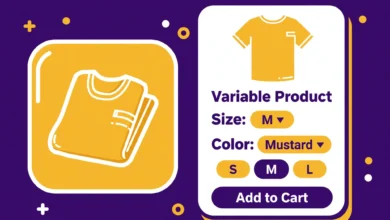
The fix is to manage stock at the variation level. Edit the variable product, open the Variations tab, expand each variation, check Manage stock, and set quantities correctly. When all variations genuinely read as out of stock, WooCommerce treats the parent accordingly. It is tedious for products with dozens of variations, but it is the only reliable way. This is one more reason to keep your variation setup tidy from the start.
Should You Hide Products or Show Them?
Use this quick decision framework:
- Hide products that are discontinued or will not return for months. A clean catalog converts better than a complete one.
- Show with a back in stock signup products that restock regularly. You turn a lost sale into an email subscriber.
- Show products with strong search traffic or backlinks, even when temporarily out of stock. Deleting or hiding these pages throws away SEO value you worked hard to earn.
- Hide out of stock variations inside an otherwise available variable product only if the variation list becomes confusing. Usually the dropdown handles this gracefully on its own.
Whatever you choose, keep your inventory data accurate. A product marked in stock that cannot actually be purchased creates far more damage than any visibility setting. If tax configuration is also on your to do list, our WooCommerce tax setup guide walks through that side of store settings step by step.
Frequently Asked Questions
Does hiding out-of-stock products delete them?
No. Hiding only removes products from catalog listings like the shop page, categories, and search results. The product, its data, orders history, and reviews all stay in your database. You can make the product visible again at any time by changing its stock status or visibility setting.
Will hidden products still show up on Google?
Possibly for a while. The global hide setting does not noindex the product pages, so Google may keep them in its index until it recrawls. If SEO matters for those pages, keep them visible instead, or add a noindex tag. For purely hidden seasonal items, the gradual deindexing is usually fine.
Why is my out-of-stock product still showing after enabling the setting?
The three usual causes: stock management is disabled (the setting needs it on), the product is a variable product with stock managed only at parent level (fix it per variation), or your cache is serving a stale version of the shop page (clear your caching plugin and any CDN cache).
Can I hide out-of-stock products only from certain categories?
Not with built in settings alone, which are all or nothing. For category specific rules you need a plugin or the code approach in method 3, where you can check the current category inside the snippet and apply the filter selectively.
Last updated: October 2026.