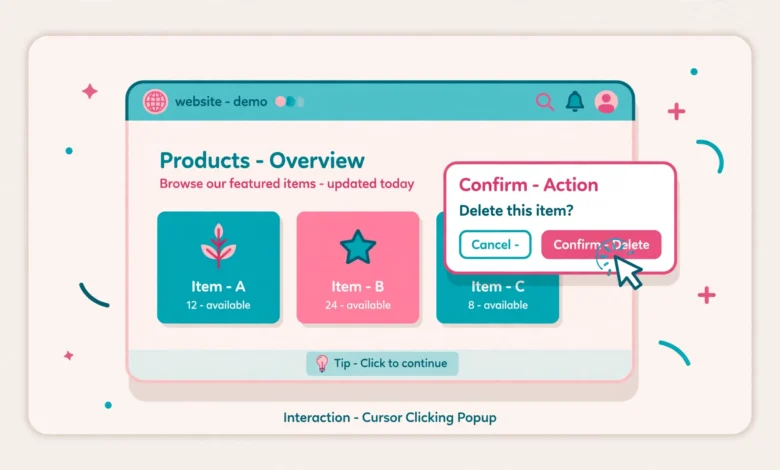
Popups are everywhere: newsletter signup boxes, discount offers, and exit intent messages that appear just as you move to close a tab. If you build sites with the free version of Elementor, you may have searched its widget panel for a popup builder and come up empty. There is a reason for that, and this guide starts with the honest answer before showing you the way around it. You will learn two completely free methods for creating working popups alongside Elementor, how to trigger and time them so they convert instead of annoy, and when upgrading to Pro actually makes sense.
Can the Free Version of Elementor Create Popups?
The straight answer is no. Elementor officially reserves the Popup Builder for the Pro version, together with the Form widget, the Theme Builder, and display conditions. The good news is that you do not need Pro to have popups on your site. Free addons and dedicated popup plugins fill the gap, and the popups they create work perfectly on pages built with Elementor.
What Are My Free Popup Options?
You have two solid routes, and both are genuinely free. The first is a free Elementor addon that ships its own popup builder, so you design the popup with Elementor widgets you already know. The second is a dedicated free popup plugin with its own editor and trigger system that works alongside any page builder. Pick the addon route if you want the popup to match your Elementor designs exactly. Pick the popup plugin route if you want more trigger types and targeting rules without touching Elementor at all. Both methods are covered step by step below.
How Do I Create a Popup with a Free Elementor Addon? (Method 1)
ElementsKit Lite is a popular free Elementor addon that includes a popup builder module. Since the popup is designed with real Elementor widgets, it inherits your theme styling and looks like a natural part of your site. Here is the setup:
- Install ElementsKit Lite. Go to Plugins, then Add New, search for ElementsKit Lite, and install and activate it. It is free on wordpress.org.
- Enable the popup module. Open the ElementsKit dashboard in your admin menu, find the Popup Builder module, and switch it on.
- Create your popup. Go to ElementsKit, then Popups, then Add New. The editor opens Elementor, so build the popup exactly like a page section: a heading, some text, an image, and a button. Note that the Form widget is Pro only, so for email capture use a button that links to your signup page or install a free form plugin separately.
- Set the trigger. Choose how the popup appears: on click of a button or link you assign, on page load after a delay you define, or on exit intent when the visitor moves toward the browser bar.
- Set where and how often it shows. Pick display conditions such as the entire site or specific pages, and set a frequency rule like once per session so repeat visitors are not nagged.
- Publish and test. Publish the popup, then open the page in a private window to confirm the trigger, the design, and the close button all behave as expected.
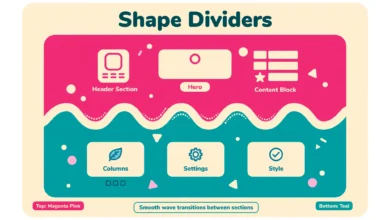
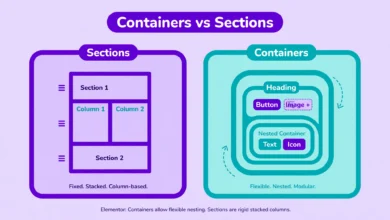
This method shines when design consistency matters, because every part of the popup is an Elementor widget you already understand. If you are still getting comfortable with Elementor layouts, our comparison of Elementor containers versus sections will help you structure the popup cleanly, and our guide to adding shape dividers in Elementor works inside popups too if you want a decorative edge.
How Do I Create a Popup with a Free Popup Plugin? (Method 2)
If you would rather keep popups separate from your page builder, Popup Builder is a dedicated free plugin that works with any theme, including pages built in Elementor. It has its own popup editor and a wider set of triggers and targeting rules out of the box:
- Install Popup Builder. Add it from Plugins, then Add New, and activate it. The free version covers the popup types most sites need.
- Create a new popup. Choose a popup type: HTML for custom content, image for a banner style popup, or subscription for a simple email capture box.
- Design the content. Use the plugin’s built-in editor for text, images, and buttons. Keep the design simple and consistent with your site colors; you can match the look of your Elementor pages by reusing the same headline font and accent color.
- Configure the trigger. Pick when the popup fires: on page load with a delay, on click of an element you select, on scroll past a percentage of the page, or on exit intent.
- Set targeting and frequency. Choose which pages show the popup, limit it by device if needed, and cap how often it appears per visitor with the cookie based frequency settings.
- Save and test. Save the popup and check it in a private window on both desktop and mobile before considering it done.
Because this plugin is independent of Elementor, it is also a good choice when several people manage the site and you want popup control separate from page design. Keep in mind that every popup plugin adds scripts to your pages, so if your site already feels heavy, read our guide on how to speed up an Elementor website before stacking more plugins on top.
How Do I Design Popups That Do Not Annoy Visitors?
A popup is an interruption, so every detail should earn the visitor’s attention. These rules separate popups that convert from popups that get closed in anger:
- One popup per page. Never stack a signup popup on top of a discount popup. Pick the single most important message.
- Delay the appearance. Wait 20 to 30 seconds or use exit intent instead of firing the moment the page loads. Visitors need a reason to care before you ask for anything.
- Cap the frequency. Show the popup once per session at most, and for returning visitors consider once every 30 days using the plugin’s cookie settings.
- Make closing effortless. Use a visible close button, support the ESC key, and let visitors dismiss the popup by clicking outside it.
- Design for mobile first. Keep the popup narrow with generous padding, never cover the whole screen on load, and always test on a real phone. Google penalizes intrusive interstitials that block mobile content.
- Lead with clear value. Get 10 percent off your first order beats subscribe to our newsletter because it tells the visitor exactly what they gain.
When Does Upgrading to Elementor Pro Make Sense?
If popups are a side feature, one announcement or one newsletter box, the free methods above are all you need and they cost nothing. Upgrading starts to make sense when popups sit at the center of your funnel: lead generation landing pages, WooCommerce cart upsells, or course enrollment offers. In that case Pro gives you the native popup builder, the Form widget, and advanced display conditions in one package, which is simpler than juggling two plugins. Either way, popups and page builders both lean on server resources, so make sure your hosting can handle them by checking our web hosting guide before your traffic grows.
Frequently Asked Questions
Is there really no popup widget in Elementor free?
Correct. Elementor reserves the Popup Builder for the Pro version, and no free update has ever added it. Any tutorial claiming otherwise is describing a third party addon or plugin, like the two methods in this guide, or is simply wrong.
Will a free popup method slow down my site?
Slightly, because every popup adds scripts and styles to your pages. One well configured popup has a negligible effect, but stacking several popup plugins or firing them all on page load can hurt your scores. Keep to one popup solution and delay its trigger.
Can I collect email addresses with a free popup?
Yes. The simplest approach is a popup with a button that sends visitors to your signup page, which needs no form widget at all. Alternatively, install a free form plugin such as Contact Form 7 or WPForms Lite, build your form there, and link or embed it in the popup content.
Do popups hurt my Google rankings?
Google penalizes intrusive interstitials on mobile, meaning popups that cover the main content immediately on page load. A delayed popup, an exit intent popup, or a small banner style popup that is easy to dismiss stays within the guidelines and will not hurt your rankings.
Last updated: October 2026.