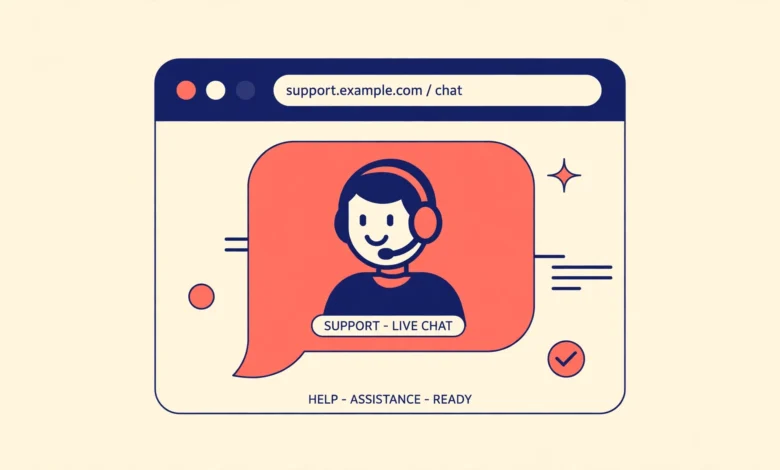
Visitors leave websites when their questions go unanswered. A pricing doubt, a shipping question, or a moment of confusion at checkout is often all it takes for someone to close the tab and buy elsewhere. Live chat fixes this by putting a real conversation one click away, and it consistently lifts conversions for stores, agencies, and service businesses. The best part is that you do not need an expensive helpdesk subscription to offer it. Tawk.to is a genuinely free live chat platform with no agent limits and no trial expiry. This guide shows you how to add free live chat to WordPress with tawk.to: creating an account, installing the official plugin, configuring the widget to match your brand, testing it, and using it well.
Why Does Live Chat Help a WordPress Site?
Live chat earns its place on a site for several practical reasons:
- Instant answers. Visitors get help in seconds instead of waiting hours for an email reply, which keeps buying momentum alive.
- Higher conversions. Answering a last minute objection right on the pricing or checkout page turns hesitant visitors into customers.
- Trust and credibility. A real human behind the chat bubble signals that the business is legitimate and reachable.
- Free customer feedback. Chat transcripts reveal exactly what confuses visitors, which tells you what to fix on the site.
- Zero cost. Tawk.to’s core product is free with unlimited agents, so even a solo freelancer can offer professional live chat.
If live chat feels like too much commitment right now, a simpler WhatsApp chat button is a lighter alternative. But for real time conversations on the site itself, tawk.to is hard to beat.
How Do I Create a Free Tawk.to Account?
Everything starts on the tawk.to website, and the whole signup takes about five minutes:
- Go to tawk.to and click the signup button. Enter your name, email, and a password to create your account.
- Create a property. A property represents one website. Enter your site name and its URL so chats get attributed to the right place.
- Add yourself as an agent. You are the first agent by default. You can invite team members later from the dashboard at no cost.
- Skip the widget code for now. Tawk.to will offer you a JavaScript snippet to paste into your site. Ignore it, because the official WordPress plugin handles the installation more cleanly.
Once the account exists, head to your WordPress dashboard for the plugin installation.
How Do I Install the Tawk.to WordPress Plugin?
The official plugin connects your site to tawk.to without touching any code:
- In your WordPress dashboard, go to Plugins, then Add New, and search for “tawk.to Live Chat”. Install and activate the plugin by tawk.to.
- Open the plugin’s settings page. You will see a login form for your tawk.to account.
- Log in with the account you just created. The plugin will list your properties and their widgets.
- Select your property and widget, then save. The chat widget now appears on every page of your site.
The plugin listing on wordpress.org confirms it is the official integration and shows its update history, which is worth a glance before installing anything. Before adding any new feature to a live site, run through our WordPress website launch checklist habits: back up first and test on a staging copy if you have one.
How Do I Configure the Chat Widget?
The default widget works, but a few minutes of configuration makes it look like a native part of your site. All of these settings live in your tawk.to dashboard under Administration and then Chat Widget:
- Position. Bottom right is the standard spot and what visitors expect. Change it only if it clashes with another floating element on your site.
- Colors. Set the widget color to match your brand’s primary color so the bubble feels like part of your design rather than a third party add on.
- Greeting message. Write a short, friendly opener such as “Hi there! Questions about our services? Ask away.” A good greeting doubles the number of conversations started.
- Offline form. Enable the contact form that appears when no agent is online. Offline messages arrive by email so no enquiry is ever lost.
- Office hours and scheduling. Define when you are actually available. Outside those hours the widget politely switches to the offline form on its own.
- Display rules. Control which pages show the widget. Many stores show it everywhere except the checkout page, where distractions cost sales.
The tawk.to help center documents every widget option with screenshots if you want to go deeper into triggers and proactive messages.
How Do I Test the Live Chat?
Test both sides of the conversation before announcing live chat to visitors:
- Open your site in a private or incognito window so you appear as a fresh visitor.
- Confirm the chat bubble appears in the position and color you configured.
- Send a test message as the visitor.
- Answer it from the tawk.to dashboard in another browser, or from the free tawk.to mobile app on your phone.
- Check that the visitor side receives the reply instantly and that the conversation looks clean on mobile too.
- Set your status to offline and confirm the offline contact form appears instead of the chat box.
The mobile app is worth installing even if you mainly work on desktop. It sends push notifications for new chats, so you can answer visitors while away from your desk. Fast replies are the whole point of live chat, and the app makes them possible.
What Are the Best Practices for Live Chat?
Installing the widget is the easy part. Using it well is what converts visitors:
- Reply fast. Aim to answer within a minute. A chat bubble that sits unanswered is worse than no chat at all, so go offline when you cannot respond.
- Be proactive, not pushy. A well timed trigger message on the pricing page, like “Need help choosing a plan?”, starts great conversations. Popups on every page just annoy people.
- End chats gracefully. Summarize what was agreed, mention the next step, and thank the visitor. Good endings turn chats into reviews and repeat business.
Live chat also pairs nicely with other instant contact options. Our guides on the WhatsApp chat button and the click to call button cover the alternatives for visitors who prefer those channels. And since chat widgets load extra scripts, keep an eye on performance with a solid foundation from our web hosting guide so the widget never slows your pages down.
Frequently Asked Questions
Is tawk.to really free?
Yes. The core live chat product is free with unlimited agents, unlimited chats, and no time limit. Tawk.to earns money from optional paid add ons like removing its branding or hiring their virtual agents, but none of that is required to run live chat on your site.
Will live chat slow down my WordPress site?
The widget loads asynchronously, so it does not block your page content from rendering. On a decent host the impact is negligible. If your site is already slow, fix the underlying performance issues first rather than blaming the chat widget.
Can I answer chats from my phone?
Yes. Tawk.to offers free mobile apps for Android and iOS with push notifications for new chats. You can answer visitors, transfer chats, and check history from anywhere, which makes live chat practical even for one person businesses.
Can I customize the widget to match my brand?
Completely. You can change the widget color, position, greeting text, agent names and photos, and the offline form. With a matching color and a friendly greeting, most visitors will assume the chat is a native part of your site.
Last updated: October 2026.