An HTML sitemap is one of the simplest pages you can add to a WordPress site, and one of the most useful. It is a plain, human readable page that lists links to every important page and post on your site, organized so visitors can find anything in one click. Search engine crawlers like it too, because it gives them a clean path to discover your content. The best part is that you do not need a plugin to build one. The block editor that ships with WordPress already has everything you need, and this guide walks you through three no plugin methods from start to finish.
What Is an HTML Sitemap (and How Is It Different From an XML Sitemap)?
People often mix up these two, so let us clear it up before we build anything. An HTML sitemap is a regular page on your site, made for humans. It shows a readable list of links, usually grouped by section, and lives somewhere visitors can find it, like in the footer menu. An XML sitemap, on the other hand, is a machine readable file made for search engines. You never look at it yourself. Google reads it to learn which URLs exist on your site.
Here is some good news: since WordPress 5.5, every site already has a native XML sitemap. If you add /wp-sitemap.xml to the end of your domain, you will see it. So you do not need a plugin for the XML side either, at least for the basics. The HTML sitemap is a separate, optional page that helps real people, and that is what we are building today. If you want the full picture of how search engines discover your content, Google explains the process in their guide to getting on Google.
Why Bother With an HTML Sitemap at All?
You might wonder whether a sitemap page is still worth the effort in 2026. For most sites, the answer is yes, for a few practical reasons:
- Better navigation for visitors. New readers can scan one page and understand your whole site structure at a glance, which keeps them clicking instead of leaving.
- Extra crawl paths for search engines. Internal links from a sitemap page give Googlebot another route to discover deep pages, especially on large sites.
- Helpful for accessibility. Visitors using screen readers or slow connections can browse a simple link list much faster than a JavaScript heavy menu.
- Trust signal. Established sites almost always have one, and its presence quietly tells visitors your site is complete and well maintained.
It also pairs nicely with other on page SEO work. For example, if you have been working through our WordPress image SEO tips, an HTML sitemap rounds out the internal linking side of your optimization checklist.
Method 1: Create an HTML Sitemap With the Page List Block (Recommended)
This is the fastest method and the one we recommend for almost everyone. The Page List block automatically generates a list of your published pages, nested by parent and child, and it updates itself whenever you add or remove a page. No maintenance required.
Step 1. In your WordPress dashboard, go to Pages and click Add New.
Step 2. Title the page Sitemap. Keep the slug simple, something like yoursite.com/sitemap/.
Step 3. Click the block inserter (the plus icon) and search for Page List. Add the block to the page. Instantly, you will see a nested list of all your published pages.
Step 4. Select the block and check its settings in the right sidebar. You can choose to show only top level pages, include child pages nested underneath, and sort the list alphabetically or by menu order. For most sitemaps, showing child pages nested under their parents gives the clearest structure.
Step 5. Under the Page List block, add a heading that says Latest Blog Posts, then insert a Latest Posts block. This covers your blog archive, since the Page List block only shows pages, not posts. Set it to show post titles with dates, and limit it to 10 or 20 entries so the page stays tidy.
Step 6. Publish the page. You now have a complete, auto updating HTML sitemap built with nothing but core blocks. If you are new to these blocks, the official WordPress editor documentation covers every setting in detail.
Method 2: Use Archive Blocks for Category and Date Coverage
Method 1 covers pages and recent posts, but what about older posts and category archives? Two more core blocks fill those gaps. The Categories List block shows every category with post counts, and the Archives block shows a month by month list of published posts. Add both under clear H2 headings on your sitemap page, and visitors can browse your entire content library by topic or by date.
This method works especially well for blogs with hundreds of posts, where a single giant list would be overwhelming. Grouping by category keeps the page scannable, and the Archives block gives long time readers a nostalgic way to browse your early content. None of this requires any code, and everything stays in sync automatically because the blocks pull live data from your database.
Method 3: Build a Fully Manual Sitemap Page With Anchors
Sometimes you want total control over the order, the wording, and the grouping of your sitemap. Maybe you run a business site where the marketing pages need to appear before the blog, or you want to add short descriptions under each link. In that case, build the page manually with headings and link lists.
Create a new page titled Sitemap, then add H2 headings for each section, such as Services, About Us, and Resources. Under each heading, add a List block and fill it with links to the relevant pages. To make long sitemap pages easier to navigate, add anchor links at the top that jump to each section. Here is the basic pattern using a Custom HTML block:
<!-- Quick jump links at the top of the page -->
<ul>
  <li><a href="#services">Services</a></li>
  <li><a href="#about">About Us</a></li>
  <li><a href="#resources">Resources</a></li>
</ul>

<!-- Later in the page, give each heading a matching ID -->
<h2 id="services">Services</h2>
To add the ID to a heading block, select the heading, open the Advanced panel in the block settings sidebar, and type the ID into the HTML anchor field. The manual method takes more time up front, but the result looks polished and professional, and you decide exactly what appears.
A Quick Note on Sitemap Shortcodes
You may see older tutorials recommending sitemap shortcodes. In the block editor era, those are rarely necessary, because the Page List and Latest Posts blocks do the same job with a live preview. If you ever paste a shortcode sample into a tutorial of your own, remember that WordPress tries to execute real shortcodes on the live page, so encode the brackets in code samples like this: [page-list]. On your actual sitemap page, stick with the blocks described above and you will never need a shortcode at all.
Where Should You Link Your HTML Sitemap?
A sitemap page only helps if people can find it. The most common placement is the footer menu. Go to Appearance, then Menus, add your Sitemap page to the footer menu, and it will appear on every page of your site. This is the convention visitors expect, and it also puts the page one click away from everywhere, which maximizes its crawl value.
Other sensible spots include your privacy policy page (a link at the bottom is standard practice), your contact page, and occasionally the main navigation if your site is small. Do not hide it. The whole point is discoverability, so treat the sitemap link like any other important navigation item.
Keeping Your Sitemap Accurate Over Time
Methods 1 and 2 maintain themselves, which is their biggest advantage. Every time you publish or trash a page, the Page List block reflects the change immediately. If you chose the manual method, add a recurring reminder to review the sitemap page once a month. Remove links to deleted pages, add links to important new ones, and check that your anchor IDs still match your headings after any redesign.
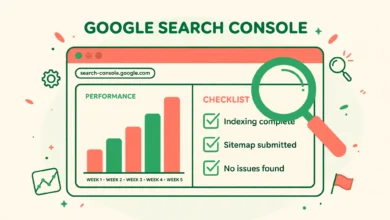
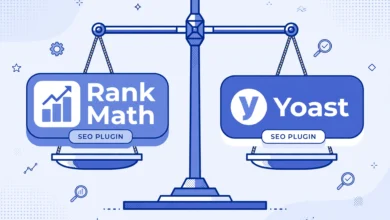
Finally, connect the dots with Search Console. An HTML sitemap helps humans, but submitting your XML sitemap in Search Console is what tells Google directly about your URLs. If you have not done that yet, follow our step by step Search Console setup guide and submit yoursite.com/wp-sitemap.xml under the Sitemaps section. And if you later decide you want richer XML sitemap controls, our Rank Math vs Yoast comparison will help you pick the right SEO plugin for the job.
Frequently Asked Questions
Do I still need an XML sitemap if I have an HTML sitemap?
Yes, keep both. They serve different audiences. The XML sitemap is a machine readable file that search engines use to discover and prioritize your URLs, while the HTML sitemap is a human friendly page that helps visitors navigate. WordPress generates a basic XML sitemap automatically since version 5.5, so you already have one. The HTML page is the part you build yourself.
Will an HTML sitemap improve my Google rankings?
Not directly. Google has never said HTML sitemaps are a ranking factor. The benefit is indirect but real: better internal linking helps crawlers discover deep pages faster, and better navigation keeps visitors on your site longer. Both of those support the broader SEO work you are already doing, like optimizing images and submitting sitemaps in Search Console.
What if my site has hundreds of pages?
Group aggressively. Use the manual method with H2 sections, or combine the Page List block with Categories and Archives blocks so visitors browse by topic instead of scrolling one giant list. You can also exclude low value pages, like thank you pages or tag archives, from the sitemap entirely. A sitemap should highlight your important content, not mirror every URL in the database.
Can I exclude certain pages from the Page List block?
The core Page List block does not have a built in exclude option, which is one of its few limitations. The workaround is simple: set those pages to Draft or Private if they should not be public anyway, or switch to the manual method for full control over exactly which links appear. Most site owners find the automatic list perfectly fine once private pages are out of the way.
Last updated: October 2026.