You launched your WordPress site, published a few posts, searched Google for your site name… and found nothing. Not even your homepage. It is a frustrating moment, but it is also one of the most common problems new site owners face, and it is fixable in almost every case. Google cannot show what it has not discovered or chosen to index, and WordPress has several settings that can accidentally block that process. Work through these 8 fixes in order, and you will find the culprit.
First, Understand Why Google Might Be Ignoring Your Site
Indexing is a three step process: Google discovers your URLs by crawling links, renders the pages, and then decides whether each page is worth adding to its index. Your site can fail at any of these steps. Maybe a WordPress setting is telling Google to stay away. Maybe Google found your pages but decided they were not worth indexing yet. Or maybe your site is simply too new and Google has not gotten around to it. The fixes below address each possibility, starting with the most common and easiest to check.
Google explains this discovery process in plain language in their guide to getting on Google, which is worth a read alongside this checklist.
Fix 1: Uncheck “Discourage Search Engines From Indexing This Site”
This single checkbox causes more indexing problems than everything else on this list combined. During development, many people (or their developers) tick “Discourage search engines from indexing this site” to keep the unfinished site out of Google, and then forget to untick it at launch. When checked, WordPress adds a sitewide noindex directive that tells Google to skip every page.
Go to Settings, then Reading, and scroll to the bottom. If the checkbox is ticked, untick it and click Save Changes. That is the entire fix. It sounds almost too simple, but we have seen established sites lose months of traffic to this one forgotten checkbox. If you are launching soon, add this check to your pre launch routine alongside everything in our WordPress website launch checklist.
Fix 2: Check Your robots.txt File
Your robots.txt file sits at yoursite.com/robots.txt and tells crawlers which parts of your site they may visit. A misconfigured one can block Google from your entire site. Open it in your browser and look for a line that says Disallow: / with no path after the slash. That single line blocks everything.
A healthy WordPress robots.txt looks something like this:
User-agent: *
Disallow: /wp-admin/
Allow: /wp-admin/admin-ajax.php
This blocks only the admin area, which is exactly what you want. If you see a blanket Disallow: /, remove it. Some security plugins and staging setups add aggressive rules, so check this file after installing any security or migration plugin. You can edit it through most SEO plugins, or via your hosting file manager.
Fix 3: Look for Rogue noindex Tags on Individual Pages
Even with the sitewide setting correct, individual pages can carry their own noindex directives. This often happens when pages were set to “noindex” during development, or when an SEO plugin marks certain page types (like tag archives or author pages) as noindex by default and you misunderstand which pages are affected.
To check, open the page in your browser, right click, and choose View Page Source. Press Ctrl+F and search for noindex. If you find a line like <meta name="robots" content="noindex, nofollow" /> in the head section, that page is telling Google to skip it. Remove the directive in your SEO plugin settings or the page editor, then move on. Check your homepage, your key landing pages, and a sample blog post at minimum.
Fix 4: Set Up Google Search Console and Verify Your Site
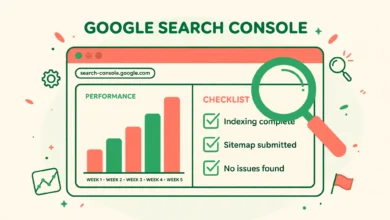
You cannot fix what you cannot see. Google Search Console is the free tool that shows you exactly how Google views your site: which pages are indexed, which have errors, and what is blocking the rest. If you have not set it up yet, do it now. Our step by step guide to adding Google Search Console to WordPress walks you through verification using the HTML tag method, which takes about five minutes.
Once verified, open the Pages report under Indexing in the left menu. This report is your diagnostic dashboard. It shows how many pages are indexed and, more importantly, lists every non indexed page with the exact reason Google gives, such as the “Crawled, currently not indexed” or “Discovered, currently not indexed” statuses. Those reasons tell you precisely which of the remaining fixes to apply.
Fix 5: Inspect Important URLs and Request Indexing
For your most important pages, you do not have to wait passively. In Search Console, paste the page URL into the URL Inspection bar at the top. The tool fetches the live page and tells you its current index status, whether Google can crawl it, and whether any issues were found.
If the page is not indexed and no blocking issue is reported, click Request Indexing. This puts the URL in Google crawl queue. It is not instant (expect days, sometimes a couple of weeks), and it is not a guarantee, but it is the fastest legitimate way to nudge Google toward a specific page. Use it for your homepage and a handful of key pages, not for every URL on your site. Requesting indexing for hundreds of thin pages at once is a waste of your limited quota.
Fix 6: Submit Your XML Sitemap
A sitemap is a direct list of your URLs handed to Google, which helps enormously with discovery, especially for new sites with few inbound links. The good news: WordPress generates one automatically at yoursite.com/wp-sitemap.xml since version 5.5. Open that URL to confirm it exists and lists your pages and posts.
Then submit it in Search Console under Sitemaps in the left menu. Enter wp-sitemap.xml and click Submit. Google will start processing it within a day or two, and the Sitemaps report will show how many of your submitted URLs were actually indexed. If that number stays low, the problem is page quality or site authority, not discovery, which brings us to the last two fixes.
Fix 7: Understand the “Discovered, Currently Not Indexed” Status
This is the most confusing status in Search Console, and new site owners encounter it constantly. It means Google knows your page exists but has not crawled it yet, usually because it is prioritizing other pages. For brand new sites, this is completely normal. Google allocates a limited crawl budget to unknown sites, and it can take weeks or even a couple of months before every page gets crawled.
There is no button to force this. What helps is everything that makes your site look worth crawling: internal links pointing to the undiscovered pages, fresh content published regularly, and a clean site structure. Avoid the temptation to resubmit the same URLs daily. Patience plus the signals in Fix 8 is the actual remedy. If pages sit in this status for more than two to three months, revisit your content quality.
Fix 8: Build Crawl Signals With Fresh Content and Links
Google prioritizes sites that look alive and trusted. Two signals matter most for new sites. First, publish consistently. A site that adds a genuinely useful post every week gives Google a reason to come back and crawl deeper each visit. Second, earn a few real backlinks. Even two or three links from legitimate sites (a directory listing, a guest post, a mention in a community) tell Google your site is part of the real web, which increases crawl frequency.
Internal linking matters here too. Every new post should link to two or three older posts, and your important pages should be reachable within a few clicks from the homepage. While you are strengthening pages, do not neglect the basics that make pages index worthy in the first place, like descriptive titles and optimized images, which our WordPress image SEO guide covers in detail. Thin, duplicate, or auto generated content is the number one reason Google discovers pages and then chooses never to index them.
Frequently Asked Questions
How long does it take Google to index a new WordPress site?
Typically the homepage appears within a few days to two weeks after you request indexing and submit a sitemap, assuming no blocking settings. Full indexing of every post and page can take one to three months for a brand new site with no backlinks. If nothing is indexed after a month, work through this checklist again, because something is actively blocking Google rather than just delaying it.
My site is indexed but does not rank for anything. Is that the same problem?
No, those are different problems with different fixes. Indexing means Google knows your page exists. Ranking means Google considers it good enough to show for a search query. If your pages are indexed but invisible in results, the issue is competition and content quality, not the technical blocks covered here. Check by searching site:yoursite.com in Google: if pages appear there, indexing is fine and you need an SEO content strategy instead.
Should I use an SEO plugin to fix indexing issues?
An SEO plugin helps you manage the settings (sitemaps, noindex rules, robots.txt editing) but it cannot force Google to index anything. Think of it as a better control panel, not a magic fix. If you are choosing one, our Rank Math vs Yoast comparison breaks down which suits different needs. Either way, the eight fixes above matter far more than which plugin you install.
Can I get penalized for requesting indexing too often?
There is no formal penalty, but Search Console limits how many manual indexing requests you can make, and the quota is small. Spend it on pages that matter: your homepage, service pages, and your best posts. Requesting indexing for every tag archive and thin page wastes quota and does not help, because Google will still choose not to index low value pages no matter how often you ask.
Last updated: October 2026.