Image galleries are one of the most requested features in Elementor, and also one of the most misunderstood. New users open the widget panel, search for gallery, find nothing, and assume the free version simply cannot do it. The truth is more useful than that: the dedicated Gallery widget is a Pro feature, but there are three honest free ways to add a good looking gallery to an Elementor page.
This guide covers all three, starting with the method that needs no extra plugin at all. You will also learn how to lay the gallery out properly and how to keep it fast, because a gallery of unoptimized photos is the quickest way to slow a page down.
Why is there no gallery widget in Elementor free?
Elementor keeps its more advanced widgets behind the Pro paywall, and the Gallery widget is one of them. The official Elementor documentation describes the Gallery widget as part of the Pro widget set. That is a business decision, not a technical limitation, which is why workarounds exist. The free version gives you everything you need to display images. It just does not bundle them into a one click gallery widget.
Knowing this saves you from a common trap: installing five different plugins while hunting for a free Gallery widget that looks exactly like the Pro one. The methods below are the ones working site builders actually use, and each one is honest about its tradeoffs.
Which free gallery method should you pick?
Here is the short version, so you can jump to the right section:
- No new plugin, works fully inside Elementor: use the WordPress gallery shortcode in a Shortcode widget (Method 1).
- No new plugin, nicest looking native gallery: use the Gutenberg Gallery block in the page content (Method 2).
- Closest to a real Elementor widget experience: install exactly one free gallery addon (Method 3).
Method 1: The WordPress gallery shortcode inside Elementor (no plugin needed)
WordPress has shipped with a built in gallery shortcode since long before Elementor existed. Elementor’s Shortcode widget renders any shortcode, which means you get a working gallery inside your Elementor layout with zero new plugins. It is not the prettiest gallery out of the box, but it is reliable, lightweight, and fully under your control.
- Step 1: Upload your images to the Media Library first, through Media and then Add New, or while editing.
- Step 2: In Elementor, drag a Shortcode widget into the section where you want the gallery.
- Step 3: Paste the gallery shortcode with the attributes you want. An example is shown below.
- Step 4: Update the page and check the front end. The shortcode renders on the live page, not in the Elementor editor preview.
[gallery columns="3" size="medium" link="file"]The attributes do the real work. The columns attribute controls how many images sit in each row, size picks the registered image size WordPress should serve, and link decides what happens on click: file opens the full image, while none disables the click entirely. For a simple portfolio grid, three columns at medium size is a solid starting point.
One behavior to know: a bare gallery shortcode shows the images attached to the current page. If your images were uploaded elsewhere, the gallery may come out empty or show the wrong set. Uploading the gallery images directly while editing that page, or generating the shortcode from the Media Library gallery screen so it carries explicit image IDs, avoids the surprise. If you want captions, add them in the Media Library first. The shortcode picks them up automatically.
Method 2: The Gutenberg Gallery block (best looking, no plugin)
The Gutenberg Gallery block is the nicest free gallery WordPress offers. It gives you a visual grid with column controls, image cropping, captions, and an expand on click lightbox, all without a single plugin. The catch is placement: it lives in the block editor, not inside Elementor’s canvas.
This method fits pages where Elementor handles part of the layout and the normal page content handles the rest. Many themes show the page content below Elementor sections when you use the default template instead of Elementor Canvas. If your page uses the full Elementor Canvas template, the block editor content will not display, so check your template first, in the page attributes or the Elementor page settings.
- Step 1: Edit the page and confirm it does not use the Elementor Canvas template.
- Step 2: In the content area, add a Gallery block and upload or select your images.
- Step 3: In the block sidebar, set the number of columns, toggle crop images to fill for even rows, and enable expand on click for a lightbox.
- Step 4: Add a caption under any image that needs one, then update the page.
If you already build headers and other parts of your site in Elementor free, you know the free version rewards creative combinations of basic tools. Our guide to editing your header in Elementor free follows the same philosophy of getting Pro style results without paying.
Method 3: A free gallery addon plugin (closest to the Pro widget)
If you want a real widget in the Elementor panel, with drag and drop images and style controls, a free addon plugin is the answer. Established options include HappyAddons and Essential Addons for Elementor, both of which ship free gallery or image grid widgets. The rule that matters: install exactly one. Gallery addons overlap heavily, and every extra addon loads more code on every page.
- Step 1: Go to Plugins, then Add New, and install one addon, for example HappyAddons or Essential Addons.
- Step 2: Activate it and open your page in Elementor.
- Step 3: Search the widget panel for the addon’s gallery widget, often called Image Grid, Gallery, or Justified Gallery.
- Step 4: Drag it into your section, add your images, and style it with the widget’s own controls.
Before you commit to an addon, check two things on its WordPress.org page: that it was updated recently, and that its reviews do not mention conflicts with your Elementor version. A gallery widget is not worth a broken editor. If you only need one simple gallery on one page, Method 1 or 2 will serve you better than a whole new plugin.
Gallery layout basics: columns, lightbox, spacing, captions
Whichever method you choose, the same layout decisions determine whether the gallery looks professional. Get these four right and even the humble shortcode gallery looks deliberate.
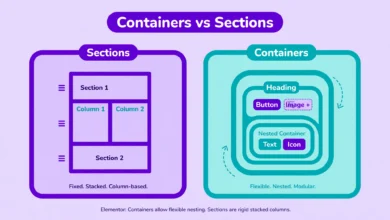
Columns: three or four columns suit most desktop layouts, while two columns work better when the gallery sits inside a narrow column. Always check the mobile view. A four column desktop grid that collapses badly on phones is the most common gallery mistake, so preview at phone width before publishing. If your layout uses the newer system, our comparison of Elementor containers vs sections explains how spacing behaves in each.
Lightbox: letting visitors click an image to see it larger is expected behavior for galleries. The Gutenberg block has it built in, gallery addons include it as a toggle, and the shortcode method gets it through the link attribute set to file. Pick one lightbox behavior for the whole site and keep it consistent.
Spacing and captions: even gaps between images matter more than people think. A small consistent gap, with images cropped to the same aspect ratio, reads as a designed grid instead of a pile of photos. Captions help when the images need context, such as project names or locations. Skip them when they only repeat what the image already shows.
Keep the gallery fast: image SEO and speed tips
Galleries fail on speed more often than on looks. A page with twelve full resolution phone photos can easily weigh twenty megabytes, and no layout trick fixes that. Compress before you upload, serve modern formats, and let the browser lazy load.
- Serve WebP versions of your images when you can. They are dramatically smaller than JPEG at the same visual quality.
- Resize images to the largest size they will actually display. A 400 pixel wide grid column never needs a 4000 pixel file.
- Keep WordPress lazy loading enabled, so below the fold images load only when the visitor scrolls near them.
- Write real alt text for every image, describing what the photo shows. Galleries are an image SEO opportunity.
- Compress with a plugin or an online tool before uploading, not after.
Alt text deserves emphasis, because gallery builders skip it most. Search engines cannot see your photos, so the alt text is how your images become findable in image search. Our full guide to WordPress image SEO walks through alt text, file names, and the rest of the checklist.
Troubleshooting common gallery problems
A few issues come up again and again with free gallery setups. The shortcode shows the wrong images: a bare shortcode pulls every image attached to the page, so generate it from the Media Library gallery screen to get explicit image IDs. The gallery looks fine on desktop but broken on mobile: reduce the column count, or check that your theme is not forcing fixed image widths. The addon widget does not appear in the panel: confirm the addon is activated and that your Elementor version meets its minimum requirement. Images load slowly: revisit the speed tips above, because file sizes are almost always the cause.
Frequently asked questions
Does Elementor free have a gallery widget?
No. The Gallery widget is a Pro only widget, which is why it never appears in the free widget panel. The three methods in this guide, the gallery shortcode, the Gutenberg Gallery block, and a free addon widget, are the practical free alternatives.
Which free gallery method is best for beginners?
The Gutenberg Gallery block. It is visual, needs no plugin, and includes columns, cropping, captions, and a lightbox. Use it whenever your page template shows the normal page content. If you must stay fully inside Elementor, the shortcode method is the next simplest.
Will a gallery addon slow down my website?
One well maintained addon adds a small cost, mostly on pages where its widgets are used. The real slowdown in galleries comes from unoptimized images, not from the addon. Install only one gallery addon, keep it updated, compress your images, and the impact stays minor.
How do I make gallery images open larger when clicked?
That is the lightbox behavior. In the Gutenberg block, enable expand on click. In a gallery addon widget, turn on its lightbox toggle. In the shortcode method, set the link attribute to file so each thumbnail links to the full size image.
Last updated: October 2026.