Every WordPress site owner needs a backup plan, and cPanel gives you one without installing anything extra. If an update breaks your site, a plugin conflict locks you out, or a bad edit corrupts your content, a good backup turns a disaster into a short inconvenience. The catch is that cPanel backups only help if you made them before the problem, stored them safely, and know how to restore them. Many site owners discover too late that their only backup sat on the same server that just failed, or that restoring is not the single click they expected.
This guide walks through the complete process using cPanel Backup Wizard: what full and partial backups contain, how to download them offsite, how to restore your home directory and your database step by step, the important gotcha that a full backup cannot be restored in one click, how to check your wp-config credentials after a restore, and how to test your site before you declare the recovery a success. Follow it once on a practice basis, and you will never have to learn it under panic.
What Does cPanel Backup Wizard Actually Back Up?
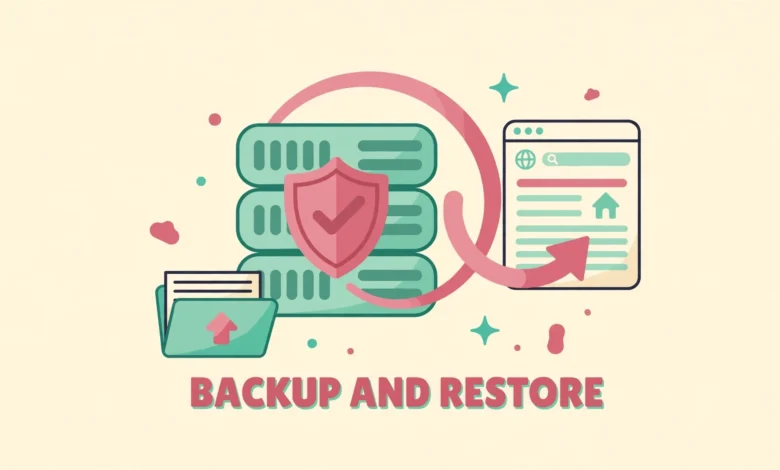
cPanel Backup Wizard, found under the Files section of your cPanel dashboard, creates two kinds of backups: full and partial. Understanding the difference matters, because it decides what you can restore and how much work a restore takes. A full backup is a complete snapshot of your entire hosting account. It includes your home directory with all website files, every database, email accounts and forwarders, DNS settings, and account configuration. A partial backup covers only one piece at a time: your home directory, one MySQL database, or your email forwarders and filters.
For a WordPress site, the two pieces that matter most are the home directory and the database, and they play different roles. The home directory holds WordPress core files, your themes, your plugins, and your uploads folder with all images and media. The database holds your posts, pages, comments, users, settings, and links between content. Lose the files and your site has no code or images. Lose the database and your site has no content at all. A real recovery usually needs both pieces restored together, from backups taken at the same time, or your files and content will be out of sync.
Full Backup or Partial Backup: Which Should You Choose?
- Full backup: best before migration, domain changes, or major server work. Captures the whole account, but produces a large file and cannot be restored in one click, as explained below.
- Home directory backup: best for routine file protection. Covers themes, plugins, uploads, and WordPress files. Restore this when files are damaged, deleted, or infected.
- MySQL database backup: best for routine content protection. Covers posts, pages, settings, and users. Restore this when content is lost, corrupted, or wrongly edited.
- Email forwarders and filters backup: useful if you manage mail on the same account, but it has no effect on your WordPress site itself.
How Do You Create a Backup With Backup Wizard?
Creating a backup takes only a few minutes. Log in to cPanel, open Backup Wizard under Files, and click Back Up. For a full backup, choose Full Backup, then choose Home Directory as the destination and enter an email address if you want a notice when the file is ready. cPanel generates the file in the background, and on larger sites this can take a while, so do not close the process or assume it failed if nothing downloads immediately. When it finishes, download the file from the link cPanel provides, or from your home directory through File Manager.
For a partial backup, choose the piece you need instead. Select Home Directory to back up files, or MySQL Databases and then the database used by your WordPress site to back up content. If you are unsure which database your site uses, open wp-config.php in File Manager and look for the database name value there. Download each file as soon as it is ready, and name it clearly with the site name and date, for example with a name that includes the year, month, and day, so you can identify the right backup months later without guessing.
How Do You Store Backups Safely Offsite?
Follow the 3-2-1 rule: keep three copies of your data, on two different kinds of storage, with one copy offsite. In practical terms, that means your live site counts as one copy, a backup downloaded to your computer or cloud drive counts as a second, and a backup on a different service, such as an external drive or a second cloud provider, counts as the third. If any one location fails, you still have the others.
How Do You Restore Your Home Directory in cPanel?
Restoring files starts in Backup Wizard as well. Open Backup Wizard, click Restore, then choose Home Directory, browse to the home directory backup file on your computer, and click Upload. cPanel extracts the archive and overwrites the matching files in your account. This restores your themes, plugins, uploads, and WordPress files to the state they were in when the backup was made.
How Do You Restore Your Database With phpMyAdmin?
Database restores go through phpMyAdmin, not through the main Backup Wizard restore screen for files. The steps are precise, so follow them in order. First, open phpMyAdmin from the Databases section of cPanel. Second, select your WordPress database from the left sidebar, and confirm it is the right one by checking that its tables use the prefix your site uses, usually starting with wp. Third, if you are replacing a corrupted database, select all tables, choose Drop from the actions menu, and confirm, so the old tables are removed before the import. If you skip this step, the import may fail with errors about tables already existing.
Fourth, click the Import tab at the top, click Choose File, and select your database backup file, which is usually a .sql or .sql.gz file. Leave the other import settings at their defaults unless you have a specific reason to change them, then click Import and wait. Large databases can take several minutes, and closing the page early can leave the import half finished. When phpMyAdmin reports success, your content, users, and settings are back to the backup date. For authoritative background, see Developer.WordPress.org and WordPress.org.
For a deeper look at database backups without relying on a plugin, see our guide on how to backup a WordPress database without a plugin. It covers the same ideas in more detail and helps you understand what is inside the SQL file you are importing.
Why Can You Not Restore a Full Backup in One Click?
Here is the gotcha that surprises most cPanel users: Backup Wizard lets you create a full backup, but it does not let you restore one in a single click. There is no Restore Full Backup button in the wizard. A full backup is designed mainly for moving an account to a new server, and restoring it requires your hosting provider to do it, or requires you to restore its pieces manually.
This limitation is the strongest reason to keep partial backups as your routine. Partial backups restore quickly, through the interface, without waiting on support. Keep full backups as your deep safety net before migrations and major changes, and keep partial backups as your everyday recovery tool. If you are planning a risky change and want a safe place to test first, our guide on a WordPress staging site without a plugin shows how to test changes without touching your live site at all.
How Do You Check wp-config Credentials After a Restore?
After any restore, especially after moving to a new host or a new account, check wp-config.php before assuming the site works. This small file in your WordPress root tells WordPress which database to use, with which username and password, and on which host. If the database name, user, or password changed during the move, or if the restore created a database with a different name, WordPress will show an error establishing a database connection even though your files and data are perfectly fine.
While you are in the hosting panel, it is worth reviewing what your plan actually includes for backups and recovery. Our web hosting guide explains how hosting features such as backup retention, storage, and support response affect a WordPress site, and it helps you judge whether your current host gives you the safety net you need.
How Do You Test Your Site After a Restore?
- Confirm the home page, key inner pages, and images load without errors.
- Log in to wp-admin and confirm posts, pages, media, and users look complete.
- Test forms, search, and checkout or booking functions if your site has them.
- Check that your site address and WordPress address settings are correct under Settings, then General.
- Clear all caches, including plugin caches and server caches, then reload and test again.
- Watch for mixed content warnings or broken links caused by a domain or protocol change.
Frequently Asked Questions
How often should I back up my WordPress site in cPanel?
Match backup frequency to how often your site changes. Daily backups suit sites that publish, sell, or collect submissions every day. Weekly backups may suit a small site that rarely changes. Always take an extra backup before updates, theme changes, migrations, or any risky edit, whatever your normal schedule is.
Can I restore a full cPanel backup by myself?
Not in one click. Backup Wizard does not offer a full backup restore button. You can restore a full backup manually by extracting its files and database and restoring each piece yourself, or you can ask your hosting provider to restore the whole account from the full backup file. For fast self service recovery, keep partial backups of your home directory and database as well.
Will restoring a backup delete my newer content?
Yes, a restore returns your site to the backup date, so anything created after that date is lost unless you saved it separately. Before restoring, download any new posts, images, orders, or comments created since the backup, so you can reapply them afterward. This is why frequent backups matter: the shorter the gap, the less you lose.
Is my hosting provider backup enough on its own?
No, not as your only plan. Host backups are a useful safety net, but retention periods vary, restores often need a support ticket, and a host backup can be unavailable exactly when you need it most. Keep your own downloaded backups offsite under the 3-2-1 rule, test them occasionally, and treat host backups as a bonus rather than a replacement.
Last updated: November 2026.