Every WooCommerce store owner eventually needs order data outside the dashboard. You may need it for accounting, for a courier booking sheet, for tax records, or simply to review which products are selling. The good news is that you do not need to buy an export plugin for a basic order export. WooCommerce already includes several built-in ways to get order data out of your store, and each method suits a different job.
This guide explains how to export WooCommerce orders to CSV without a plugin. You will learn the three built-in routes: Analytics export, classic Reports export, and the WordPress Tools export, what each one includes and leaves out, how to open and clean the resulting file in Google Sheets or Excel, and how to handle customer data responsibly once it leaves your store.
Which Built-In Export Should I Use?
Choosing the right export starts with knowing what you need the file for. If you need a clean table of orders for accounting or a courier, the Analytics or Reports CSV export is usually best, because the result opens directly in a spreadsheet. If you need to move orders to another WordPress site, the Tools export is better, because it creates a structured file designed for importing elsewhere. If you only need a quick summary for a specific date range, Analytics gives you filters that make that easy.
Method 1: How Do I Export Orders From WooCommerce Analytics?
WooCommerce Analytics is the modern reporting area in newer WooCommerce versions, and it is the most flexible built-in CSV option. It lets you filter orders by date, status, product, coupon, or customer type, then download the visible table as a CSV file. That combination of filtering plus CSV download makes it the best starting point for most store owners.
- Go to WooCommerce, then Analytics, then Orders in your dashboard.
- Set the date range you need, using the date picker at the top of the report.
- Apply any extra filters, such as order status or a specific product, if you only need part of your orders.
- Check that the table shows the rows you expect, then click Download and choose the CSV format.
- Save the file to a folder you control, and rename it clearly, for example with the month and purpose in the file name.
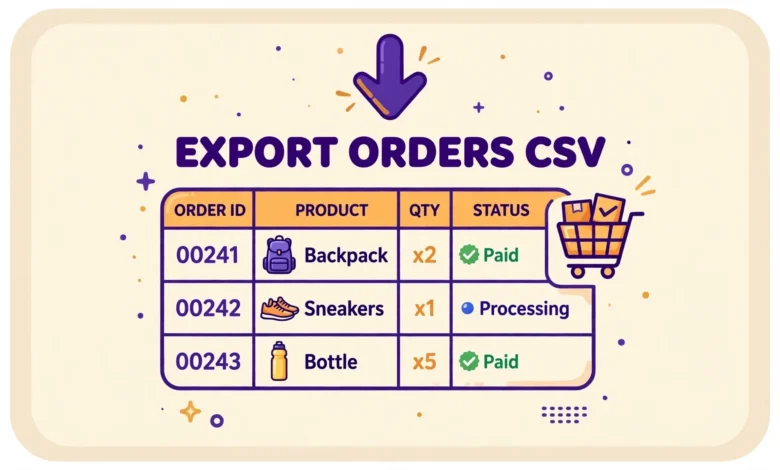
The Analytics CSV typically includes order number, date, status, customer details, products, quantities, totals, and payment information, depending on your WooCommerce version and the columns shown in the report. That breadth is useful for accounting, but it also means the file contains personal data, so treat it as a sensitive document from the moment you download it. We cover privacy steps near the end of this guide.
Method 2: How Does the Classic Reports CSV Export Work?
Older WooCommerce setups, and stores that still use the classic reporting screens, offer a Reports area under WooCommerce, then Reports. The Orders report there also provides a CSV download option in many versions. The steps are similar: choose the report, set the range, and download the file. The classic report tends to be simpler and less customizable than Analytics, which can be an advantage when you want a straightforward order list without learning a new reporting interface.
Method 3: What About the Tools Export Option?
WordPress includes a general export tool under Tools, then Export. This tool can export shop orders, products, and other content as an XML file, which is the WordPress eXtended RSS format used for moving content between WordPress sites. It is not a CSV file, and it will not open as a neat spreadsheet table by default. That distinction matters, because many store owners try this route expecting a CSV and are confused by the result.
- Go to Tools, then Export, and choose the content type you want to export.
- Select shop orders, or all content if you are migrating a whole store, and set any date or status filters offered.
- Download the XML file and keep it as a migration backup, not as a spreadsheet.
- On the destination site, use Tools, then Import, with the WordPress importer, to bring the orders in.
What Does Each Export Include and Exclude?
Built-in exports are useful, but they are not perfect copies of everything in your database. Understanding their limits prevents nasty surprises when an accountant or courier asks for a column you assumed was included. The table below summarizes the practical differences in plain terms.
- Analytics CSV: best for filtered order tables, totals, products, and customer basics. Great for accounting and review.
- Classic Reports CSV: similar order data in a simpler report, where available. Less filtering than Analytics.
- Tools Export XML: structured order data for migration between WordPress sites. Not a spreadsheet, and not ideal for quick analysis.
- What CSV exports often exclude: some custom fields added by other plugins, detailed tracking numbers, and internal notes, unless those fields appear in the report columns.
- What no built-in export does well: complex custom reporting, such as profit per product after fees, which usually needs a spreadsheet formula or a dedicated reporting tool.
If a column you need is missing, check whether a plugin on your store stores that data in a custom field. Built-in reports only export what they display, so custom data may need a dedicated export plugin after all. That is a fair trade: use the free built-in route for standard order data, and only pay for a plugin when your data is genuinely custom. For official guidance on WooCommerce reporting, see WooCommerce.com and Developer.WooCommerce.com.
How Do I Open and Clean a CSV in Sheets or Excel?
A CSV file is plain text with commas separating columns, so spreadsheet apps can open it directly. In Google Sheets, use File, then Import, choose Upload, select your CSV, and confirm the separator and column handling in the import dialog. In Excel, use File, then Open, select the CSV, and follow the Text Import Wizard if it appears, choosing comma as the delimiter. If columns appear merged into one column, the separator setting is almost always the cause, so reimport and choose comma explicitly.
Once the file opens, do a few quick cleaning steps before you use it. Freeze the header row so it stays visible while you scroll, check that dates are recognized as dates rather than text, and confirm that totals are numbers rather than text with currency symbols attached. If totals import as text, your sums will show zero or errors, which is a formatting issue, not a data error. Select the total column, change its format to a number or currency format, and test a simple sum on a few rows.
How Should I Handle Customer Data Privacy?
An order export is not just a spreadsheet. It contains names, email addresses, phone numbers, and postal addresses, which are personal data. Once that data leaves your WordPress dashboard, your dashboard password no longer protects it. Treat every export as sensitive, even if the task feels routine, such as sending a courier list.
- Download exports only on a device you control, never on a shared or public computer.
- Store exports in a private folder, not in a shared drive folder that your whole team or public links can access.
- Share only the columns the recipient needs. A courier does not need customer email addresses if a phone number and address are enough.
- Delete old exports when the task is finished, instead of letting them accumulate in your Downloads folder.
- Never email a full customer export to an unverified address, and never upload it to a random online converter or AI tool.
- If you must share a file, use a password protected link or a secure sharing method, and tell the recipient to delete it after use.
Privacy care also applies to how you set up your store in the first place. Only collect the checkout fields you genuinely need, and keep your store software updated so order data stays protected. A fast, well maintained store also makes exports smoother, because reporting queries run faster on healthy hosting. Our web hosting guide explains how hosting choices affect WooCommerce performance and reliability.
When Is a Paid Export Plugin Actually Worth It?
Built-in exports cover standard needs, but there are cases where a dedicated plugin earns its price. Consider one if you need scheduled automatic exports, such as a daily order file emailed to your accountant, custom fields that built-in reports ignore, exports in a specific format a courier system requires, or one click exports filtered by complex rules that Analytics cannot express. If none of those apply, the built-in route is enough, and adding a plugin only adds cost and maintenance.
Before buying, test whether a spreadsheet formula can solve the problem instead. Many reporting needs, such as monthly totals by product, can be done with a pivot table in Sheets or Excel from a built-in CSV, without any new plugin. That approach keeps your store lean, which also helps checkout speed. Related store settings can affect what you export, too: for example, if you set a minimum order value, your order mix changes, and our guide on how to set a minimum order amount in WooCommerce explains that setting.
Similarly, if your export workflow is driven by order emails, because you forward order details to a fulfilment team, make sure your emails are clear and consistent first. Our guide on how to customize WooCommerce order emails without a plugin can help you tidy that communication before you automate anything around it.
Frequently Asked Questions
Can I export WooCommerce orders to CSV without a plugin?
Yes. WooCommerce Analytics includes a CSV download for filtered order reports, and classic Reports offers a CSV option where available. Both work without any extra plugin. Use Tools Export only when you need an XML file for migrating orders to another WordPress site.
Why does my CSV open with all data in one column?
This usually means the spreadsheet app used the wrong separator during import. Reimport the file and choose comma as the delimiter explicitly. In Sheets, use File, then Import, and check the separator setting. In Excel, use the Text Import Wizard and select comma as the delimiter.
Does the Analytics export include custom fields from other plugins?
Not necessarily. Analytics exports the columns shown in the report, so custom fields stored elsewhere may be missing. If you need custom field data in every export, check whether that field appears in the report, or consider a dedicated export plugin that supports custom fields.
Is it safe to email an order CSV to my accountant?
Only with care. An order CSV contains personal customer data, so share only the columns needed, use a secure sharing method rather than an ordinary attachment when possible, and ask the recipient to delete the file after use. Delete your own copy once the accounting task is complete, and keep a separate backup only if tax rules require it.
Last updated: November 2026.