WordPress file permissions control who can read, write, and execute each file and folder on your site. When permissions are correct, WordPress can upload images, install updates, and save settings without errors. When permissions are wrong, you get frustrating messages like failed uploads, plugin updates that will not complete, and changes that refuse to save, even though nothing else looks broken.
In this guide, you will learn what WordPress file permissions mean in plain language, which numbers to use for folders, files, and wp-config.php, and how to set them in cPanel File Manager step by step. You will also learn why you should never use 777, how wrong permissions cause common errors, and how to fix them with SSH commands if you are comfortable with the terminal.
What are file permissions in WordPress?
Every file and folder on your hosting account has permission settings. These settings decide what three groups can do: the owner (usually your hosting account), the group (other accounts or processes on the same server that share a group), and everyone else (the public, including website visitors through the web server). For each group, there are three possible actions: read, write, and execute.
Read means the file content can be viewed. Write means the content can be changed or deleted. Execute means the item can be run as a program or, for a folder, that its contents can be listed and accessed. A folder needs execute permission for the web server to open files inside it, which is why folder permissions differ from file permissions. Understanding these three actions makes the numbers much easier to remember.
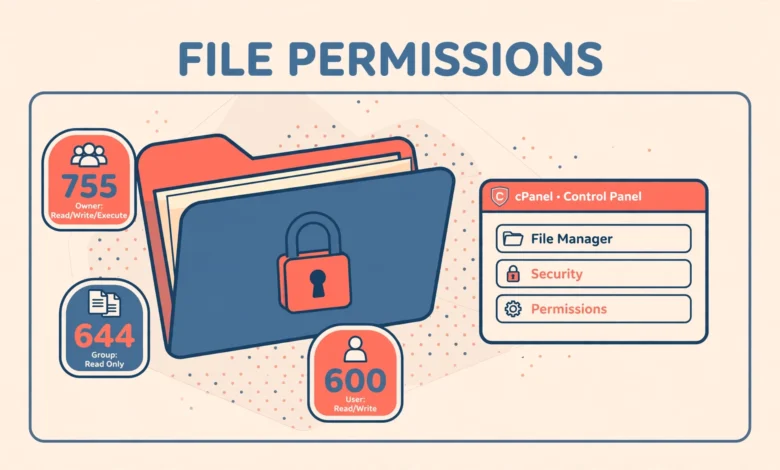
Permissions are usually shown as a three digit number, such as 755 or 644. Each digit stands for one group in order: owner, group, and public. Each digit is a sum of values where read equals 4, write equals 2, and execute equals 1. So 7 means read plus write plus execute, 6 means read plus write, 5 means read plus execute, and 4 means read only. Once you know this simple math, you can read any permission number at a glance.
What are the correct WordPress file permissions?
For most WordPress sites, the standard and safe values recommended by the WordPress community are straightforward. Use these as your starting point, and only change them if your host gives you a specific reason to do so. Correct permissions keep your site working while limiting what an attacker can change if they find a vulnerability in a plugin or theme.
- All folders: 755. The owner can read, write, and execute. The group and the public can read and execute, but they cannot write. This lets the web server open folders while blocking outside changes.
- All files: 644. The owner can read and write. The group and the public can read only. This lets visitors view images and pages while blocking outside edits.
- wp-config.php: 600 or 640. This file holds your database username, password, and security keys, so it deserves stricter protection than normal files. Use 600 when your host supports it, or 640 if 600 breaks your site.
- .htaccess: 644 in most cases. Some hosts prefer 640 for extra protection. Do not set it to a writable value for the public.
Why should you never use 777?
The number 777 means everyone can read, write, and execute. It is sometimes suggested online as a quick fix when an upload fails, because it removes every restriction and the error disappears. That disappearance is misleading. With 777, any user or process on the server can change that file or folder, and a hacked plugin or a compromised account elsewhere on shared hosting can inject malicious code into your site.
Choosing a host with sensible default permissions and good support also helps. Our web hosting guide explains what to check before you buy hosting, including support quality and server setup. If you are new to WordPress basics, our WordPress dashboard explained for beginners guide is a useful companion to this tutorial.
How to check permissions in cPanel File Manager
cPanel File Manager is the easiest way to view and change permissions without the terminal. Log in to cPanel from your hosting account, then open File Manager. Navigate to the folder where WordPress is installed, which is usually public_html, unless you installed WordPress in a subfolder. You will see a Perms column that shows the current permission number for each file and folder.
Look first at the main WordPress folders: wp-admin, wp-includes, and wp-content. They should show 755. Look at wp-config.php in the main folder. It should show 600 or 640. Look at a few files inside wp-content, such as files in uploads or themes. They should show 644. If you see 777 anywhere, or a file showing 000, you have found a likely cause of an error or a security risk.
How to set file permissions in cPanel File Manager
Changing one file or folder is simple. Right click the item in File Manager, choose Change Permissions, tick or untick the read, write, and execute boxes for owner, group, and public, and save. File Manager shows the resulting number as you tick boxes, so you can confirm it reads 755 for a folder or 644 for a file before saving.
Changing many items at once needs more care. File Manager can change permissions recursively, which means it applies the change to a folder and everything inside it. This is useful, but it can also break things if you apply a folder number to files or a file number to folders. For example, setting everything inside wp-content to 755 would make files executable when they should only be readable, and setting everything to 644 would remove execute permission from folders so the server could not open them.
To fix a whole WordPress install safely in File Manager, work in two passes. First, select the main WordPress folder, change its permissions recursively, and apply the folder value only if your File Manager version offers separate folder and file handling. If it does not, change folders one level at a time, then change files separately. A slower, careful fix is far better than a fast recursive change that breaks uploads in a new way. Always take a backup before bulk permission changes, so you can restore quickly if something goes wrong.
How to set wp-config.php permissions safely
wp-config.php deserves special attention because it contains your database credentials and secret keys. Anyone who can read this file can potentially access your database, so limiting read access matters. Set wp-config.php to 600 first. This means only the owner can read and write it, and nobody else can read it at all.
If 600 causes your site to show an error or fail to connect to the database, your server setup may need group read access. In that case, change it to 640, which lets the owner read and write and the group read, while the public still cannot read it. Test your site after each change by loading the homepage and logging in to the dashboard. If the site works with 640, leave it there. Do not loosen it further just to be safe, because looser is the opposite of safer for this file.
While you are checking this file, also confirm it has not been altered unexpectedly. Our WordPress Site Health check explained guide shows how to spot warnings that may point to file or server problems. After installing WordPress, our things to do after installing WordPress checklist also covers basic hardening steps that pair well with correct permissions.
Fixing common errors caused by wrong permissions
Wrong permissions cause a small set of very recognizable errors. Learning to match the error to the fix saves hours of random troubleshooting and plugin reinstalls that were never needed.
- Image upload fails or shows “Unable to create directory”: the wp-content/uploads folder or its month folders are not writable by WordPress. Set uploads and its subfolders to 755 and check file ownership with your host if the error continues.
- Plugin or theme update fails: the wp-content folder, plugins folder, or themes folder is not writable. Set those folders to 755 and their files to 644, then try the update again.
- WordPress asks for FTP credentials on every update: WordPress cannot write files directly, often because of ownership rather than the permission number alone. Contact your host about ownership before changing numbers at random.
- Changes to settings do not save: a config or cache file may be read only for the owner. Check the specific file, restore it to 644, and clear any caching plugin after the fix.
- White screen or 500 error after a permission change: a folder may have lost execute permission, or a file may have gained execute permission it should not have. Restore folders to 755 and files to 644 and test again.
Advanced option: fixing permissions with SSH
If your host provides SSH access and you are comfortable with the terminal, you can fix an entire WordPress install in seconds with two commands. These commands set all folders to 755 and all files to 644 in one pass each, which avoids the File Manager problem of applying one number to both types. Run them from inside your WordPress installation folder, and replace the path in your mind with your actual location before pressing enter.
find . -type d -exec chmod 755 {} \;
find . -type f -exec chmod 644 {} \;
chmod 600 wp-config.php
The first command finds every folder and sets it to 755. The second finds every file and sets it to 644. The third tightens wp-config.php to 600. Always take a backup before running bulk commands, double check that you are inside the correct WordPress folder, and never run these commands from the server root or your home folder by mistake. If you are unsure about SSH, stay with File Manager. A careful manual fix is always better than a fast terminal mistake.
For official background on file permissions and hardening, see wordpress.org and the developer documentation at developer.wordpress.org. Both sources explain the principles behind these numbers and why stricter settings protect your site.
Frequently asked questions
What should WordPress folder permissions be in cPanel?
WordPress folders should be 755 in cPanel. This lets the owner read, write, and execute, while the group and public can read and execute but cannot write. If a folder shows a different number and uploads or updates fail, restoring it to 755 is a good first step.
What should WordPress file permissions be?
WordPress files should be 644. The owner can read and write, while the group and public can read only. The main exception is wp-config.php, which should be 600 or 640 because it contains database credentials and security keys.
Is 777 ever safe for WordPress?
No, 777 is not safe as a permanent setting, because it lets everyone read, write, and execute the file or folder. It may hide an error temporarily, but it opens your site to tampering. Fix ownership or the correct permission number instead, and change any 777 item back right away.
Why does WordPress still ask for FTP details after fixing permissions?
This usually means file ownership is wrong, not the permission number. WordPress cannot write directly when files are owned by a different user than the web server process. Contact your hosting support and ask them to correct ownership for your WordPress folder, then test an update again.
Last updated: October 2026.