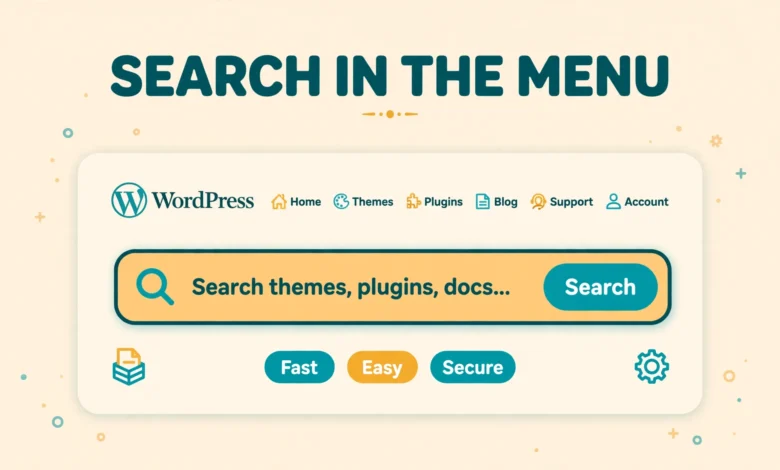
Visitors who cannot find what they need leave fast. A search bar in your main menu gives them a direct route to the right page, post, or product without scrolling through your homepage or guessing your site structure. Most sites hide search in the footer, which means many visitors never see it at all.
This guide shows you how to add search bar WordPress menu placement without a plugin, using two methods that cover every modern setup. Block theme users can add the Search block inside the Navigation block in a few clicks, while classic theme users can add one small code snippet. You will also learn styling, mobile behaviour, and the limits of default search.
Why Add a Search Bar to Your WordPress Menu?
A menu search bar serves the visitors who already know what they want. They arrive with a specific question or product in mind, and a visible search field lets them act on that intent in seconds instead of clicking through five menu items and giving up halfway.
Search also helps large sites more than small ones. Once a site passes 50 or 100 pages, menus alone cannot cover everything, and categories still force visitors to guess where the answer lives. Search removes that guesswork, and repeated search terms are useful feedback about what your audience wants next.
There is a business case too. Stores lose sales when shoppers cannot find a product, and blogs lose readers when a useful old post stays buried. A search bar in the header sits on every page, so it works wherever a visitor lands. You can get the same benefit without a plugin and without slowing your site down.
What Do You Need Before You Start?
Before you touch anything, check which kind of theme you use, because the method depends on it. If Appearance shows a full Site Editor, you use a block theme, and Method 1 is your route. If it shows Menus and Customize instead, you use a classic theme, and Method 2 is your route.
Take a quick backup before you change a menu or add code, even though both methods here are low risk. If you use the code method, put the snippet in a child theme or the Code Snippets plugin, never in the parent theme, so a theme update cannot wipe it out. Our guide to add custom CSS in WordPress explains the same safe pattern.
- Know your theme type: block theme or classic theme.
- Decide which menu should carry search, usually the primary header menu.
- Have a child theme or the Code Snippets plugin ready for the code method.
- Keep a backup from before the change.
How Do You Add a Search Bar With the Search Block?
Method 1 is the no-code route for block themes, and it takes about two minutes. The Search block is a core WordPress block, so nothing extra needs installing. You place it inside the Navigation block, so it becomes part of the menu on every page that uses the same header template part.
Open Appearance, then Editor, then Template Parts, and open your Header. Click inside the Navigation block, then click the plus icon to add a block at the end of the menu items. Search for the Search block and insert it. By default it shows a button only, which expands into a field when clicked.
Click the Search block to open its settings in the right sidebar. You can show the input field and button together, change the button text or icon, and set a short placeholder such as Search. Save the template, then visit your site and test the search with a real term.
One detail catches many beginners: the change applies to the header template part, so it appears everywhere that template part is used. If your theme has separate headers for the homepage and inner pages, repeat the step in each one. If you later switch themes, add the block again in the new theme.
How Do You Add a Search Bar With Code in Classic Themes?
Method 2 suits classic themes, where menus are built in Appearance, then Menus. Classic themes have no Navigation block, so you add the search form with the wp_nav_menu_items filter, and get_search_form() returns the default WordPress search form. Together they add a search field as the last item of the chosen menu.
Add this snippet to your child theme functions.php file or to a Code Snippets snippet set to run on the front end only. The code checks the menu location so the search form appears only in your primary menu and not in the footer menu or any other menu on the page.
function vtg_add_search_to_menu( $items, $args ) {
    if ( $args->theme_location === 'primary' ) {
        $items .= '<li class="menu-search-item">' . get_search_form( false ) . '</li>';
    }
    return $items;
}
add_filter( 'wp_nav_menu_items', 'vtg_add_search_to_menu', 10, 2 );
Replace primary with your own theme location if your theme names it differently. Common names are primary, main, header, or top, and you can find the exact name in your theme documentation. If the search form appears in the wrong menu, the location name is the first thing to check. The full filter reference is on developer.wordpress.org.
After saving the snippet, clear any caching plugin and visit your site. The search field should appear at the end of the primary menu. If it does not appear, confirm the snippet is active and set to run on the front end, then check that the menu assigned to the primary location is the one you are looking at.
What About a Search Widget or a Dedicated Search Page?
If neither method fits your theme, two fallbacks still help visitors find content. The first is a Search block in a widget area, such as the sidebar or footer. Go to Appearance, then Widgets, and add the Search block to the sidebar. Our guide to WordPress widgets explained for beginners walks through widget areas in detail.
The second fallback is a dedicated search page. Create a page called Search, add a Search block at the top, and link to it from your menu. This works on any theme, and it suits sites where the header is already crowded. The downside is an extra click, so treat it as a fallback, not a first choice.
How Do You Style the Menu Search Bar?
Default WordPress search forms look plain, and in a menu they can look out of place next to styled links. A little CSS fixes the size, spacing, and alignment. Add it in Appearance, then Customize, then Additional CSS, or in your child theme stylesheet.
.menu-search-item {
    display: flex;
    align-items: center;
    margin-left: 12px;
}

.menu-search-item input[type="search"] {
    width: 160px;
    padding: 8px 12px;
    border: 1px solid #ddd;
    border-radius: 4px;
}

.menu-search-item input[type="search"]:focus {
    width: 220px;
    outline: none;
    border-color: #2271b1;
}
The focus rule above grows the field when a visitor clicks into it, which is a neat touch for busy headers. Keep the expanded width modest, because a field that grows too much can push menu items onto a second line. Test the result at laptop and tablet widths, since a header that looks fine at 1440 pixels can break at 1024 pixels.
Match the search button to your theme button style, including its background color and border radius. If you added a custom class to a menu item before, the same approach works here: our guide to add a custom CSS class to a WordPress menu item shows how classes and CSS work together in menus.
How Does Menu Search Behave on Mobile?
Mobile needs special attention, because header space is tight and most themes collapse the menu behind a hamburger icon. In block themes, the Search block inside the Navigation block usually appears inside the mobile menu panel when it opens. Test it on a real phone, not only by shrinking your desktop browser.
In classic themes, the code method adds the search form to the menu markup, so it usually appears inside the mobile menu too. If the search field makes the mobile panel too tall, hide it on small screens and keep a search field in the footer or on the search page instead. The CSS below hides the menu search item below 768 pixels, so the mobile menu stays clean.
@media ( max-width: 768px ) {
    .menu-search-item {
        display: none;
    }
}
What Can Default WordPress Search Not Do?
Default WordPress search only searches post and page titles and content. It does not search inside PDF files, media file names, product SKUs, custom fields, or comments. A visitor searching for a product code or a phrase inside a PDF will get no results.
Default search also ranks results loosely and has no typo tolerance, so a visitor who types one wrong letter may see zero results. For a small blog this is fine. For a store with hundreds of products or a docs site with hundreds of pages, a dedicated search plugin becomes worth its weight.
If you run a store, note that the default search form finds product names, but it will not search SKU codes or product attributes. Many store owners add a search plugin later, after the menu placement in this guide is already working. First put search where visitors can see it, then improve what the search finds.
Which Method Should You Choose?
Choose the Search block method if you use a block theme and want zero code. Choose the code method if you use a classic theme, or if you want exact control over which menu location shows search. The snippet is short, it runs on the front end only, and it works with almost every classic theme.
Whichever method you pick, test it the way a visitor would. Search for a term you know exists and a term that does not exist at all. The first should return sensible results, and the second should show a clear no results message. If both behave well on desktop and mobile, your menu search is done. A related next step is a better menu structure, and our guide to add a dropdown menu in WordPress pairs well with a search bar in the same header.
Frequently Asked Questions
Can I add a search bar to the WordPress menu without a plugin?
Yes. In a block theme, add the core Search block inside the Navigation block in the Site Editor. In a classic theme, add a short snippet using the wp_nav_menu_items filter and get_search_form() to your child theme or a Code Snippets snippet. Both use core WordPress features, so no plugin is needed.
Why does my menu search bar look broken or misaligned?
The default search form has no menu specific styling, so it often sits too high, too wide, or with mismatched padding. Add CSS for the menu search item to align it with the other links and set a fixed input width. Clear your cache after saving the CSS, because cached pages can keep showing the old unstyled form.
Does WordPress search find products and PDF content?
Default search covers post and page titles and content, including product names on a WooCommerce store, but it does not search inside PDF files, product SKUs, or custom fields. If visitors often search for codes or file contents, you need a search plugin that indexes those sources.
Should the search bar show on mobile too?
Yes, if it fits without crowding the mobile menu. In most themes the search field appears inside the mobile menu panel, which works well. If your header is very crowded, hide the menu search item on small screens and keep a search field in the footer instead.
Last updated: November 2026.