Out of the box, WordPress installs minor security releases by itself, and since version 5.6 you can also switch on automatic updates for individual plugins and themes. For most site owners that is a blessing. Updates happen quietly in the background and you never have to think about them.
But not everyone wants a website that changes itself. If you manage client websites, run a WooCommerce store, or once woke up to a broken layout caused by an update that ran at three in the morning, you probably want control over when updates happen. This guide shows you how to disable automatic updates for the WordPress core, plugins, and themes, both with code and with the built in dashboard toggles. It also covers the tradeoff honestly, because turning updates off comes with a real responsibility.
Why would you disable automatic updates?
Automatic updates exist for a good reason, but there are legitimate situations where they cause more trouble than they prevent:
- Client sites. If you build websites for clients, you do not want their live site changing without your knowledge or testing. A surprise update that breaks a layout becomes your emergency phone call.
- WooCommerce stores. Store owners often disable plugin auto updates because an untested update can break checkout, payment gateways, or shipping calculations. On a store, updates happen on a schedule, after a backup, never at random.
- Staging first workflows. Many professionals test every update on a staging copy before touching the live site. Automatic updates bypass that safety process entirely.
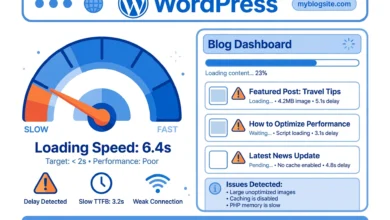
- Unreliable update runs. On weak shared hosting, updates sometimes time out halfway and leave the site stuck in maintenance mode. If that sounds familiar, a slow server is usually the root cause, and automatic updates just let the symptom appear on its own schedule.
- Planned maintenance windows. Some site owners prefer all changes to happen during a window they chose, when they are awake and available to react, rather than at random times through the week.
Understand the tradeoff before you switch anything off
Here is the honest part. Outdated WordPress software is the most common way websites get hacked. Every month, security fixes ship for the core, for popular plugins, and for themes. Automatic updates install those fixes within hours of release. The moment you disable them, that job becomes yours, and nobody will remind you.
So only disable automatic updates if you will actually update manually on a reliable schedule. If you are a beginner who rarely logs in to the dashboard, keeping automatic updates switched on is the safer choice by far. Disabling updates and then forgetting about them is the worst of both worlds: you lose the protection and gain nothing.
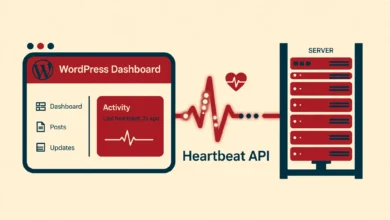
Think of this as part of taking active control of your site’s background behavior. Many site owners who manage their own updates also disable XML-RPC and review what runs behind the scenes, from WP-Cron scheduled tasks to the Heartbeat API that keeps the dashboard in sync. Control is good, but it has to be active control, not set and forget.
Method 1: Disable everything with one line in wp-config.php
The fastest global switch is a constant in wp-config.php, the configuration file in your WordPress root folder. Edit it through File Manager or FTP and add this line just above the comment that says you should stop editing:
define( 'AUTOMATIC_UPDATER_DISABLED', true );That single line disables every automatic update on the site: core, plugins, themes, and translation files. Manual updates from the Dashboard Updates screen keep working exactly as before, so you lose nothing except the automation. To reverse it later, delete the line or change true to false.
Method 2: Control core updates with WP_AUTO_UPDATE_CORE
Maybe you are fine with plugins updating themselves but want the WordPress core to wait for your approval. This constant, also added to wp-config.php, gives you that choice:
define( 'WP_AUTO_UPDATE_CORE', false );The accepted values are true, false, and the string ‘minor’. Setting it to ‘minor’ keeps the WordPress default behavior: minor security releases install automatically while major versions wait for you to click the update button. Setting it to true enables automatic updates for major versions too, which most site owners should avoid because major releases carry the highest risk of breaking changes.
Note that this constant only affects the core. Plugin and theme automatic updates are controlled separately, which brings us to the next method.
Method 3: Fine grained control with filters
For the most precise control, WordPress offers a filter for each update type. The safe place to add them is a Code Snippets snippet or a small must use plugin. Avoid putting them in your theme’s functions.php, because switching themes would silently lose the setting and re-enable updates without you noticing.
To disable automatic updates for plugins, themes, and translation files, add these three lines:
add_filter( 'auto_update_plugin', '__return_false' );
add_filter( 'auto_update_theme', '__return_false' );
add_filter( 'auto_update_translation', '__return_false' );
To stop even minor core updates through a filter instead of a constant, add this line as well:
add_filter( 'allow_minor_auto_core_updates', '__return_false' );You can also target a single plugin and leave everything else automatic. This example keeps all plugins updating except WooCommerce, which many store owners prefer to update by hand:
add_filter( 'auto_update_plugin', 'vutechgeek_control_plugin_updates', 10, 2 );
function vutechgeek_control_plugin_updates( $update, $item ) {
    if ( 'woocommerce' === $item->slug ) {
        return false;
    }
    return $update;
}
The filter receives the plugin’s data in the $item variable, so you can build any rule you like. The developer reference for the auto_update_plugin hook documents the exact parameters if you want to get creative with conditions.
Method 4: Use the built in dashboard toggles
Since WordPress 5.6, you do not need any code for the common cases. Go to Dashboard and then Updates, and you will see an “Enable automatic updates” link next to each plugin and theme. Click it once to switch that item to automatic, and click the link again to switch it back to manual.
For bulk changes, go to the Plugins screen, tick the checkboxes next to the plugins you want to change, choose “Enable Auto-updates” or “Disable Auto-updates” from the Bulk actions menu, and click Apply. This is the friendliest method of all, and it is the one to use if you only want to stop a few specific plugins from updating themselves while the rest stay automatic. WordPress documents the whole update system in its official upgrade documentation if you want the full background.
A smarter middle ground
Disabling everything is rarely the best answer. A balanced setup that many professionals use looks like this:
- Keep minor core updates enabled. They are security fixes, they almost never break anything, and they close the most dangerous holes within hours.
- Disable plugin and theme auto updates on important sites, and update them manually once a week after taking a backup.
- Know about automatic rollback. WordPress 6.5 and later automatically roll back a plugin or theme update that fails partway, which makes automatic updates considerably safer than they used to be.
- Consider managed hosting. Some managed WordPress hosts handle updates, staging copies, and rollbacks for you, which removes the whole dilemma and lets you focus on content.
Whatever combination you choose, put a recurring reminder in your calendar to check for updates. Regular maintenance habits matter far more than any single setting, and a weekly five minute check keeps a manually updated site just as safe as an automatic one.
Frequently asked questions
Will disabling automatic updates break my site?
No. Disabling them only stops updates from installing by themselves. Everything keeps working exactly as it does today. The risk is not breakage, it is running outdated software for too long, so pair this change with a manual update routine you will actually follow.
Should I disable automatic updates on a WooCommerce store?
Many store owners do, at least for plugins. A broken checkout costs real money, so updating on a fixed schedule, after a backup, and ideally tested on a staging copy first, is the professional approach. Keep minor core security updates enabled if you can, since those rarely cause problems.
How do I turn automatic updates back on later?
Remove the constants from wp-config.php, remove or deactivate the Code Snippets snippet holding your filters, or flip the toggles back on the Dashboard Updates screen. Changes take effect immediately. There is no waiting period and no cache to clear for the setting itself.
When do automatic updates actually run?
WordPress checks for new updates roughly twice a day through its built in task scheduler, WP-Cron, and installs anything marked as automatic shortly after it is found. The exact time depends on when your site receives visits, because WP-Cron runs on page loads rather than on a real server clock, so low traffic sites may update at odd hours.
Last updated: October 2026.