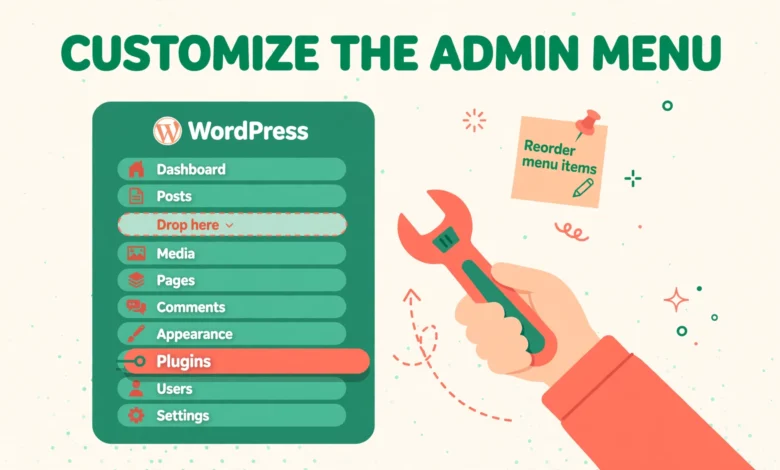
The WordPress admin sidebar grows messy over time. Every plugin adds its own menu item, and the default order rarely matches the way you actually work. Editors see tools they never use, clients see settings they should never touch, and you waste clicks hunting for the one item you open every day.
This guide shows you how to customize WordPress admin menu items without a plugin, using a handful of small code snippets. You will learn how to rename items, remove items you never use, reorder the menu to match your workflow, add your own custom item, and hide items for specific user roles. The code goes in a child theme or a Code Snippets snippet, so a theme update never wipes it out.
Why Customize the WordPress Admin Menu?
A clean admin menu saves time and prevents mistakes. When the items you use daily sit at the top, you stop scanning a long list on every visit. When distracting items are gone, new team members learn the dashboard faster, because they only see what matters to their job. A tidy menu also reduces support questions.
Menu cleanup also protects client sites. If you build sites for clients, the default admin menu hands them tools that can break the site, such as the theme editor, plugin installer, and settings pages. Hiding those items for non-admin roles keeps clients focused on content, while you keep full access as the administrator.
There is a limit to keep in mind. Hiding a menu item does not remove the permission behind it. A user who knows the direct URL can still open a hidden settings page if their role allows it. Menu customization is an interface improvement, not a security feature. For real access control, use roles and capabilities, which our guide to WordPress user roles explained covers.
Where Does the Code Go, and What Should You Back Up First?
All the code in this guide belongs in your child theme functions.php file or in a Code Snippets snippet set to run in the admin area only. Never put it in the parent theme, because the next theme update will delete it. Code Snippets is the safer choice if you have never edited theme files, because you can deactivate a snippet in one click.
Back up your site before you start, and know how to recover. A single typo in admin menu code can hide the menus you need to fix the typo, but recovery is easy: deactivate the Code Snippets snippet, or remove the code from functions.php through your host file manager or FTP. Our WordPress maintenance checklist for beginners includes backup steps you can follow.
Work on a staging site first if your site earns money or serves clients. Test each snippet one at a time, and check the menu after each change before you add the next one. If two snippets change the same menu item, the later one wins.
How Do You Rename a Menu Item?
Renaming is the gentlest change you can make, and it often fixes the most confusion. The default labels Posts, Pages, and Media are clear to developers, but a client may understand Blog Articles, Website Pages, and Photos better. Renaming changes only the label in the sidebar, never the underlying page or its URL.
The global $menu array holds every top level menu item, with each entry carrying its label, capability, and slug. The admin_menu hook lets you edit that array before the menu is drawn. Find the item by its slug, such as edit.php for Posts, and replace the first element with your new label.
function vtg_rename_admin_menu_items() {
    global $menu;
    foreach ( $menu as $key => $item ) {
        if ( isset( $item[2] ) && $item[2] === 'edit.php' ) {
            $menu[ $key ][0] = 'Blog Articles';
        }
        if ( isset( $item[2] ) && $item[2] === 'upload.php' ) {
            $menu[ $key ][0] = 'Photos';
        }
    }
}
add_action( 'admin_menu', 'vtg_rename_admin_menu_items' );
Keep new labels short, because the sidebar is narrow and long labels wrap onto two lines. Use words your users already know, and avoid clever names that need explaining. If you rename an item for a client, note it in the handover notes.
How Do You Remove Menu Items You Never Use?
Removing items is the fastest way to declutter the dashboard. Most sites never use the Comments screen, and many owners never open Tools. The function remove_menu_page() removes a top level menu by its slug, while remove_submenu_page() removes a single submenu item under a parent. You can read both functions on developer.wordpress.org.
function vtg_remove_admin_menu_items() {
    remove_menu_page( 'edit-comments.php' );
    remove_menu_page( 'tools.php' );
    remove_submenu_page( 'themes.php', 'theme-editor.php' );
}
add_action( 'admin_menu', 'vtg_remove_admin_menu_items' );
The snippet above removes Comments and Tools from the sidebar, and removes the Theme File Editor from under Appearance. Removing the theme editor is a sensible safety step on client sites, because one wrong edit there can break the whole site. The page itself still exists at its direct URL, so this is cleanup, not security.
Common slugs include index.php for Dashboard, edit.php for Posts, upload.php for Media, edit.php?post_type=page for Pages, edit-comments.php for Comments, themes.php for Appearance, plugins.php for Plugins, users.php for Users, tools.php for Tools, and options-general.php for Settings. For a custom post type, the slug is usually edit.php?post_type=your-type. Always remove one item at a time and reload the dashboard to confirm the result.
How Do You Reorder Menu Items?
Reordering puts your most used items at the top, where your eyes land first. WordPress controls menu order through the menu_order filter, and you must also enable the custom_menu_order filter, or your order is ignored. The filter receives the default order as an array of slugs, and you return your own array in the order you want.
function vtg_custom_menu_order( $menu_order ) {
    if ( ! $menu_order ) {
        return true;
    }
    return array(
        'index.php',
        'edit.php',
        'edit.php?post_type=page',
        'upload.php',
        'edit-comments.php',
        'themes.php',
        'plugins.php',
        'users.php',
        'tools.php',
        'options-general.php',
    );
}
add_filter( 'custom_menu_order', '__return_true' );
add_filter( 'menu_order', 'vtg_custom_menu_order' );
List every top level item you want to keep, in your preferred order. Any item you leave out of the array drops to the bottom of the menu, so include plugin menus you care about if you want them placed deliberately. Items you removed with remove_menu_page() do not need to appear here.
Order the menu by task, not by alphabet. Content items such as Posts, Pages, and Media belong together near the top for a blog, while a store owner may want Products and Orders first. Ask the person who uses the dashboard daily what they open most, and build the order around their answer.
How Do You Add Your Own Menu Item?
Adding a custom item is useful for shortcuts your team opens daily, such as a documentation page, an analytics dashboard, or a support form. The function add_menu_page() creates a top level item with a page title, a menu label, a required capability, a slug, an optional callback, icon, and position. The full signature is on developer.wordpress.org.
function vtg_register_custom_menu_page() {
    add_menu_page(
        'Site Docs',
        'Site Docs',
        'edit_posts',
        'vtg-site-docs',
        'vtg_site_docs_page',
        'dashicons-book-alt',
        3
    );
}

function vtg_site_docs_page() {
    echo '<div class="wrap"><h1>Site Docs</h1><p>Add your team notes and links here.</p></div>';
}
add_action( 'admin_menu', 'vtg_register_custom_menu_page' );
The position number 3 places the item near the top, just below Dashboard. Lower numbers sit higher in the menu, and a position that clashes with an existing item pushes the existing item down. The capability edit_posts means editors and above can see it, while subscribers cannot. Choose the capability with care, because it decides who sees the item.
You can also add a menu item that links to an external URL, such as your analytics tool, by using add_menu_page() with a slug that is the full URL and no callback. WordPress treats that slug as a link, which is a handy trick for a daily tool. Keep the number of custom items small, because each one adds noise.
How Do You Hide Menu Items for Specific Roles?
Role based hiding is the most valuable trick in this guide for client sites. The function current_user_can() checks whether the current user has a given capability, so you can wrap a removal in a check that only runs for non-administrators. The snippet below removes the Plugins and Settings menus for everyone except administrators.
function vtg_hide_menus_by_role() {
    if ( ! current_user_can( 'manage_options' ) ) {
        remove_menu_page( 'plugins.php' );
        remove_menu_page( 'options-general.php' );
        remove_menu_page( 'tools.php' );
        remove_submenu_page( 'themes.php', 'theme-editor.php' );
    }
}
add_action( 'admin_menu', 'vtg_hide_menus_by_role' );
The capability manage_options belongs to administrators by default, so this check cleanly separates admins from everyone else. For finer control, check a different capability, such as edit_others_posts for editors or publish_posts for authors, and hide different items for each group. Capability checks are the recommended approach, because roles can change while capabilities stay meaningful.
Test role based hiding with a real test account for each role, not by guessing. Create a test editor and a test author, log in as each one, and confirm the menu looks right for both. A common mistake is hiding an item that an editor needs for their daily work, such as the Media library. If you run a regular health check, our guide to WordPress Site Health check explained is a good companion task after any admin change.
What If a Typo Locks You Out of the Menu?
A typo in admin menu code can produce a blank dashboard or hide the menus you need to reach the snippet and fix it. Stay calm, because recovery is straightforward and your content is safe. If you used Code Snippets, open the plugins screen and deactivate the plugin, and the menu code stops running at once. Then reactivate it, open the snippet, fix the typo, and save it again.
If you used a child theme, open your host file manager or FTP, go to wp-content, then themes, then your child theme folder, and edit functions.php to remove the broken code. If you cannot reach the file manager, your host support team can do it for you. After recovery, find the typo before you re-add the code.
- Code Snippets route: deactivate the plugin, fix the snippet, reactivate.
- Child theme route: remove the broken code through the file manager or FTP.
- Change one snippet at a time so the cause is obvious.
- Keep a backup from before the change.
Frequently Asked Questions
Can I customize the WordPress admin menu without a plugin?
Yes. Use the admin_menu hook with the global $menu array to rename items, remove_menu_page() to remove them, the menu_order filter to reorder them, and add_menu_page() to add your own. Put the code in a child theme or a Code Snippets snippet, never in the parent theme.
Does hiding a menu item block access to that page?
No. Hiding a menu item only removes the link from the sidebar. A user who knows the direct URL can still open the page if their role allows it. Menu customization is an interface cleanup, not a security control. For real access control, manage roles and capabilities instead.
What happens if my admin menu code has a typo?
A typo can cause a fatal error or hide the menus you need to fix it, but your content stays safe. If you used Code Snippets, deactivate the plugin from the plugins screen to stop the code running. If you used a child theme, remove the broken code through your host file manager or FTP.
Will my admin menu changes survive a theme update?
Yes, if the code lives in a child theme or a Code Snippets snippet. Both survive parent theme updates, because updates only replace the parent theme files. Code placed in the parent theme functions.php file will be deleted by the next update.
Last updated: November 2026.