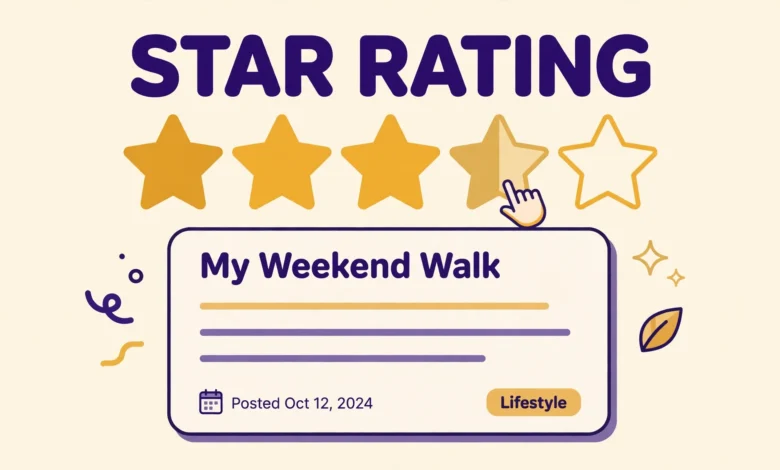
Star ratings are everywhere on the web. You see them on product reviews, recipe posts, course pages, and service pages. A row of five stars tells a reader in one second what a longer paragraph would take a minute to say. Many WordPress users assume they need a plugin to add stars to a post, but that is only partly true. It depends on what kind of rating you want. An editorial star rating, where you as the author give a product a score, needs no plugin at all. A visitor rating system, where readers click stars and their votes are saved, does need a plugin, because votes must be stored somewhere.
Getting this distinction right matters, because the wrong choice wastes time and can mislead readers. If you install a voting plugin for a simple review score that only you control, you add complexity for no benefit. If you try to build a visitor voting system without a plugin, you will find that clicks do nothing, because WordPress has no built in place to save a visitor vote. Most review posts, roundups, and service pages only need the editorial kind, and that is good news, because it is fast and free.
Editorial Ratings vs Visitor Ratings: Know the Difference
An editorial rating is your own score. You test a product, try a service, or review a course, and you give it four stars out of five. The number is fixed. It does not change when a reader visits the page, and it does not depend on anyone clicking anything. The stars are simply a visual summary of your written opinion. Because nothing needs to be saved or counted, you can build an editorial rating with plain text, with star characters, or with a small block of HTML and CSS. No plugin is involved.
A visitor rating is different. It lets each reader click a star to record a vote, and the site shows an average based on all the votes so far. That average must be stored in the database, updated every time someone votes, and protected against repeat votes from the same person. WordPress core does not include a voting system, so you need a plugin or custom code with database storage to make it work.
Method 1: Simple Text Stars in the Editor
The simplest editorial rating is plain text. Write your score as words, then add star characters to match. For example, write “Our rating: 4.5 out of 5” followed by star characters. Put the rating near the top of your review, or at the end in a short verdict box, so readers can find it without scrolling through the whole post.
Text stars work in every theme, and they are accessible when you include the written score alongside them. The weakness is that plain star characters use your theme font, so they may look small or plain compared with a styled rating.
Method 2: HTML Stars With a Little CSS
If you want your stars to look polished, use a Custom HTML block with a small amount of styling. The HTML version lets you control the size and colour of the stars, and it keeps the written score next to the stars for clarity. Add a Custom HTML block where you want the rating to appear, then paste the sample below and change the stars and the number to match your score.
<div class="vtg-rating">
  <span class="vtg-stars" aria-label="Rated 4.5 out of 5 stars">★★★★☆</span>
  <span class="vtg-score">4.5 out of 5</span>
</div>
Then add a small CSS rule to style the rating. You can add it through the Customizer under Additional CSS. The rule below makes the stars gold and larger than the surrounding text, and it keeps the score on the same line. Adjust the size and colour to match your theme. For a step by step guide to adding CSS safely, see our tutorial on how to add custom CSS in WordPress.
.vtg-rating {
  font-size: 20px;
  line-height: 1.4;
}
.vtg-stars {
  color: #f5b301;
  letter-spacing: 2px;
}
.vtg-score {
  font-size: 16px;
  color: #333333;
  margin-left: 8px;
}
This method is still an editorial rating. The stars are fixed in the HTML, and they do not change when a visitor clicks them, because they are not buttons and they are not connected to any voting system. That is exactly what you want for a review. The reader sees your score at a glance, then reads your written review for the reasons behind it. A rating without a written review is weak, so always pair the stars with real detail about what you tested and what you found.
Method 3: A Shortcode for Reusable Ratings
If you publish many reviews, typing the same HTML on every post gets repetitive. A shortcode solves that problem by letting you reuse one small function. You add the function once, then use a shortcode with a score value on any post. This method needs a small amount of PHP, so use a child theme or a code snippets plugin to add it, and test it on a draft post before you use it on a live review.
The shortcode below takes a score from zero to five and prints a row of stars plus the written score. It rounds the score to the nearest half star, so 4.5 shows four full stars and one half star. The function escapes the output and keeps the written score in the HTML, which helps readers and search engines understand the rating.
function vtg_star_rating_shortcode( $atts ) {
    $atts = shortcode_atts( array( 'score' => '5' ), $atts );
    $score = floatval( $atts['score'] );
    $score = max( 0, min( 5, $score ) );
    $full = floor( $score );
    $half = ( $score-$full >= 0.5 ) ? 1 : 0;
    $empty = 5-$full-$half;
    $stars = str_repeat( '★', $full );
    if ( $half ) {
        $stars .= '☆';
    }
    $stars .= str_repeat( '☆', $empty );
    return '<span class="vtg-stars">' . esc_html( $stars ) . '</span> ' . esc_html( $score ) . ' out of 5';
}
add_shortcode( 'vtg_rating', 'vtg_star_rating_shortcode' );
To use the shortcode, add a Shortcode block to your post and type the shortcode with your score. The sample uses encoded brackets in this guide so WordPress does not execute it here, but on your own site you type normal square brackets around the tag. Keep the shortcode near your verdict or summary so the rating appears where readers expect it.
[vtg_rating score="4.5"]Method 4: Save a Block Pattern for Repeat Use
If you prefer not to touch PHP, a block pattern is a good middle ground. Build your rating once in the block editor, style it the way you like, then save it as a reusable pattern. On your next review, insert the pattern and change the stars and the number.
To create the pattern, select the rating blocks, open the block options, and choose the option to create a pattern. Give it a clear name such as Review Rating. When you insert it into a new post, edit the stars and the score for that review, because a copied pattern with the wrong score is a common mistake.
Star Ratings in Elementor
If you build your pages with Elementor, you already have a rating option built in. Elementor includes a Star Rating widget that lets you set a score, choose the star style, and adjust the size and colour without writing code. Drag the widget into your layout, set the rating value, and add a short text label with the written score beside it. This is still an editorial rating, because the value is fixed by you and visitors cannot change it by clicking. For a visual guide to building Elementor layouts, see our tutorial on adding an image gallery in Elementor for free.
The Elementor widget suits pages built in Elementor, because the rating matches the rest of your design. For normal block editor posts, the HTML or shortcode method is simpler.
When You Do Need a Plugin: Visitor Voting
Visitor voting is the one case where a plugin is the right answer. A voting plugin stores each vote, calculates an average, and shows the result to the next visitor. It also handles the hard parts, such as stopping the same person from voting many times. Building that yourself without a plugin would mean writing database code and testing edge cases, which is far more work than installing a well maintained plugin.
If you choose the plugin route for voting, pick a plugin that is actively maintained, has good reviews, and works with your theme. Test it on a draft post first, check that the average updates after a vote, and confirm that the stars still look right on mobile. Keep the number of voting plugins to one, because two rating plugins on the same site can conflict.
Google Review Snippets and Honest Ratings
Star ratings can appear in search results as review snippets, but Google has strict rules about when that happens. The rating must come from a real review with a written comment and a reviewer name, and it must describe the thing being reviewed, not the website itself. A site cannot give itself a five star rating and expect Google to display it. Write a real review, name what you tested, explain what worked and what did not, and let the stars summarise that honest opinion.
Google also expects review content to be visible on the page. A hidden rating with no written review is unlikely to qualify for a snippet, and a rating that contradicts the text around it can confuse readers and search engines alike. If you give a product five stars, your text should explain why it earned that score. If you give it three stars, say what held it back. Readers trust a three star review with clear reasons far more than a five star review with no detail. For the structured data side of reviews, read our guide on adding schema markup in WordPress without a plugin.
Good site speed also supports your reviews. A review page that loads slowly loses readers before they reach your verdict, no matter how good the stars look. If your site feels slow, start with our guide to choosing reliable web hosting, because hosting is the foundation that every other optimisation builds on.
Common Star Rating Mistakes to Avoid
- Showing stars with no written score, so screen readers and search engines cannot tell what the rating is.
- Using static stars and telling readers they can vote, when clicks do nothing.
- Copying a rating pattern from another post and forgetting to change the score.
- Giving every product five stars, which makes all your reviews look the same and erodes trust.
- Adding a voting plugin for a simple editorial review that does not need votes.
- Hiding the review text and showing only the stars, which gives readers no reason to trust the score.
Avoid these mistakes and your ratings will be clear, honest, and useful. The goal is not to collect stars. The goal is to help a reader decide quickly, then give them the detail they need to trust that decision. For more ways to make your posts clearer, see our guide to adding a custom sidebar in WordPress without a plugin.
Frequently Asked Questions
Can I add star ratings to WordPress without a plugin?
Yes, for an editorial rating you can. Use text stars, a small HTML block with CSS, a shortcode, or a saved block pattern. You only need a plugin when visitors must be able to click and vote, because those votes must be stored in the database.
Will my star rating show in Google search results?
It may show as a review snippet, but only if the rating comes with a genuine written review, a reviewer name, and matching structured data. Google does not display a snippet for every rating, and it does not display ratings that a site gives to itself. Focus on honest reviews first, and treat the snippet as a bonus.
How do I show half stars in WordPress?
Use a half star character and always write the score in words beside it, such as 4.5 out of 5. The written score is what makes a half star clear to every reader, including those using screen readers. Test the result on mobile to make sure the stars still line up correctly.
Can I use the Elementor Star Rating widget for blog posts?
Yes, if the post or page is built with Elementor, the Star Rating widget works well and needs no code. For normal block editor posts, the HTML or shortcode method is usually simpler, because it keeps the rating inside the post content. For general guidance on WordPress functions and hooks, see https://developer.wordpress.org/.
Last updated: November 2026.