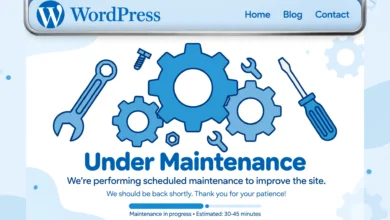
You click update, the tab spins for a while, and then your entire site is replaced by a single lonely line on a white page: “Briefly unavailable for scheduled maintenance. Check back in a minute.” A minute passes. Then an hour. The message is still there, your visitors see it, and even wp-admin refuses to load.
Here is the good news. This is one of the easiest WordPress errors to fix. Your site is not broken, your content is not lost, and you do not need a backup to recover. WordPress simply forgot to clean up a tiny file it created during the update. This guide explains exactly where that file lives and shows you three ways to remove it, even if you have never touched a server file before.
What does the maintenance mode message actually mean?
Every time WordPress updates the core, a plugin, or a theme, it creates a small file called .maintenance in the root folder of your site. While that file exists, WordPress shows the maintenance message to everyone instead of your normal pages. When the update finishes successfully, WordPress deletes the file automatically and your site comes back online within seconds.
The file itself is tiny. It usually contains nothing more than a timestamp recording when the update started. Its only job is to act as a flag that tells WordPress to display the notice. The message is therefore not an error in itself. It is a safety feature that stops visitors from seeing a half updated site. The problem only starts when the update is interrupted and the file is never deleted. Then the safety feature becomes a locked door with nobody holding the key.
Why does WordPress get stuck in maintenance mode?
For the file to be removed, the update process has to finish cleanly. These are the most common reasons it does not:
- You closed the browser tab mid update. The update stopped halfway through and the cleanup step never ran. This is the single most common cause.
- Two updates ran at the same time. Opening the Updates screen in two tabs, or clicking update while an automatic background update was already running, can create a conflict that kills both processes.
- The server timed out. Budget shared hosting sometimes kills long running update scripts before they finish. If this happens to you often, moving to a better WordPress host solves more than just this problem.
- PHP limits were too low. Large core updates need enough memory and execution time. When the script dies early from a limit, the flag file stays behind.
- A plugin conflict broke the update. A badly coded plugin can crash the update routine while core files are being replaced, leaving everything frozen in place.
How to fix it: remove the .maintenance file
All three methods below do exactly the same thing: they delete the leftover .maintenance file so WordPress stops showing the message. Pick the one you are most comfortable with. If you use cPanel hosting, Method 1 takes about two minutes and needs no technical skill at all.
Method 1: Delete the file with cPanel File Manager
This is the easiest method for most beginners because everything happens in your browser:
- Log in to your hosting control panel and open File Manager from the dashboard.
- Open the public_html folder, or the subfolder where WordPress is installed if it is not in the root. You should see familiar files like wp-config.php and folders like wp-content.
- Show hidden files. Files that start with a dot are hidden by default. Click Settings in the top right corner of File Manager, tick “Show Hidden Files (dotfiles)”, and save.
- Find the .maintenance file in the file list, right click it, and choose Delete. Confirm when asked.
- Reload your website. The message is gone immediately, and wp-admin works again.
If you cannot see the file, hidden files are almost certainly still switched off. Go back to Settings and check the toggle again. It catches almost everyone the first time, so do not feel bad about it.
Method 2: Delete the file with FTP
If your host does not use cPanel, or you simply prefer working with FTP, the process is identical in spirit:
- Connect with an FTP client such as FileZilla using the FTP credentials from your hosting account. Your host provides these in the welcome email or the control panel.
- Force hidden files to show. In FileZilla, go to the Server menu and tick “Force showing hidden files”. Other clients have a similar option in their view settings.
- Navigate to the WordPress root folder on the remote side of the screen, right click the .maintenance file, and delete it.
- Refresh your site to confirm the maintenance message has disappeared.
While you are connected, it is worth glancing at the dates on the surrounding files. They can confirm which update was running when things froze, which helps if you want to report the problem to a plugin developer.
Method 3: Turn it off with WP-CLI
If your host gives you SSH access, WP-CLI can fix this with a single command. Connect to your server, move into the WordPress installation folder, and run:
wp maintenance-mode deactivateWP-CLI removes the flag file and prints a confirmation message. You can read the full command reference in the official WP-CLI maintenance-mode documentation. If your host does not offer SSH access, just use Method 1 or 2 instead. There is no advantage to the command line here beyond speed.
What to do if the .maintenance file keeps coming back
If the file reappears a few minutes after you delete it, something on the site is still trying to run an update. Deleting the file again will not help until you find the underlying cause. Work through these suspects in order:
- A stuck automatic update. Log in to wp-admin, go to Dashboard and then Updates, and check whether an update looks half finished or keeps failing. Let it finish or run it manually, one item at a time.
- A plugin caught in an update loop. Rename the wp-content/plugins folder to plugins-paused using File Manager or FTP. If the site loads normally, rename it back and reactivate your plugins one by one until you find the one that triggers the problem. Then leave that plugin deactivated until its developer releases a fix.
- A server that keeps killing updates. If updates die halfway on a regular basis, ask your hosting support to check the PHP memory limit and max execution time. Repeated timeouts are a classic symptom of weak hosting, and slow servers cause far more damage than slow pages. Updates are often the first casualty.
Check your site after the recovery
Once the message is gone, spend five minutes confirming that everything is actually healthy. A stuck maintenance screen is harmless, but the interrupted update behind it sometimes leaves loose ends:
- Finish the interrupted update. Go to Dashboard and then Updates. If the core, a plugin, or a theme still shows an update available, run it again. This time update one item at a time and wait for each success message before starting the next.
- Clear every layer of cache. Your caching plugin and any CDN such as Cloudflare may keep serving the maintenance page for a while after the file is gone. Purge everything so visitors see the live site.
- Test the important pages. Open the homepage, the contact page, and the checkout if you run a store. Make sure forms submit and pages load without errors.
- Build a safer update habit. Updating one thing at a time and waiting for the confirmation is the simplest prevention there is. Our post install checklist covers more small habits that keep a WordPress site healthy for years.
How to prevent this from happening again
- Update one item at a time and never close the tab until WordPress confirms the update completed. Patience here prevents almost every stuck maintenance screen.
- Update during low traffic hours so that even if something goes wrong, fewer visitors see the notice.
- Keep a backup before major updates. A stuck maintenance file is harmless, but a failed update can occasionally leave files half replaced. A fresh backup turns any update disaster into a minor inconvenience.
- Use maintenance mode on purpose when you need it. If you want visitors to see a proper branded notice during planned work instead of the default line, here is how to enable maintenance mode without a plugin.
Frequently asked questions
Will deleting the .maintenance file delete any of my content?
No. The file is only a tiny flag, usually a few bytes in size, that tells WordPress to show the maintenance message. Deleting it touches nothing else. Your posts, pages, media library, and settings are completely safe.
I deleted the file but the message is still showing. Why?
Almost always, the answer is caching. Clear your browser cache first, then purge your WordPress caching plugin and your CDN if you use one. If the message survives all of that, double check that you deleted the file from the correct folder, which is the one containing wp-config.php. Deleting a similarly named file in the wrong folder changes nothing.
How can I update WordPress safely to avoid this in the future?
Update the core first, then plugins, then themes, one at a time. Avoid running updates from two browser tabs at once, and do not navigate away until each update reports success. If you run into a stranger variant of this problem, the WordPress.org support forums are a good place to ask for help.
Will a stuck maintenance screen hurt my Google rankings?
A few minutes or even a few hours of downtime will not matter. Google understands that sites go offline briefly. If the message stays up for days, though, Google may temporarily drop your pages from the results, so it is worth fixing promptly rather than leaving it for later.
Last updated: October 2026.