


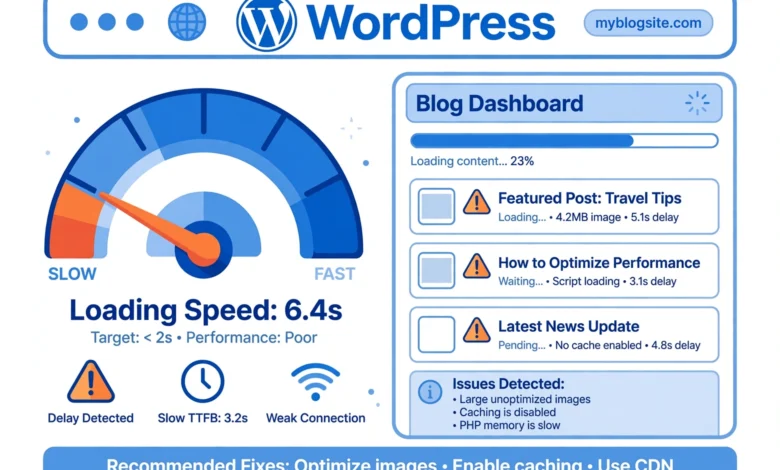
A slow WordPress site loses visitors, hurts Google rankings, and quietly kills sales. The frustrating part is that slowness has many possible causes, and guessing wastes time. This guide works like a diagnostic checklist. Each of the 15 items below lists the symptoms that point to it and the fix that solves it. Work through them in order, starting with the causes that have the biggest impact, and measure your speed before and after with Google PageSpeed Insights so you know exactly what each fix achieved.
1. Cheap or Overloaded Shared Hosting
Symptoms: every page is slow, including the WordPress admin. Time to first byte (TTFB) is over 800ms in PageSpeed Insights. The site gets slower during evening hours when traffic peaks.
Fix: hosting is the foundation of speed, and no plugin can fully compensate for an overloaded server. If your TTFB is consistently high, upgrade to a better shared plan, move to cloud hosting, or at least ask your host whether your account is hitting CPU or memory limits. This is the single most impactful fix on this list, so rule it out first before touching anything else.
2. No Caching Plugin
Symptoms: pages take several seconds to generate. Logged out visitors get the same slow experience on every page load. Server CPU usage is high even with modest traffic.
Fix: install a caching plugin so WordPress serves saved HTML copies instead of rebuilding each page from scratch. For most sites this single change cuts load time in half. Start with a well reviewed free caching plugin from wordpress.org, enable page caching, and retest. If your host offers built in server level caching, use that instead of stacking two caching plugins.
3. Huge Unoptimized Images
Symptoms: PageSpeed Insights flags “properly size images” and “serve images in next gen formats”. Blog posts with photos take noticeably longer to load than text only pages.
Fix: compress every image before or during upload, and serve modern formats like WebP. Our detailed guide on WordPress image SEO and optimization walks through the full workflow. As a quick win, install an image optimization plugin that compresses uploads automatically, and resize banner images to the actual display width instead of uploading 4000 pixel originals.
4. Too Many Plugins
Symptoms: the site got slower gradually as plugins were added. Deactivating plugins one by one shows clear speedups. The admin dashboard itself feels sluggish.
Fix: audit your plugin list and delete anything you do not actively use. Deactivated plugins still count as dead weight, so remove them entirely. For overlapping features, keep one plugin instead of three. A lean site with 10 focused plugins will outperform a bloated one with 40 every time.
5. One Heavy Plugin Doing the Damage
Symptoms: slowness started right after installing or updating a specific plugin. A query monitor or performance plugin shows one plugin loading huge scripts or running slow database queries.
Fix: use a plugin performance profiler to find the culprit, then replace it with a lighter alternative or disable the features you do not need. Page builders, security suites, and statistics plugins are the usual suspects. Keep the functionality, lose the bloat.
6. Bloated Theme or Page Builder
Symptoms: even a nearly empty test page loads slowly. PageSpeed Insights shows large amounts of unused CSS and JavaScript. Switching briefly to a default theme like Twenty Twenty Five makes the site dramatically faster.
Fix: the theme test above is your diagnosis. If a default theme is much faster, your theme is the problem. Switch to a lightweight, performance focused theme, and limit page builder use to pages that truly need custom layouts. Simple blog content does not need a page builder at all.
7. No Gzip or Brotli Compression
Symptoms: PageSpeed Insights reports “enable text compression”. HTML, CSS, and JavaScript files transfer at full size. The issue shows up on every page regardless of content.
Fix: enable text compression so your server sends smaller files. This is usually a one time server or plugin setting. Follow our step by step guide on enabling Gzip compression without a plugin to get it done in a few minutes with a small server configuration change.
8. Render Blocking JavaScript and CSS
Symptoms: the page stays blank or unstyled for a second before content appears. PageSpeed Insights flags “eliminate render blocking resources”. The problem is worst on mobile connections.
Fix: defer non critical JavaScript so it loads after the visible content, and inline or delay non essential CSS. Most caching plugins include options for deferring JavaScript and removing unused CSS. Apply them carefully and test your layout afterward, because aggressive settings can break sliders, menus, or popups.
9. Too Many External Scripts
Symptoms: the page waits on third party domains like ad networks, chat widgets, social feeds, or font services. PageSpeed Insights shows long chains of third party requests.
Fix: audit every external script and remove what you can live without. Load chat widgets only after user interaction, host fonts locally instead of pulling them from a font CDN on every visit, and lazy load social media embeds. Each removed third party request is speed you get back permanently.
10. Bloated Database
Symptoms: the site slowed down gradually over months or years. Post revisions, spam comments, and transient options have piled up. Database backups are much larger than the actual content.
Fix: clean the database with a reputable optimization plugin: delete post revisions beyond a sensible limit, clear spam and trashed comments, and remove expired transients. Then limit future bloat by capping post revisions in wp-config.php. Run this cleanup every few months.
11. No CDN for Global Visitors
Symptoms: the site is fast for local visitors but slow for visitors in other countries. Static files like images and CSS travel a long distance from your single server.
Fix: put a content delivery network in front of your site so static files are served from locations near each visitor. Free CDN plans are enough for most blogs and small stores. A CDN also absorbs traffic spikes, which protects your origin server during viral moments.
12. Outdated PHP Version
Symptoms: your host control panel shows PHP 7.x or older. Everything works, but nothing feels snappy. Plugin authors list newer PHP versions as recommended.
Fix: upgrade to a supported PHP version, ideally PHP 8.1 or newer. Each major PHP release has brought real performance gains, and the jump from 7.4 to 8.x is significant. Take a full backup first, switch the version in your hosting panel, and test key pages including checkout if you run a store.
13. Security Plugins Scanning Every Request
Symptoms: slowness appeared after installing a security plugin. Every page load feels heavier, and the plugin logs show constant scanning activity.
Fix: security matters, but real time scanning of every request is expensive. Move brute force protection to the server level where possible, and read our guide on limiting login attempts without a plugin for a lightweight way to block password guessing attacks. Keep your security plugin, but turn off its heaviest real time features if your host already handles them.
14. Too Many Post Revisions and Autosaves
Symptoms: the wp_posts table is enormous compared to your actual published content. The editor autosaves constantly and every small edit creates a new revision row.
Fix: define a revision limit in wp-config.php so WordPress keeps only the last few revisions per post, and increase the autosave interval if you find it disruptive. Then run one database cleanup to remove the backlog. This is a small fix, but on old sites it can noticeably speed up both the front end and the editor.
15. Hotlinked or Broken Resources
Symptoms: pages hang while the browser waits for resources that never arrive. The browser console shows failed requests to old domains, deleted images, or http URLs on an https site.
Fix: open your browser developer tools, check the console and network tabs, and find every failing request. Replace hotlinked images with locally hosted copies, fix mixed content warnings after moving to HTTPS, and remove widgets pointing at dead services. Browsers wait surprisingly long for resources that will never load.
How to Diagnose in the Right Order
If the full list feels overwhelming, follow this priority order for the fastest results. First check hosting quality and TTFB, because nothing else matters if the server is slow. Then install caching and compress images, which together fix the majority of slow sites. Then audit plugins and your theme, enable text compression, and clean the database. Finally, handle the advanced items like CDNs, PHP upgrades, and third party scripts. Measure with PageSpeed Insights after each round of changes so you can see which fix moved the needle.
A realistic target for most WordPress blogs: largest contentful paint under 2.5 seconds on mobile and a PageSpeed performance score above 90. If you hit those numbers, stop optimizing and go write content.
Frequently Asked Questions
What is a good load time for a WordPress site?
Aim for under 2.5 seconds for the largest contentful paint on mobile, which is Google’s threshold for a good experience. Most visitors start leaving when pages take longer than 3 seconds, so every second you shave off directly protects your traffic and conversions.
Will a caching plugin alone fix my slow site?
Sometimes, but not always. Caching helps enormously when the slowness comes from WordPress rebuilding pages on every visit. It cannot fix slow hosting, giant images, or a heavy theme. Use caching as step one, then work through the other causes on this checklist.
How many plugins are too many?
There is no magic number. Ten well coded plugins can be faster than three bloated ones. Judge by impact, not count: profile your plugins, remove what you do not use, and replace heavy plugins with lighter alternatives. Quality matters far more than quantity.
Does image size really affect speed that much?
Yes. Images are usually the largest files on a page, and unoptimized photos are the most common cause of slow WordPress sites we see. Compressing images and serving them at the correct size often cuts page weight by more than half. See our image optimization guide for the full process.
Should I use a CDN for a small local blog?
If almost all your readers are in the same country as your server, a CDN adds little speed benefit, though it still helps with traffic spikes. If your audience is spread across countries, a CDN is one of the cheapest meaningful upgrades you can make, and free plans cover most small sites.




2 Comments