Shipping is where many new WooCommerce stores lose sales. If checkout shows no shipping options, charges the wrong rate, or surprises customers with a high fee at the last step, shoppers abandon carts. Shipping zones solve this by letting you define where you ship and what each area costs, in one organized system.
In this guide you will learn what a shipping zone is, how to create zones in the right order, how to add flat rate, free shipping, and local pickup methods, and how to test checkout before real customers reach it. No extra plugin is needed for the core setup, and the examples include a local store case so you can adapt the logic to your own cities and regions.
What Is a WooCommerce Shipping Zone?
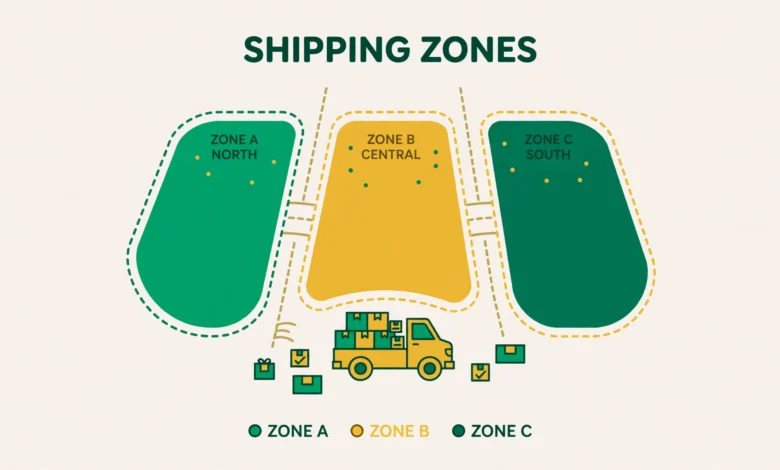
A shipping zone is a geographic area made of one or more regions, plus the shipping methods available in that area. A region can be a whole country, a state or province, or a set of postcodes. Each zone then gets its own methods and prices. For example, a Local zone might offer free local pickup and low cost local delivery, while an International zone might offer only a higher flat rate.
Zones keep shipping logic clean. Instead of one complicated rule for the whole world, you split it into areas that cost different amounts to serve. Customers only see methods from the zone matching their address, so a Karachi buyer never sees a Lahore pickup option, and a buyer abroad never sees a local courier rate. If you are setting up products for the first time, our guide to WooCommerce product variations will help you pair product options with correct shipping.
Why Zone Order Matters: First Match Wins
WooCommerce checks zones from top to bottom and uses the first zone matching the customer address. This is the most misunderstood rule in shipping zones, and it causes most wrong rate errors. A broad zone above a specific zone will steal all its customers, because it matches first and WooCommerce stops looking.
Always order zones from most specific to most general. Put a city zone above a country zone, and a country zone above a worldwide zone. For example, order Lahore first, then Pakistan, then Rest of the World. That way a Lahore customer gets the Lahore rate, another Pakistani city gets the Pakistan rate, and everyone else falls through to the worldwide rate. Drag zones to reorder them, and recheck the order every time you add a new zone.
How to Create Your First Shipping Zone
Start in your WordPress dashboard. Go to WooCommerce, then Settings, then Shipping, then Shipping zones. Click Add shipping zone to open the zone editor. You will see fields for the zone name, the regions it covers, and the shipping methods it offers. Give the zone a clear name that your team will understand later, such as Lahore City, Pakistan Nationwide, or Europe.
- Type a zone name that describes the area, not just Zone 1 or Zone 2.
- In Zone regions, add countries, states, or postcodes that belong in this zone.
- Click Add shipping method to add flat rate, free shipping, or local pickup.
- Save the zone, then drag it into the correct position in the zone list.
- Repeat the process for each area you serve, from most specific to most general.
Regions can be broad or precise. Add a whole country with one click, add individual states for larger countries, or add postcode ranges for city based delivery. Postcode matching is powerful for local stores, but a missing range can push a valid customer into the wrong zone, so test with real sample addresses first. For official method details, see the WooCommerce developer documentation at developer.woocommerce.com.
Adding Flat Rate Shipping
Flat rate is the most common shipping method. It charges a fixed amount per order, per item, or per shipping class, regardless of the exact address inside the zone. This is ideal when your courier charges you a predictable rate or when you want simple, transparent pricing that customers can understand before checkout.
When you add a flat rate method, you will see a Cost field and optional shipping class costs. You can enter a simple amount such as 250 for nationwide delivery, or a base amount plus a per item amount. Keep the math simple at first. A clear rate customers trust beats a clever formula that produces surprising totals. If you also use order value rules, read our guide to setting a minimum order amount in WooCommerce so shipping and order rules do not conflict.
Adding Free Shipping With a Minimum Order
Free shipping is a strong sales incentive, but it must be controlled or it will eat your margins. WooCommerce lets you offer free shipping only when an order meets a condition. The most common condition is a minimum order amount, such as free shipping on orders over 5000. Other options include a valid free shipping coupon or a minimum order amount combined with a coupon.
Set the minimum thoughtfully from your average order value and real delivery cost. If your average order is 2000 and delivery costs 300, a threshold of 2500 may lift basket size without losing money on small orders. Show the threshold clearly on product pages and in the cart. If free shipping is missing at checkout, check the cart total after discounts, because WooCommerce calculates the condition on the final eligible total.
Adding Local Pickup for Nearby Customers
Local pickup lets nearby customers collect orders from your shop, warehouse, or pickup point instead of paying for delivery. Add the Local pickup method to your local zone, give it a clear title such as Pickup from Lahore Store, and set its cost to zero if pickup is free. You can also add pickup instructions in the method description, including the address and pickup hours.
Local pickup only makes sense inside its own local zone. Do not add it to a nationwide zone, or distant customers will see a pickup option they cannot use. At checkout, customers who choose pickup should see a clear confirmation of where to collect the order. If you hide prices until checkout for wholesale or inquiry based products, our guide to hiding prices in WooCommerce explains related display controls you may need alongside pickup.
Using Shipping Classes for Heavy or Bulky Items
Not every product costs the same to ship. A small book and a large furniture item should not share the same delivery fee. Shipping classes let you group products by delivery cost, such as Light, Standard, and Heavy, and then charge extra for each class inside the flat rate method of a zone.
Create classes under WooCommerce, then Settings, then Shipping, then Shipping classes. Assign each product to a class on its edit screen. Then return to each zone and enter a class cost inside the flat rate method. For example, the Heavy class might add 800 to the base rate, while Light adds nothing. Test a mixed cart to confirm the total, because class costs stack with the base rate.
What Happens to Locations Not Covered by Any Zone?
Every store has a fallback area called Locations not covered by your other zones. This is not a zone you create yourself; WooCommerce shows it at the bottom of the Shipping zones list. If a customer address matches no zone, WooCommerce uses the methods in this fallback area, or shows no shipping options if the fallback area has no methods.
Decide your fallback policy deliberately. Many stores add a single flat rate here so no customer sees a dead checkout, while others leave it empty so they never promise delivery to an area they cannot serve. Leaving it empty is safer if you cannot deliver worldwide, but it produces the no shipping options message for uncovered addresses. Test an address outside all zones so you know what those customers experience. Reliable hosting also keeps checkout fast, so compare providers in our web hosting guide if checkout feels slow.
Pakistan and Local Store Example With City Based Zones
Consider a small Lahore store that sells nationwide in Pakistan and occasionally ships abroad. A practical order would be Lahore City first, with local pickup and a low local rate, then Pakistan Nationwide second, with a standard flat rate and free shipping over a threshold, then Rest of the World third, with a higher flat rate only. This protects the local rate, keeps nationwide pricing simple, and avoids promising cheap local delivery abroad.
For city zones, use postcode ranges and test with addresses from different neighborhoods. If your courier charges by city rather than postcode, a whole country zone may be simpler than dozens of tiny postcode zones. Keep zones manageable: three to five well ordered zones beat fifteen overlapping zones no one can debug later.
Testing Checkout With Sample Addresses
Never trust a zone setup until you have tested checkout. Add products to the cart, go to checkout, and enter a test address for each zone, including the most specific zone, a general zone, and an uncovered location. Confirm the correct methods appear, the correct rates apply, and free shipping appears only when the cart meets its condition.
- Test one address from each zone, starting with the most specific zone.
- Test a cart below and above any free shipping threshold.
- Test a cart with a heavy class product and a light product together.
- Test an address outside all zones to check the fallback behavior.
- Test local pickup to confirm customers see the correct pickup instructions.
Use a test payment method or cash on delivery, and clear caching that might serve an old checkout page. If a rate looks wrong, check zone order first, then method settings, then whether a shipping class is adding an unexpected cost.
Common Shipping Zone Errors and Fixes
The most common error is no shipping options at checkout. This usually means the address matches no zone, the matching zone has no methods, or a plugin is hiding methods. Check zone order, confirm at least one enabled method, and test the fallback area. The second common error is the wrong rate, usually a broad zone above a specific zone, or a shipping class cost stacking unexpectedly.
Overlapping zones cause subtle problems too. If two zones match an address, only the first applies, so the second methods never appear. Review regions for overlaps, especially when mixing country zones with state or postcode zones, and document your zone order so a new zone is never added at the top by accident.
Frequently Asked Questions
What is a shipping zone in WooCommerce?
A shipping zone is a geographic area plus the shipping methods available there. You define regions such as countries, states, or postcodes, then add methods like flat rate, free shipping, or local pickup with prices for that area. Customers only see methods from the zone matching their address.
Why does WooCommerce show no shipping options at checkout?
This usually means the address matches no zone, the matching zone has no enabled methods, or the fallback area is empty. Check zone regions and order, confirm at least one method is enabled in the matching zone, and test an uncovered address to see what fallback customers receive.
How should I order my WooCommerce shipping zones?
Order zones from most specific to most general, because WooCommerce uses the first matching zone. Put city zones above country zones, and country zones above a worldwide zone. A broad zone placed on top will steal customers from more specific zones below it.
Can I offer free shipping only over a minimum order amount?
Yes. Add the free shipping method to a zone and set a minimum order amount as its condition. The method will only appear when the cart total meets that threshold. Test carts below and above the threshold to confirm the method appears and disappears correctly.
Last updated: October 2026.