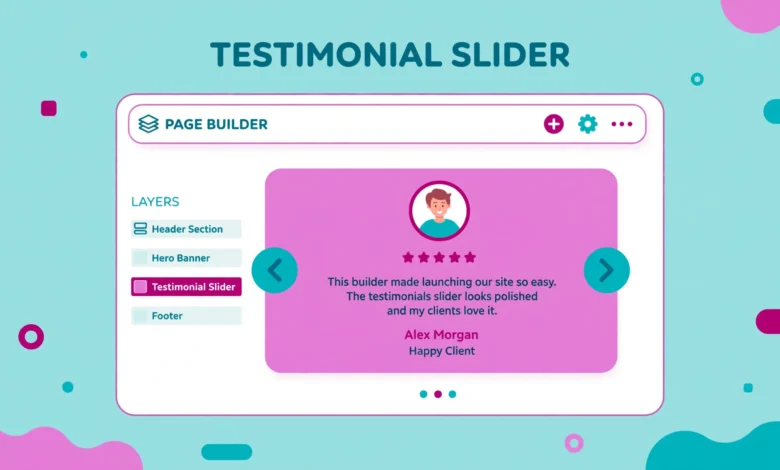
Customer testimonials build trust faster than almost any other section on a website. Visitors want to see real people and real results before they contact you or buy from you. A slider works especially well because it shows several testimonials in one small space without making the page feel long or crowded.
In this guide, you will learn how to add a testimonial slider in Elementor Free: pick a free addon, add testimonials, turn on the carousel layout, style the slider, and avoid the mistakes that make sliders slow or messy.
Can You Add a Testimonial Slider in Elementor Free?
Let us be honest up front. Elementor Free does not include a built-in Testimonial Carousel widget. The regular Testimonial widget is an Elementor Pro feature, and the carousel version of it is also a Pro feature. If you search the Elementor Free widget panel for a testimonial carousel, you will not find one.
That does not mean you are stuck. The free route is a free addon plugin that adds extra widgets to Elementor, including a testimonial or testimonial carousel widget. Many popular addons offer a free version with a testimonial widget included, and that widget is enough for a clean, professional slider on a small business site, a portfolio, or a service website. The key is to choose one addon and use it properly, not to install three different addons just to get one slider.
How to Choose a Free Testimonial Addon
Before you install anything, check that the testimonial widget is genuinely free. Some addons show a testimonial widget in the panel but lock the carousel layout, the star rating, or the styling controls behind a paid upgrade. Read the free versus Pro feature list on the plugin page before you commit to one, and compare the current free version, not an old review, because free limits change with updates.
Free options many Elementor Free users rely on include The Plus Addons for Elementor and Unlimited Elements for Elementor, both with free testimonial carousel widgets. Other packs, such as Essential Addons or Happy Addons, have similar free widgets. Whichever you shortlist, check for recent updates, many active installs, and good ratings on WordPress.org, and avoid an addon unupdated for many months. Compare the official Elementor feature list with the addon free version to confirm what Free lacks before you install anything.
- Confirm the testimonial carousel layout is in the free version, not only in Pro.
- Check that star ratings, client photos, and autoplay controls are included for free.
- Look for recent updates, strong ratings, and active support on WordPress.org.
- Choose one addon only, and avoid installing several addons for one slider.
Step 1: Install and Enable the Addon Widget
Start from your WordPress dashboard. Go to Plugins, then Add New, and search for the addon you chose, for example The Plus Addons for Elementor or Unlimited Elements for Elementor. Click Install Now, then Activate. You do not need to buy anything or enter a license key for the free version.
After activation, some addons add a settings page under the main dashboard menu or under Elementor in the sidebar. Open that settings page and make sure the testimonial widget is switched on, since some addons let you disable widgets you do not use. Now open the page where you want the slider and click Edit with Elementor. In the left widget panel, search for the word testimonial. You should see the new widget, often named Testimonial, Testimonial Carousel, or TP Testimonial. If it does not appear, reload the editor and check again that the addon is active and the widget is enabled.
Step 2: Add Your Testimonials with the Repeater
Drag the testimonial widget into a section on your page. Most testimonial widgets use a repeater field, which is simply a list of items you can add, duplicate, reorder, and delete. Each item in the repeater is one testimonial, so add one item for each client you want to show.
For each testimonial, fill in the fields the widget provides. The quote itself matters most, so keep it short and specific. A quote that names a real result, such as faster delivery, clearer communication, or more bookings, is far more persuasive than a vague line like great service. Add the client name, and add a role or business name when you have permission to share it, because a name without context feels less real.
Upload a client photo only with permission to publish it. If a client prefers not to share a photo, leave the field empty rather than using a random stock face. Add a star rating only if the client actually gave that rating.
- Quote: short, specific, and focused on one clear result or experience.
- Name: the real client name, with permission to publish it.
- Role: job title, business name, or service received, for context.
- Photo: a real client photo with permission, or no photo at all.
- Stars: a rating the client actually gave, when the widget supports it.
Step 3: Switch the Layout to Carousel
By default, some testimonial widgets show all testimonials in a grid. A grid is fine for a dedicated testimonials page, but on a homepage a carousel usually works better because it saves vertical space. Look in the widget settings for a Layout, Style, or Display option and change it from Grid to Carousel or Slider.
Once the carousel is on, set how many testimonials show at once on each device. On desktop, two or three slides at once often looks balanced in a full width section. On tablet, two slides can work, and on mobile you should almost always show one slide at a time. Showing two small testimonials side by side on a phone makes the text tiny and hard to read, so switch to the mobile view in the editor and set slides to one.
Next, set the carousel behaviour. Autoplay moves the slider on its own, which is useful on a homepage where visitors may not click anything. Set a sensible delay, usually around four to six seconds, so people have time to read a short quote before it changes. Turn on Pause on Hover when the option exists, because visitors who are reading a testimonial should not lose it mid sentence just because the slider moved on. For navigation, arrows plus dots work well on desktop, while dots alone are often cleaner on mobile, where arrows can crowd a narrow slide.
Step 4: Style the Slider to Match Your Site
Good styling makes a free widget look like a custom design. Start with the quote text. Choose a readable size, usually 16 to 18 pixels for the main quote on desktop, and a line height that gives the words room to breathe. Avoid very light grey text on a white background, because testimonials need to be easy to read at a glance.
Style the stars next in warm gold or amber, at a moderate size so they support the quote instead of overpowering it. Set the card background to very light grey or soft off white, with padding of at least 25 to 30 pixels on desktop, so text does not touch the card edges. Make the client name slightly bold and the role smaller and softer, and keep photo sizes and cropping consistent, because mixed photo shapes make the slider look messy when it rotates.
Mobile Checks and Performance Notes
Performance deserves a short note. A slider itself is light, but its addon adds files to pages that use its widgets. That is acceptable when one addon powers several widgets across your site, but wasteful when you install one addon for the slider, a second for a form, and a third for a gallery. If you already use an addon for other sections, check whether it has a testimonial widget first. For example, if you built a contact form in Elementor with an addon, or you added an image gallery in Elementor Free using an addon, that same addon may already cover testimonials. Also resize client photos to display size, usually 200 to 300 pixels wide for an avatar, and compress them before upload.
Troubleshooting Common Problems
If the testimonial widget is missing from the panel, the addon is usually inactive, the widget is disabled in the addon settings, or the editor needs a reload. Check Plugins first, then the addon settings page, then reload the editor. If the slider shows as a grid instead of a carousel, the layout setting is still on Grid, so open the widget, switch it to Carousel, and check the carousel settings tab for slides per view, autoplay, arrows, and dots.
If images look cropped, use square photos for circular avatars and set the image size to Thumbnail or Medium rather than Full. If autoplay feels too fast or too slow, change the delay and turn on Pause on Hover. A delay under three seconds is too fast for most quotes, while a delay over eight seconds can make the slider feel frozen.
Once the slider looks right, publish the page and view it in a real browser, not only in the Elementor preview. Click the arrows, wait for autoplay, and resize the browser window to a phone width. A slider that works in the preview but breaks on the live page often has a caching issue, so clear your cache plugin and browser cache before you declare it broken. For more Elementor Free techniques, see how to create a sticky header in Elementor Free and how to edit the header in Elementor Free. Those guides use the same careful approach: use what Free gives you, add one well chosen tool when needed, and test the result on mobile before you publish.
Frequently Asked Questions
Does Elementor Free have a testimonial slider widget?
No. Elementor Free does not include a Testimonial widget or a Testimonial Carousel widget, because those are Elementor Pro features. The free route is a free addon plugin that adds a testimonial widget with a carousel layout to the Elementor editor.
Which free addon is best for a testimonial slider?
There is no single best addon for every site. The Plus Addons and Unlimited Elements both offer free testimonial widgets with carousel options, and other packs such as Essential Addons and Happy Addons have similar free widgets. Choose one with recent updates and good ratings, and confirm the carousel layout is in its free version before you install it.
How many testimonials should a slider contain?
Five to eight testimonials is a good range for most sites. Fewer than three makes a slider pointless, because a simple static section would do the same job. More than ten can feel endless, and visitors rarely click through all of them, so pick your strongest, most specific testimonials and keep the rest for a dedicated testimonials page.
Why does my testimonial slider show as a grid?
The widget layout is still set to Grid. Open the testimonial widget, change the layout option to Carousel or Slider, and check the carousel settings tab for slides per view, autoplay, arrows, and dots. If the layout option is missing entirely, the carousel feature may be locked behind the addon Pro version, in which case you need a different free widget.
Last updated: October 2026.