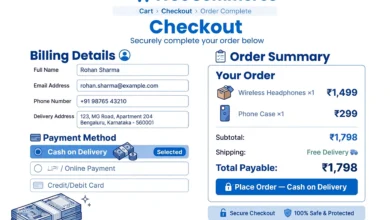
If you run an online store in Pakistan, cash on delivery alone is holding you back. A large share of your customers already pay with mobile wallets every day, and adding JazzCash and Easypaisa payment to WooCommerce takes less than an hour once you know the steps. In this guide, I will walk you through the complete process: getting your merchant credentials, installing the right plugin, configuring everything in WooCommerce, testing in sandbox mode, and going live with real payments.
Why Should You Accept JazzCash and Easypaisa on Your Store?
Pakistan is a mobile-first market. Millions of people pay their bills, transfer money, and shop using JazzCash and Easypaisa wallets. When a customer reaches your checkout and sees only bank transfer or cash on delivery, many simply leave. Offering the wallets they already use builds instant trust and removes friction at the most critical moment of the sale.
There is another practical reason. Cash on delivery comes with failed deliveries, fake orders, and cash handling costs. Prepaid wallet payments mean the money is confirmed before you ship anything. Your return rate drops, your cash flow improves, and your courier partner will thank you.
What Do You Need Before You Start?
Gather these four things first so you do not get stuck halfway through the setup:
- A working WooCommerce store – WordPress installed with the WooCommerce plugin active and at least one product published. If you are still choosing hosting for your store, read our web hosting comparison first, because a slow checkout page kills conversions.
- A JazzCash merchant account – registered through the official JazzCash business portal. After approval you receive a Merchant ID, a password, and an integrity salt (secure hash key).
- An Easypaisa merchant account – registered through the Easypaisa merchant onboarding channel. You will receive a store ID and credentials for their payment API.
- Sandbox credentials – both providers issue test credentials so you can simulate payments without moving real money. Never skip testing.
Merchant approval usually takes a few working days and requires your business details and a bank account for settlements. Apply for both accounts at the same time so you are not waiting twice.
How Do You Install a JazzCash and Easypaisa WooCommerce Plugin?
WooCommerce does not include Pakistani wallets out of the box, so you need a payment gateway plugin that connects your store to JazzCash and Easypaisa. Several free plugins exist in the WordPress plugin directory – search for “JazzCash WooCommerce” and “Easypaisa WooCommerce” and pick one with recent updates and good reviews.
- In your WordPress dashboard, go to Plugins > Add New.
- Search for the JazzCash WooCommerce gateway plugin, click Install Now, then Activate.
- Repeat the same steps for the Easypaisa WooCommerce gateway plugin.
- Go to WooCommerce > Settings > Payments. You should now see JazzCash and Easypaisa listed among the payment methods, currently disabled.
If a plugin has not been updated in over a year, avoid it. Payment plugins handle money, so you want one that is actively maintained and compatible with your WooCommerce version.
Where Do You Get Your Merchant Credentials?
JazzCash merchant credentials
Register your business on the JazzCash business portal and complete their verification. Once approved, JazzCash emails you three values: your Merchant ID, your Password, and an Integrity Salt. The integrity salt is used to sign each transaction so nobody can tamper with payment requests. Keep these values private – treat them like bank passwords.
Easypaisa merchant credentials
Easypaisa onboards merchants through its own business channel. After verification you receive a Store ID and the API credentials for your account. Save the sandbox credentials separately from the live ones and label them clearly, because mixing them up is the most common cause of failed test payments.
How Do You Configure the Gateways in WooCommerce?
- Go to WooCommerce > Settings > Payments and click Manage next to JazzCash.
- Check Enable JazzCash. Give it a clear title like “Pay with JazzCash” and a short description for the checkout page.
- Enter your Merchant ID, Password, and Integrity Salt in the matching fields.
- Turn on Sandbox Mode for now. Save changes.
- Repeat the same process for Easypaisa: enable it, set the title to “Pay with Easypaisa”, enter your Store ID and credentials, enable sandbox mode, and save.
Write the checkout descriptions in simple language. Something like “Pay securely with your JazzCash mobile account” tells the customer exactly what will happen next and reduces abandoned checkouts.
How Do You Test Payments in Sandbox Mode?
Never go live without testing. Sandbox mode lets you run the full payment flow with fake money:
- Open your store in a private browser window and add a product to the cart.
- At checkout, select JazzCash and complete the order using the sandbox test credentials provided by the plugin or JazzCash documentation.
- Check WooCommerce > Orders – the order should appear with the status your plugin assigns to successful sandbox payments (usually “Processing”).
- Repeat the test with Easypaisa.
- Also test a failed payment (wrong credentials or cancelled payment) to confirm the order is marked correctly and the customer sees a clear error message.
If a test payment fails, check three things in order: sandbox mode is on, credentials are pasted without extra spaces, and your site uses HTTPS. Payment gateways almost always require a valid SSL certificate, even in sandbox.
How Do You Go Live and Accept Real Payments?
- Replace the sandbox credentials with your live Merchant ID, password, salt, and Store ID.
- Turn off Sandbox Mode for both gateways and save.
- Place one small real order yourself (for example a 100 rupee product) and pay with your own JazzCash or Easypaisa account. Refund or cancel it afterwards.
- Confirm the money reaches your settlement bank account on the expected schedule before you announce the new payment options to customers.
Quick Tips for Pakistani Store Owners
- Show the JazzCash and Easypaisa logos on your homepage and product pages, not just at checkout. Familiar logos increase trust before the customer even adds to cart.
- Keep cash on delivery available at the start. Let customers choose, then watch which method wins over a month of real orders.
- Save your credentials in a password manager, not in a chat message or email thread.
- After every WooCommerce or plugin update, run one sandbox test to make sure the gateway still works.
- Set up order email notifications for yourself on the first few real transactions, so you catch any payment-status mismatch immediately.
- Announce the new payment options with a small banner on your homepage for the first month. Many customers will not notice a new checkout option unless you tell them.
How Much Do JazzCash and Easypaisa Charge Merchants?
Both providers charge a merchant discount rate, which is a small percentage of each transaction. The exact rate depends on your agreement and monthly volume, and it is typically lower than international card processors. There are usually no setup fees for standard merchant accounts, but confirm the complete fee schedule during onboarding: transaction percentage, any fixed per-transaction fee, and the settlement timeline to your bank account. Build these costs into your product pricing from day one so your margins stay healthy as order volume grows.
Frequently Asked Questions
Is there any fee for accepting JazzCash and Easypaisa payments?
Yes, both providers charge a small transaction fee or merchant discount rate on each payment. The exact rate depends on your merchant agreement, so confirm it during onboarding and factor it into your product pricing.
Can I use JazzCash and Easypaisa without a registered business?
Merchant accounts require business verification, which is easiest with a registered business and a bank account in the business name. Requirements change over time, so check the current onboarding terms on the official JazzCash and Easypaisa business portals.
What happens if a customer pays but the order fails?
This is rare when sandbox testing is done properly. If it happens, check the order notes in WooCommerce and your merchant dashboard for the transaction reference, then contact the provider’s merchant support with that reference. Always reconcile your WooCommerce orders against settlement reports weekly.
Last updated: October 2026.
Related Guides