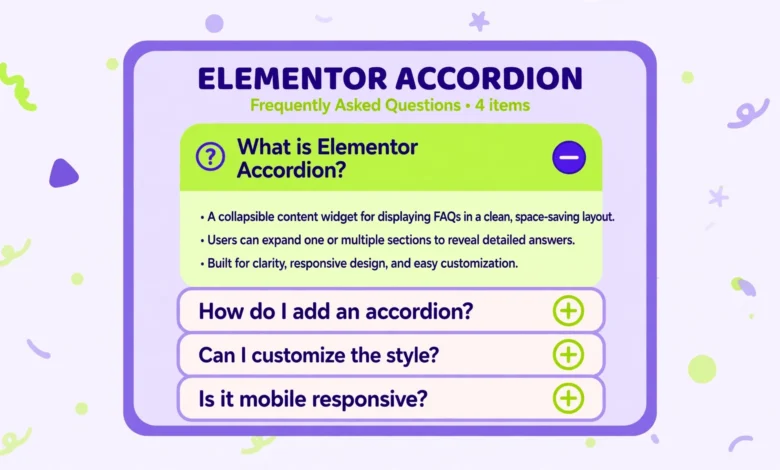
An accordion is a set of collapsible sections where visitors click a title to expand one section and read its content, while the other sections stay closed. It is the standard pattern for FAQ sections, course outlines, product details, and any page where a long list of information would otherwise overwhelm the reader. The good news for Elementor users is that you do not need Elementor Pro for this feature. The Accordion widget is included in Elementor Free, and it covers everything a typical FAQ or details section needs: multiple items, an open by default option, icons, and basic styling controls. This guide shows you how to add an accordion in Elementor for free, step by step, from placing the widget to styling it so it matches your site, and it is honest about which advanced accordion features do require Pro, so you do not waste time hunting for settings that are not in the free version.
How Do You Add the Accordion Widget in Elementor?
Start by opening the page where you want the accordion in Elementor. If the page is new, add a section or a container first to hold the widget, then look in the widget panel on the left for the Accordion widget. You can type Accordion in the widget search box to find it quickly. Drag the widget into your section or container, and Elementor will insert a ready made accordion with a few sample items already in place. Those samples are useful because they show the structure immediately: each item has a title and a content area, and clicking a title in the preview expands or collapses that item. Replace the sample titles and content with your own, one item at a time, and delete any sample items you do not need. Save your progress early, then preview the page to confirm the accordion opens and closes as expected before you spend time on styling.
If you cannot find the Accordion widget, check two things before assuming it is a Pro feature. First, confirm that Elementor itself is active and up to date, because a deactivated or outdated Elementor install can hide widgets. Second, check the widget search spelling, because Elementor also has a Tabs widget and a Toggle widget that look similar but behave differently. Tabs show one panel at a time in a horizontal tab row, while Toggle allows several sections open at once. Accordion is the widget where opening one item closes the others, which is the behaviour most FAQ sections want. If you are still learning the Elementor interface, it helps to know how other free widgets work too, and our guide on how to add a testimonial slider in Elementor for free follows the same drag, edit, and style pattern used here.
How Do You Add and Organise Accordion Items?
Each accordion item has two fields: a title and content. The title is what visitors see before they click, so write it as a clear question or a short label, not as a vague heading. For an FAQ accordion, use the exact question visitors ask, such as a pricing question or a delivery question, because clear titles help visitors scan the list and find their answer in seconds. The content area supports formatted text, so you can add paragraphs, bold text, and links inside an item, keeping each answer focused. Aim for short answers where possible, because an accordion works best when each expanded section is easy to read at a glance. If one answer needs a long explanation, consider linking from the accordion item to a full page or post instead of pasting a wall of text inside the accordion.
To add a new item, click Add Item in the widget settings, then fill in the new title and content. To remove an item, open that item in the settings and click the delete control for it. To reorder items, drag them by their handle in the item list until they sit in the order you want. Put the most asked questions first, because many visitors only read the first few items before deciding whether the page answers their question. Keep the total number of items reasonable: five to eight items suit most FAQ sections, while more than twelve items can feel overwhelming even inside an accordion, and may be better split across two accordions under separate headings. The official Elementor documentation at elementor.com covers the widget controls in detail if your Elementor version labels any setting differently.
- Write each title as a clear question or short label visitors can scan quickly.
- Keep each answer short, and link out to a full page for long explanations.
- Put the most asked questions at the top of the accordion.
- Use five to eight items for most FAQ sections, and split longer lists into two accordions.
How Do You Set the First Open Item and Icons?
By default, Elementor opens the first accordion item when the page loads, which is a sensible choice for an FAQ section because it shows visitors how the accordion works without them needing to click anything. You can change this in the widget settings if you prefer all items closed at first, which suits pages where the accordion is below other content and you want a cleaner first impression. Think about the page as a whole when you decide. On a dedicated FAQ page, an open first item invites reading, while on a product page where the accordion sits below a purchase button, closed items keep the focus on buying. Either choice is valid, so pick the one that serves the main goal of that particular page, and preview both options before you publish.
Icons are the small visual cue that tells visitors an item can be expanded, usually a plus sign, a chevron, or an arrow that rotates when the item opens. In the Accordion widget settings, you can choose an icon for the closed state and for the open state, and you can adjust the icon size so it balances with your title text. Keep the icon style consistent with the rest of your site: if your buttons use rounded shapes, a soft chevron suits the accordion better than a harsh plus sign, and if your design is minimal, a simple arrow is enough. Also check that the icon is large enough to tap comfortably on a phone, because many visitors will open accordion items with a thumb. A tiny icon that is hard to tap frustrates mobile users, even when the title itself is clickable.
How Do You Style an Accordion in Elementor Free?
Styling lives in the Style tab of the widget settings, and the free version covers the essentials well. You can set the title typography, including font size and weight, the title colours for normal, hover, and active states, the content text colour, and the background colours for titles and content areas. A clean approach is to keep the title background slightly different from the page background, so each item reads as a distinct row, and to use your brand colour sparingly, such as for the active title or the icon, rather than colouring every title brightly. Add a small amount of padding inside titles and content so text does not touch the edges, and add a border or a divider between items if your design needs stronger separation. Preview the accordion on mobile as well as desktop, because a title size that looks elegant on a wide screen can wrap awkwardly on a phone.
Two styling habits make a big difference. First, keep the accordion visually consistent with other elements on the same page, such as headings, buttons, and image galleries, so the page feels designed rather than assembled from unrelated parts. If you have already built an image section on the same page, our guide on how to add an image gallery in Elementor for free uses the same Style tab pattern, and matching spacing and colours across both widgets will tie the page together. Second, avoid styling every accordion item differently. One consistent title style, one icon style, and one content style across all items looks professional, while mixed colours and sizes inside a single accordion look accidental. If you are building pages with the newer layout system, our comparison of Elementor containers versus sections explains which layout wrapper your accordion sits inside and why that choice affects spacing.
What Needs Elementor Pro, and What Are Good Free Workarounds?
Honesty matters here, because many tutorials blur the free and Pro line. The standard Accordion widget, including items, icons, first open control, and the styling options described above, is free. Features that do require Pro include advanced accordion variations built with nested elements, accordion items that contain complex widget layouts rather than formatted text, and some motion and custom code integrations. For most FAQ and details sections, you do not need those advanced options. A practical free workaround for richer content inside an item is to keep the accordion answer short and link to a full page built with free widgets, rather than trying to embed a whole layout inside the accordion. Another workaround is to use the Toggle widget, also free, when you want several sections open at once instead of the accordion rule where opening one item closes the others. Choose Accordion for FAQs and Toggle for reference sections where readers compare several open answers side by side.
Before you upgrade to Pro for an accordion feature, test whether the free widget already solves your real need. Write out your items, style them, preview on mobile and desktop, and show the page to one other person to check that the interaction is obvious. If visitors understand it instantly and find their answers quickly, the free widget has done its job, and the upgrade money is better spent elsewhere. If you genuinely need nested layouts inside accordion items, that is a fair reason to consider Pro, but it is a minority case, not the default. Most small business sites, blogs, and course pages run excellent FAQ sections entirely on Elementor Free, and this guide is built around that reality.
Frequently Asked Questions
Is the Accordion widget available in Elementor Free?
Yes. The Accordion widget is included in Elementor Free, with items, icons, first open control, and basic styling. You do not need Elementor Pro for a standard FAQ or details accordion.
How many items should an accordion have?
Five to eight items suit most FAQ sections. Put the most asked questions first, keep answers short, and split longer lists into two accordions under separate headings rather than building one very long accordion.
What is the difference between Accordion and Toggle in Elementor?
In an accordion, opening one item closes the others, while in a toggle, several sections can stay open at once. Use Accordion for FAQs and Toggle for reference content where readers compare several open answers.
Can I put links and formatted text inside accordion content?
Yes. Accordion content supports formatted text, bold text, and links, so you can link from a short answer to a full page for longer explanations. Keep each answer focused, and avoid pasting very long text inside a single item.
Last updated: October 2026.