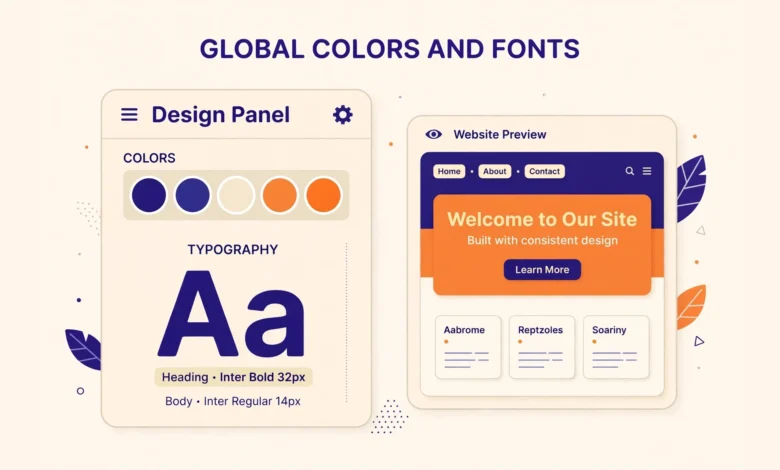
If you have ever changed the same color on ten different Elementor pages and wished there was a faster way, global colors and fonts are the answer. They let you define your brand colors and typography in one place, then reuse them across your whole site. Change a global color once, and every heading, button, and section that uses it updates automatically.
In this guide, you will learn what Elementor global colors and fonts are, what the default Primary, Secondary, Text, and Accent roles mean, how to set them up in Site Settings, how to apply them to widgets, and how to avoid the common mistakes that leave beginners with a messy mix of one off colors. No coding is needed, and everything here works in the free version of Elementor unless noted otherwise.
What Are Elementor Global Colors and Fonts?
Global colors and fonts are shared design tokens. Instead of picking a hex code for every heading and a font family for every paragraph, you save those choices under a name, such as Primary or Heading, and then you pick that name wherever you need it. Elementor remembers the link between the name and the value, so editing the value later updates every element that points to it.
This is very different from setting a color directly on one widget. A direct color affects only that one widget, while a global color affects every widget that uses it. Globals give you consistency and speed, while direct values give you one off exceptions for special cases.
What Do the Default Global Colors Mean?
When you first open Site Settings, Elementor already gives you four system colors. Understanding their intended roles will help you use them sensibly instead of assigning colors at random.
- Primary: your main brand color. Use it for key headings, important buttons, links, and accents that should feel unmistakably yours.
- Secondary: a supporting brand color. Use it for secondary buttons, highlights, section backgrounds, or elements that complement the primary color without competing with it.
- Text: the color for ordinary body text. It should be dark enough for comfortable reading on a light background, usually a near black or dark gray rather than pure black.
- Accent: a contrast color for small attention grabbing details, such as icons, dividers, badges, or hover states that need a pop.
These names are roles, not fixed shades. Your Primary could be blue, green, deep red, or any color that fits your brand. What matters is that you use each role consistently. If Primary means your main brand color on the homepage, it should mean the same thing on your contact page too. Consistency is what makes a site look professionally designed rather than assembled page by page.
If you are new to Elementor layouts in general, our comparison of Elementor containers vs sections will help you understand where these colors actually get applied, since backgrounds, borders, and widget colors all live inside those layout elements.
Where Do You Find Global Colors and Fonts in Elementor?
All globals live in Site Settings, which you can open from inside the Elementor editor. You do not need to hunt through individual pages to find them, and that central location is exactly why they are so powerful.
- Open any page with Elementor, then click the hamburger menu at the top left of the editor panel.
- Click Site Settings in that menu.
- Under Design System, click Global Colors to edit colors, or Global Fonts to edit typography.
- Make your changes, then click Update to save them for the whole site.
Once you save a global change, Elementor applies it everywhere that global is used, even on pages you built weeks ago, so always preview a change before you publish it.
How Do You Set Up Global Colors Step by Step?
Start with a small palette, not a rainbow. Most clean sites need only four to six colors: a primary, a secondary, a text color, a light background, a dark background or footer shade, and optionally one accent. Too many colors make a site look busy, while too few can make it feel flat, so aim for that middle range.
- Open Site Settings, then Global Colors.
- Click a system color, such as Primary, and type or paste your brand hex code, for example a blue like 2563EB.
- Repeat for Secondary, Text, and Accent, choosing shades that work well together and keep text readable.
- To add a custom color, click Add Color, give it a clear name such as Light Background or Footer Dark, and pick its value.
- Click Update, then visit a few pages to confirm the new palette looks right in real layouts.
Give every custom color a descriptive name, not a vague label like Color 5 or Blue 2. Names such as Light Gray Background, Dark Footer, or Sale Red tell future you exactly where that color belongs. When you return to a project months later, good names save you from guessing and from creating duplicate colors that look almost identical.
For a broader sense of what Elementor free can and cannot do with design controls, read our breakdown of Elementor free vs pro. Globals themselves are available in free, but some advanced theme building features that use them more deeply sit in the pro version.
How Do You Set Up Global Fonts Step by Step?
Global fonts work the same way as global colors, but for typography. Elementor provides four default font styles, and each one has a clear job. Setting them once keeps your headings and body text consistent without you having to remember font names on every widget.
- Primary: usually your heading font. Use it for page titles, section headings, and other large display text.
- Secondary: often a supporting font for subheadings, buttons, or quotes, chosen to pair well with the primary font.
- Text: your body font. Pick something highly readable at small sizes, since most of your content will use it.
- Accent: a special font for small labels, eyebrow text above headings, or decorative details that need a distinct voice.
To edit a global font, open Site Settings, then Global Fonts, click the font you want to change, and choose its family, size, weight, line height, and letter spacing. A common beginner mistake is picking a fancy display font for body text. Display fonts look great at large sizes but tire the eyes in long paragraphs, so reserve them for headings and keep body text simple and clean.
Limit yourself to two font families across the whole site: one for headings and one for body text. Sites with five or six fonts almost always look unplanned, even when each font is beautiful on its own.
How Do You Apply Global Colors and Fonts to Widgets?
Setting globals does nothing until you actually apply them. Fortunately, applying them is as simple as picking the global name instead of a one off value inside any widget style tab.
- Select a widget, such as a Heading or Button, and open its Style tab.
- Click the color picker for Text Color, Background, or Border. You will see your global colors as swatches at the top of the picker.
- Click the global swatch you want, such as Primary, instead of typing a hex code. A small globe icon confirms the value is linked to a global.
- For typography, click the Typography section, then choose the global font name from the dropdown, such as Primary or Text.
- Repeat this habit on every new widget, and your site will stay consistent almost automatically.
The globe icon is your best friend here. If you see it next to a color or font, that value is linked and will update when the global changes. If you do not see it, you have set a direct value that will stay frozen even after a global edit. When a site wide change seems to miss one stubborn widget, check that widget first: it almost always has a direct value overriding the global.
These same Style tab habits apply to decorative elements too. For example, when you add shape dividers in Elementor, choosing global colors for the divider keeps section transitions consistent with the rest of your palette instead of introducing a random shade.
What Happens When You Change a Global Color?
This is the moment globals prove their worth. Suppose your Primary color is blue and you use it for fifty headings, twenty buttons, and a dozen icons. If you change Primary to green in Site Settings and click Update, all of those elements turn green at once. You do not open fifty widgets, and you do not risk missing one.
That power also means you should change globals carefully. Preview the change on your homepage and a blog post before you treat it as final, since a shade that looks perfect on a button might be too light for small text.
How Are Global Settings Different from Theme Style?
Beginners sometimes confuse Elementor Site Settings with the theme style options in the WordPress Customizer. They overlap, but they are not the same system. Your WordPress theme controls default styles for non Elementor content, such as blog archives, comments, and default widgets. Elementor globals control content built inside Elementor.
When you build a sticky header in Elementor free, its colors and typography should also come from globals where possible, so a later palette change updates the header too.
What Mistakes Should Beginners Avoid?
- Mixing direct and global values: using a hex code on some widgets and globals on others creates a site that only partly updates when you rebrand.
- Creating duplicate colors: adding a new global for a shade you already have leads to near identical swatches and confusion later.
- Using too many fonts: more than two or three families makes a site look scattered and slows loading slightly as extra font files load.
- Ignoring contrast: a beautiful light color can fail badly as small text on a white background, so always test readability, not just beauty.
- Forgetting to update: after editing a global, click Update in Site Settings. Closing the panel without updating discards your change.
If your site already has a messy mix, fix one page type at a time, replacing direct values with globals as you go. For a solid foundation, our web hosting guide explains how hosting speed affects how quickly your pages reach visitors. Official Elementor help is also available at elementor.com.
Frequently Asked Questions
Are Elementor global colors and fonts available in the free version?
Yes. Global colors and global fonts are available in Elementor free through Site Settings. You can create, edit, and apply them without upgrading. Some Theme Builder features that use globals more deeply require Elementor Pro, but the core global system itself is free.
Why did changing a global color not update one of my widgets?
That widget almost certainly uses a direct color instead of the global. Open the widget Style tab, check whether the globe icon appears next to the color, and if it does not, click the global swatch to link it. Once linked, future global changes will update that widget too.
Can I rename a global color or delete one I no longer need?
You can rename custom global colors in Site Settings by editing the color and changing its name. System colors such as Primary cannot be deleted, but you can change their values freely. Before deleting a custom color, check which widgets use it, because removing it can leave those widgets without their intended styling.
How many global colors and fonts should a beginner site use?
Start with four to six global colors and two font families: one for headings and one for body text, plus an optional accent font. That range gives you enough variety for buttons, backgrounds, and highlights while keeping the design consistent and easy to maintain as the site grows.
Last updated: October 2026.