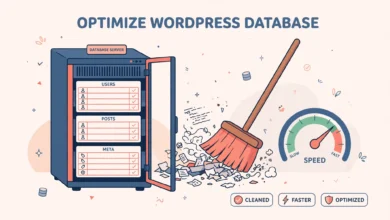
Every WordPress installation stores its content in a database, and every table in that database starts with a prefix. By default, that prefix is wp_, so your posts live in a table called wp_posts, your users in wp_users, and so on. Because this default is so well known, automated bots and attackers know exactly which table names to target when they try to exploit a vulnerable site. Changing the prefix to something less predictable is a simple hardening step that many site owners take, but it must be done carefully, because a single missed table or reference can lock you out of your site.
What Is the WordPress Database Table Prefix?
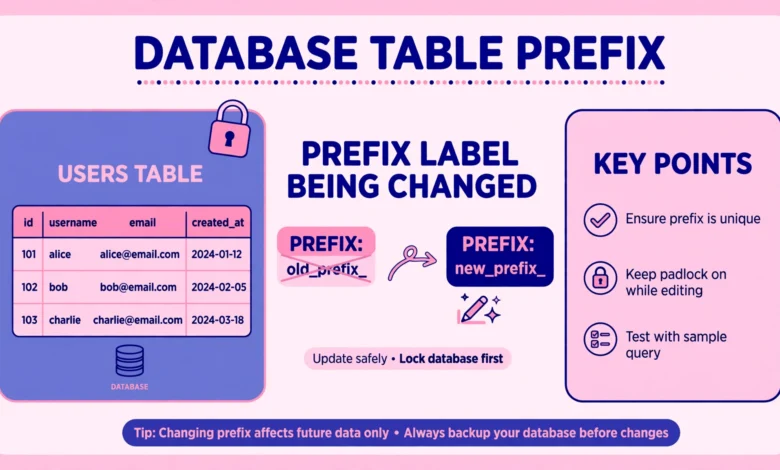
The table prefix is a short string added to the start of every WordPress database table name. It lets WordPress identify its own tables, and it also lets several WordPress installations share one database, because each installation can use a different prefix. The prefix is set in the wp-config.php file, which is the configuration file WordPress reads on every page load. The default line looks like this, shown here as plain text:
$table_prefix = 'wp_';That one line tells WordPress which tables to use. If the line says wp_, WordPress looks for wp_posts, wp_options, wp_usermeta, and the rest. If you change the line to a different prefix, WordPress will look for tables with that new prefix instead. This is why changing the prefix is a two part job: you must change the configuration line and rename the actual tables to match, otherwise WordPress will look for tables that do not exist and your site will break. The official developer documentation at developer.wordpress.org explains how WordPress uses the database.
Why Is the Default wp_ Prefix a Problem?
The default prefix is predictable, and predictability helps automated attacks. Many attacks on WordPress sites are not carried out by a person studying your site, but by bots that scan thousands of sites and try known patterns. If a plugin or theme has a vulnerability that allows database queries to be manipulated, an attacker who already knows your table names has one less thing to guess. A custom prefix does not fix the vulnerability itself, but it removes one easy assumption and slows down generic attacks that hardcode wp_ table names.
It is equally important to understand what changing the prefix does not do. It is an obscurity layer only. It is not a replacement for strong passwords, regular updates, a security plugin, or proper server security. A determined attacker can still discover a custom prefix, so never treat it as proof of security. Think of it as one small lock on a door that still needs a strong main lock, good habits, and regular maintenance. Used in that spirit, it is a sensible, low cost hardening step.
What Should You Do Before Changing the Prefix?
Before you touch anything, make a full backup of your site, and test that the backup actually works. For an existing site, this means a complete database backup plus a copy of your files, stored outside your hosting account if possible. If anything goes wrong during the rename, a tested backup is the difference between a quick restore and a long, stressful rebuild. Our guide on how to back up a WordPress database without a plugin walks through the database part of this step.
Next, pick a new prefix that is short, random, and hard to guess, but easy for you to recognise in phpMyAdmin. A good example is a short mix of letters and numbers ending in an underscore, such as xyz9_. Avoid using your site name, your username, or a common word, because those are almost as guessable as wp_. Keep the prefix reasonably short, because very long prefixes can cause problems with some plugins that create their own tables. Finally, choose a quiet time to do the work, when few visitors are on your site, and keep your hosting control panel and WordPress dashboard open in separate tabs so you can move quickly between them.
How Do You Change the Prefix on an Existing Site?
Changing the prefix on an existing site takes more care, but it follows a clear sequence. Do the steps in order, and do not skip the verification at the end. First, complete the full backup described above and confirm the backup file is not empty. Second, put your site into maintenance mode if your host or a plugin offers that option, so visitors do not create new content while you are renaming tables. Third, edit wp-config.php and change the prefix line to your new prefix. Fourth, rename the tables in phpMyAdmin. Fifth, update the internal references that still mention the old prefix. Finally, verify that the site works and that you can log in.
To edit wp-config.php, open your hosting file manager or connect with FTP, find wp-config.php in the root folder of your WordPress installation, and download a copy to your computer as an extra safety net before editing. Open the file, find the table prefix line, and change wp_ to your new prefix, keeping the underscore at the end and keeping the single quotes around it. As a plain text example, a renamed prefix line could look like this:
$table_prefix = 'xyz9_';Save the file and upload it back to the server, overwriting the original. Your site will show a database error at this point, which is expected until the tables are renamed. The next step fixes that, and your backup means you can always roll back.
How Do You Rename the Tables in phpMyAdmin?
Open phpMyAdmin from your hosting control panel and select your WordPress database from the left sidebar. You will see a list of tables, all starting with wp_ if you have not changed the prefix before. Each table needs to be renamed from the old prefix to the new one, for example from wp_posts to xyz9_posts, from wp_users to xyz9_users, and so on. In phpMyAdmin, you can rename a table by clicking on it, then choosing Operations, then typing the new name in the rename field and confirming.
Renaming tables one by one is slow but safe, and it is the best choice for smaller sites. For larger sites with many plugin tables, phpMyAdmin lets you select all tables and use a find and replace style operation on the prefix, but check the result carefully before confirming, because a mistake here affects every table at once. Whichever method you use, the rule is absolute: rename every single table, including tables created by plugins, not just the core WordPress tables. A single table left with the old prefix will cause the feature that uses it to fail, sometimes silently, until you track it down later.
Which Internal References Must You Update?
Renaming the tables is not quite the end, because WordPress stores the old prefix inside two tables as part of certain settings. The most important one is the usermeta table, where each user capabilities and user level entry starts with the prefix, such as wp_capabilities. Those entries must be updated to the new prefix, such as xyz9_capabilities, otherwise WordPress will not recognise your administrator permissions and you will be locked out of the dashboard even though you can still see the site. Similarly, the options table contains an entry for the user roles option that starts with the old prefix, and that entry must be updated too.
In phpMyAdmin, open the usermeta table, which is now named with your new prefix, and search for rows whose meta key starts with the old prefix. Edit each one and replace the old prefix with the new prefix, keeping the rest of the key unchanged. Then open the options table and find the row whose option name starts with the old prefix and ends with user_roles, and update it the same way.
How Do You Verify the Site After the Change?
Once the tables are renamed and the references are updated, clear your browser cache and visit your site homepage. It should load normally, with posts, menus, and images intact. Then log in to the WordPress dashboard with your administrator account. If you can log in and see the dashboard, the usermeta update worked. Check that your user role still shows as Administrator, then browse a few posts and pages, test the search function, and open a page that uses a plugin feature, such as a contact form or a shop page, to confirm plugin tables were renamed correctly.
- Homepage loads with posts, menus, and images intact.
- Administrator login works and the role is still Administrator.
- Posts, pages, and comments display correctly.
- Plugin features, such as forms or shop pages, still work.
- Table count in phpMyAdmin matches the count before the rename.
Can a Plugin Change the Prefix for You?
Yes, several security and database plugins offer a prefix changing feature that automates the rename and the reference updates. The generic advantage is clear: fewer manual steps, and less chance of missing a table. The trade off is that you are trusting a plugin with direct changes to your database structure, so choose a well maintained plugin with recent updates and good reviews, and still make a full backup first, exactly as you would for the manual method. Never run a prefix change on a live site without a backup, even with a plugin, because a plugin failure midway through a rename can leave your database in a mixed state. Practise first on a staging copy, as described in our guide on how to create a WordPress staging site without a plugin.
What Are the Common Mistakes and How Do You Recover?
The most common mistake is changing wp-config.php but forgetting to rename the tables, which produces a database connection or table missing error. The fix is simple: rename the tables to match the new prefix, or restore the old prefix line in wp-config.php to get the site back while you prepare properly. The second most common mistake is renaming the tables but forgetting the usermeta and options references, which locks you out of the dashboard. The fix is to return to phpMyAdmin, find those rows, and update them to the new prefix. If your site goes completely blank during any of this, the troubleshooting steps in our guide on how to fix the WordPress white screen of death will help you narrow down the cause.
Frequently Asked Questions
Will changing the table prefix make my WordPress site fully secure?
No. Changing the prefix only removes one predictable detail that automated attacks rely on. You still need strong passwords, regular updates, a security plugin, and safe hosting practices. Treat the prefix change as one extra layer, not as a complete security solution.
Is it safe to change the prefix on a live site?
Yes, if you back up first and follow the steps in order. The safest approach is to practise on a staging copy first, then repeat the process on the live site during a quiet period. If anything goes wrong, restore the backup rather than guessing at further fixes.
What happens if I forget to update the usermeta table?
WordPress will not recognise your administrator capabilities, so you may be locked out of the dashboard or lose admin access. Return to phpMyAdmin, open the usermeta table, and update every row whose meta key starts with the old prefix to use the new prefix instead.
Can I change the prefix back to wp_ later?
Yes, by reversing the same process: update wp-config.php, rename all tables back, and update the usermeta and options references again. There is no benefit to returning to the default prefix, so only do this if you have a specific technical reason, and back up first as usual.
Last updated: November 2026.