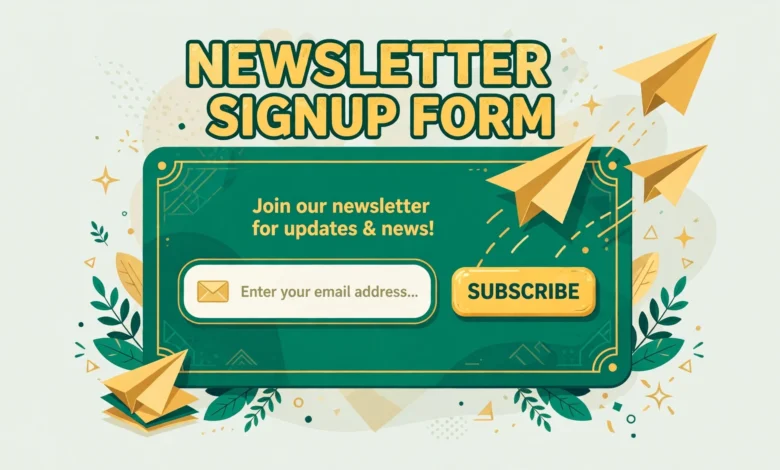
A newsletter is one of the most reliable ways to keep readers coming back to your site. Many beginners assume they need a special WordPress plugin to collect email addresses, yet most email platforms already give you a ready made signup form that you can add to WordPress yourself. This guide shows you how to add a newsletter signup form without a plugin, step by step, using an embed code from your email platform, and it explains where to place the form, what fields to ask for, and how to test it properly before you announce it.
First, let us be honest about what “without a plugin” means here. It means no extra WordPress plugin is installed on your site. The email platform itself still stores the subscribers, sends the confirmation emails, and handles unsubscribes. That is a good thing, because storing email addresses inside WordPress without proper tools creates extra work and extra risk. The method in this guide keeps WordPress light while the email platform does the job it was built for. If you already use a contact form on your site, the idea is similar: a small piece of code from a trusted service, placed in the right spot, as explained in our guide on how to add a contact form with Elementor.
What Do You Need Before You Add the Form?
You need two things before you start: a WordPress site you can edit, and an account with an email marketing platform. Popular options include Mailchimp, MailerLite, ConvertKit, and Brevo, and most of them offer a free plan for small lists, which is enough to get started. Sign up for the platform that fits your budget and your list size, confirm your account, and complete any sender verification it asks for, such as confirming your sender email address. This verification step matters, because without it your welcome emails may not send correctly, and new subscribers may never hear from you.
How Do You Get the Embed Code From Your Email Platform?
Every platform names this feature a little differently, but the path is usually similar. Open your audience or list settings, find the section called Signup Forms, Embedded Forms, or Grow Your Audience, and choose the embedded form option. You will usually see a simple form builder where you can choose which fields to show, change the button text, and adjust basic colours to match your site. Keep the design simple and close to your theme, because a form that clashes with your site looks untrustworthy and gets fewer signups.
How Do You Add the Form to a Post or Page?
The easiest placement for most blogs is at the end of your posts, where readers who enjoyed the article are most likely to subscribe. Open the post in the WordPress editor, scroll to the end of the content, and add a Custom HTML block. Paste the embed code into that block, then preview the post to check that the form appears correctly and the button works. If you want the same form at the end of every post, you have two practical choices: add it to a reusable block that you insert into new posts, or ask your theme settings whether it offers a post footer area where the code can be placed once for all posts.
For a dedicated signup page, create a new page called Newsletter or Subscribe, add a short paragraph explaining what subscribers will receive and how often, then add a Custom HTML block and paste the code below that introduction. This page is useful because you can link to it from your navigation menu, from social media profiles, and from the end of your posts. A clear promise helps conversion: tell readers exactly what they get, such as one practical WordPress tip every week, and tell them you will never sell their address. Vague promises like “subscribe for updates” convert far worse than a specific promise.
How Do You Add the Form to the Sidebar or Footer?
The sidebar is a classic placement for a newsletter form, because it appears on many pages at once. Go to Appearance, then Widgets, in the WordPress dashboard, and add a Custom HTML widget to your sidebar area. Paste the embed code into the widget, give it a short title such as “Join the Newsletter”, and save. Visit your site and check the form on desktop and on a phone, because sidebars often move below the content on small screens, which changes how visible the form is.
What Fields Should Your Signup Form Ask For?
Ask for as little as possible. Every extra field reduces signups, because each field is another reason to abandon the form. For most blogs, an email address alone is enough, and a first name is the only optional extra worth adding if you want to personalise your emails with the reader name. Do not ask for phone numbers, addresses, birthdays, or job titles on a simple newsletter form, because readers will rightly wonder why a blog needs that information.
- Email address: required, because this is how you will send the newsletter.
- First name: optional, useful only if you plan to personalise emails.
- Nothing else on the first form: keep friction low and trust high.
What Are Double Opt-In and Consent Basics?
Double opt-in means that after a reader enters their email address, they receive a confirmation email and must click a link in it before they are added to your list. This extra step slightly reduces your subscriber count, but it greatly improves list quality, because it filters out typos, fake addresses, and people who were signed up without permission. Most email platforms offer double opt-in as a setting, and it is worth turning on, especially when your list is new and your sender reputation is still being established.
Consent basics are simple: only email people who asked to hear from you, tell them what they signed up for, and make unsubscribing easy. Every email your platform sends should include an unsubscribe link, usually in the footer, and you should never add email addresses you collected for another purpose, such as customer orders or contact form messages, to your newsletter list without separate permission. Following these basics protects your sender reputation, keeps your emails out of spam folders, and keeps you on the right side of privacy rules. For general WordPress guidance, the official documentation at wordpress.org is a reliable starting point.
How Do You Test the Signup Form Before Launch?
Never announce a form you have not tested yourself. Testing takes five minutes and saves you from the embarrassment of a broken form on launch day. Use a personal email address that is not already on your list, fill in the form on your live site, and watch what happens next. You should see a success message on the page, receive a confirmation email if double opt-in is on, and appear in your platform list after confirming.
- Submit the form with your own test email address.
- Check the success message and the confirmation email.
- Confirm the subscription and check that you appear in the list.
- Test on a phone as well as on desktop.
- Remove your test address from the list afterwards.
If the form does not appear at all, the usual cause is that the code was pasted into a paragraph block instead of a Custom HTML block, which turns the code into visible text rather than a working form. If the form appears but submissions fail, re-copy the code from the platform without editing it, and check that your platform account is fully verified. If the confirmation email lands in spam, check your sender address and domain authentication settings in the platform, because inbox providers trust verified senders more.
Where Should You Place the Form for the Best Results?
Do not add the form to every possible spot at once. Too many forms on one page look desperate and annoy readers, and they make it harder to tell which placement is actually working. Start small, watch your signup numbers for a few weeks, and then keep the placements that perform and remove the ones that do not. If you drive traffic from messaging apps or chat buttons, the same placement thinking applies: meet readers where they already engage, as in our guide on how to add a WhatsApp chat button to WordPress.
What Should You Do When Signups Are Low?
Low signups usually have one of three causes: low traffic, a weak offer, or a form that is hard to find. If your site gets little traffic, no form placement will fix that on its own, so focus first on publishing useful content and improving how it ranks and gets shared. If traffic is healthy but signups are low, strengthen the offer: promise a specific benefit, mention how often you email, and consider a small free resource, such as a checklist or a short guide, for new subscribers. If the form is hidden in the footer only, move it to the end of posts where readers actually finish reading.
Also check the basics: is the form actually working, does it load fast, and does it look right on phones? A form that breaks on mobile loses a large share of readers, since many blogs now get most visits from phones. Small improvements help too: a clear heading above the form, one sentence about the benefit, and a button that states the outcome all tend to lift conversions. Review your images and page speed as well, because a slow page with heavy images loses readers before they reach the form, which is why our guide on WordPress image SEO tips is worth reading alongside this one.
When Does a Plugin Become Worth It?
The embed code method is enough for most small and growing blogs, but there comes a point where a plugin saves real time. If you want popups that appear after a reader spends time on a page, forms that target specific categories, split tests that compare two form designs, or detailed conversion reports inside WordPress, a dedicated form plugin will do those jobs far more easily than manual code. A plugin also helps if you run several different forms for different topics and want to manage them from one dashboard.
Frequently Asked Questions
Can I add a newsletter signup form to WordPress without any plugin at all?
Yes, for the WordPress side. You use the embed code from your email platform and paste it into a Custom HTML block or widget. No extra WordPress plugin is needed, although the email platform itself stores and manages your subscribers.
Where is the best place to put a newsletter signup form?
The end of your posts usually performs best, because readers have just enjoyed your content. A sidebar form and a dedicated signup page are strong second choices, and together they cover both engaged readers and new visitors.
Should I turn on double opt-in for my newsletter?
Yes, in most cases. Double opt-in confirms that the email address is real and that the owner actually wants your emails. It slightly reduces subscriber numbers but improves deliverability and keeps your list clean.
Why is my embedded form not showing on my site?
The most common cause is pasting the code into a paragraph block instead of a Custom HTML block or widget. Move the code to a Custom HTML block, re-copy it from your email platform without editing it, and clear your cache before checking again.
Last updated: November 2026.