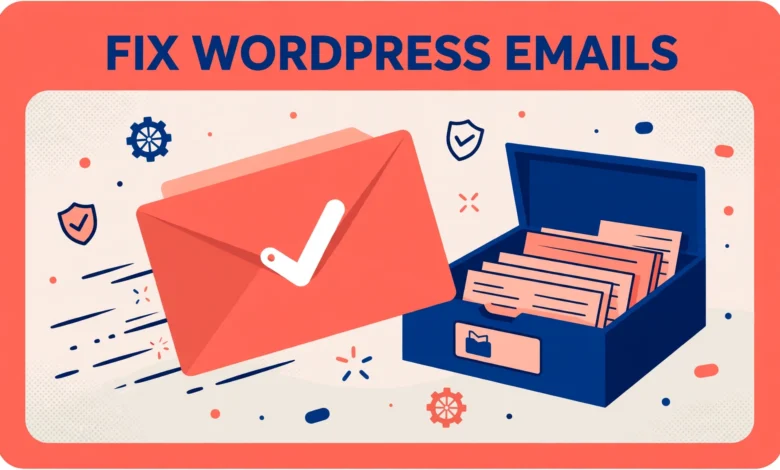
When WordPress stops sending emails, the problem is usually silent. A contact form looks like it worked, a password reset request seems to go through, and a new order notification appears to send, but nothing arrives in anyone inbox. The visitor assumes you ignored them, the customer assumes the order failed, and you only find out days later when someone complains. This guide shows how to fix WordPress not sending emails, starting with quick diagnosis, then moving to the reliable fix most sites need, which is sending mail through a proper SMTP service instead of the default PHP mail function.
The good news is that most email delivery problems have a small number of causes, and they are fixable without changing your theme or rebuilding your site. The bad news is that guessing wastes time, because the symptom looks the same whether the email went to spam, was blocked by the receiving server, was never sent by WordPress, or was sent but rejected for authentication reasons. That is why this guide starts with diagnosis before changing settings. Work through the steps in order, test after each change, and keep a note of what you changed so you can undo it if needed.
How Do You Diagnose the Problem Before Changing Anything?
Start with the simplest checks, because they solve a surprising number of cases. First, check the spam or junk folder for the missing email, and also check the Promotions or Updates tabs if you use Gmail. Ask the recipient to search for your site name or the email subject. If the email is in spam, the mail was sent but the receiving provider did not trust it, which points to authentication or sender reputation, covered later in this guide. If it is nowhere at all, the mail may never have left your server.
Next, check the admin email address in WordPress. Go to Settings, then General, and confirm that the Administration Email Address is correct and belongs to a mailbox you actually monitor. WordPress sends password resets, new user notifications, and update notices to this address, so a typo here looks like a site wide email failure. Also check the email address used by your contact form. Many forms send notifications to an address set inside the form settings, not the WordPress admin email, so a form problem and a WordPress problem can look identical while having different causes.
Then send a test email. The cleanest way is to use the password reset flow for your own admin account, or to submit your own contact form with a different email address you control. If the test email arrives, the problem may be limited to one form, one recipient, or one type of notification. If no test email arrives anywhere, including spam, you have a site wide sending problem and the SMTP fix in the next sections is the right next step. If you can, also check whether emails stopped after a specific event, such as a hosting move, a plugin update, or a domain change, because that event often points straight to the cause.
Why Do wp_mail and PHP Mail Fail So Often?
By default, WordPress sends email using a function called wp_mail, which in turn usually relies on PHP mail on your web server. PHP mail was designed in an era when email authentication was loose, and it sends mail directly from the web server with very little proof that the sender is legitimate. Modern email providers such as Gmail, Outlook, and Yahoo now check that proof carefully. If your server is not authorised to send mail for your domain, if the From address does not match your domain, or if the server IP has a poor reputation because it shares hosting with spammy sites, the receiving provider may silently reject the message or file it as spam. The official reference at developer.wordpress.org explains how WordPress mail works behind the scenes.
The reliable alternative is SMTP, which stands for Simple Mail Transfer Protocol. With SMTP, WordPress hands the email to a dedicated mail server that you authenticate with, using a username and password, instead of asking the web server to send it directly. The mail server is built for sending email, has a proper reputation, and signs messages correctly. That single change fixes the majority of WordPress email problems, which is why almost every serious guide recommends it. If your site runs on shared hosting and you want to understand what your plan does and does not control, our web hosting guide explains the shared hosting trade offs in plain terms.
How Do You Set Up SMTP in WordPress?
Setting up SMTP needs two things: an SMTP plugin and the SMTP credentials for a mail account or mail service. For the plugin, install one well maintained SMTP plugin from the WordPress plugin directory, and install only one. Running two mail plugins at once causes conflicts, because both try to override wp_mail, and the result is unpredictable. Popular free SMTP plugins all do the same core job, which is to route wp_mail through your chosen SMTP server, so choose one with recent updates, good ratings, and clear setup documentation, rather than chasing a specific brand name.
For credentials, you have two common options. The first is to use an email account on your own domain, created through your hosting control panel, such as a mailbox like hello@yourdomain.com. This is often the simplest option for small sites, because the SMTP host, port, username, and password are provided by your host. Our guide to create a professional email in Hostinger hPanel walks through creating that kind of mailbox. The second option is a dedicated transactional email service, which is a service built only for sending automated emails such as password resets and order notifications. These services usually offer a free tier for low volume sites and a paid tier for higher volume, and they provide SMTP credentials in their dashboard. Either option works, provided you use the credentials exactly as given.
- Install one SMTP plugin only, and deactivate any other mail plugin first.
- Enter the SMTP host, port, encryption type, username, and password exactly as your mail provider gives them.
- Set the From Email to an address on your own domain, never a free Gmail or Yahoo address.
- Set the From Name to your site or business name, so recipients recognise the sender.
- Use the plugin built in test email feature to send a test to your own inbox.
- Check the inbox and the spam folder, then adjust settings only if the test fails.
Why Does the From Address Matter So Much?
The From address is the address recipients see as the sender, and email providers check whether the sending server is allowed to send for that domain. If WordPress sends from wordpress@yourdomain.com but your SMTP account is hello@yourdomain.com, some providers treat that mismatch as suspicious. The safest rule is simple: send from an address on your own domain, and make sure that address exists as a real mailbox or alias, so replies and bounce messages have somewhere to go. Never send WordPress mail from a free email address such as Gmail, because Gmail and Yahoo now reject or spam mail that claims to be from them but was sent by another server.
What Are SPF, DKIM, and DMARC in Plain Terms?
SPF, DKIM, and DMARC are three DNS records that prove your mail is legitimate. You do not need to understand the cryptography to set them up, but you do need to know what each one does, because a missing or wrong record is a common reason mail lands in spam even after SMTP is configured. Think of them as three identity checks that the receiving provider runs before trusting your email.
SPF, or Sender Policy Framework, is a DNS record that lists which servers are allowed to send email for your domain. When Gmail receives mail claiming to be from yourdomain.com, it checks your SPF record to see if the sending server is on the allowed list. If it is not, the mail is more likely to be rejected or marked as spam. DKIM, or DomainKeys Identified Mail, adds a digital signature to each outgoing email, which the receiving provider verifies against a public key in your DNS. That signature proves the message was not altered in transit and really came from your domain. DMARC ties SPF and DKIM together and tells receiving providers what to do when a message fails those checks, and where to send reports about failures.
- SPF: a list of servers allowed to send mail for your domain.
- DKIM: a signature that proves the message is genuine and unaltered.
- DMARC: a policy that tells receivers how to handle mail that fails SPF or DKIM.
How Do You Check Contact Forms and Notifications?
Once SMTP works for a test email, check each form and notification separately, because a working SMTP setup does not fix a form that is misconfigured. Open each contact form, order form, or registration form, and confirm the notification email address, the From address, and the Reply To setting. Submit a test entry from a different device or browser, and confirm it arrives. If one form fails while others work, the problem is inside that form settings, not in your SMTP setup. Common form mistakes include a notification address with a typo, notifications disabled after a form edit, and conditional logic that silently skips sending for certain answers. For example, the alerts in our guide to add free live chat to WordPress with Tawk.to run separately and should be tested on their own.
What Should You Do After Every Change?
Retest after every single change, not just at the end. Send a test email after setting up SMTP, again after fixing the From address, and again after adding DNS records, allowing time for DNS to propagate. If you change two things at once and mail starts working, you will not know which change fixed it, and you may undo the wrong one later. Keep a short log of changes and test results, even if it is just a few lines in a note. That log saves hours if the problem returns after a hosting move or a plugin update.
Frequently Asked Questions
Why do WordPress emails go to spam even though they send?
The usual reasons are sending through PHP mail instead of SMTP, using a From address that does not match your domain, or missing SPF and DKIM records. Switch to SMTP, send from your own domain, add the DNS records your mail provider gives you, and retest. Spam folder delivery after those fixes usually points to content or sender reputation, not to WordPress settings.
Can I use my Gmail address to send WordPress emails?
You should not use a free Gmail address as the From address for site mail, because Gmail and Yahoo reject or spam mail that claims to be from them but was sent by another server. Use an address on your own domain for the From address, and keep your personal Gmail address only as a recipient or Reply To if needed.
Do I need a paid email service to fix WordPress email?
No. Many small sites fix delivery completely by using SMTP with a mailbox on their own domain, provided by their host. A dedicated transactional email service becomes useful when you send high volumes, need detailed delivery logs, or need better deliverability at scale, and most such services offer a free tier for low volume use.
Why did WordPress emails stop working suddenly?
Sudden failures usually follow a hosting move, a domain DNS change, a plugin update, or a receiving provider tightening its authentication checks. Check what changed around the time mail stopped, test with SMTP, verify your SPF and DKIM records, and check your mail plugin log for the exact rejection reason before changing anything else.
Last updated: November 2026.