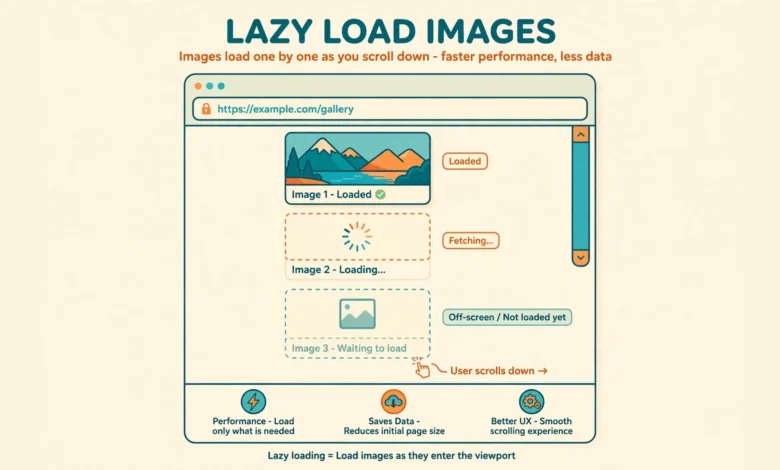
If your WordPress pages feel slow, images are often the biggest reason. A long article with ten images forces the browser to download all ten before the reader even scrolls past the first paragraph. Lazy loading fixes this by delaying offscreen images until the reader actually approaches them. The good news is that you probably do not need a plugin for this at all, because modern WordPress already handles the basics for you.
In this guide you will learn how WordPress native lazy loading works, how to check whether it is active on your site, how to add it manually where needed, and how to keep it away from the images that must load immediately. Everything here uses built in WordPress behavior plus a small amount of code, so there is nothing extra to install or maintain.
Does WordPress Lazy Load Images by Default?
Yes. Since WordPress 5.5, released in August 2020, WordPress automatically adds loading="lazy" to images inside post content, widgets, and other standard content areas. When the browser sees that attribute, it waits to download the image until the reader scrolls near it. Images near the top of the page still load normally, because browsers treat images close to the viewport as high priority.
This native behavior covers most ordinary cases:
- Images added through the Image block or the Gallery block
- Images inside post content and page content
- Images in widgets that render standard content
- Embedded iframes from YouTube and similar services, which also receive the lazy attribute
What native lazy loading does not cover is every image your theme outputs directly. A logo, a hero banner, or a custom section hard coded into a theme template may skip the WordPress content filters entirely, so those images need a manual check. That is also why a blanket claim that your whole site lazy loads is worth verifying rather than assuming.
Lazy loading is one of the simplest speed wins available, and it pairs well with the other checks in our guide to why your WordPress site is slow. If images are your main problem, this single change can cut initial page weight dramatically on image heavy posts.
How Do You Check Whether Lazy Loading Is Working?
Checking takes less than a minute and needs no tools beyond your browser. Open any post that contains several images, right click on an image below the fold, and choose Inspect. Look at the <img> tag in the Elements panel. If you see loading="lazy" inside the tag, native lazy loading is active for that image.
For a fuller picture, use these checks:
- View the page source and search for loading=”lazy” to see how many images carry the attribute
- Open Chrome DevTools, go to the Network tab, filter by Img, and reload the page to confirm offscreen images do not download at first
- Scroll slowly down the page while watching the Network tab, and confirm images appear only as they approach the viewport
- Run the page through PageSpeed Insights and look for image related opportunities in the report
If most content images carry the attribute but your theme header image does not, that is normal. Theme template images often bypass the content filters, and the manual methods below cover exactly that gap.
How Do You Add loading=”lazy” Manually?
For an image inside a post, the simplest manual method is the Custom HTML block. Switch any Image block to Custom HTML, or add a fresh Custom HTML block, and write the image tag yourself with the attribute included:
<img src="https://example.com/photo.jpg" alt="A workspace desk with a laptop" width="1200" height="800" loading="lazy">Always include the width and height attributes alongside the lazy attribute. They reserve the correct space on the page before the image loads, which prevents the content below from jumping down when the image finally appears. That jumping is called layout shift, and it hurts both user experience and Core Web Vitals scores.
The same attribute works on iframes. If you embed a YouTube video or a map and WordPress has not added lazy loading to it, edit the embed code and add the attribute directly:
<iframe loading="lazy" src="https://www.youtube.com/embed/example" width="560" height="315"></iframe>For images inside theme templates, edit the template file in a child theme and add the attribute to the <img> tag there. Never edit a parent theme directly, because a theme update will overwrite your change. Our guide to creating a WordPress child theme walks through the safe way to do this.
How Do You Exclude Above the Fold Images?
Lazy loading everything is a mistake. The hero image, the logo, and any image visible without scrolling should load immediately, because delaying them delays the Largest Contentful Paint, which is the metric that measures how fast the main content appears. Browsers already handle this sensibly for content images, but for a hero image in a theme template you should be explicit.
Use fetchpriority="high" on the hero image to tell the browser it matters most:
<img src="https://example.com/hero.jpg" alt="Hero banner" width="1600" height="900" fetchpriority="high">Do not combine loading="lazy" and fetchpriority="high" on the same image, because the two instructions contradict each other. Pick one: high priority for above the fold images, lazy for everything below the fold. As a rule of thumb, only the first screenful of content deserves immediate loading. Everything else can wait for the scroll.
If your theme adds lazy loading to the logo or hero automatically and you cannot edit the template, a small filter in your child theme functions file can adjust behavior. But in most cases the fix is simpler: edit the template tag once, and the problem is solved permanently without filters.
What If Your Theme Predates Native Lazy Loading?
If you run a very old WordPress version or a theme that outputs raw image tags outside the content filters, native lazy loading may not reach those images. Before adding anything, update WordPress to a current version, because native support has been standard for years and updating also fixes security issues. After updating, recheck with the Inspect method above.
For stubborn template images on an old setup, a tiny content filter can add the attribute to images inside post content:
add_filter('the_content', function($content) {
  return str_replace('<img ', '<img loading="lazy" ', $content);
});
Treat this filter as a last resort, not a starting point. It is blunt, it touches every image tag in post content, and it can double up the attribute if WordPress already added one. Modern sites should rely on native behavior and manual template edits instead, and keep custom filters to a minimum so future updates stay painless.
How Do You Test the Results?
Test before and after so you know the change actually helped. Run the same post through PageSpeed Insights before editing, note the initial page weight and the Largest Contentful Paint time, then make your changes and run it again under similar conditions. A post with many images should show a clear drop in initial transferred bytes.
Browser DevTools gives you the most honest view. In the Network tab, filter by Img, reload without scrolling, and count how many images downloaded. Then scroll to the bottom and confirm the rest loaded on demand. If an offscreen image still downloads immediately, inspect its tag: it probably lacks the attribute, which means it came from a template or a widget outside the content filters.
Testing also catches the opposite problem, which is overdoing it. If your Largest Contentful Paint got worse after your changes, you probably lazy loaded the hero image. Remove the lazy attribute from that one image, add fetchpriority high instead, and test again. Speed work is iterative, and one retest is usually enough to confirm the fix.
What Are the Common Lazy Loading Mistakes?
Most lazy loading problems come from applying it too broadly or forgetting the supporting details. Avoid these five mistakes:
- Lazy loading the logo, hero image, or any above the fold image, which delays the main content paint
- Skipping width and height attributes, which causes layout shift as images pop into place
- Adding lazy loading to images inside sliders or carousels, where hidden slides may never trigger loading correctly
- Installing a lazy load plugin on top of native WordPress behavior, which adds duplicate logic and new conflicts
- Forgetting to compress images first, since lazy loading delays downloads but does not shrink them
That last point matters more than people expect. Lazy loading and image optimization solve different halves of the problem: lazy loading controls when images download, while compression controls how big each download is. For the compression half, see our WordPress image SEO tips, which cover formats, sizing, and alt text in one place. Combined with sensible hosting, covered in our web hosting guide, these basics beat most plugin stacks.
Frequently Asked Questions
Does WordPress lazy load images without a plugin?
Yes. WordPress 5.5 and later add loading=”lazy” to images in post content automatically, so most sites already lazy load without any plugin. You only need manual work for theme template images that bypass the content filters.
Should I lazy load the hero image?
No. The hero image is visible immediately, so lazy loading it delays your Largest Contentful Paint score. Use fetchpriority=”high” on hero and logo images instead, and reserve lazy loading for images below the fold.
Does lazy loading hurt SEO?
No, native lazy loading does not hurt SEO. Search engines understand the loading attribute and can still discover and index lazy loaded images, especially when width, height, and descriptive alt text are present. Problems only appear with JavaScript based lazy loading that hides images from crawlers, which is another reason to prefer the native attribute.
Do I still need an image optimization plugin?
Not necessarily. Lazy loading controls timing, not file size, so compress images before uploading and serve sensibly sized versions. You can do that with any desktop image tool before upload, or with a dedicated optimization plugin if you prefer automation, but lazy loading itself needs no plugin.
Last updated: October 2026.