If you have ever opened the WordPress post editor and noticed a small box labeled Format in the sidebar, you may have wondered what it does and whether you should use it. That box holds one of the oldest features in WordPress: post formats. A post format is a way to tell your theme what kind of content a post contains, so the theme can display it in a special style. A short status update, a photo, a quote, and a long article can all look different on your blog page, even though they are all posts.
The confusion around post formats comes from the fact that they look like categories, they sound like post types, and many modern themes barely mention them. This guide clears up that confusion. You will learn all ten formats, how theme support decides what you actually see, why formats are about presentation rather than organization, what has changed in block themes, and when you are better off using blocks or categories instead. By the end, you will know exactly when a format helps and when it only adds complexity.
What Are WordPress Post Formats?
A post format is a piece of metadata attached to a post. It describes the kind of content in the post, not the topic of the post. For example, a post about your morning walk could be a status format if it is one short sentence, an image format if it is mainly a photo, or a standard format if it is a full written article. The topic stays the same, but the format changes how the theme presents it.
Why Are Post Formats About Presentation, Not Organization?
Beginners often mix up post formats with categories and tags, but they do very different jobs. Categories and tags organize your content so visitors can find posts by topic. A visitor who clicks a category expects every post on that topic, whatever its style. Post formats do not organize anything. They only change appearance. Two posts in the same category can have different formats, and two posts with the same format can cover completely different topics.
Here is a practical example. Suppose you run a food blog with a category called Recipes. You might publish a full written recipe as a standard post, a photo of a finished dish as an image post, and a short cooking tip as a status post. All three belong in Recipes, because that is their topic. Their formats differ because their presentation differs. If you tried to use formats as topics, you would lose the ability to browse by subject, and your site structure would become confusing.
Post formats are also different from custom post types. A custom post type creates a genuinely different kind of content with its own screens, fields, and archive pages, such as products, portfolio items, or events. A post format never creates a new content type. It only restyles a regular post. If you need separate archives, separate fields, or separate behavior, you need a custom post type, not a format. Our guide on WordPress custom post types explained shows when that stronger tool is the right choice.
For a clear refresher on the organizing tools, read our guide on WordPress categories versus tags. Once you see categories as topics and formats as styling hints, the whole system clicks into place, and you will stop trying to force one tool to do the other’s job.
What Are the 10 WordPress Post Formats?
WordPress defines ten post formats. No theme is required to support all of them, and many themes support only a few. Here is what each one means, and how a supporting theme typically displays it.
- Standard: the default format for a normal blog post with a title, body text, and usually a featured image. Use this for articles, tutorials, news, and anything that does not fit a more specific format.
- Aside: a short post without a title, similar to a brief note or aside in a conversation. Themes often show asides in a smaller style, sometimes without a heading, so they read like quick thoughts rather than full articles.
- Gallery: a post built around a collection of images. A supporting theme may show the images as a grid, a slider, or a collage at the top of the post, rather than as a single featured image.
- Link: a post whose main point is a link to another website. Themes often display the linked title prominently, sometimes with the destination URL visible, so visitors understand they will leave your site when they click.
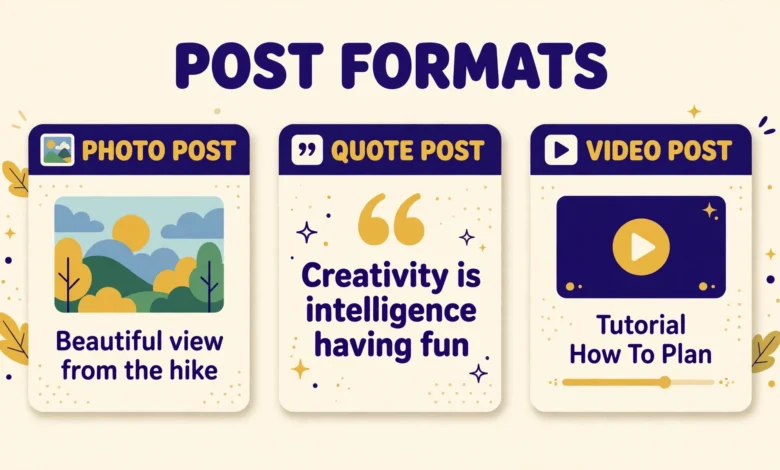
- Image: a post centered on a single image. The image becomes the star of the post, usually shown large, with only a short caption or a few lines of text beside it.
- Quote: a post that shares a quotation. Themes typically display the quote in large text, often with the name of the person quoted below it, giving it a very different feel from a normal paragraph.
- Status: a short status update, similar to a social media post. It is usually one or two sentences, often shown in a simple style with the author name and time emphasized.
- Video: a post centered on a video. A supporting theme may feature the video player at the top of the post and keep the surrounding text minimal, so visitors watch first and read second.
- Audio: a post centered on an audio file, such as a song, a podcast clip, or a recorded message. The audio player becomes the main element, with a short description around it.
- Chat: a post that presents a chat transcript or a conversation. Themes may style the speakers differently, for example by indenting replies or bolding each speaker name, so the back and forth is easy to follow.
How Does Theme Support Decide the Look?
A theme must declare support for each format it wants to style. A theme author lists the formats in the theme code, and only those formats appear as choices in your post editor for that theme. This is why the Format box looks different from site to site. On one theme you may see all ten options, on another you may see only standard, image, video, and quote, and on a theme with no format support you may see no Format box at all.
What Happens to Post Formats in Block Themes?
Block themes changed the picture considerably. In a block theme, you build each post from blocks: paragraph blocks, image blocks, quote blocks, video blocks, audio blocks, and gallery blocks. The block itself carries the design. A Quote block already looks like a quote, and a Gallery block already shows an image grid, without any help from a post format.
When Should You NOT Use Post Formats?
Formats are a small tool, and most modern sites should use them sparingly or not at all. Here are the situations where another tool is clearly better.
- When you want visitors to find content by topic: use categories and tags. Formats do not create topic archives that help readers browse, and using them for topics will confuse both readers and search engines.
- When you want a distinct content type with its own archive: use a custom post type. A portfolio, a product catalog, or a testimonials section needs its own structure, not a restyled blog post.
- When you want precise control over layout: use blocks. A block lets you set the size, alignment, and order of each element, while a format only gives your theme a vague hint about the post as a whole.
- When your theme barely supports formats: skip them entirely. A format that your theme ignores adds metadata with no visible benefit, and it can confuse future editors who wonder why the Format box exists.
- When you plan to switch themes soon: avoid building a look around formats. Blocks and categories survive theme changes far better than format styling does.
- When a post mixes several content types: do not force it into one format. A post with a video, a gallery, and a long article is simply a standard post built from blocks, not a video post or a gallery post.
How Do You Set a Post Format in WordPress?
Setting a format takes only a few clicks when your theme supports it. In the post editor, open the sidebar settings panel and look for the Format section, usually under the Status and Visibility area in classic themes, or in the post settings sidebar where your theme places it. Click the format you want, then update or publish the post. If you see no Format section, your theme does not support formats, and you can safely ignore the feature.
Always preview before publishing. Open the preview and check both the single post view and your blog archive page, because a format can look fine in one place and odd in the other. A chat post might read beautifully on its own page but look cramped in an archive list, or a link post might show the destination clearly on the archive but hide it on the single page. If either view looks wrong, switch back to standard and use blocks to get the effect you want.
If you are still learning your way around the editor and the settings panels, our guide on the WordPress dashboard explained for beginners walks through where each screen lives, so you can find the Format box and other post settings without hunting through menus. For the authoritative technical background, the official documentation at Developer.WordPress.org and the main WordPress.org site explain how themes declare format support.
Frequently Asked Questions
Do post formats help with SEO?
Not directly. Search engines rank your content based on its quality, relevance, and structure, not on its format value. A format can improve the visitor experience by making a quote or gallery easier to enjoy, and a better experience can indirectly help engagement, but the format itself is not a ranking factor. Do not choose formats for SEO reasons. Choose clear titles, helpful content, and sensible categories instead.
What happens to my post formats if I change themes?
The format values stay saved on your posts, but the new theme decides how to display them. A format your old theme styled beautifully may look plain under the new theme, or the new theme may not offer that format at all. Your content itself is never lost. Only the special styling changes, which is why format dependent designs are risky if you switch themes often.
Should beginners use post formats or blocks?
Beginners should learn blocks first. Blocks are visual, flexible, and supported by every modern theme, and they let you build quotes, galleries, videos, and audio posts directly. Learn formats later, and only if your theme gives them a visible, documented benefit on your archive pages. Most new sites never need formats at all.
Can a post have more than one format?
No. Each post has exactly one format, or the default standard format when none is chosen. This is another reason formats suit simple posts better than mixed content. If your post genuinely contains several content types, keep it as a standard post and use a mix of blocks to present each part properly.
Last updated: November 2026.