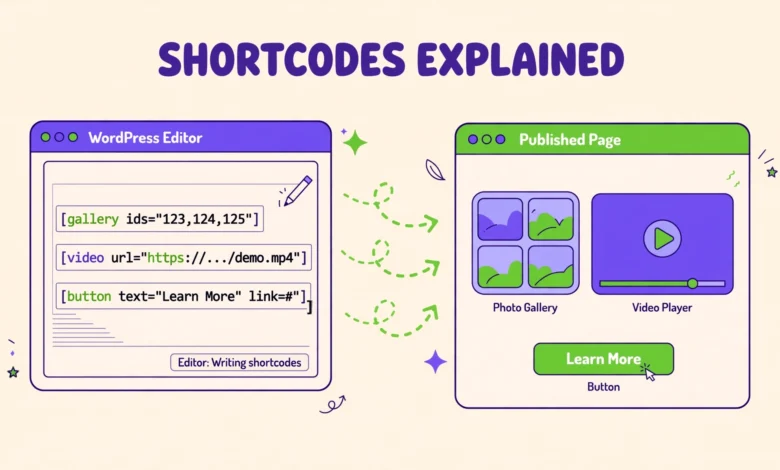
If you have ever pasted a small piece of code in square brackets into a WordPress post and watched it turn into a gallery, a player, or a form, you have already used a shortcode. Shortcodes are one of the oldest and most useful shortcuts in WordPress. They let you add complex features to a post or page without writing a full block of code or editing theme files. This guide explains what WordPress shortcodes are, how the two main types work, which shortcodes WordPress includes by default, where plugin shortcodes come from, and how to create a simple custom shortcode of your own.
What Are WordPress Shortcodes?
A shortcode is a small placeholder written inside square brackets. When WordPress displays your post, it replaces that placeholder with real output, such as an image gallery, an audio player, or a contact form. The idea is simple: instead of copying a long block of HTML into every post, you type a short tag and WordPress does the heavy work for you. Shortcodes were introduced long before the block editor existed, and they remain useful today because many plugins still provide features through them. A shortcode can be as simple as a single word in brackets, or it can include attributes that change how it behaves, such as the number of columns in a gallery or the width of a video player. Attributes always sit inside the opening bracket, after the shortcode name, and they follow a name equals value pattern.
What Is the Difference Between Self-Closing and Enclosing Shortcodes?
WordPress shortcodes come in two shapes. A self-closing shortcode stands alone and needs no closing tag. You type it once, and WordPress replaces it with its output. A gallery is a good example, because it does not wrap around any other content. An enclosing shortcode, by contrast, wraps around content. It has an opening tag, some content in the middle, and a closing tag with a forward slash before the name. Buttons, highlighted boxes, and columns often use the enclosing style, because the content between the tags is what gets styled or processed. Understanding this difference matters when you copy a shortcode from a plugin document. If you leave off the closing tag of an enclosing shortcode, the rest of your post may get swallowed into the shortcode output, which can break your layout in a confusing way. If you add a closing tag to a self-closing shortcode, WordPress may simply ignore the extra tag or show it as text.
Here are the two shapes side by side, shown as plain examples so they display as text in this article rather than running:
Self-closing shortcode:
[gallery]

Enclosing shortcode:
[button]Click here[/button]
Which Shortcodes Does WordPress Include by Default?
Even with no plugins installed, WordPress ships with a handful of built-in shortcodes. The gallery shortcode displays a grid of images from your media library. You can control how many columns it uses and which images it includes, which makes it handy for a quick photo set without building a gallery block by hand. The audio shortcode embeds an audio player for a single audio file, and the video shortcode does the same for a video file. These are useful when you want a simple player without extra plugin settings. The caption shortcode adds a caption to an image, a piece of audio, or a video, and it is often used together with the other media shortcodes. Finally, the embed shortcode lets you wrap a URL from a supported provider, such as YouTube, so WordPress turns it into an embedded player.
- Gallery: [gallery ids=”1,2,3″] shows selected images in a grid.
- Audio: [audio src=”song.mp3″] embeds a simple audio player.
- Video: [video src=”clip.mp4″] embeds a simple video player.
- Caption: [caption] wraps media with a caption below it.
- Embed: [embed]https://example.com/video[/embed] turns a supported URL into an embedded player.
Where Do Shortcodes From Plugins Come From?
Most shortcodes you meet in the wild come from plugins, not from WordPress itself. A contact form plugin, for example, gives you a shortcode for each form you create, so you can drop that form into any post or page. A slider plugin gives you a shortcode for each slider, an e-commerce plugin gives you shortcodes for products and carts, and a membership plugin gives you shortcodes that show content only to logged-in members. This design is powerful, because one plugin can power features on dozens of pages through shortcodes that are easy to move around. It also creates a dependency you should understand. If you deactivate the plugin that registered a shortcode, WordPress no longer knows what that shortcode means, so it will show the raw shortcode text on the page instead of the feature. Before you remove a plugin, search your site for its shortcodes so you can replace them first.
How Do You Create a Simple Custom Shortcode?
Creating a custom shortcode sounds advanced, but the basic pattern is short. You register a name and a function with the add_shortcode function, and that function returns the HTML you want WordPress to display. The golden rule is that a shortcode function must return its output, not print it directly. If it prints instead, the output can appear in the wrong place on the page, often above your post content. The safest place to add this code is a child theme functions file or a code snippets plugin, never your parent theme, because a theme update would wipe out your changes. If you have not set one up yet, our guide to creating a WordPress child theme walks through the setup step by step. The example below registers a shortcode that prints a friendly callout box. Once it is active, you can use it in any post by typing the encoded example shown after the code.
function vutechgeek_hello_box() {
    return '<div class="hello-box">Hello from VU Tech Geek!</div>';
}
add_shortcode( 'hello_box', 'vutechgeek_hello_box' );
After adding that code, the shortcode to use in a post is [hello_box]. You can make it more flexible by accepting attributes. For example, a shortcode function can read a title attribute and insert it into the output, so one shortcode can produce many different boxes. Keep your first custom shortcode simple, test it on a draft post before using it on a live page, and always escape any text that comes from user input before printing it. The official documentation at developer.wordpress.org explains the full shortcode API, including attributes and enclosing shortcodes, if you want to go further.
How Do You Use Shortcodes in the Block Editor?
In the block editor, you have two easy options. The simplest is to paste a shortcode into a paragraph block, and WordPress will process it when the page is viewed, just as it did in the classic editor. The cleaner option is to use the dedicated Shortcode block. Add a new block, search for Shortcode, and paste your shortcode into its field. The Shortcode block keeps the shortcode separate from your paragraph text, which makes it easier to find later and less likely to get broken by accidental edits. One useful habit is to preview the post before publishing whenever you add a shortcode, because the editor preview may not show the final output exactly as visitors will see it. If you are new to the editor in general, our guide that explains the WordPress dashboard for beginners will help you find the editor and its settings quickly. Shortcodes also work inside many widgets and in some theme areas, but support varies by theme, so test a shortcode in a widget area before relying on it there.
Why Does a Shortcode Show as Plain Text?
Seeing raw shortcode text on a live page is frustrating, but the cause is usually one of a few simple problems. First, the plugin or theme that registered the shortcode may be deactivated, missing, or updated in a way that changed the shortcode name. Reactivating the plugin or checking its documentation for the current shortcode name often fixes it. Second, the shortcode may be typed incorrectly. A missing bracket, a typo in the name, or smart quotes pasted from a word processor instead of straight quotes can all stop WordPress from recognising it. Retype the shortcode by hand in the editor to rule this out. Third, the shortcode may be inside a code block or a preformatted block, where WordPress deliberately shows it as text. That is actually the correct behaviour for a tutorial, and it is why the examples in this article use encoded brackets. Fourth, some page builders and custom fields process shortcodes differently, so a shortcode that works in a post may need an extra setting enabled in a builder widget. Finally, remember that shortcodes are not magic. They cannot run inside a plain text file, an image caption in every theme, or an area that WordPress does not filter for shortcodes. If you have checked the plugin, the spelling, and the block type, try the shortcode in a fresh draft post. If it works there, the problem is specific to where you first placed it.
Shortcodes are a small feature with a large payoff. They let beginners add galleries, players, forms, and custom boxes without touching theme code, and they let developers package complex features into a tag anyone can use. Learn the built-in shortcodes first, keep track of which plugin owns each shortcode you rely on, and build your first custom shortcode in a child theme when you feel ready. You do not need special hosting for shortcodes to work, and any standard plan covered in our web hosting guide will run them fine, since shortcode processing is a core WordPress feature. If you want to style the output of a custom shortcode, our guide on how to add custom CSS to WordPress shows a safe way to do it without editing theme files.
Frequently Asked Questions
Are shortcodes still useful now that WordPress has blocks?
Yes. Blocks are the modern way to build pages, but many plugins still deliver features through shortcodes, and older posts are full of them. Knowing how shortcodes work helps you edit old content, use plugin features that have no block yet, and troubleshoot pages where a feature shows as text.
Can I use a shortcode inside a widget?
In most cases, yes. The standard Text widget processes shortcodes, and many themes support them in other widget areas too. Support is not universal, so test a shortcode in the exact widget area you plan to use before publishing a page that depends on it.
What happens if I deactivate the plugin that provides a shortcode?
WordPress will show the raw shortcode text on the page, because nothing is left to replace it with output. Your post content is not damaged, and reactivating the plugin usually restores the output at once. Replace the shortcode before removing a plugin permanently.
Is it safe to paste a shortcode from the internet into my site?
Only paste shortcodes from sources you trust, such as a plugin official documentation or a reputable tutorial. A shortcode itself is just a tag, but the plugin or code behind it can do almost anything, so never add unknown PHP code that claims to register a shortcode without checking what it does first.
Last updated: October 2026.