


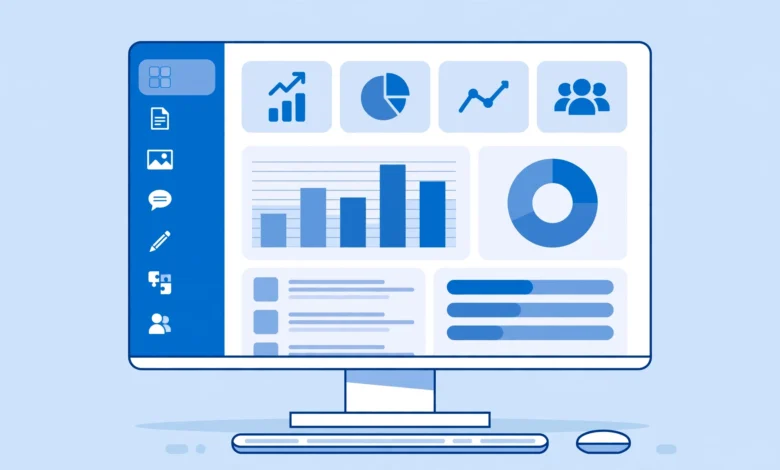
The first time you log in to your WordPress site, the screen in front of you can feel overwhelming. There is a long menu on the left, boxes full of numbers in the middle, and a black bar across the top. This WordPress dashboard explained for beginners guide walks through every menu item in plain words, so you will know exactly where everything lives and what it does.
Think of the dashboard as your website’s control room. Visitors never see it. It exists for writing content, changing the design, and managing everything behind the scenes. Once you know the layout, WordPress stops feeling complicated.
How Do You Log In to the WordPress Dashboard?
Before the tour, you need to get inside. Go to yourdomain.com/wp-admin (with your actual domain), enter your username and password, and you land on the dashboard home screen.
Bookmark this login page. If you ever forget your password, the “Lost your password?” link on the login screen resets it by email.
What Is the Dashboard Home Screen?
The first page after login is an overview. The boxes in the center are called widgets:
- At a Glance: shows how many posts, pages, and comments your site has, plus your WordPress version and theme name.
- Activity: shows your most recently published posts and the latest comments from visitors.
- Quick Draft: lets you jot down a rough post idea without opening the full editor.
- Site Health Status: warns about problems like outdated PHP or missing security settings. Pay attention to this one.
You can drag these boxes to rearrange them, or hide ones you do not need with the Screen Options tab at the top right. That tab appears on almost every dashboard page.
Posts: Where Do Your Blog Articles Live?
The Posts menu is where you write and manage blog articles. It has four sub-items:
- All Posts: a list of every article you have written, with options to edit, trash, or preview each one.
- Add New: opens the block editor where you write a new article.
- Categories: lets you create and manage categories, which are the main topics your blog covers (for example: Tutorials, News, Reviews).
- Tags: smaller labels for the details inside a post (for example: a post in the Tutorials category might have tags like “beginner” and “step by step”).
Simple rule: posts are for content you publish regularly, like blog articles and news. Timeless content like an About page belongs under Pages, covered below.
Media: What Is the Media Library?
The Media menu is your site’s file cabinet for images, videos, and PDFs. Files land here automatically whenever you add them to a post, or you can upload directly. Two tips: name files descriptively before uploading (wordpress-dashboard-menu.png beats IMG_0042.png), and fill in the Alt Text field for every image. Alt text helps visually impaired visitors and Google, and it is a small ranking factor.
Pages: How Are They Different From Posts?
Pages look like posts in the editor but serve a different purpose: static, timeless content that rarely changes, like your About page, Contact page, or Privacy Policy. Pages skip categories and tags and stay out of your blog feed.
A new install ships with a demo “Sample Page.” Delete it and create your own pages, as our checklist of things to do after installing WordPress explains.
Comments: How Do You Manage Reader Feedback?
The Comments menu is where you approve, reply to, mark as spam, or delete visitor comments. New comments wait in a moderation queue until you approve them, which blocks most spam.
Control comment behavior under Settings, then Discussion: whether comments need approval first, whether visitors must enter a name and email, and whether new posts allow comments at all. A free anti-spam plugin handles most spam automatically.
Appearance: How Do You Change the Way Your Site Looks?
The Appearance menu controls your site’s design. Here is what each sub-item does:
- Themes: your site’s overall design template. You can browse, install, preview, and activate free themes from here, or upload a premium one.
- Customize: live preview where you change colors, fonts, site title, and logo while watching changes happen in real time.
- Menus: build the navigation visitors use, like the menu at the top of your site. Add pages, posts, categories, or custom links and drag them into order.
- Widgets: small blocks (search box, recent posts, social icons) placed in sidebars and footers.
Changing your site title and tagline happens in the Customizer under Site Identity, or from Settings directly. Our tutorial on how to change your WordPress site title and tagline shows all three methods.
Plugins: How Do You Add New Features?
Plugins are add-on apps that give your site new abilities: contact forms, SEO tools, security scanners, online shops, and tens of thousands more. The menu has three parts:
- Installed Plugins: every plugin on your site, with buttons to activate, deactivate, update, or delete each one.
- Add New: search the official free plugin directory and install plugins with one click.
- Plugin File Editor: lets you edit plugin code directly. Beginners should stay away from this unless following a trusted guide, because one wrong character can break your site.
Golden rule: install only what you actually need, from developers with good ratings and recent updates. Every plugin is extra code that can slow your site or open security holes. Quality beats quantity.
Users: Who Can Access Your Dashboard?
The Users menu manages everyone who can log in to your site. Each user has a role that controls what they are allowed to do:
- Administrator: full control over everything. Keep this role for yourself and people you trust completely.
- Editor: can publish and manage all posts and pages, but cannot change settings or install plugins.
- Author: can write, edit, and publish only their own posts.
- Contributor: can write their own posts but cannot publish them; an editor must approve first.
- Subscriber: can only manage their own profile. This is the default role for registered readers.
Always give people the lowest role that still lets them do their job. Update your own display name, email, and password under Users, then Profile.
Tools: What Are These Utilities For?
The Tools menu holds helpful utilities you will use occasionally:
- Available Tools: handy extras like the “Press This” bookmarklet for quick posting.
- Import and Export: move your content in or out of WordPress, useful when changing hosts or merging sites.
- Site Health: a detailed report on your site’s technical condition, with specific recommendations for fixes.
If your site ever behaves strangely, check Site Health first. It often names the problem directly, like a plugin conflict or an outdated PHP version.
Settings: Where Is the Control Room?
Settings is where your site’s core configuration lives. The most important sub-pages are:
- General: site title, tagline, email, timezone, and date/time format. Set the timezone correctly or scheduled posts publish at the wrong hour.
- Writing and Reading: default post category, and what your homepage shows (latest posts or a static page).
- Discussion: comment rules, covered in the Comments section above.
- Media: default image sizes WordPress generates on upload.
- Permalinks: the URL structure of your posts. Choose “Post name” for clean, SEO-friendly URLs like yourdomain.com/my-article.
- Privacy: lets you select your Privacy Policy page, which every serious site needs.
Most of these are set once and forgotten, but getting them right early saves headaches later.
What Are the Quickest Ways to Feel at Home in the Dashboard?
- Collapse the left menu with the small arrow at the very bottom when you need screen space. Click again to expand.
- Use the top admin bar (the black bar on your live site while logged in) to jump to “New Post” or “Customize” without opening the dashboard first.
- Use the search box on list screens like All Posts to find content instantly.
- Watch for update badges: the Dashboard menu shows a numbered badge when core, themes, or plugins have updates. Staying updated is one of the simplest security habits.
One last note: the dashboard looks the same whatever host you use, because it is part of WordPress itself. If you have not chosen hosting yet, our web hosting comparison breaks down the best beginner options.
Frequently Asked Questions
Is the WordPress dashboard the same as cPanel?
No. The WordPress dashboard (wp-admin) manages your website’s content and design. cPanel is your hosting account’s control panel, for email accounts, file management, and databases. Two separate logins for two different jobs.
Can I change the language of my WordPress dashboard?
Yes. Go to Settings, then General, and pick your language from the Site Language dropdown. You can also set a different language for just your own profile under Users, then Profile.
Why do I see menu items I do not recognize?
Plugins and themes add their own menu items when you install them. An SEO plugin adds its own menu, a page builder adds another. If a menu item appeared right after installing something new, that is where it came from.
Last updated: October 2026.
Related Guides
- How to Schedule WordPress Posts in Advance (and Fix the Missed Schedule Error)
- How to Add a Logo to Your WordPress Header (All Methods)


6 Comments