Adding FAQ schema to a WordPress page sounds technical, but it is one of the simplest structured data jobs you can do yourself. You do not need a plugin or a theme template edit. You only need a small block of JSON-LD code and a visible FAQ section on the same page. This guide shows two reliable methods, how to check that your code is valid, and what to expect from Google after you publish it.
FAQ schema tells search engines that a section of your page is a list of questions and answers. When Google understands that structure, it can use your questions and answers to match your page to real searches, and it can use the same information in AI powered search features. That is the real value today. You are not adding the code for a display trick. You are adding it so machines can read your content the way a human reader already does.
What Is FAQ Schema in WordPress?
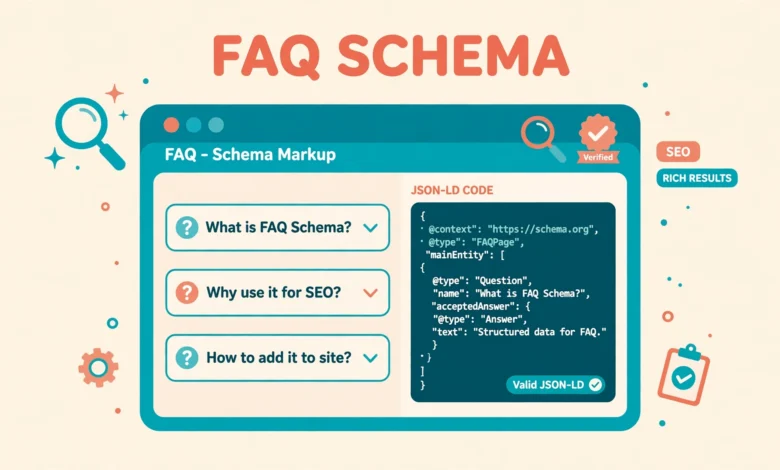
FAQ schema is a type of structured data called FAQPage. Structured data is a standard format for describing page content in a way that search engines can parse without guessing.
WordPress does not add FAQPage schema by itself. A normal FAQ section looks like a FAQ to a human, but to a search engine it is just headings and paragraphs. The JSON-LD block connects the two parts and says this heading is a question and this paragraph is its accepted answer. That is why the visible text and the schema text must match.
Why Add FAQ Schema Without a Plugin?
Many WordPress users reach for a plugin for every small job, and that habit has a cost. Every plugin adds code, settings, and update work. A schema plugin also locks your structured data into that plugin. If you switch plugins later, your FAQ schema can change or disappear without warning. A small JSON-LD block that you control avoids that problem. You can see exactly what it says, edit it in seconds, and it stays on the page until you decide to remove it.
The no plugin route is also faster for a single page. Installing a plugin and learning its FAQ block takes longer than pasting a short script. For a site with only a few FAQ sections, the manual method is the sensible choice. For a broader introduction, read our guide on how to add schema markup in WordPress without a plugin, which covers the main schema types and where each one belongs.
Before You Start: The Matching Rule
Before you write any code, write your visible FAQ section first. This is the most important rule in the whole guide. Google expects the questions and answers in your schema to match the questions and answers that a visitor can read on the page. Do not write schema for questions that do not appear on the page. Do not shorten the answers in the schema so much that they say something different from the visible text. Keep both versions the same, word for word where possible.
There are two other rules to follow. First, use only one FAQPage block per page. If your page has two FAQ sections, combine them into one block that lists every question. Second, keep the questions genuine. A FAQ section should answer questions that real readers actually ask, not questions that exist only to hold keywords.
Method 1: The Custom HTML Block Method
The Custom HTML block method is the fastest way to add FAQ schema without a plugin, and it is the method most site owners should use. You paste the JSON-LD script into a Custom HTML block on the same page as your visible FAQ section, and WordPress outputs it exactly as written.
Step 1: Write your visible FAQ section first
Open the page in the block editor and add your FAQ section near the end of the content. Use a heading for the section, then a heading for each question and a paragraph for each answer.
Step 2: Prepare your JSON-LD code
Copy the sample below and replace the questions and answers with your own. Keep the structure exactly as shown, including the commas, brackets, and quote marks. JSON is strict about punctuation, so a missing comma is the most common reason a schema block fails validation. If you have more than two questions, add another question block after the second one, with a comma between the blocks.
<script type="application/ld+json">
{
 "@context": "https://schema.org",
 "@type": "FAQPage",
 "mainEntity": [
  {
   "@type": "Question",
   "name": "How long does WordPress take to learn?",
   "acceptedAnswer": {
    "@type": "Answer",
    "text": "You can learn the basics of WordPress in a few days, including posts, pages, menus, and themes. Deeper skills such as custom layouts and troubleshooting take longer, and most users keep learning as they build real sites."
   }
  },
  {
   "@type": "Question",
   "name": "Do I need a plugin for FAQ schema?",
   "acceptedAnswer": {
    "@type": "Answer",
    "text": "No, you do not need a plugin. You can add FAQPage JSON-LD with a Custom HTML block or with a small function in your theme, and both methods work without installing anything extra."
   }
  }
 ]
}
</script>
Step 3: Paste the code into a Custom HTML block
In the block editor, add a Custom HTML block directly after your visible FAQ section. Paste the JSON-LD code into the block and save the page. The block will not show anything on the front end, because a script block is invisible to visitors. If you see raw code on the page, you pasted it into a Paragraph block instead of a Custom HTML block, so move it to the correct block type and check again.
Method 2: The Functions.php Method With wp_head
The functions.php method adds the same JSON-LD code through your theme, using the wp_head hook. This method is useful when you want the schema to appear on a specific page without adding a block in the editor, or when you prefer to keep schema in code rather than in page content. It gives you precise control over which page gets the schema.
Only use this method if you are comfortable editing theme files, and always use a child theme. Editing the parent theme directly means your changes will be lost when the theme updates. If you are not sure what a child theme is, use Method 1 instead. It is safer, simpler, and produces exactly the same result for the search engine.
function vtg_add_faq_schema() {
  if ( ! is_page( 'your-page-slug' ) ) {
    return;
  }
  ?>
  <script type="application/ld+json">
  {
   "@context": "https://schema.org",
   "@type": "FAQPage",
   "mainEntity": [
    {
     "@type": "Question",
     "name": "How long does WordPress take to learn?",
     "acceptedAnswer": {
      "@type": "Answer",
      "text": "You can learn the basics of WordPress in a few days, including posts, pages, menus, and themes."
     }
    }
   ]
  }
  </script>
  <?php
}
add_action( 'wp_head', 'vtg_add_faq_schema' );
Replace your-page-slug with the slug of the page that carries the visible FAQ section. The is_page check makes sure the schema only appears on that one page, which is exactly what you want. A FAQPage block should never appear on every page of your site, because the questions would not match the content of those other pages. If you need FAQ schema on several pages, add a separate check for each page, or return to Method 1 and add a Custom HTML block to each page instead.
How to Validate Your FAQ Schema
Never assume your schema is correct. Always test it after you publish the page. The free tool for this job is the Google Rich Results Test, which you can find at https://search.google.com/test/rich-results. Paste your live page URL into the tool and run the test. It will tell you whether the page has valid FAQ structured data, and it will show any errors or warnings that need fixing.
The most common errors are simple. A missing comma between two questions, a missing closing bracket, or a quote mark in the wrong place can break the whole block. If the test reports a syntax error, check the punctuation line by line and compare it with the sample in this guide. Also check that your schema questions match the visible text, because the Rich Results Test checks the code, not the match.
Will Google Show Your FAQs in Search Results?
Here is the honest part. Google stopped showing FAQ rich results for most sites in 2023. Today, FAQ rich results appear mainly for government and health websites, and most ordinary sites will not see their FAQs expanded in the search results, even with perfect schema. That change disappointed many site owners, and it is important to know about it before you invest time in FAQ schema.
That does not make FAQ schema useless. Search engines still use structured data to understand your content, and that understanding can help your page match the right searches. AI powered search tools and assistants also read structured data when they summarise pages and answer questions. A clear FAQ section with matching schema makes your content easier to read for both people and machines, and that is a genuine benefit even without a rich result display.
The visible FAQ section has value on its own, too. It answers reader questions, reduces support messages, and keeps visitors on your page longer. Good hosting also helps here, because a fast page keeps readers from leaving before they reach your FAQ section. If your site feels slow, read our guide to choosing reliable web hosting before you spend more time on schema. A clear FAQ on a fast site beats a perfect schema block on a slow one.
Common FAQ Schema Mistakes to Avoid
- Adding schema for questions that do not appear in the visible content on the page.
- Using two FAQPage blocks on one page instead of one combined block.
- Writing answers in the schema that are longer or different from the visible answers.
- Copying the same FAQ schema onto every page of the site.
- Using FAQ schema for advertising copy, promotional claims, or content that is not a real question and answer.
- Skipping validation and assuming the code is correct because the page looks fine.
Each of these mistakes is easy to make and easy to fix. The fix is almost always the same: make the schema match the page, keep it to one block, and test it after every change. For related on page work, see our guide to WordPress image SEO tips, and our guide on adding custom CSS in WordPress if you want to style your FAQ section to match your theme.
Frequently Asked Questions
Can I add FAQ schema to a WordPress post as well as a page?
Yes, you can add FAQ schema to a post in exactly the same way. Use a Custom HTML block on the post, paste the same JSON-LD structure, and make sure the questions match the visible FAQ section in that post. The method works for any content type that supports the block editor.
How many questions should I include in FAQ schema?
Include as many genuine questions as the page needs, usually three to six. There is no fixed limit, but a very long list can overwhelm readers. Choose the questions that visitors actually ask, answer each one clearly, and keep the visible section easy to scan.
Do I need to update the schema when I edit the FAQ text?
Yes, update both versions together. If you change a visible answer, change the matching answer in the schema at the same time. If you only update one version, the two will no longer match, and the schema may be ignored. Treat the visible FAQ and the JSON-LD block as one piece of content.
Will FAQ schema improve my Google ranking?
FAQ schema is not a ranking factor by itself, and it will not move your page to the top of the results on its own. Its value is that it helps search engines understand your content, which can support better matching to relevant searches. Good content, clear structure, and a fast site matter more for ranking than any single schema block. For background on the format itself, see the reference at https://schema.org/.
Last updated: November 2026.