Search engine optimization sounds technical, but for a WordPress beginner it is mostly a checklist. Most ranking problems come from a handful of basic settings that were never finished: a site that accidentally blocks search engines, URLs full of dates and numbers, missing meta descriptions, or images with no alt text. Fix those basics, repeat a simple routine for every post, and you will already be ahead of most new sites in your niche.
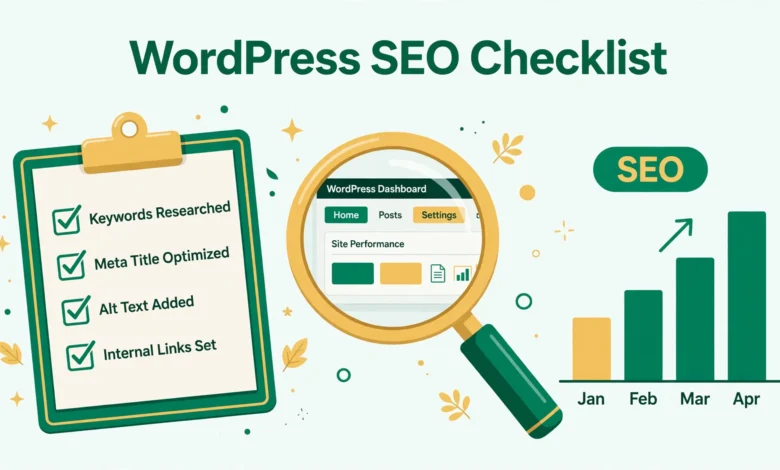
This checklist is organized in three parts so you can work through it in order. Part one covers the foundation, the one time settings that make your site visible and crawlable. Part two covers on-page SEO, the repeatable steps for every post and page you publish. Part three covers the ongoing routine, the small monthly habits that keep your rankings growing instead of slowly fading. You do not need to buy anything to complete it, and you do not need to learn code.
Part 1: What Foundation Settings Should You Fix First?
Foundation settings decide whether Google can find, read, and trust your site at all. Do these once, and check them again any time you change hosts, themes, or major plugins.
- Allow search engines to index your site: go to Settings, then Reading, and make sure the box labelled Discourage search engines from indexing this site is unchecked. If it is checked, Google ignores your site completely, and this is the single most common beginner SEO mistake.
- Use Post name permalinks: go to Settings, then Permalinks, and choose Post name. Your URLs will look like yoursite.com/wordpress-seo-checklist instead of yoursite.com/?p=123, which is easier for readers and for search engines to understand.
- Use HTTPS everywhere: your site should load over https with a valid certificate, and your WordPress Address and Site Address under Settings, then General, should both start with https. Most hosts offer a free certificate, and browsers now warn visitors away from plain http sites.
- Install one SEO plugin only: pick one well known SEO plugin, such as Yoast SEO or Rank Math, and stick with it. Two SEO plugins fight over the same settings and create duplicate meta tags, which hurts more than it helps.
- Generate and submit your sitemap: your SEO plugin creates an XML sitemap automatically, usually at yoursite.com/sitemap_index.xml. Submit it in Google Search Console so Google knows which pages exist. If you have not set up Search Console yet, our guide on how to add Google Search Console to WordPress walks through the whole setup.
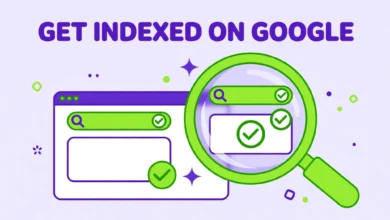
- Check that your pages are actually indexed: in Search Console, open the Pages report and look for pages marked as not indexed. Common causes are noindex tags left over from a staging site, or thin pages with almost no content. Our guide on a WordPress site not indexed by Google explains each cause and its fix.
Part 2: What On-Page SEO Should Every Post Include?
On-page SEO is the part you repeat for every post. It takes five to ten extra minutes per article, and it is the difference between a post that ranks and a post that nobody ever finds. Work through this list before you hit Publish, not after.
- One clear keyphrase per post: choose the single search phrase the post should rank for, and write the post to answer that search properly. A post that tries to rank for everything ranks for nothing.
- Title under 60 characters: put your keyphrase near the start of the SEO title, and keep the whole title under 60 characters so it is not cut off in search results. Your SEO plugin shows a preview while you type.
- Meta description of 140 to 155 characters: write a short summary that includes the keyphrase early and tells the searcher what they will get. A good description does not directly improve rankings, but it raises the click rate, which does help over time.
- Keyphrase in the H1 and the first 100 words: your post title is the H1, so it should contain the keyphrase naturally. Mention it again in the opening paragraph, in your own words, so readers and search engines both know the topic immediately.
- Clear headings that describe the content: use H2 headings for main sections and H3 for subsections, and phrase them as questions or plain descriptions of what follows. Headings help readers scan and help Google understand the structure of your post.
- Image alt text and compression: every image needs a short alt text that describes what it shows, and every image should be compressed and resized before upload. Alt text helps image search and accessibility, while compression keeps your pages fast. Our guide to WordPress image SEO tips covers naming, alt text, and compression in detail.
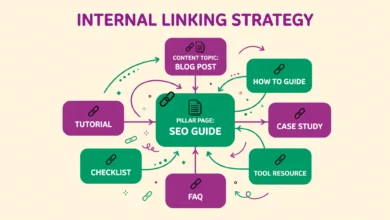
- Internal links to related posts: link to two or three of your own related posts with natural anchor text, and link from older posts to the new one as well. Internal links help Google discover your content and show readers where to go next. Our guide to a WordPress internal linking strategy explains how to plan these links instead of adding them at random.
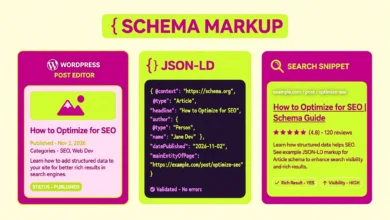
- Schema markup for the right content type: articles, FAQs, and how-to guides can carry structured data that helps Google show rich results. Many SEO plugins add basic article schema automatically, and you can add FAQ schema without a plugin if you follow a careful method. See our guide on how to add schema markup to WordPress without a plugin for the manual route.
Notice what is not on this list: keyword stuffing, buying links, and hidden text. Repeating your keyphrase twenty times in a short post reads badly and can trigger a spam penalty. Write for the reader first, use the keyphrase where it fits naturally, and let the checklist handle the technical parts. For the official background on how WordPress handles search and metadata, see the documentation on Developer.WordPress.org and the SEO guidance on Google Search Central.
Part 3: How Do You Check Speed, Mobile, and Technical Health?
Technical SEO is less visible than titles and headings, but it decides whether Google is willing to rank you at all. A slow site or a broken mobile layout will hold back even the best written post.
Start with speed. Test your home page and your most popular post with a free tool such as PageSpeed Insights, and note the score for mobile, since most of your visitors arrive on phones. Common fixes are compressing images, removing plugins you no longer use, and using a caching plugin. Next, check mobile layout directly on your own phone: menus should open, text should be readable without zooming, and buttons should be easy to tap. A theme that looks great on a desktop and breaks on a phone is a ranking problem, not just a design problem.
Then check for broken links and errors. In Search Console, look at the Pages report for server errors and redirect problems, and fix any post that returns a 404 without a replacement. If you deleted a post that had traffic, redirect it to the closest related post instead of leaving a dead end. Finally, confirm your site loads on a fast connection and a slow one, because many of your readers will not have the fast connection you do. If your hosting is the bottleneck, our web hosting guide explains how server speed, caching, and support quality affect a WordPress site, and when an upgrade is worth the money.
What Ongoing SEO Habits Keep Rankings Growing?
SEO is not a one time project. Google rewards sites that stay fresh, stay fast, and keep earning attention, so a small monthly routine protects the work you already did.
- Check Search Console weekly: look at which queries bring clicks, which pages lost traffic, and whether any new errors appeared. A page that suddenly drops usually has a fixable cause, such as a broken link or a competitor publishing something better.
- Refresh your best old posts: every month, pick two or three older posts that already rank and update them with new information, better examples, and fresh internal links. Updating a post that ranks is usually easier than ranking a brand new one.
- Publish consistently, not frantically: one genuinely useful post per week beats five rushed posts that nobody finishes. Consistency builds topical authority, which is Google trusting your site on a subject because you keep covering it well.
- Watch your categories and tags: keep categories broad and tags specific, and never let tag pages multiply into hundreds of thin, near empty pages. If you are unsure how the two differ, read our guide on WordPress categories vs tags before you create new ones.
- Learn the dashboard before you automate: if you are still finding your way around the admin area, our guide explaining the WordPress dashboard for beginners will help you find every setting mentioned in this checklist without hunting through menus.
Start today with the foundation section, then apply the on-page list to your next post, and put a monthly reminder in your calendar for the ongoing routine. SEO results take weeks, not hours, so judge the checklist after a month of steady work, not after a single day. The sites that win in search are rarely the cleverest; they are the ones that finished the basics and kept going.
Frequently Asked Questions
How long does WordPress SEO take to show results?
Expect several weeks before you see clear movement, and two to three months before new posts settle into stable rankings. Google needs time to crawl your changes, compare your content with competitors, and observe how visitors respond. If nothing moves after three months of consistent work, recheck the foundation section, because a blocked index or a slow host can hide good content completely.
Do I need an SEO plugin to rank on WordPress?
No, you do not need one to rank, but one good plugin makes the work much easier. It handles titles, meta descriptions, sitemaps, and basic schema without code, and it warns you about obvious mistakes. What matters is the content and the settings, not the plugin brand. Install exactly one, configure it once, and spend your time writing instead of comparing plugins.
Can I do SEO on WordPress without paying for tools?
Yes, everything in this checklist is free. Google Search Console, PageSpeed Insights, and a free SEO plugin cover indexing, speed, and on-page checks. Paid tools help with keyword research and competitor analysis, but they are not required to rank, especially for a new blog targeting specific, low competition topics.
What is the biggest SEO mistake WordPress beginners make?
Leaving the Discourage search engines box checked after a site launch, usually because it was turned on during development and nobody turned it off. The site looks fine to its owner, but Google never sees it at all. Always check Settings, then Reading, right after launch, and again after any migration or staging push.
Last updated: November 2026.