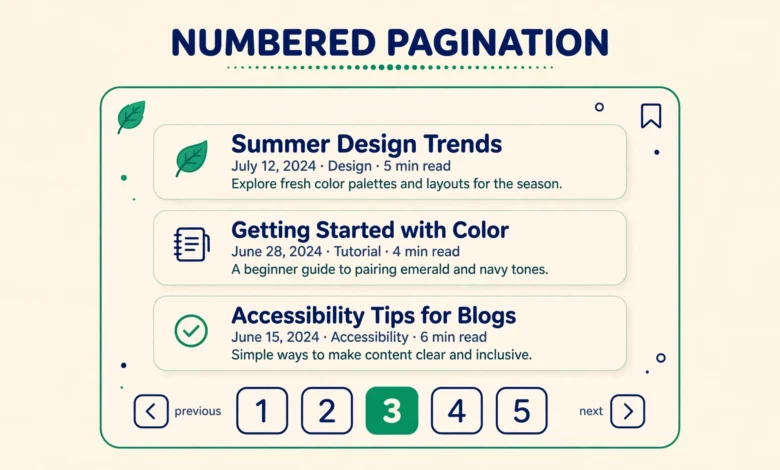
WordPress shows Older Posts and Newer Posts links at the bottom of your blog by default. Those links work, but they are slow to use. A reader who wants page seven has to click through six pages to get there. Numbered pagination fixes that by showing page numbers, so a reader can jump straight to the page they want. You do not need a plugin. WordPress core already includes the functions you need, and block themes include a Pagination block as well.
Numbered pagination is not only a design choice. It helps readers explore a large blog, it helps search engines discover older posts, and it makes a long archive feel organised rather than endless. If your blog has dozens of posts, numbered pagination is one of the simplest usability improvements you can make.
How WordPress Pagination Works
WordPress splits a list of posts into pages based on the posts per page number in your Reading settings. When a visitor opens your blog page, WordPress runs a query, counts the posts, and divides them into pages. The current page number comes from the URL. The default navigation uses previous and next links, but the same query can also produce numbered links. You are only changing how the navigation displays, not how WordPress finds posts.
That distinction matters when you troubleshoot. If pagination shows the wrong posts, or a 404 error, the problem is usually in the query or the page number, not the display function. Start with the simplest method that fits your theme and test it live.
Check Your Reading Settings First
Before you add any code, open Settings, then Reading, in your WordPress dashboard and check the number next to Blog pages show at most. That number controls how many posts appear on each page of your blog. A common value is ten. If the number is higher than your total post count, pagination will never appear, because all your posts fit on one page. Lower the number to ten or fewer, save the settings, and check your blog page again.
Also check that your blog page is set correctly. If you use a static front page, your posts page must be assigned under Settings, then Reading, so WordPress knows which page should show the post list. If that setting is missing, the pagination functions may not have a proper query to work with. For a related setup job, see our guide on adding an HTML sitemap in WordPress without a plugin.
Method 1: the_posts_pagination for the Main Query
The simplest method is the_posts_pagination, a core WordPress function that prints numbered links for the main query. The main query is the default post list that WordPress runs for a blog page, a category archive, or a search results page. If your theme currently shows Older and Newer links, you can replace that navigation with a single call to the_posts_pagination in the template file that prints the post list, usually index.php, archive.php, or home.php in a classic theme.
Open the template in a child theme, find the existing navigation code, and replace it with the code below. The mid_size argument controls how many page numbers appear on each side of the current page, and the prev_text and next_text arguments set the labels for the previous and next links. The function prints the numbers automatically, including the first and last pages.
<?php
the_posts_pagination( array(
'mid_size' => 2,
'prev_text' => '« Previous',
'next_text' => 'Next »',
) );
?>Save the file, clear any caching plugin, and open your blog page. You should see numbered links such as 1, 2, 3, with an ellipsis where pages are skipped, plus Previous and Next links at the ends. Click through a few pages to confirm that each number loads the correct set of posts. If the numbers do not appear, check that your blog has more posts than the posts per page setting.
Method 2: paginate_links for Custom Control
When you need more control over the output, use paginate_links. This core function returns or prints a set of page links based on the values you pass in, including the total number of pages and the current page. It is the function that the_posts_pagination uses behind the scenes, but calling it directly lets you adjust details such as how many numbers appear at the start and end of the list.
The sample below is a common pattern for a blog template. It uses the global wp_query object to get the total page count and the current page number, then passes those values to paginate_links. The mid_size value controls how many numbers appear beside the current page, and the end_size value controls how many numbers appear at the start and the end of the list. A mid_size of two and an end_size of one gives a compact list that still lets readers jump to the first or last page.
<?php
global $wp_query;
$big = 999999999;
echo paginate_links( array(
'base' => str_replace( $big, '%#%', esc_url( get_pagenum_link( $big ) ) ),
'format' => '?paged=%#%',
'current' => max( 1, get_query_var( 'paged' ) ),
'total' => $wp_query->max_num_pages,
'mid_size' => 2,
'end_size' => 1,
'prev_text' => '« Previous',
'next_text' => 'Next »',
) );
?>The base and format arguments tell WordPress how to build each page URL. On a site with pretty permalinks, WordPress normally handles the format for you, but the pattern above is widely used because it works in both plain and pretty permalink setups. If your links point to the wrong URLs, check your permalink settings first, then check that the format argument matches your permalink structure.
Method 3: Custom WP_Query With Paged
Custom queries are the most common source of pagination problems, because a custom query must be told which page to show. If you create a new WP_Query on a template and you do not pass the paged value, WordPress will always show page one, no matter which pagination link the visitor clicks. The fix is to read the current page number from the query variable and pass it into your query arguments before you run the query.
<?php
$paged = max( 1, get_query_var( 'paged' ) );
$custom_query = new WP_Query( array(
    'post_type'      => 'post',
    'posts_per_page' => 6,
    'paged'          => $paged,
) );
if ( $custom_query->have_posts() ) :
    while ( $custom_query->have_posts() ) :
        $custom_query->the_post();
        the_title( '<h2>', '</h2>' );
        the_excerpt();
    endwhile;
    echo paginate_links( array(
        'total'   => $custom_query->max_num_pages,
        'current' => $paged,
    ) );
    wp_reset_postdata();
endif;
?>
Notice two details in the sample. First, the paged value comes from get_query_var, and it is passed into the query as the paged argument. Second, the paginate_links call uses the custom query max_num_pages value, not the global query. If you use the global value by mistake, the numbers will reflect the wrong total and the last pages may show a 404 error. After the loop, wp_reset_postdata restores the main query.
Custom queries are also used for filtered lists, such as posts from one category or posts with a certain tag. The same rule applies: pass the paged value, use the custom query total, and reset the post data after the loop. Keep the query simple, test pagination with a small posts per page value, and add filters only after the basic pagination works. For help with categories, read our guide to WordPress categories versus tags.
Method 4: Query Loop Pagination Block in Block Themes
If your site uses a block theme, you may not need any PHP at all. The Query Loop block includes a Pagination block that you can add, move, and style from the Site Editor. Open the template for your blog or archive in Appearance, then Editor, select the Query Loop block, and add the Pagination block inside it. The block prints numbered links by default.
The Pagination block respects the posts per page value set in the Query Loop block settings, so check that value if the numbers do not appear. If the Query Loop shows all your posts on one page, lower its per page value until the list splits into pages. The block method is the best choice for block theme users, because it keeps the pagination inside the editor, where you can see it and style it without editing template files.
One limit to know about is that the Pagination block only works inside a Query Loop block. If you add it outside the loop, it will not have a query to paginate, and it may show nothing. Always place it inside the Query Loop, usually after the Post Template block that prints each post. Save the template, view the live blog page, and click through the numbers to confirm that each page loads correctly.
Styling Numbered Pagination With CSS
WordPress prints pagination as a list of links with classes that you can style. The current page gets a distinct class, so you can highlight it and make the numbers easy to tap on mobile. Add the CSS below through the Customizer under Additional CSS. The sample gives each number a border and padding, and it fills the current page with a solid colour.
.pagination .nav-links {
  display: flex;
  flex-wrap: wrap;
  gap: 8px;
  justify-content: center;
}
.pagination .page-numbers {
  display: inline-block;
  padding: 8px 14px;
  border: 1px solid #dddddd;
  border-radius: 4px;
  text-decoration: none;
  color: #333333;
}
.pagination .page-numbers.current {
  background: #2271b1;
  border-color: #2271b1;
  color: #ffffff;
}
.pagination .page-numbers:hover {
  border-color: #2271b1;
}
Adjust the colours to match your theme, and test the result on a phone as well as on a desktop. Pagination links are often tapped with a finger, so they need enough padding to be easy to hit. For a general guide to adding CSS safely, see our tutorial on adding custom CSS in WordPress.
Common Pagination Problems and Fixes
The most common complaint is that pagination shows every page number instead of a compact list. That usually happens when mid_size and end_size are set too high, or when a custom paginate_links call does not set them at all. Lower mid_size to two and end_size to one, and the list will collapse to a short range with an ellipsis for the skipped pages.
The second common problem is a custom loop that ignores the paged value. The symptom is that clicking page two shows the same posts as page one, or that the pagination links lead to a 404 error. The fix is the one shown in Method 3: read the paged value, pass it into the query, and use the custom query total in paginate_links. If the problem persists, check whether the page uses page instead of paged in its query variable. A static front page uses the page variable, while a posts page uses paged, and mixing them up is a classic cause of broken pagination.
A third problem is pagination that disappears after a theme or plugin update. That usually means the template file you edited was overwritten, or a caching plugin is serving an old version of the page. If you edited a parent theme file directly, your change is gone after the update, which is why child themes matter for PHP methods. Clear the cache, check the template in a child theme, and reapply the change there.
Good hosting also helps pagination feel fast, because each page click loads a fresh set of posts from the database. On a slow host, readers may wait several seconds for page two, and many will give up. If your archive pages feel slow, read our guide to choosing reliable web hosting. For general WordPress troubleshooting, see our guide to fixing the WordPress white screen of death.
Frequently Asked Questions
Do I need a plugin for numbered pagination in WordPress?
No, you do not need a plugin. WordPress core includes the_posts_pagination and paginate_links, and block themes include a Pagination block inside the Query Loop. A plugin is only useful if you want a very specific design or extra features such as infinite scroll.
Why does my pagination show the same posts on every page?
That usually means a custom query is missing the paged value. Read the current page with get_query_var, pass it into WP_Query as paged, and use the custom query total in paginate_links. If you use a static front page, check whether your template needs the page variable instead of paged. For reference on core functions, see https://developer.wordpress.org/.
How many page numbers should I show at once?
Show a compact range, usually two numbers on each side of the current page plus the first and last pages. Set mid_size to two and end_size to one in paginate_links, or use the default in the_posts_pagination. A short list with an ellipsis is easier to scan than a long row of numbers.
Can I use numbered pagination in a block theme without code?
Yes, add the Pagination block inside a Query Loop block in the Site Editor. Set the posts per page value in the Query Loop settings, save the template, and test the live page. No PHP is needed.
Last updated: November 2026.