An FAQ section answers the questions visitors ask most, right on the page where they ask them. It reduces support emails, it builds trust, and it keeps visitors on your site instead of sending them to Google for answers. FAQ sections work well on product pages, service pages, pricing pages, and long guides, because they catch the reader at the exact moment a doubt appears.
You do not need a plugin to add one. WordPress already includes the blocks and HTML you need, and you can add structured data by hand when you want search engines to show your questions as rich results. In this guide you will learn how to add an FAQ section in WordPress without a plugin using three methods. First, the Details block, which creates a native accordion with no code. Second, simple headings and paragraphs, the easiest method of all. Third, a styled accordion with Custom HTML and CSS.
What Is an FAQ Section in WordPress?
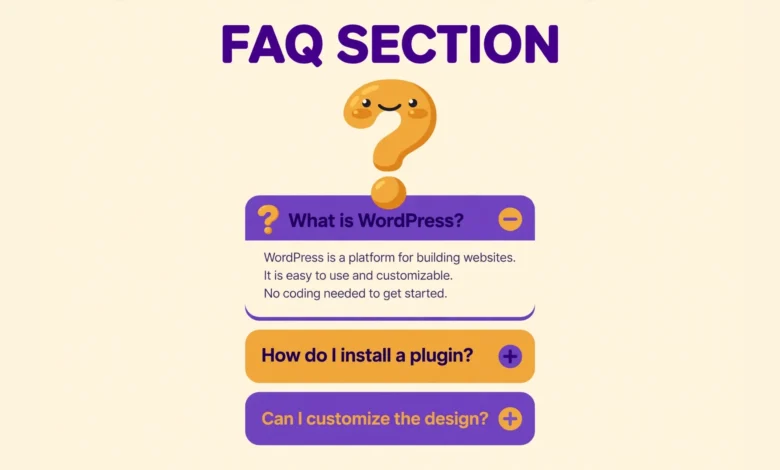
An FAQ section, short for Frequently Asked Questions, is a group of common questions and their answers placed together on a page. It usually appears near the end of a page, after the main content, so it catches readers who still have doubts. The most common layout is an accordion, where each question is a heading that a visitor clicks to reveal the answer below it. The accordion keeps the page short, because only the open answer takes up space, while the rest stay collapsed.
FAQ sections help in two ways. First, they answer objections before a visitor leaves, which can turn a hesitant reader into a buyer or a subscriber. Second, they can help with search visibility, because each question targets a real search query, and with FAQ schema markup, Google may show your questions directly in the search results. A related element worth knowing is the accordion pattern used in page builders, which our guide on how to add an accordion in Elementor free covers for Elementor users.
How Do You Add an FAQ Section With the Details Block?
The Details block is the fastest way to add an FAQ section in WordPress without a plugin. It creates a native HTML details and summary accordion, which means the browser handles the open and close behaviour for you with no JavaScript. Use this method when you want a clean accordion in a few minutes and you are happy with the default browser styling.
Open your post or page in the block editor and place your cursor where the FAQ section should appear. Click the plus icon to add a block and search for Details. Select the Details block. Type your first question in the summary area, which is the visible heading, then click inside the block and add a paragraph with the answer. Repeat the process for each question, adding one Details block per question.
- Add one Details block for each question, not one block for the whole section.
- Keep each answer to two or three short sentences so the accordion stays easy to scan.
- Write the question in the same words your visitors use, not in marketing language.
- Open the first question by default only when its answer matters to almost every visitor.
The main limit of the Details block is styling. The default look is plain, with a small triangle marker beside each question. You can improve it with a little CSS, which you can add through the Customizer or through a custom CSS snippet. Our guide on how to add custom CSS in WordPress shows the safe way to add those styles without editing theme files.
How Do You Add an FAQ Section With Headings and Paragraphs?
The headings and paragraphs method is the simplest FAQ layout of all, and it is often the best choice for blog posts. You add a heading for the section, then one H3 heading per question, then one short paragraph with the answer under each heading. There is no accordion, no JavaScript, and nothing to break.
Start by adding an H2 heading with the text Frequently Asked Questions. Under it, add an H3 heading with your first question, written as a real question, for example How long does delivery take? Then add a paragraph with a direct answer in one or two sentences. Repeat the H3 and paragraph pair for each question. Keep the questions in a logical order, with the most common question first and the least common question last.
This method works best when you have four to eight questions and every answer is short. When you have more than ten questions, or when the answers are long, the page becomes very tall and hard to scan, and an accordion is a better choice. A useful trick is to link from the FAQ answers to other pages on your site when an answer needs more detail. If your post also needs a contents list so readers can jump to the FAQ, see our guide on how to add a table of contents in WordPress without a plugin.
How Do You Build a Styled FAQ Accordion With Custom HTML?
The Custom HTML method gives you full control over the look of your FAQ section. You write the questions and answers in plain HTML using the details and summary elements, then add CSS to style them as cards with borders, padding, and a clear open and close marker. The code below is a complete example with three questions. Paste it into a Custom HTML block, then replace the questions and answers with your own text.
<style>
.vtg-faq details { border: 1px solid #ddd; border-radius: 8px; padding: 14px 18px; margin-bottom: 12px; }
.vtg-faq summary { font-weight: 700; cursor: pointer; }
.vtg-faq summary::-webkit-details-marker { color: #2563eb; }
.vtg-faq p { margin: 10px 0 0; }
</style>
<div class="vtg-faq">
    <details>
        <summary>How long does delivery take?</summary>
        <p>Orders are delivered within 3 to 5 working days in most cities. You will receive a tracking link by email as soon as your order ships.</p>
    </details>
    <details>
        <summary>What is your refund policy?</summary>
        <p>You can request a full refund within 14 days of your purchase. Contact our support team with your order number and we will process it within 2 working days.</p>
    </details>
    <details>
        <summary>Do you offer support after purchase?</summary>
        <p>Yes, every purchase includes 12 months of email support. Send your question to our support team and we usually reply within one working day.</p>
    </details>
</div>
Each details element is one question. The summary element holds the question text, and the paragraph inside holds the answer. The browser opens and closes each item when the visitor clicks the summary, with no JavaScript needed. The CSS at the top turns each item into a card with a light border and rounded corners, and it makes the question text bold.
One warning applies to this method. Styles inside a Custom HTML block only affect that page, so if you want the same FAQ style on many pages, add the style rules to your theme custom CSS or to a Code Snippets CSS snippet instead, and keep only the HTML in each Custom HTML block. That way you can change the design once and update every FAQ on your site at the same time.
How Do You Add FAQ Schema Markup Without a Plugin?
FAQ schema is a small block of structured data that tells search engines your page contains questions and answers. When Google understands your FAQ, it may show your questions as rich results under your page in the search results, which can earn more clicks. You can add FAQ schema without a plugin by adding a JSON-LD script to the page.
The safest way to add it is with the Code Snippets plugin, using a snippet that prints the script in the head of one specific page. Target the page by its ID or slug so the schema only loads where the FAQ actually appears. The code below shows the structure for two questions. Replace the question and answer text with the exact text that appears on your page. For a broader guide to structured data on WordPress, read our article on how to add schema markup in WordPress without a plugin.
<script type="application/ld+json">
{
    "@context": "https://schema.org",
    "@type": "FAQPage",
    "mainEntity": [
        {
            "@type": "Question",
            "name": "How long does delivery take?",
            "acceptedAnswer": {
                "@type": "Answer",
                "text": "Orders are delivered within 3 to 5 working days in most cities."
            }
        },
        {
            "@type": "Question",
            "name": "What is your refund policy?",
            "acceptedAnswer": {
                "@type": "Answer",
                "text": "You can request a full refund within 14 days of your purchase."
            }
        }
    ]
}
</script>
After you add the schema, test it with the Google Rich Results Test to confirm Google can read it. Note that Google shows FAQ rich results mainly for well known and authoritative sites, so a new site may not see them at once. The official FAQPage documentation at developers.google.com explains the current rules and limits for this markup.
How Do You Write Good FAQ Questions?
Good FAQ questions come from real visitors, not from guesswork. Look at your support emails, your contact form messages, your comments, and your live chat logs, and list the questions that appear again and again. Write each question in the visitor words, because that is how they will search for it and how they will recognise it on your page.
Answer each question directly in the first sentence, then add one sentence of detail if needed. Avoid answers that start with a sales pitch or a long introduction, because visitors came for a fact, not for marketing. Keep every answer honest. If your refund window is 14 days, say 14 days. If delivery takes a week, say a week. A clear honest answer builds more trust than a vague friendly one.
What Are the Common Problems With FAQ Sections?
The most common problem is an FAQ that nobody reads, because the questions are written from the business point of view instead of the visitor point of view. Questions such as What makes us the best? are not real questions, and visitors skip them. Replace them with questions visitors actually ask, such as How much does it cost? or Can I cancel any time?
Another problem is duplicate content, which happens when the same FAQ appears word for word on many pages. Keep a short general FAQ on your main pages and write page specific questions for product and service pages. A third problem is an accordion that does not open on some browsers. The Details block and the details element work in all modern browsers, but very old browsers may not support them. If your audience uses older devices, use the headings and paragraphs method instead, because it works everywhere.
Which Method Should You Choose?
Choose the Details block when you want a clean accordion in minutes with no code and no styling work. Choose headings and paragraphs when you have a short FAQ on a blog post and you want every answer visible at once with zero risk of breakage. Choose the Custom HTML method when you want a styled accordion that matches your design and you are comfortable copying a code block. For hosting basics that keep content heavy pages fast, see our web hosting guide, and the official documentation at WordPress.org is a reliable place to check how the Details block and the editor work.
Frequently Asked Questions
Can I add an FAQ section in WordPress without a plugin?
Yes. Use the Details block for a native accordion, headings and paragraphs for the simplest layout, or a Custom HTML block with details and summary elements for a styled accordion. None of these methods needs a plugin.
Do I need FAQ schema for my FAQ section to work?
No. The FAQ section works for visitors with no schema at all. Schema is optional extra data that helps search engines understand your questions and may show them as rich results. Add it only when your FAQ is stable and the visible text matches the schema exactly.
How many questions should an FAQ section have?
Four to eight questions suit most pages. Fewer than four looks thin, and more than ten makes the section hard to scan.
Where should I place the FAQ section on a page?
Place it near the end of the page, after the main content and before the footer or the final call to action. That way it catches readers who have read the page and still have doubts, without interrupting readers who are ready to act earlier.
Last updated: November 2026.