Have you ever scheduled a post for 9 in the morning, only to find it still sitting in your drafts at noon? Or have you seen a warning in Site Health that a scheduled event is running late? Both problems usually point to the same quiet part of WordPress: the cron system. WordPress cron jobs handle the background tasks your site needs to run on a schedule, and when they misbehave, the symptoms can be confusing.
This guide explains what WordPress cron jobs are, how WP-Cron differs from a real server cron, which parts of your site depend on it, and how to tell when it has stopped working. You will also learn the reliable fix, which is a real server cron job that calls wp-cron.php every 5 minutes, and how to schedule your own custom events with code.
What Are WordPress Cron Jobs?
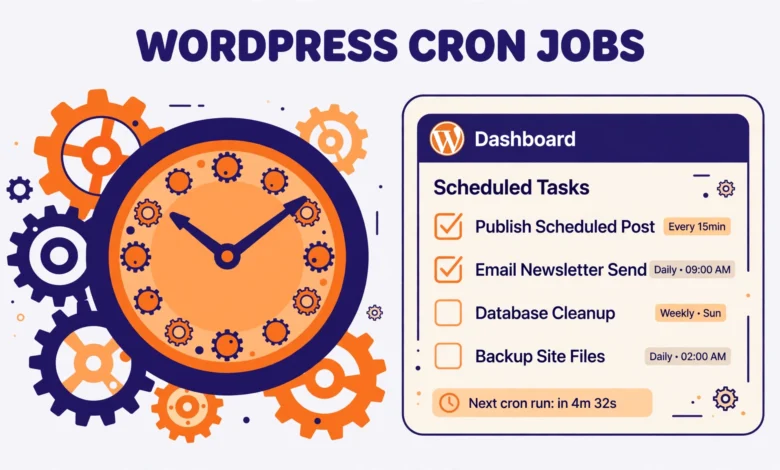
A cron job is a task that runs automatically on a schedule. On a normal server, the cron daemon wakes up at fixed times and runs whatever commands are listed in the crontab, whether anyone is visiting the site or not. WordPress has its own version of this system, called WP-Cron, and it handles jobs such as publishing scheduled posts, checking for plugin and theme updates, deleting old trash and spam, clearing expired transients, and processing WooCommerce orders.
The important difference is that WP-Cron is not a real cron system. It does not run on a clock. Instead, WordPress checks its list of scheduled events every time a page on your site is loaded. If an event is due, WordPress runs it during that page load. If nobody visits your site, nothing triggers the check, and the event simply waits. This works well enough on busy sites, but it creates real problems on quiet sites and on sites with aggressive caching.
Every scheduled event has three parts: a hook name, a recurrence interval, and a next run time. The hook is the action WordPress runs, such as publish_future_post for a scheduled post. The recurrence can be hourly, twice daily, daily, or weekly. WordPress stores the full list in the database, and a typical site can easily have dozens of events added by plugins.
How Is WP-Cron Different from a Real Server Cron?
A real server cron runs on time, every time, because the server itself wakes up and runs the command. It does not care whether your site had visitors. WP-Cron, by contrast, depends entirely on traffic. If your site gets its first visit of the day at 11 in the morning, a post scheduled for 8 will only publish at 11, when that first visitor triggers the check. On a site that publishes at fixed times for an audience in another time zone, that delay can be embarrassing.
Heavy page caching makes the problem worse. When a cached page is served, WordPress may not load at all, so the cron check never happens. Some hosts and caching plugins serve cached pages without touching PHP, which means WP-Cron can sit idle for hours on a site that looks busy from the outside. This is one of the most common reasons scheduled posts go missing on otherwise healthy sites, and it is also why the fix involves a real server cron that runs independently of traffic and caching.
What Depends on WordPress Cron Jobs?
More of your site depends on WP-Cron than most owners realise. The system quietly handles a long list of routine work, and when it stalls, the failures show up in different places, which makes the cause hard to spot.
- Publishing scheduled posts at the time you set in the editor.
- Checking for WordPress core, plugin, and theme updates and sending update notifications.
- Deleting posts, pages, and comments that have sat in the trash for 30 days.
- Clearing expired transients, which are temporary cached values stored in the database.
- Running WooCommerce tasks such as processing scheduled order actions and cleaning up old sessions.
Because so many plugins add their own events, a broken cron system can break features that seem unrelated to scheduling. A backup that never runs or an update notice that never arrives can both trace back to WP-Cron. If you publish on a schedule, our guide on how to schedule WordPress posts shows the publishing workflow that depends on this system working correctly.
How to See Your Scheduled Events in WordPress
WordPress does not show the cron schedule anywhere in the dashboard by default, so you need a tool to inspect it. The easiest option is the free WP Crontrol plugin, which adds a Cron Events page under Tools in your dashboard. After you install and activate it, open Tools, then Cron Events, to see every scheduled event, its recurrence, and its next run time. Overdue events are highlighted, which makes a broken cron system easy to spot.
If you have command line access to your server, WP-CLI gives you the same information even faster. Log in over SSH and run the following command to list every scheduled event with its next run time.
wp cron event listWhat Are the Signs Your WordPress Cron Jobs Are Broken?
The most obvious sign is a scheduled post that misses its time. WordPress marks it as Missed Schedule in the dashboard, and the post stays unpublished until someone opens the editor and publishes it by hand. Once after a quiet night may be normal low traffic behaviour, but if it happens regularly, your cron system needs attention.
Site Health gives you a second warning. Go to Tools, then Site Health, then the Info tab, and look for the message about scheduled events. When an event is overdue, Site Health reports it late and names the event. Our guide to the WordPress Site Health check explained walks through the full report and what each warning means.
- Scheduled posts show as Missed Schedule instead of publishing on time.
- Site Health reports that a scheduled event is late.
- Plugin and theme update notices arrive days late or not at all.
- Trash items and spam comments pile up instead of being deleted automatically.
- Scheduled emails, reports, or backups never arrive.
One more cause is worth ruling out before you change anything. Some security plugins, hosts, or code snippets block access to wp-cron.php, the file that runs the cron check. Check your security plugin settings for any rule that blocks wp-cron.php. You can also test directly by visiting https://yoursite.com/wp-cron.php?doing_wp_cron in your browser: a blank page is normal, while an error page means something is blocking it.
How to Set Up a Reliable Server Cron for WordPress
The reliable fix is to stop depending on visits and let the server run your cron jobs on a real clock. The setup has two steps, and the order matters: add the server cron job first, then disable WP-Cron in wp-config.php. If you disable WP-Cron first, nothing will trigger your scheduled events at all.
Most shared hosts offer a Cron Jobs tool inside cPanel. Open cPanel, find Cron Jobs under the Advanced section, and add a job that runs every 5 minutes with the following command. Replace yoursite.com with your own domain name.
*/5 * * * * wget -q --spider https://yoursite.com/wp-cron.php?doing_wp_cron >/dev/null 2>&1Now open wp-config.php in your site root, through your host file manager or FTP, and add the following line above the line that says “That is all, stop editing!” This tells WordPress to stop checking for due events on every page load, because the server cron now handles the job.
define( 'DISABLE_WP_CRON', true );Back up your site before you edit wp-config.php. A single typo in this file can take your whole site down with a white screen, so download a copy first. If you are not comfortable editing the file, your host support team can add the line for you. Our WordPress maintenance checklist for beginners covers backups and the other routine tasks that keep a site healthy.
How to Schedule a Custom Event with wp_schedule_event()
Once your cron system is reliable, you can schedule your own tasks with the wp_schedule_event() function. You register an event once, WordPress runs it on the interval you choose, and your function does the work. The code below schedules a daily cleanup task. Add it to your child theme functions.php file or to the Code Snippets plugin, never to a parent theme, because a theme update will wipe it out.
// Schedule a daily cleanup event in WordPress
if ( ! wp_next_scheduled( 'vtg_daily_cleanup' ) ) {
    wp_schedule_event( time(), 'daily', 'vtg_daily_cleanup' );
}
add_action( 'vtg_daily_cleanup', 'vtg_run_daily_cleanup' );
function vtg_run_daily_cleanup() {
    // Your cleanup code goes here
}
The wp_next_scheduled() check stops WordPress from registering the same event twice, which is a common mistake that creates duplicate events. The time() function sets the first run to now, and the ‘daily’ argument sets the recurrence. WordPress ships with hourly, twice daily, daily, and weekly intervals built in. If you need a different interval, such as every 15 minutes, register it first with the cron_schedules filter, as shown below.
// Add a custom 15 minute interval to WordPress cron
function vtg_add_cron_interval( $schedules ) {
    $schedules['every_15_minutes'] = array(
        'interval' => 900,
        'display'  => 'Every 15 Minutes',
    );
    return $schedules;
}
add_filter( 'cron_schedules', 'vtg_add_cron_interval' );
After you add the code, open WP Crontrol and confirm your new event appears. If it does not, check that the snippet is enabled or that your child theme is active. When you no longer need an event, remove it with wp_clear_scheduled_hook() or delete it from WP Crontrol, because abandoned events keep running forever and add quiet load to every cron run. The official documentation at developer.wordpress.org explains the full cron API, including how to unschedule events and how to test them safely. WordPress checks for core, plugin, and theme updates through scheduled events too, so if you manage updates yourself, our guide on how to disable WordPress automatic updates explains the settings that control this behaviour.
Frequently Asked Questions
What is WP-Cron in WordPress?
WP-Cron is the built in scheduling system WordPress uses for background tasks such as publishing scheduled posts, checking for updates, and processing WooCommerce orders. Unlike a real server cron, it does not run on a clock. It only checks for due events when someone loads a page, so quiet or heavily cached sites run tasks late.
Why do my scheduled WordPress posts publish late?
Scheduled posts publish late when no visitor loads a page near the scheduled time, because WP-Cron only runs when a page is loaded. Heavy caching makes this worse, since cached pages may not trigger the check. The fix is a real server cron job that calls wp-cron.php every 5 minutes.
Should I disable WP-Cron in WordPress?
Disabling WP-Cron on its own is not the goal, and doing it alone stops every scheduled task on your site. Only disable it after you have added a real server cron job that calls wp-cron.php every 5 minutes. The two steps together give reliable scheduling.
How do I check if WordPress cron is working?
Install the free WP Crontrol plugin and open Tools, then Cron Events, to see every scheduled event and its next run time. Overdue events are highlighted. You can also check Tools, then Site Health, for a warning that a scheduled event is late.
Last updated: November 2026.