File permissions decide who can read, change, and run the files on your WordPress site. When they are correct, WordPress updates itself, uploads images, and saves settings without any fuss. When they are wrong, the same site can throw 403 errors, refuse updates, and ask for FTP credentials at the worst possible moment.
This guide shows how to fix WordPress file permissions in cPanel using File Manager, FileZilla FTP, and SSH through cPanel Terminal. You will also learn the correct values for folders, files, wp-config.php, and .htaccess, plus the mistakes to avoid.
What Are WordPress File Permissions?
Every file and folder on your hosting account has a permission setting. That setting controls three kinds of access: read, write, and execute. Read lets a user view a file. Write lets a user change or delete it. Execute lets a user run a file as a program or open a folder to see what is inside it.
Permissions are shown as a three digit number, such as 755 or 644. Each digit stands for one group: the owner (your hosting account), the group (the web server user), and the public (everyone else). Each digit is the sum of the access types it allows, with read worth 4, write worth 2, and execute worth 1.
What Do Read, Write, and Execute Mean in Practice?
- Read (4): the file can be opened and viewed, or a folder listing can be seen.
- Write (2): the file can be changed, renamed, or deleted, or new files can be added to a folder.
- Execute (1): a script can be run, or a folder can be entered and its contents accessed.
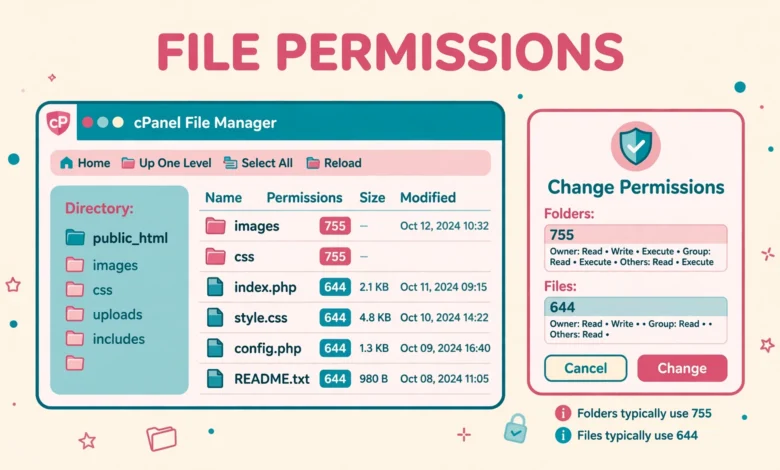
A permission of 755 means the owner can read, write, and execute (4 plus 2 plus 1), while the group and the public can only read and execute (4 plus 1). A permission of 644 means the owner can read and write (4 plus 2), while the group and the public can only read (4).
Who Are the Owner, Group, and Public?
The owner is your cPanel account user. The group is the web server process that runs WordPress. The public is every visitor who loads a page. WordPress needs a balance: the owner needs write access, the server needs enough access to read files and write to the uploads folder, and the public should only read pages, never change them.
What Are the Correct WordPress File Permission Values?
WordPress has a standard set of permission values that work on almost every shared hosting account. Use these values as your starting point.
- All directories: 755, so folders can be entered and listed but not changed by visitors.
- All files: 644, so files can be read by everyone but changed only by the owner.
- wp-config.php: 640 or 600, because this file holds your database password and must stay private.
- .htaccess: 644, so the server can read your redirect and security rules.
- wp-content/uploads: 755 for folders, with files inside at 644, so media uploads keep working.
The wp-config.php file deserves special care. It holds your database name, username, password, and security keys, so it should never be readable by the public. A value of 640 lets the owner and the group read it, while 600 lets only the owner read and write it. Either value is safe, and 600 is stricter.
What Are the Symptoms of Wrong File Permissions?
Wrong permissions rarely announce themselves clearly. They show up as ordinary looking errors that can easily be blamed on a plugin or a theme. If you see one of the symptoms below, check your permissions before you start disabling plugins.
- 403 Forbidden errors when you open a page, an image, or the WordPress admin area.
- WordPress asks for FTP credentials every time you install or update a plugin or theme.
- Media uploads fail with a message that the file could not be moved to wp-content/uploads.
- Plugin and theme updates fail, or WordPress says the update could not be completed.
- Changes to Settings, Permalinks do not save, or .htaccess cannot be updated.
- Images or CSS files return 403 errors even though the files exist on the server.
A site that asks for FTP credentials on every update is the classic sign of a permission or ownership problem. WordPress falls back to FTP when it cannot write files directly. Fixing the permissions on wp-content and its subfolders usually removes the prompt. For wider hardening, our guide to limit login attempts in WordPress without a plugin covers another common step.
Method 1: Fix File Permissions in cPanel File Manager
cPanel File Manager is the easiest method for most site owners, because it needs no extra software and no command line. Log in to cPanel, open File Manager, and navigate to your WordPress root folder, which is usually public_html.
How Do I Change Permissions for One File or Folder?
- Right click the file or folder in File Manager and choose Change Permissions.
- Tick or untick the Read, Write, and Execute boxes for User, Group, and World until the number shows the value you want.
- For a folder, set 755. For a normal file, set 644. For wp-config.php, set 640 or 600.
- Click Change Permissions to save, then reload the affected page and confirm the error is gone.
How Do I Fix Permissions Recursively in File Manager?
Right click the folder, choose Change Permissions, set the value, and tick the Recurse into subdirectories option before you save. Be careful: it applies the same number to folders and files alike, so recursing 755 through wp-content would set your files to 755 too. Run two passes instead: recurse 755 through the folder first, then set the files inside to 644. If disk space is part of your problem, our guide to check disk usage in cPanel helps you see what is filling your account.
Method 2: Fix File Permissions With FileZilla FTP
FTP is the best method when you want to fix a large site quickly, or when File Manager feels slow on a folder with thousands of files. FileZilla is free, and its permission dialog handles recursion cleanly. Connect with your FTP or SFTP credentials, then open the WordPress root folder in the remote panel.
How Do I Change Permissions in FileZilla?
- Right click a file or folder in the remote panel and choose File permissions.
- Type the numeric value, such as 755 or 644, in the Numeric value box.
- Tick Recurse into subdirectories when you want the change to apply to everything inside a folder.
- Click OK, wait for the transfer queue to finish, then test the affected page.
How Do I Fix Folders and Files in Separate Passes?
When you tick Recurse into subdirectories in FileZilla, you get two extra choices: Apply to directories only, and Apply to files only. First, right click your WordPress root folder, set 755, tick Recurse into subdirectories, choose Apply to directories only, and click OK. Then repeat with 644 and Apply to files only. After both passes, tighten wp-config.php to 640 or 600 on its own.
Method 3: Fix File Permissions With SSH and cPanel Terminal
SSH is the fastest method on a large site, because two commands can fix every folder and file in one go. cPanel includes a built-in Terminal under the Advanced section. Open Terminal and navigate to your WordPress root folder before you run anything.
The find command below sets every directory to 755 and every file to 644. Run the directory command first, then the file command. These commands change only permissions, not file contents, but they still touch every file on the site, so do not run them from the wrong folder.
find . -type d -exec chmod 755 {} \;
find . -type f -exec chmod 644 {} \;
chmod 640 wp-config.php
After the two find commands, tighten wp-config.php with the third command and test the site. Our guide to create a WordPress staging site without a plugin shows how to test changes safely first.
Why Should I Never Use 777 on a Live Site?
A permission of 777 gives everyone read, write, and execute access, including the public. It fixes almost every permission error instantly, which is exactly why it is so tempting, and why it is so dangerous: any visitor, script, or compromised account on the same server can change your files. Some old tutorials still suggest 777 for the uploads folder. Do not follow them. If a folder only works at 777, the real problem is ownership, not permissions, so fix the owner instead of opening the folder to the world. For wider hardening, our guide to disable XML-RPC in WordPress removes another common attack surface.
What Should I Do Before Changing Permissions in Bulk?
Back up your site before any bulk permission change. A wrong recursive command in the wrong folder can lock you out of the admin area or break uploads until you fix it again. A full backup, files plus database, gives you a safe way back. Use your host backup tool or a backup plugin, then make the change during a quiet time and test the front page, the admin dashboard, and a test upload straight away.
Your hosting choice affects how much control you have over permissions, ownership, and SSH access. Our web hosting guide explains what to look for in a host that gives you proper file access. For extra account protection, our guide to add two factor authentication in WordPress without a plugin is also worth setting up.
What If Correct Permissions Do Not Fix the Problem?
Sometimes the numbers are right and WordPress still asks for FTP credentials or refuses an upload. The problem is usually ownership: the files may belong to a different user than the web server expects, often after a migration or a restore. Your host can fix ownership with a single command, so ask them to check it.
Another common fix is the FS_METHOD setting in wp-config.php. Adding define(‘FS_METHOD’, ‘direct’); tells WordPress to write files directly instead of asking for FTP credentials. Add it above the line that says That is all, stop editing, and test an update straight away. Use it only after you have fixed permissions and ownership. The hardening documentation at developer.wordpress.org explains permissions and ownership in more detail, and WordPress.org lists the current update requirements.
Frequently Asked Questions
What are the correct WordPress file permissions?
Use 755 for directories, 644 for files, 640 or 600 for wp-config.php, and 644 for .htaccess. These values give WordPress the access it needs while keeping your files safe from public changes.
How do I fix WordPress file permissions in cPanel?
Open File Manager, right click the file or folder, choose Change Permissions, and set 755 for folders or 644 for files. For a whole site, tick Recurse into subdirectories, and run one pass for folders and a separate pass for files.
Is it safe to set WordPress file permissions to 777?
No. A value of 777 lets anyone read, write, and run your files, which is a serious security risk on a live site. If a folder only works at 777, fix the file ownership instead and keep the folder at 755.
Why does WordPress keep asking for FTP credentials?
WordPress asks for FTP credentials when it cannot write files directly, which usually means wrong permissions or wrong file ownership. Fix wp-content to 755 for folders and 644 for files, ask your host to check ownership, and add define(‘FS_METHOD’, ‘direct’); to wp-config.php only after the permissions are correct.
Last updated: November 2026.