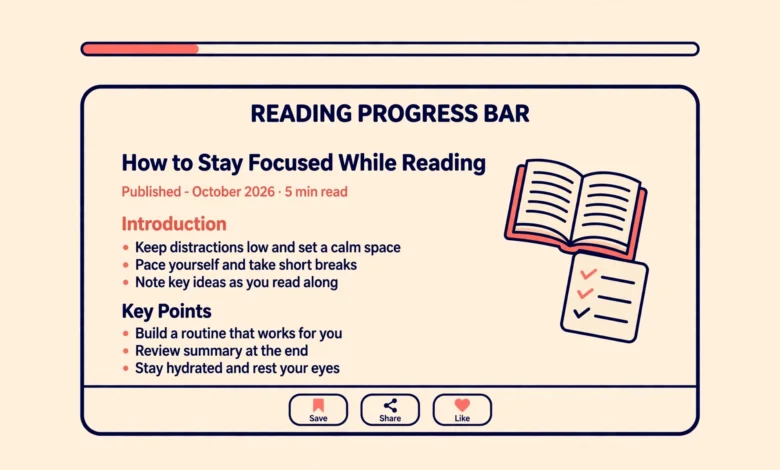
A reading progress bar is the thin line at the top of a page that fills up as you scroll. Readers love it on long articles because it answers a silent question: how much is left? For a blog full of tutorials and guides, that small cue can keep readers scrolling instead of bouncing after the first screen. Best of all, you can add one to WordPress without a plugin, using a short snippet of HTML, CSS, and JavaScript.
This guide gives you the complete snippet, shows where to place it safely, and covers customization, sticky header offsets, and testing. It also explains honestly what does not work: a single HTML block inside one post cannot create a site wide bar, and free page builder tools generally do not include a native progress widget. The snippet approach below is the method that actually works across your whole site.
How Does a Reading Progress Bar Work?
The idea is simple. A thin bar sits fixed at the very top of the browser window. JavaScript listens for scrolling, measures how far down the page the reader has gone as a percentage of the total scrollable height, and sets the bar width to that percentage. At the top of the article the bar is empty. At the bottom it is full. The bar itself never scrolls away, because CSS fixes it to the viewport.
Three pieces make it work:
- One HTML element: an empty div that becomes the bar
- CSS rules: fix the div to the top, give it a height and a colour, and start its width at zero
- JavaScript: update the width on every scroll event based on the reader position
Because the snippet is tiny and runs no external requests, it adds no meaningful load to your pages. That is the main advantage over a plugin, which would add its own settings screens, stylesheets, and update cycle to achieve the same few lines of code.
Where Should You Add the Snippet?
You have two safe options. The first is a code snippets plugin, which is a general tool for adding small code pieces, not a progress bar plugin. It lets you add the HTML, CSS, and JavaScript from the WordPress dashboard and toggle the snippet on or off without touching theme files. This is the easiest option for most site owners.
The second option is a child theme. Add the HTML element to your header template, the CSS to your stylesheet, and the JavaScript to a script file or the footer. This keeps everything in your theme, but it requires comfort with theme files and a child theme so updates do not wipe your work. If you do not have a child theme yet, our guide to creating a WordPress child theme explains the setup before you edit anything.
Whichever option you choose, never paste this snippet into the main post editor of individual articles. A snippet inside post content only affects that one post, and it can break when the editor reformats the HTML. Site wide elements belong in site wide locations: a snippets tool or a theme file. For background on safe theme customization, the official developer resources at developer.wordpress.org are the authoritative reference.
What Is the Full Reading Progress Bar Snippet?
Here is the complete snippet in three parts. Add the HTML element first. It is a single empty div with an ID the CSS and JavaScript will target:
<div id="reading-progress"></div>Next, the CSS. It pins the bar to the top of the screen, sets its height to 4 pixels, gives it a blue colour, and places it above other content with a high stacking value:
#reading-progress {
  position: fixed;
  top: 0;
  left: 0;
  height: 4px;
  background: #2563eb;
  width: 0;
  z-index: 9999;
}
Finally, the JavaScript. It runs on every scroll, works out the scrolled percentage, and updates the bar width. Note the subtraction has no spaces around the minus sign, which keeps the expression compact and easy to copy:
document.addEventListener('scroll', function() {
  var winScroll = document.body.scrollTop || document.documentElement.scrollTop;
  var height = document.documentElement.scrollHeight-document.documentElement.clientHeight;
  var scrolled = (winScroll/height)*100;
  document.getElementById('reading-progress').style.width = scrolled + '%';
});
Save the snippet, clear any caching plugin, and open a long post in a private browser window. Scroll slowly and watch the bar fill from left to right. If nothing appears, check the two most common causes: the HTML div is missing from the page, or a caching plugin is serving an old version without the new code.
How Do You Customize the Colour and Position?
Customization is just editing two CSS values. Change the background value to any hex colour that matches your brand, and change the height value to make the bar thicker or thinner. A height between 3 and 6 pixels works best: thinner bars look elegant but can be hard to see, while thicker bars start to feel like a design element competing with your header.
Some colour combinations to try:
- Blue #2563eb for a clean, trustworthy default
- Green #16a34a for a calm, natural feel
- Orange #ea580c for a bold, energetic accent
- Dark grey #1f2937 for a subtle bar on light themes
If your theme uses a dark header, pick a bright colour so the bar stays visible against it. Test the bar on both desktop and mobile, because a colour that looks fine on a wide screen can nearly disappear on a small one. For more styling ideas, our guide to adding custom CSS in WordPress covers where custom styles live and how to test them safely.
What About Sticky Headers?
If your theme has a sticky header that stays visible while scrolling, the progress bar at top zero will sit behind it or overlap it, depending on stacking order. The fix depends on which look you prefer. To place the bar below the sticky header, set the top value to the header height. For a 70 pixel tall header, change the CSS like this:
#reading-progress {
  position: fixed;
  top: 70px;
  left: 0;
  height: 4px;
  background: #2563eb;
  width: 0;
  z-index: 9999;
}
Measure your actual header height with browser DevTools rather than guessing, because themes vary and mobile headers are often taller than desktop ones. Alternatively, keep the bar at the very top with a z-index higher than the header, so it draws over the header edge. That look works well when the bar is thin, since it reads as a frame around the page rather than a competing element.
On mobile, check the bar with the browser address bar both expanded and collapsed, since the viewport height changes as the reader scrolls. A bar fixed to the top stays stable through those changes, which is another reason to prefer top placement over bottom placement on phones.
Why Is an HTML Block Not Enough for a Site Wide Bar?
It is tempting to paste the snippet into an HTML block inside a post and call it done. That approach fails for site wide use in two ways. First, the bar only appears on posts where you pasted the block, so every new post needs the block added again, and older posts stay without a bar. Second, block editor HTML can be reformatted or stripped during editing, which silently breaks the snippet on posts you later update.
The same honesty applies to page builders. Some premium builders include a progress widget, but the free tools most beginners use do not offer a native site wide reading progress element. Chasing a builder widget that does not exist wastes more time than the snippet takes to add. The snippet works with any theme and any builder, because it runs independently of both.
If you only want a progress bar on one landing page, an HTML block on that page is acceptable as a one off experiment. But treat it as a test, not a system. When you decide you like the effect, move the snippet to a snippets tool or child theme so every page gets it consistently.
How Do You Test the Progress Bar?
Testing is quick but worth doing properly, because a bar that behaves oddly is worse than no bar at all. Run through this checklist:
- Open a long post and confirm the bar starts empty at the top
- Scroll to the very bottom and confirm the bar reaches full width
- Resize the browser window and confirm the bar still tracks correctly
- Test on a mobile device or mobile emulation, including with a sticky header
- Open a short page and confirm the bar behaves sensibly when there is little to scroll
- Check that the bar does not cover navigation links or overlap important header buttons
On very short pages the bar may jump straight to full width, because there is almost no scrollable distance. That is normal behavior, not a bug, and it is one reason progress bars suit long articles better than short pages. If a page has no scrollbar at all, the calculation divides by zero, so the bar simply stays empty, which is also fine.
When Does a Progress Bar Help, and When Does It Distract?
A progress bar helps most on long form content: tutorials, guides, case studies, and opinion pieces where readers invest several minutes. It sets expectations, reduces the feeling of an endless page, and gives readers a small sense of accomplishment as it fills. Tutorial sites and blogs see the biggest benefit, because their readers often scan for a specific section and the bar helps them judge how far along they are.
It distracts on pages where progress is meaningless or where attention should stay narrow. Short landing pages, checkout flows, contact pages, and sales pages do not benefit from a scroll meter, and a moving bar there can pull eyes away from the call to action. If your site mixes long articles with conversion pages, consider showing the bar only on single posts. Most snippets tools let you limit a snippet to posts, which gives you the benefit where it matters and keeps sales pages clean.
As with any design addition, watch real behavior after adding it. If time on page for long articles rises and bounce rate falls, the bar is earning its place. If nothing changes, it is still harmless, but you can remove it in one step by deactivating the snippet. That reversibility is the beauty of the snippet approach: no plugin to uninstall, no leftover settings, just one toggle. For a full pre-launch review habit, our WordPress website launch checklist covers the other small details worth confirming before a page goes live.
Frequently Asked Questions
Can I add a reading progress bar without a plugin?
Yes. A small HTML, CSS, and JavaScript snippet added through a general code snippets tool or a child theme creates a full site wide progress bar with no dedicated progress bar plugin required.
Will the progress bar slow down my site?
No, not measurably. The snippet is a few lines of code with no external requests, images, or libraries. It runs a tiny calculation on scroll, which browsers handle easily, and it adds nothing to initial page weight.
Can I show the progress bar only on blog posts?
Yes. Most code snippet tools let you set display conditions, so you can limit the snippet to single posts. That keeps the bar on long articles where it helps, while leaving landing pages, checkout pages, and short pages clean.
Does the progress bar work on mobile?
Yes, the fixed position bar works on mobile browsers. Test it with your sticky header, since mobile headers are often taller than desktop ones, and adjust the top offset in the CSS if the bar overlaps the header.
Last updated: October 2026.