


How to Schedule WordPress Posts in Advance (and Fix the Missed Schedule Error)

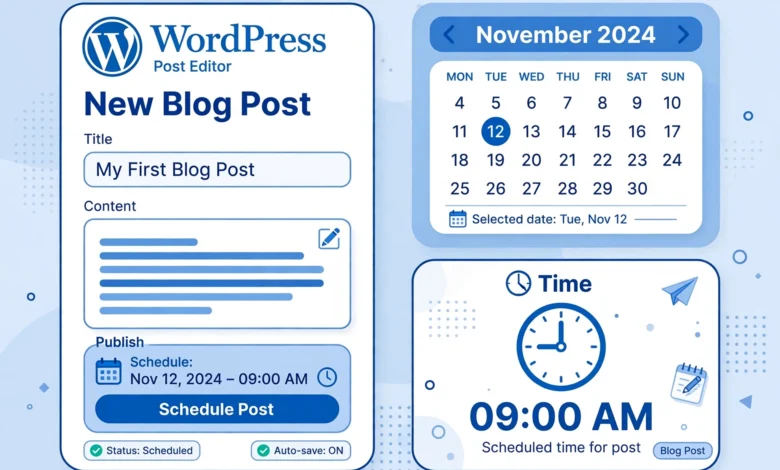
Scheduling posts in advance is one of the simplest productivity wins in WordPress. Write when inspiration strikes, set a publish time, and your content goes live while you sleep. But every WordPress user eventually meets the dreaded Missed schedule error, where a post never publishes at its scheduled time.
In this guide, you will learn the correct way to schedule WordPress posts in advance, and then we will dig into the three proven fixes for the missed schedule problem: timezone settings, WP-Cron issues, and aggressive caching. By the end, your publishing calendar will run on autopilot.
How to Schedule a WordPress Post in Advance
Scheduling works the same in both the block editor and the classic editor, with only small interface differences.
Using the block editor (Gutenberg)
- Open the post you want to schedule in the editor.
- In the right sidebar, find the Publish panel. If you do not see the sidebar, click the gear icon in the top-right corner. Beginners can follow our WordPress dashboard walkthrough to learn where everything lives.
- Click the word Immediately next to Publish.
- A date and time picker appears. Choose the future date and time you want the post to go live.
- Click the blue Schedule button at the top of the editor. It changes from Publish to Schedule once a future date is selected.
Using the classic editor
- Open the post and find the Publish meta box on the right.
- Click Edit next to Publish immediately.
- Set the date and time, click OK, then click Schedule.
After scheduling, you can see all upcoming posts by going to Posts > All Posts and clicking the Scheduled filter at the top. This is the fastest way to review your content calendar at a glance.
Scheduling Best Practices
- Schedule at least 10 to 15 minutes out. Scheduling a post for one minute from now often fails because WordPress cron jobs do not run on exact seconds. Give it a comfortable buffer.
- Stick to consistent publishing times. Readers and search engines both respond well to a predictable rhythm, such as every Tuesday and Friday at 10 AM.
- Double-check your timezone (more on this below). A surprising number of missed schedules are just timezone confusion.
- Do not schedule during maintenance. If you know your host runs backups or server maintenance at 2 AM, avoid scheduling posts for that window.
- Optimize images before scheduling. Heavy images slow down the publish process and hurt page speed from the first visitor. See our image SEO and optimization guide before you hit Schedule.
Fix #1: Check Your Timezone Setting
This is the most common cause of the missed schedule error, and the easiest to fix. WordPress schedules posts based on the timezone set in your dashboard, not your computer’s timezone. If the two do not match, your post publishes hours early or late, or appears to miss entirely.
- Go to Settings > General.
- Find the Timezone dropdown. If you are unsure what to pick, our checklist of things to do after installing WordPress covers this setting step by step.
- Select the city closest to you (for example, Karachi for Pakistan) rather than a manual UTC offset. City-based timezones handle daylight saving automatically.
- Look at the Universal time and local time preview below the dropdown and confirm they match reality.
- Click Save Changes.
After fixing the timezone, reschedule any missed posts: open the post, set a new future time, and click Schedule again.
Fix #2: Repair WordPress Cron (WP-Cron)
WordPress does not have a real server scheduler. Instead, it uses a system called WP-Cron, which checks for scheduled tasks every time someone visits your site. This design has a weakness: on low-traffic sites, there may be no visit at the exact scheduled moment, so WP-Cron never fires and your post shows Missed schedule.
Option A: Install a missed-schedule plugin
The simplest fix is the free Scheduled Post Trigger plugin (available on wordpress.org). It checks for missed posts on every page load and publishes anything that slipped past its time. Install it, activate it, and forget about it. For most blogs, this single plugin ends the problem permanently.
Option B: Set up a real server cron job
For a more robust fix, disable WP-Cron and replace it with a real cron job on your server:
- Open your
wp-config.phpfile and add this line above the “stop editing” comment:define( 'DISABLE_WP_CRON', true ); - In your hosting control panel (cPanel or similar), open Cron Jobs.
- Add a cron job that runs every 5 minutes with this command (adjust the path to your site):
wget -q -O - https://yoursite.com/wp-cron.php?doing_wp_cron > /dev/null 2>&1 - Save the cron job. Your server will now trigger WordPress scheduled tasks reliably every 5 minutes, whether or not anyone visits your site.
If your host does not offer cron jobs, a free external service like cron-job.org can ping your wp-cron.php URL on a schedule and achieves the same result.
Option C: Check for plugin conflicts
Sometimes a plugin or theme breaks WP-Cron entirely. Install the free WP Crontrol plugin from wordpress.org, go to Tools > Cron Events, and look for errors. If cron events show failures, deactivate plugins one by one until the errors stop, and you will find the culprit.
Fix #3: Clear Aggressive Caching
Caching plugins and server-level caches sometimes serve a stale version of your site that does not know a post was scheduled. The post may actually publish on time in the database, but visitors keep seeing the old homepage without it.
- Purge all caches after scheduling: your caching plugin, your CDN (like Cloudflare), and your browser cache.
- Exclude the admin area from caching. Most caching plugins do this by default, but double-check if you configured things manually.
- Turn off “cache everything” page rules on Cloudflare for your wp-admin and preview URLs if scheduled posts misbehave while Cloudflare is active.
- Check object caching. If your host provides Redis or Memcached, a stale object cache can also delay scheduled tasks. Flush it from your hosting panel or caching plugin.
What to Do With Already-Missed Posts
If a post already shows Missed schedule in your Posts list, do not delete it. Open the post, and in the Publish panel you will see the missed time. Simply pick a new future time (or click Publish to go live immediately) and the post will be rescheduled cleanly. WordPress treats it like a brand-new schedule, so apply the fixes above first to prevent a repeat.
The missed schedule error is almost never a bug in your post. It is a scheduling trigger problem, which means fixing WP-Cron or your timezone solves it for every future post at once.
Frequently Asked Questions
Why does WordPress say “missed schedule” on my posts?
The missed schedule message means the post’s publish time passed but WordPress never triggered the publish action. The three usual causes are a wrong timezone setting, WP-Cron not firing because nobody visited the site at the scheduled moment, or aggressive caching hiding the published post. Work through the three fixes in this guide in order.
How far in advance can I schedule a WordPress post?
There is no built-in limit. You can schedule posts days, weeks, or months ahead. For very long-range scheduling, a real server cron job (Fix 2, Option B) is more reliable than WP-Cron, because it does not depend on site traffic.
Do scheduled posts hurt SEO?
No. Search engines only see the post once it is published, and they do not know or care that it was scheduled. What matters for SEO is publishing consistently and keeping the content quality high, which scheduling actually helps with.
Can I schedule changes to an already published post?
WordPress core does not support this natively, but free plugins on wordpress.org add scheduled-revision features. These let you draft updates to a live post and have them swap in automatically at a set time, which is handy for time-sensitive content like prices or event details.
Will scheduling work if my site gets very little traffic?
Not reliably with default WP-Cron, because cron only runs when someone loads a page. Low-traffic sites are the number one victims of missed schedules. Install the Scheduled Post Trigger plugin or set up a server cron job as described in Fix 2, and the problem goes away regardless of traffic.
Can I bulk schedule multiple posts at once?
WordPress core schedules one post at a time, but you can speed things up with the Quick Edit feature on the All Posts screen, which lets you change dates without opening each post. Several editorial-calendar plugins on wordpress.org also add drag-and-drop bulk scheduling if you manage a busy content calendar.
