



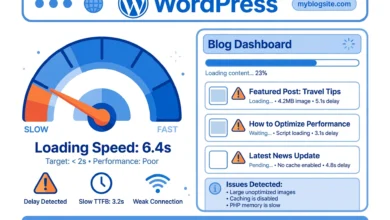
If your WordPress site feels slow, there is a good chance your server is sending full-size files to every visitor. GZIP compression shrinks those files before they travel across the internet, often cutting page sizes by 60 to 80 percent. This guide shows you how to enable GZIP compression in WordPress without plugin downloads: two simple methods, editing your .htaccess file or clicking a button in cPanel. No coding experience needed, and the whole thing takes about ten minutes.
What Is GZIP Compression?
Imagine you need to mail a thick winter jacket. You could stuff it into a huge box, or you could vacuum-seal it first so it takes up a fraction of the space. GZIP does the same thing for your website’s files. Before your server sends a page to a visitor, it compresses the HTML, CSS, and JavaScript files. The visitor’s browser then uncompresses them instantly and displays the page normally.
Smaller files mean faster downloads, which means faster pages. Page speed is a confirmed Google ranking factor, and it directly affects whether visitors stay or click away. Studies consistently show that even a one-second delay reduces conversions. Compression is one of the highest-impact, lowest-effort speed wins available, which is why it belongs on every new site. It is on our list of things to do after installing WordPress for exactly this reason.
One note: many modern hosts now use an even newer compression called Brotli instead of GZIP, and some enable compression for you automatically. The methods below work on the standard Apache hosting most beginners use. If your host already compresses everything, the verification step later will tell you, and you can skip the rest.
What Should You Do Before Starting?
- Back up your .htaccess file. Method 1 edits this file, and a typo in it can take your site offline. Download a copy to your computer first so you can restore it in seconds if anything goes wrong.
- Check whether GZIP is already on. Visit a free checker like checkgzipcompression.com, enter your domain, and run the test. If it says compression is enabled, you are done before you started.
- Confirm your server type. The .htaccess method works on Apache servers (and LiteSpeed, which reads the same file). If your host uses Nginx, skip to the note about Nginx below.
Method 1: How Do You Enable GZIP With .htaccess Code?
This is the most reliable method because it works on any Apache or LiteSpeed host and does not depend on your control panel. You will add a block of code that tells the server to compress text-based files using a built-in Apache module called mod_deflate.
Step 1: Open your .htaccess file
Log in to your hosting control panel and open File Manager. Navigate to the public_html folder, which is where WordPress lives. Look for a file named .htaccess. If you cannot see it, enable “Show Hidden Files” in the File Manager settings, because files starting with a dot are hidden by default. Alternatively, connect with an FTP client like FileZilla and download the file from the same folder.
Step 2: Paste the GZIP code
Open the .htaccess file for editing and paste the following code at the end of the file, after the existing WordPress rules. Copy it exactly:
# Enable GZIP compression
<IfModule mod_deflate.c>
  # Compress HTML, CSS, JavaScript, text, XML and fonts
  AddOutputFilterByType DEFLATE application/javascript
  AddOutputFilterByType DEFLATE application/rss+xml
  AddOutputFilterByType DEFLATE application/vnd.ms-fontobject
  AddOutputFilterByType DEFLATE application/x-font
  AddOutputFilterByType DEFLATE application/x-font-opentype
  AddOutputFilterByType DEFLATE application/x-font-otf
  AddOutputFilterByType DEFLATE application/x-font-truetype
  AddOutputFilterByType DEFLATE application/x-javascript
  AddOutputFilterByType DEFLATE application/x-font-woff
  AddOutputFilterByType DEFLATE application/xhtml+xml
  AddOutputFilterByType DEFLATE application/xml
  AddOutputFilterByType DEFLATE font/opentype
  AddOutputFilterByType DEFLATE font/otf
  AddOutputFilterByType DEFLATE font/ttf
  AddOutputFilterByType DEFLATE image/svg+xml
  AddOutputFilterByType DEFLATE image/x-icon
  AddOutputFilterByType DEFLATE text/css
  AddOutputFilterByType DEFLATE text/html
  AddOutputFilterByType DEFLATE text/javascript
  AddOutputFilterByType DEFLATE text/plain
  AddOutputFilterByType DEFLATE text/xml
</IfModule>
# End GZIP compression
Each line tells the server to compress one type of file. Notice that images like JPG and PNG are not in the list. That is intentional: those formats are already compressed, and trying to compress them again wastes server effort for zero gain.
Step 3: Save and test your site
Save the file and immediately open your website in a browser. If the site loads normally, the edit worked. If you see a “500 Internal Server Error,” do not panic: it means something went wrong with the edit. Simply restore the backup copy of .htaccess you downloaded earlier, and your site will come back instantly. Then double-check that you pasted the code exactly as shown.
Method 2: How Do You Enable GZIP From cPanel?
If editing files makes you nervous, cPanel offers a one-click alternative on many hosts:
- Log in to cPanel and scroll to the Software section.
- Click Optimize Website.
- Select Compress All Content and click Update Settings.
That is the entire method. cPanel writes the necessary rules for you behind the scenes. Not every host shows the Optimize Website icon, though. If yours does not, use Method 1, or ask your host’s support team to enable compression for you. Good hosts do this happily and for free. If you are still shopping for hosting, our web hosting comparison notes which providers handle performance basics like this well.
What If Your Host Uses Nginx?
Nginx servers do not read .htaccess files at all, so Method 1 will do nothing there. On Nginx, compression is configured in the server’s main configuration, which only your hosting provider can edit. The fix is simple: open a support ticket and ask them to “enable GZIP compression for my site.” Any competent host will do it within minutes. This is also a good test of your host’s support quality.
How Do You Verify GZIP Is Working?
Never assume. Always verify with one of these free tools:
- checkgzipcompression.com: enter your URL and it reports plainly whether compression is on, plus how much smaller your page became.
- Google PageSpeed Insights: run your URL through it. If compression is missing, it flags “Enable text compression” under diagnostics. If that warning is gone, you succeeded.
- GTmetrix: the Waterfall and Structure reports show whether text assets are served compressed.
Test both your homepage and one inner page or post. Compression applies site-wide, but checking twice takes ten seconds and removes all doubt.
What Problems Can Occur, and How Do You Fix Them?
- 500 Internal Server Error after editing .htaccess: restore your backup copy of the file. The usual cause is a pasting mistake or a host that blocks the IfModule syntax. Restore first, investigate second.
- Checker says compression is still off: your host may not have the mod_deflate module enabled, or you may be on Nginx. Contact support and ask them to enable it.
- Site works but feels no faster: compression helps most on text-heavy pages. If your pages are dominated by huge unoptimized images, image compression will make a bigger difference. Shrink those next.
Frequently Asked Questions
Is GZIP compression safe for my website?
Yes. GZIP is a lossless compression standard used by the vast majority of websites. Browsers have supported it for over two decades. The compressed files are restored bit-for-bit perfectly before display, so visitors see exactly the same page, just faster.
Do I still need a caching plugin if I enable GZIP?
Yes, they do different jobs. GZIP makes each file smaller for the trip to the visitor. Caching saves ready-made copies of your pages so the server does less work building them. Use both together for the best speed.
Will enabling GZIP improve my Google rankings?
Indirectly, yes. Google uses page speed as a ranking signal, and faster pages also keep visitors from bouncing, which helps engagement metrics. GZIP alone will not rank a bad page, but on an otherwise good site it removes a speed handicap.
Last updated: October 2026.
Related Guides
- Why Is My WordPress Site So Slow? 15 Causes and Fixes
- Is Namecheap Shared Hosting Good for WordPress? Honest Review (2026)



One Comment