


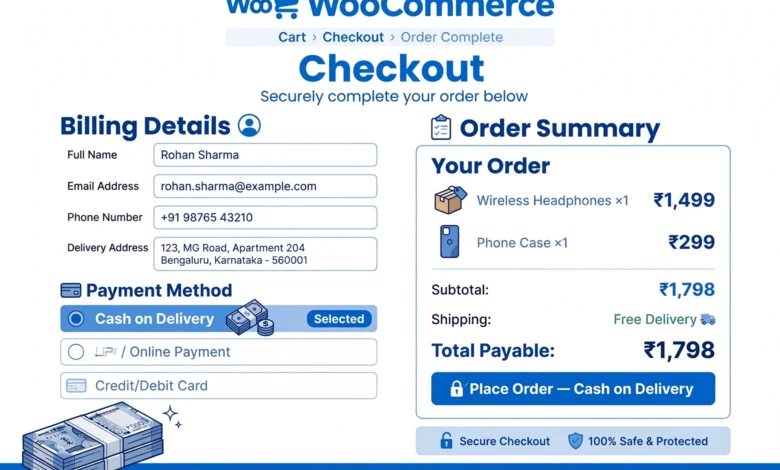
Cash on delivery, usually called COD, is still one of the most popular ways people pay for online orders in countries like Pakistan, India, Bangladesh, and the Philippines. Many shoppers do not own a credit card or simply trust paying only when the parcel arrives at their door. If you run a WooCommerce store, enabling cash on delivery takes less than five minutes and needs no extra plugin. This guide walks you through the full setup, then shows you how to limit COD by shipping zone or order total so the option only appears where it makes sense for your business.
Why Offer Cash on Delivery in Your WooCommerce Store
Adding a payment method is really a trust decision. When a new customer finds your store for the first time, paying online feels risky to them. They wonder whether the product will actually arrive and whether it will match the photos. Cash on delivery removes that fear completely because no money leaves their pocket until the order is in their hands. That single change can lift conversion rates noticeably, especially for new stores that have not built a reputation yet.
The trade off is that COD orders carry more risk for you. Some customers refuse the parcel, place fake orders, or simply forget to keep cash ready. Courier companies also charge higher return shipping fees for COD parcels. The good news is that every one of these problems can be reduced with simple rules, such as confirming orders by phone or limiting COD to specific cities. Later in this guide you will learn how to set those limits directly inside WooCommerce.
Quick rule of thumb: enable COD when most of your customers are first time buyers or from regions with low credit card use. Disable it for high value products unless you have a strong order confirmation process.
What You Need Before You Start
You only need three things to add cash on delivery in WooCommerce:
- A WordPress site with WooCommerce installed and activated. If you have not finished your store setup yet, read our checklist on things to do after installing WordPress first.
- At least one shipping zone configured, because COD availability can be tied to zones. You will find this under WooCommerce, then Settings, then Shipping.
- An admin user account so you can change store settings. If the WordPress dashboard still feels unfamiliar, our beginners guide to the WordPress dashboard explains every menu item.
Step 1: Open the WooCommerce Payment Settings
Log in to your WordPress dashboard and go to WooCommerce, then Settings, then click the Payments tab. You will see a list of payment methods such as direct bank transfer, check payments, and cash on delivery. Each method has an on and off toggle on the right side.
Find Cash on delivery in the list and switch its toggle on. The row background changes to indicate it is enabled. Click the Finish set up or Manage button on that row to open its settings page. Everything else happens on this one screen.
Step 2: Configure the COD Settings
The cash on delivery settings page has only a handful of fields, and each one matters:
- Enable/Disable: make sure the checkbox is ticked so COD shows at checkout.
- Title: the name customers see on the checkout page. “Cash on delivery” is clear, but many Pakistani stores write “Cash on Delivery (COD)” so there is no confusion.
- Description: a short line shown under the title at checkout. Write something honest, for example: “Pay in cash when your order is delivered to your address.”
- Instructions: text shown on the thank you page and in the order confirmation email. Use this to tell customers to keep the exact amount ready and to check the parcel before paying the rider. This one field prevents a surprising number of delivery problems.
- Enable for shipping methods: this is the zone control. Leave it empty to offer COD for every shipping method, or pick specific ones such as flat rate for certain cities.
Click Save changes at the bottom. Cash on delivery is now live on your checkout page. Visit your store as a test customer, add a product to the cart, and confirm the COD option appears alongside the other payment methods.
Step 3: Limit COD by Shipping Zone
Most stores should not offer COD everywhere. Courier partners often charge high fees for COD deliveries outside major cities, and return rates are worse in areas your courier covers poorly. WooCommerce lets you tie COD to specific shipping methods, which is effectively zone control.
Go back to WooCommerce, then Settings, then Payments, and open the cash on delivery settings again. In the Enable for shipping methods field, select only the methods that cover areas where you trust COD. For example, if you have one flat rate for Lahore and Karachi and another for the rest of the country, you can select only the flat rate for the two big cities. Orders going anywhere else will simply not show COD at checkout.
This is also the right place to handle the shipping method problem. If COD is enabled but a customer picks a shipping method you did not select, the COD option hides itself automatically. No error messages, no confused customers.
Step 4: Limit COD by Order Total
WooCommerce has no built in setting for a maximum or minimum order total for COD, but you can add one with a tiny code snippet. This is useful when you want to stop COD on very expensive orders, where a refused parcel costs you serious money, or when you only want COD for small orders.
The safest way to add custom code is a code snippets plugin rather than editing theme files. Once your snippets plugin is active, add a new PHP snippet with this code:
add_filter( 'woocommerce_available_payment_gateways', 'vtg_limit_cod_by_total' );
function vtg_limit_cod_by_total( $gateways ) {
    if ( is_admin() ) {
        return $gateways;
    }
    if ( isset( $gateways['cod'] ) && WC()->cart ) {
        $total = (float) WC()->cart->get_total( 'edit' );
        if ( $total > 50000 ) {
            unset( $gateways['cod'] );
        }
    }
    return $gateways;
}
This snippet hides cash on delivery whenever the cart total goes above 50,000 in your store currency. Change the number 50000 to whatever limit fits your business. To set a minimum instead, flip the comparison sign and use a smaller number. Always test the snippet on a staging copy of your site first, or at least keep a backup before adding code to a live store.
Step 5: Test the Checkout as a Customer
Never assume the setup works. Open your store in a private or incognito browser window so you are not logged in as admin, add a product to the cart, and go through checkout. Check three things:
- Cash on delivery appears as a payment option with the title and description you wrote.
- Changing the shipping address or method to an excluded zone hides the COD option.
- The thank you page and the order email show your instructions text.
Place one real test order with COD, then mark it complete in the WordPress dashboard to make sure your order workflow handles it correctly. This two minute test catches most configuration mistakes before real customers hit them.
Should You Charge a Fee for Cash on Delivery
Many stores add a small COD handling fee because couriers charge extra for collecting cash. WooCommerce does not include a fee setting for COD by default. You can add one with a plugin that supports payment gateway fees, or with a short snippet similar to the order total one above. A fee of 100 to 200 PKR is common in Pakistani stores and rarely stops genuine buyers.
If you charge a fee, show it clearly at checkout before the customer pays. Surprise fees are one of the fastest ways to get abandoned carts and angry reviews. Mention the fee in your COD description field so customers see it while choosing the payment method, not after.
COD Best Practices That Reduce Fake Orders
Fake and refused orders are the real cost of cash on delivery, not the setup. These habits keep the problem small:
- Confirm every COD order by phone or WhatsApp before dispatching. A thirty second call filters out most fake orders.
- Limit COD to cities your courier serves well using the shipping zone method from Step 3.
- Set a maximum order value for COD using the snippet from Step 4, and ask high value customers to pay by bank transfer or mobile wallet instead. If you sell in Pakistan, also read our guide on adding JazzCash and Easypaisa to WooCommerce so you can offer a trusted prepaid alternative.
- Write clear instructions in the COD instructions field so customers know to keep cash ready and inspect the parcel on delivery.
- Track your COD return rate by city. If one area keeps refusing parcels, remove it from the COD shipping methods.
WooCommerce itself is free and well documented on wordpress.org, so any deeper payment or shipping question you run into later has an official answer waiting there.
Frequently Asked Questions
Is cash on delivery free to enable in WooCommerce?
Yes. Cash on delivery is a built in WooCommerce payment gateway, so there is no extra plugin to buy and no monthly fee. Your only costs are the ones your courier charges you for COD parcels, which vary by courier company and delivery city.
Can I offer COD only in certain cities?
Yes. Use the “Enable for shipping methods” setting in the COD configuration to select only the shipping methods that cover your chosen cities. Any order using a different shipping method will not see the COD option at checkout.
How do I hide COD for expensive orders?
WooCommerce has no built in maximum order total for COD, but a small PHP snippet using the woocommerce_available_payment_gateways filter can remove the COD gateway when the cart total passes your chosen limit. See Step 4 above for the exact code.
Do I need a plugin to add a COD handling fee?
WooCommerce core does not include a fee field for COD. You can add a fee with a payment gateway fee plugin or with custom code. Whatever you choose, display the fee clearly at checkout so customers are not surprised.
Can customers pay with JazzCash or Easypaisa instead of COD?
Yes, and many stores offer both. COD suits first time buyers, while mobile wallets suit repeat customers who already trust you. Our step by step guide on JazzCash and Easypaisa payments in WooCommerce shows how to add both options to the same checkout.


One Comment