Look at any modern, professionally designed website and you will notice something about the sections: they rarely meet in harsh straight lines. A colored hero section flows into the content below it with a smooth wave. A dark footer rises from the page with a gentle curve. These flowing transitions are called shape dividers, and Elementor includes them as a built in styling feature.
Shape dividers are lightweight SVG graphics that sit at the top or bottom edge of a section or container. They cost almost nothing in page weight, they scale perfectly on every screen size, and they take about two minutes to set up. In this guide you will learn exactly how to add shape dividers in Elementor, how to style them to match your design, and how to fix the common problems that make dividers disappear or look wrong.
What Are Shape Dividers in Elementor?
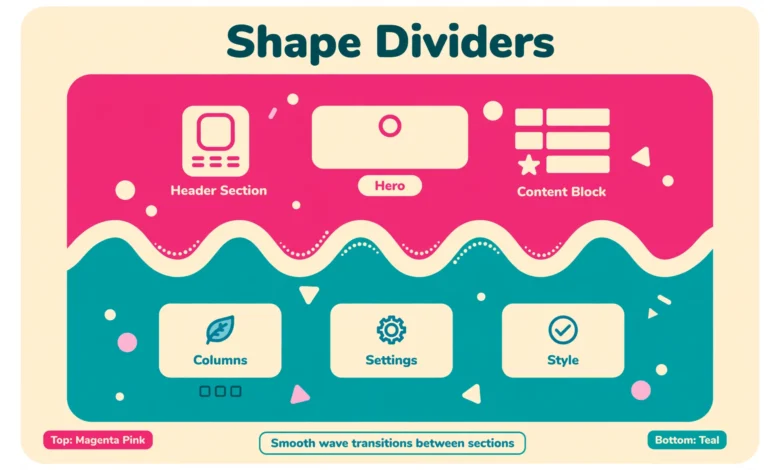
A shape divider is a decorative SVG edge that replaces the straight boundary between two sections. Instead of a flat line where one background color ends and another begins, you get a wave, a curve, a triangle pattern, a tilt, or a layered mountain silhouette. Elementor ships with more than a dozen of these shapes ready to use.
Because they are SVG graphics, shape dividers are resolution independent. They look razor sharp on a 4K monitor and on a small phone screen alike, with no pixelation and no extra image files to download. This makes them far better than the old technique of exporting a wavy PNG in Photoshop and placing it as a background image.
You can place a divider at the top of a section, at the bottom, or both at once. Each divider has its own color, height, width, and flip controls, so the same wave shape can look completely different depending on how you style it. If you are still deciding whether Elementor Pro is worth it for design features like this, our Elementor free vs Pro comparison breaks down exactly what each version includes.
How Do You Add a Shape Divider in Elementor?
The process is the same whether you are editing a section or a container. Open the page in the Elementor editor and follow these steps.
Step 1: Select the section or container
Click the section or container where you want the divider to appear. Make sure you select the outer section itself, not a column or a widget inside it. You will know you have the right element when the section handle (the small tab at the top edge) is highlighted and the left panel shows the section settings.
Step 2: Open the Style tab and find Shape Divider
In the left panel, click the Style tab. Scroll down until you see the Shape Divider section. It sits below the background controls. Click it to expand the options for the top divider and the bottom divider.
Step 3: Choose top or bottom and pick a shape
Decide which edge needs the divider. If your hero section should flow into the content below it, use the bottom divider of the hero. If a testimonials section should rise out of the previous section with a curve, use the top divider of the testimonials section. Click the Type dropdown and browse the shapes: Waves, Curve, Triangle, Tilt, Arrow, Split, Book, and several layered options. Click one to preview it instantly on the canvas.
Step 4: Set the color, height, and width
Set the Color to match the background of the neighboring section, which creates the illusion that the divider belongs to that section. Adjust Height to control how dramatic the shape looks; small values give a subtle ripple, large values create a bold sculptural edge. Width stretches the shape horizontally and is useful for making wave patterns repeat more or less often across wide screens.
Step 5: Use flip, negative, and layering options
Flip mirrors the shape horizontally, which matters for asymmetric shapes like Tilt. The Negative toggle inverts the shape vertically, turning a hill into a valley. If the divider sits behind a background image or overlaps content oddly, enable Bring to Front so the divider renders above the section background. Toggle these while watching the live preview until the edge looks right.
How Do You Make Shape Dividers Look Professional?
Adding a divider takes two minutes. Making it look like a designer placed it takes a little more thought. These design tips separate amateur results from polished ones.
- Match the divider color to the adjacent section. A wave at the bottom of a white hero section should be colored with the background color of the section below it, so the wave appears carved out of the hero. Getting this backwards is the most common beginner mistake.
- Use contrast deliberately. Dividers look best when the two neighboring sections have clearly different backgrounds. A subtle wave between two nearly identical light grays is almost invisible, which wastes the effect.
- Check every divider on mobile. Shapes that look elegant on desktop can look cramped or overly tall on a phone. Preview in Elementor responsive mode and reduce the height for the mobile breakpoint if needed.
- Keep heights consistent across the page. If your hero uses a 120 pixel wave, using a similar height for other dividers on the same page creates visual rhythm. Random heights on every section look chaotic.
- Less is more. One or two well placed dividers per page create elegance. A divider on every single section edge creates visual noise and slows down the reader.
Do Shape Dividers Work Differently in Containers vs Sections?
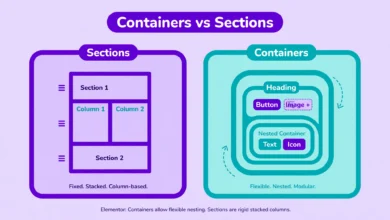
Newer versions of Elementor use Containers instead of the classic Sections and Columns layout. If you built your page recently, you are probably working with containers. The good news is that shape dividers work almost identically in both systems: select the container, open the Style tab, and the Shape Divider controls are in the same place.
There is one practical difference worth knowing. Containers support more flexible nesting, so a divider on a parent container can interact with child containers that have their own backgrounds. If a divider seems to vanish inside a nested layout, check whether a child container background is covering it, and use the Bring to Front toggle on the parent. For a full breakdown of the two layout systems, see our guide on Elementor containers vs sections.
Why Is My Shape Divider Not Showing or Looking Wrong?
Shape dividers are simple, but three issues come up again and again. Here is how to diagnose each one.
The divider is not visible at all
This is almost always a layering problem. The divider is rendering behind the section background or behind the neighboring section. Open the Shape Divider settings and enable Bring to Front. If it is still invisible, check that the divider color is not identical to the section background, which would make it blend in completely.
The divider has the wrong color
Remember the core rule: the divider should take the color of the adjacent section, not the section it is attached to. A bottom divider on a dark hero flowing into a white content area should be white. If you colored it dark to match the hero, it will look like a strange dark blob instead of a smooth transition. Swap the color and the effect clicks into place.
The divider looks stretched or squashed on some screens
Extreme width values distort wave patterns on very wide or very narrow screens. Keep the width near its default unless you have a reason to change it, and always verify the result in tablet and mobile preview modes. Reducing the height slightly on mobile usually fixes cramped looking dividers.
Where Do Shape Dividers Work Best on a Real Page?
Certain page areas benefit from shape dividers more than others. The hero to content transition is the classic use case: a wave or curve at the bottom of a full width hero softens the hardest edge on the page and invites scrolling. Footer tops are another strong spot, where an upward curve or layered mountain shape gives the footer a deliberate designed feel instead of an abrupt dark rectangle.
Dividers also work well between alternating content bands on long landing pages, especially when the bands alternate between light and dark backgrounds. A tilt or triangle divider between a dark features section and a light testimonials section adds energy and motion. For creative header layouts that pair nicely with dividers, check our tutorial on how to edit the header in Elementor free. A full walkthrough with screenshots is also available at WPPageBuilders.
Do Shape Dividers Slow Down Your Website?
Hardly at all. Shape dividers are inline SVG, which means they are tiny snippets of code rendered by the browser, not image files that need downloading. A typical divider adds only a few hundred bytes to the page. Compared to background images, sliders, or video headers, their performance cost is negligible.
The only performance caution is excess. Dozens of dividers with extreme heights on a single page add DOM complexity, though even then the impact is small compared to heavy plugins or unoptimized images. Use them with taste, keep your image sizes sensible, and your pages will stay fast.
Frequently Asked Questions
Are shape dividers available in Elementor Free?
Yes. Shape dividers are part of the free version of Elementor. You do not need Elementor Pro to use them on sections or containers. Some advanced styling options elsewhere in the Style tab are Pro only, but the divider type, color, height, width, flip, and layering controls are all free.
Can I add a custom SVG as a shape divider?
Elementor does not include a built in uploader for custom divider shapes. You are limited to the shapes in the Type dropdown. If you need a fully custom edge, the common workaround is to add an SVG image widget or an HTML widget positioned at the section edge, though this takes more manual styling to get right.
Why does my divider disappear on mobile?
Check two things. First, make sure you did not accidentally hide the divider with a responsive visibility setting on the section. Second, very large divider heights can look broken on narrow screens, so switch to mobile preview in the editor and reduce the height for that breakpoint. The divider itself is fully responsive by nature.
Can I use two dividers on the same section?
Yes. Every section and container supports one divider at the top and one at the bottom simultaneously, each with independent shape, color, and size settings. This is useful for bands that need a designed edge on both sides, like a colored call to action strip sitting between two light sections.
Last updated: October 2026.