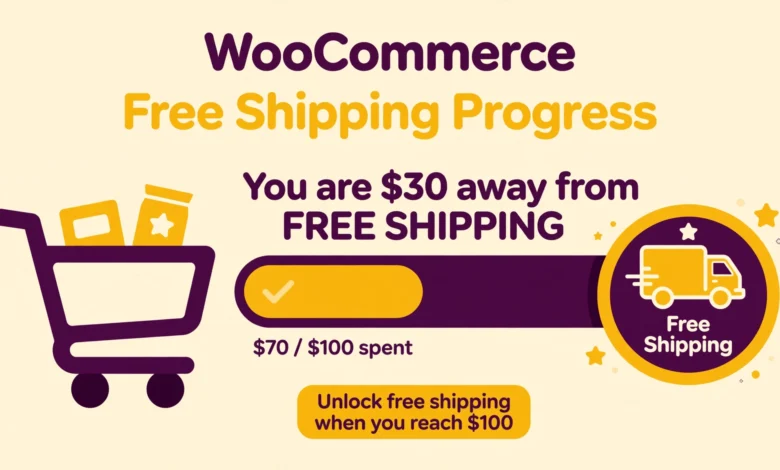
One of the simplest ways to make shoppers spend more is to show them exactly how close they are to a reward. A free shipping progress bar does exactly that. It sits near the cart and shows, in real time, how much more a customer needs to spend before shipping becomes free.
This tiny visual cue taps into a powerful buying habit. Nobody likes paying for shipping, and almost everyone is willing to add one more item to avoid it. Stores that add a free shipping progress bar often see a higher average order value and fewer abandoned carts, without touching their prices or running discounts.
In this guide you will learn what a free shipping progress bar is, how to set the free shipping threshold in WooCommerce, and three practical ways to display the bar on your store. You will also learn where to place it, how to pick the right threshold, and how to test everything before customers see it.
What Is a Free Shipping Progress Bar and Why Does It Work?
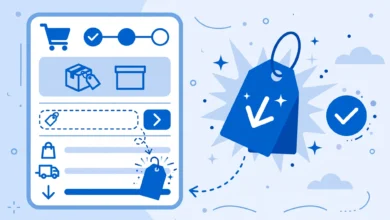
A free shipping progress bar is a small widget that shows the shopper’s current cart total next to the amount needed to unlock free shipping. It usually looks like a horizontal bar that fills up as items are added, paired with a message such as “You are $12 away from FREE shipping.” When the threshold is reached, the message flips to a congratulation and the bar fills completely.
It works because it turns an abstract shipping rule into a visible goal. Most stores already offer free shipping above a certain amount, but shoppers often do not know the threshold exists until checkout. A progress bar makes the offer visible early, on the cart page and even on product pages, when the shopper can still add items.
The psychology is straightforward. People dislike paying for shipping far more than they dislike spending a little extra on products. When a customer sees they are only a few dollars short, adding one more item feels like saving money rather than spending it. That is why this widget raises average order value while also reducing the number of carts abandoned at checkout.
How Do You Set Up the Free Shipping Threshold in WooCommerce?
Before you display any bar, WooCommerce needs to know when shipping becomes free. Everything starts with the free shipping method and its minimum order amount. Set this up first so the bar and the actual shipping cost always agree with each other.
- Go to WooCommerce > Settings > Shipping and open your shipping zone, or create a new one for the regions you serve.
- Click Add shipping method, choose Free shipping, and save it to the zone.
- Click Edit on the Free shipping method, select A minimum order amount from the “Free shipping requires” dropdown, and enter your threshold, for example 50 or 75 in your store currency.
- Make sure a Flat rate method also exists in the same zone, so customers below the threshold still see a shipping price instead of a broken checkout.
- Save your changes, then add a test product to the cart and confirm free shipping appears only above the threshold.
Note that the threshold compares against the cart subtotal, which usually excludes taxes and any discount codes. Keep this in mind when choosing your number, because a shopper who sees “$50” in the cart may still fall short of a $50 threshold once a coupon is applied. If you run storewide discounts, a coupon code setup that stacks with free shipping needs careful testing so the bar never promises something checkout cannot deliver.
What Are the 3 Ways to Display the Progress Bar in WooCommerce?
Once the threshold exists in your shipping settings, you need a way to show the bar on the storefront. There are three common approaches, from fully no-code to a lightweight custom snippet. All three work with the threshold you just configured.
1. Use a Free Plugin That Reads Your Shipping Threshold
The easiest route is a dedicated free shipping bar plugin from the WordPress repository. These plugins connect to your existing free shipping method, read the minimum order amount automatically, and render the bar with shortcodes or widgets you can drop into the cart page, mini cart, or any widget area.
The main advantage is zero code and quick styling options. Most of these plugins let you change the bar colors, the messages shown before and after the goal, and where the bar appears, all from the Customizer or a settings page.
When choosing a plugin, pick one that reads the threshold from your actual shipping method instead of asking you to type the amount again. That way the bar can never fall out of sync when you later change the threshold. Guides like the one at FunnelKit’s free shipping bar tutorial walk through this plugin-based setup in detail if you want a visual walkthrough.
2. Add a Small PHP Snippet to Your Child Theme
If you prefer full control without another plugin, a short PHP snippet does the job. The logic is simple. Read the cart subtotal, compare it to your threshold, calculate the remaining amount and the fill percentage, then print a message plus a bar. Hook it to the cart page with woocommerce_before_cart or to the mini cart, and style it with a few lines of CSS in your child theme.
Here is a compact example that shows the remaining amount and a percentage-width bar on the cart page. Put it in your child theme’s functions.php file, and change $threshold to match the minimum order amount you set in your shipping zone.
add_action( 'woocommerce_before_cart', 'vgt_free_shipping_progress' );
function vgt_free_shipping_progress() {
    $threshold = 50; // must match your Free shipping minimum order amount
    $subtotal  = (float) WC()->cart->get_displayed_subtotal();
    $remaining = max( 0, $threshold-$subtotal );
    $percent   = min( 100, ( $subtotal / $threshold ) * 100 );

    echo '<div class="vgt-fspb">';
    if ( $remaining > 0 ) {
        echo '<p>Add ' . wp_kses_post( wc_price( $remaining ) ) . ' more to unlock FREE shipping</p>';
    } else {
        echo '<p>You have unlocked FREE shipping!</p>';
    }
    echo '<div class="vgt-fspb-track"><div class="vgt-fspb-fill" style="width:' . esc_attr( round( $percent ) ) . '%;"></div></div>';
    echo '</div>';
}
Pair this with basic CSS for the track and fill, using your brand colors so the bar blends with your theme. Because this snippet reads the live cart, the bar updates automatically whenever the quantity changes or an item is removed. If you are not comfortable editing theme files, use a code snippets plugin and the same hook, but keep a backup of your site before touching functions.php directly.
3. Use a Built-In Theme or Extension Feature
Many modern WooCommerce themes and funnel builders include a free shipping progress bar as a built-in module. If your theme already ships one, use it before installing anything new. Check the theme’s Customizer options or its WooCommerce integration settings for a “free shipping bar,” “cart goal,” or similarly named toggle.
Built-in features usually match your theme’s design language automatically, which keeps the shop looking consistent. The limitation is flexibility. The placement options and message wording may be fixed, and if you ever switch themes, you lose the feature and have to rebuild it with one of the other two methods.
Where Should You Place the Progress Bar for Maximum Impact?
Placement decides how much revenue the bar actually generates. The cart page is the obvious home, since every buyer passes through it and the math is directly relevant there. The mini cart or slide-out cart is the second best spot, because it reminds shoppers of the goal while they keep browsing.
Product pages are the third high-value location, especially for stores where the threshold is reachable with one or two extra items. Seeing “Add $15 more for free shipping” under the add to cart button nudges shoppers toward related products or a second unit.
Avoid placing the bar on the checkout page itself. By that point the shipping method is already chosen and the bar adds distraction instead of motivation. One exception is a one-page checkout, where a compact bar above the order summary can still influence last-minute additions.
How Do You Choose the Right Free Shipping Threshold?
The threshold is the strategy behind the bar, and getting it wrong wastes the whole effort. Set it too low and you give away free shipping to orders that would have paid for it anyway. Set it too high and shoppers ignore the bar because the goal feels unreachable.
The practical rule is to set the threshold 20 to 30 percent above your current average order value. Find your average order value in WooCommerce under Analytics or your reports, multiply it by 1.2 or 1.3, and round to a clean number. If your average order is $40, a threshold between $48 and $52 works well. That gap is close enough to feel achievable with one more item, yet large enough to lift revenue per order.
Also factor in your shipping costs and margins. Free shipping is only a win if the extra items sold cover the shipping expense you absorb. And remember that taxes are typically excluded from the subtotal comparison, so how your store calculates taxes can quietly change which carts qualify. Test the threshold against real product combinations before announcing it.
How Can You Test the Progress Bar Before Going Live?
Testing takes ten minutes and prevents embarrassing mismatches. Start with an order below the threshold and confirm the bar shows the correct remaining amount and partial fill. Then add items until you cross the threshold and confirm the message switches to the unlocked state and the bar fills completely.
Next, test the edge cases. Apply a coupon and check that the bar and the shipping method still agree. Remove an item so the cart drops back under the threshold and confirm the bar updates without a page refresh if your theme uses AJAX carts. Also test a cash on delivery order, since extra COD fees change the total customers see, as covered in our cash on delivery setup guide.
Finally, check the bar on a phone. A large share of WooCommerce traffic is mobile, and a bar that overflows its container on small screens will hurt more than it helps.
Frequently Asked Questions
Does a free shipping progress bar really increase sales?
It does not create demand, but it redirects existing purchase intent very effectively. Stores report higher average order values because shoppers add one more item to cross the threshold, and fewer abandoned carts because the shipping cost stops being a surprise at checkout.
Can I show the bar without installing a plugin?
Yes. The PHP snippet in this guide adds the bar to the cart page using only your child theme, with no extra plugin. Alternatively, check whether your theme or page builder already includes a free shipping bar module, since many premium WooCommerce themes ship one as a standard feature.
What happens if a coupon drops the cart below the threshold?
WooCommerce compares the discounted subtotal against the free shipping minimum, so a coupon can push a qualifying cart back under the threshold. Your bar should read the live cart total, which the snippet above does, so both stay in sync. Test this scenario with your actual coupon settings before promoting the offer.
Should the threshold include taxes and shipping fees?
Keep it simple and base the threshold on the product subtotal only. Taxes vary by customer location and coupons reduce the total, so including them makes the bar unpredictable. Communicate the rule clearly, for example “Free shipping on orders over $50,” and let WooCommerce handle the exact calculation at checkout.
Last updated: October 2026.