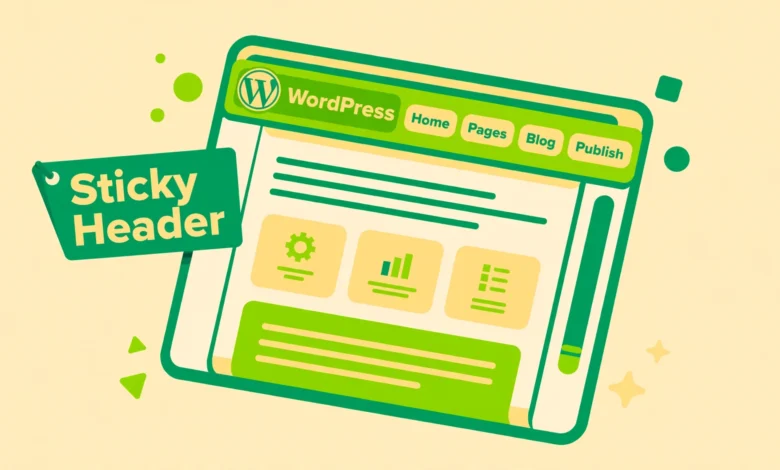
A sticky header stays pinned to the top of the screen while visitors scroll through your page. It keeps your logo, menu, and call to action buttons always within reach, which means people can navigate your site without scrolling all the way back up. Many site owners install a plugin for this, but you can get the same result with tools already inside WordPress. This guide shows you three plugin-free ways to make a sticky header, plus how to fix the most common problems when it does not work.
What Is a Sticky Header and Why Does It Help?
A sticky header, sometimes called a fixed header, is a header that remains visible at the top of the browser window as the page scrolls underneath it. When a visitor lands on your homepage and starts reading, your navigation menu travels with them instead of disappearing.
The main benefit is usability. Long pages, sales pages, and blog articles often bury the menu far above the fold. A sticky header removes that friction, so readers can jump to another page, open the contact page, or click a buy button from anywhere on the page. On mobile phones this matters even more, because scrolling back to the top on a small screen is tedious and many visitors simply will not do it.
There is also a conversion angle. If your header contains a phone number, a booking button, or a signup link, keeping it visible increases the chance that visitors actually use it. That is why business sites, restaurants, and service providers almost always use sticky headers.
The good news is that you do not need a plugin for any of this. Modern WordPress gives you the Site Editor with a built-in sticky option, and even classic themes can be handled with a few lines of CSS. Plugins add extra code and settings to maintain, so the native approaches in this guide are lighter and easier to keep working through theme updates.
How Do You Make a Header Sticky With the Site Editor?
If your theme is a block theme such as Twenty Twenty-Four, Twenty Twenty-Five, Astra’s block setup, or any theme that supports Full Site Editing, this is the easiest method. It takes about two minutes and requires no code at all.
Start by going to Appearance, then Editor in your WordPress dashboard. This opens the Site Editor. Click on Templates, then open the template that controls your site header, which is usually the Header template part or the main page template. Click directly on the header area to select the group block that wraps your logo and navigation.
With the header group selected, look at the settings sidebar on the right. Open the Position section. You will see options such as Default, Sticky, and Fixed. Choose Sticky. This pins the header to the top of the viewport whenever the page scrolls.
One detail people often miss is the background color. A sticky header without a solid background lets page content show through behind the menu, which looks broken. While the header group is still selected, go to the Color settings and set a background color, usually white or your brand color. Then click Save in the top right corner.
Visit your site in a private browser window and scroll down. The header should stay glued to the top. If it does not, check that you selected the outermost header group block and not a nested row inside it, because the sticky position must be applied to the whole header container.
How Do You Make a Header Sticky With Custom CSS?
If you use a classic theme without the Site Editor, a small CSS snippet does the job. CSS has a native position value called sticky that was designed exactly for this. It is supported by all modern browsers, so you do not need JavaScript.
First you need the CSS selector for your header. Open your site in Chrome or Firefox, right click on the header, and choose Inspect. The developer tools panel will highlight the header element. Look for its class, which is often something like .site-header, #masthead, or .main-header. Write it down exactly as it appears.
Next, go to Appearance, then Customize in your WordPress dashboard, and open the Additional CSS panel. If you have never added CSS this way before, read our guide on how to add custom CSS in WordPress so you know where everything lives and how to preview changes safely. Then paste the following snippet, replacing .site-header with the selector you found:
.site-header {
  position: sticky;
  top: 0;
  z-index: 999;
  background: #ffffff;
}
Here is what each line does. The position rule makes the header stick, top: 0 tells it to lock to the very top of the screen, and z-index: 999 keeps it above sliders, images, and other page elements. The background color prevents content from showing through while scrolling.
Click Publish in the Customizer to save. Reload your site and scroll to confirm the header stays in place. If you are logged in, WordPress shows the admin bar at the top, which can overlap your sticky header. We cover that fix in the troubleshooting section below.
What If Your Theme Has a Built-In Sticky Header Option?
Many popular themes include a sticky header toggle in their own settings, which is even simpler than CSS. Astra, Kadence, GeneratePress, OceanWP, and the Blocksy theme all ship with this feature. If you use one of them, check the theme settings before writing any code.
In Astra, go to Appearance, then Customize, then Header Builder, and open the Sticky Header module to enable it. In Kadence, open the Customizer, go to Header, and look for the sticky option in the header builder panel. GeneratePress puts it under Customize, then Layout, then Header. The exact location differs, but the setting is almost always inside the Customizer near the header options.
Theme built-in options often include extras that raw CSS does not, such as shrinking the header on scroll, changing the logo size, or hiding the header when scrolling down and showing it when scrolling up. If your theme offers these, use them, because they are tested against that specific theme and less likely to break after updates.
While you are adjusting the header, it is a good time to polish the rest of it. Our guides on how to add a logo to your WordPress header and how to change your WordPress site title and tagline walk through the branding basics that make a sticky header look professional.
Why Is My Sticky Header Not Working?
Sticky headers fail for a handful of predictable reasons. Work through this checklist and you will solve almost every case.
- Parent container has overflow set. CSS sticky stops working when any ancestor element uses overflow: hidden, overflow: auto, or overflow: scroll. Inspect the header and check its parent sections and wrappers for an overflow rule, then remove or override it.
- No background color. The header may actually be sticking, but page content scrolls visibly behind it. Add a solid background color to the header to fix the see-through effect.
- Wrong selector. If your CSS targets .site-header but the theme uses #masthead, nothing happens. Re-inspect the header and confirm the exact class or ID in your snippet.
- Content jumps when sticking. With position: fixed this jump is common, but true sticky positioning avoids it. If you used fixed instead of sticky, switch to sticky or add a placeholder spacer.
- Admin bar overlap. When you are logged in, the WordPress admin bar pushes or covers the sticky header. Add body.admin-bar .site-header { top: 32px; } to your CSS, or simply test in a logged-out private window where visitors see the real result.
If you built your header with Elementor, note that the free version handles headers differently from block themes. Our tutorial on how to edit the header with the free version of Elementor explains the available options and workarounds there.
How Do You Test a Sticky Header on Mobile?
Always test on a real phone, not just a resized desktop browser. Mobile browsers hide and show their own address bars while scrolling, which can interact with sticky elements in surprising ways. Open your site on your phone, scroll through a long page, and watch whether the header stays put without flickering.
Check the header height on small screens too. A sticky header that looks slim on desktop can eat a third of a phone screen if it stacks the logo and menu vertically. If that happens, hide secondary header elements on mobile with a media query or simplify the mobile menu so only the logo and a hamburger icon remain.
Finally, think about performance. The CSS position: sticky approach costs almost nothing, because the browser handles it natively with no extra JavaScript. Sticky header plugins, by contrast, load scripts that listen to every scroll event, which can slow down older phones. That is one more reason the plugin-free methods in this guide are worth using.
For a deeper dive into advanced sticky header effects, WPShout has a detailed guide on WordPress sticky headers that covers edge cases and alternative techniques.
What Else Should You Know About Sticky Headers?
Will a sticky header slow down my website?
Not in any meaningful way. CSS based sticky headers use a native browser feature with zero JavaScript, so the performance cost is negligible. Slowdowns usually come from sticky header plugins that add scroll listeners and extra scripts, which is exactly why the plugin-free methods in this guide are the better choice.
Can I make only part of the header sticky?
Yes. Instead of applying sticky positioning to the whole header, apply it to a specific row or bar inside it, such as the main menu bar. In the Site Editor, select the inner group that holds the navigation and set its position to sticky. With CSS, target that inner element’s selector instead of the outer header.
Why does my sticky header overlap the WordPress admin bar?
The admin bar is only visible to logged-in users and sits fixed at the top of the screen, so your sticky header slides underneath it. Visitors never see this problem. Either add an offset for logged-in users with body.admin-bar .site-header { top: 32px; } or test your site in a private window while logged out.
Should I use a sticky header on every page?
For most sites, yes. Sticky headers help navigation everywhere, especially on long content pages. The main exception is landing pages with a single call to action, where removing the header can reduce distractions. If you want page by page control, theme builders and custom CSS classes let you enable or disable it per template.
Last updated: October 2026.