When your WordPress site suddenly shows a blank white screen or a vague “There has been a critical error” message, you are left guessing what went wrong. Was it a plugin update? A theme conflict? A hosting limit? WordPress hides PHP errors from visitors by default, which keeps your site looking professional, but it also keeps you in the dark when something breaks.
This is exactly the problem that debug mode solves. When you enable WordPress debug mode, the platform starts surfacing the hidden PHP errors, warnings, and notices that are normally suppressed. This guide walks you through the entire process safely, explains what each setting does, and shows you how to turn everything off again once the problem is fixed.
What Does WordPress Debug Mode Actually Do?
WordPress is built on PHP, and like any PHP application, it produces error messages when something goes wrong. A plugin might call a function that no longer exists. A theme might reference a file that was deleted. Your hosting server might kill a script that runs out of memory. Under normal conditions, WordPress deliberately hides these messages so that visitors never see raw server errors on your pages.
Debug mode changes this behavior for the site owner. It does not fix anything on its own. What it does is reveal the underlying error details that WordPress was suppressing. You get to see the type of error, the file it came from, and the exact line number where it happened. This information turns hours of trial and error into a focused ten minute investigation.
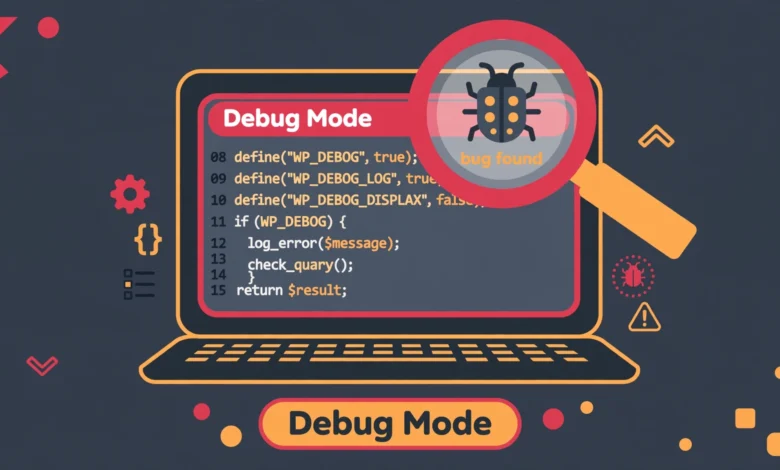
The system revolves around three constants that you define in your wp-config.php file. The main one is WP_DEBUG, which switches error reporting on. The second is WP_DEBUG_LOG, which tells WordPress to write every error into a private log file. The third is WP_DEBUG_DISPLAY, which controls whether errors are printed directly on the screen. Used together, these three give you complete visibility while keeping the errors hidden from your visitors.
When Should You Turn On Debug Mode?
You do not need debug mode running all the time. It is a troubleshooting tool, and you should reach for it only in specific situations. Here are the most common scenarios where it pays for itself.
- The white screen of death. Your site or wp-admin loads as a completely blank page with no error message at all. This is the classic symptom of a hidden fatal PHP error.
- “There has been a critical error on this website.” This generic message appeared in WordPress 5.2 and replaced the old white screen, but it still tells you nothing about the cause. The debug log reveals it instantly.
- Plugin or theme conflicts. You updated something and a feature stopped working, but there is no visible error. Debug mode often surfaces deprecation warnings or warnings that point straight at the culprit.
- Intermittent or partial failures. A page loads but a widget is missing, or an AJAX action silently fails. Logging these events over a few page loads usually captures the trigger.
- You are developing or testing. If you are building a child theme or testing custom code on a staging site, keeping debug logging on helps you catch problems before they reach production.
If your problem is that the site got stuck showing a maintenance message after an update, read our guide on how to fix WordPress stuck in maintenance mode first, since that issue has a simpler fix that does not require debugging.
How Do You Enable WordPress Debug Mode Step by Step?
Before you touch anything, make a backup. Editing wp-config.php is low risk when done carefully, but a typo in this file can take your whole site down. If you do not have a recent backup, see our tutorial on how to back up your WordPress database without a plugin. Now, here is the full process.
Step 1: Open wp-config.php through FTP or your hosting file manager
The wp-config.php file sits in the root folder of your WordPress installation, the same folder that contains wp-content and wp-includes. You can reach it in two ways. If your host provides cPanel, open File Manager, navigate to public_html (or your domain folder), right click wp-config.php, and choose Edit. If you prefer FTP, connect with an FTP client like FileZilla, download the file to your computer, and open it in a plain text editor such as Notepad or VS Code. Never use a word processor, since those add hidden formatting that breaks PHP files.
Step 2: Find the existing WP_DEBUG line
Scroll through the file until you find this line, which exists in every standard WordPress installation:
define( 'WP_DEBUG', false );On a live site this is set to false, which is why errors stay hidden. We are going to replace this single line with three lines that turn on debugging, enable logging, and keep errors off the public screen.
Step 3: Add the three debug constants before the “stop editing” line
Replace the line you found with the following three lines. Their position matters: they must appear BEFORE the line that says “That is all, stop editing! Happy publishing” in the file. Anything placed after that comment may not take effect.
define( 'WP_DEBUG', true );
define( 'WP_DEBUG_LOG', true );
define( 'WP_DEBUG_DISPLAY', false );
Save the file and upload it back to the server if you edited it locally. That is all it takes. Debug mode is now active, and WordPress will start recording errors immediately.
What Do the Debug Constants Actually Mean?
It helps to understand each constant so you can adjust the setup for different situations. Each one controls a separate behavior.
- WP_DEBUG set to true switches on PHP error reporting across WordPress. This is the master switch. With it off, the other two constants do nothing.
- WP_DEBUG_LOG set to true tells WordPress to write every error, warning, and notice into a file called debug.log inside the wp-content folder. This is the safest way to debug a live site because nothing ever appears on screen.
- WP_DEBUG_DISPLAY set to false keeps errors from being printed directly into your pages. Setting it to true would show raw errors to every visitor, which is a security risk and looks unprofessional. Keep it false on any site the public can reach.
On a local development or staging site where no visitors exist, some developers set WP_DEBUG_DISPLAY to true for instant feedback. On a live production site, always use the combination shown above: debug on, logging on, display off.
How Do You Read the WordPress Debug Log?
After enabling logging, reproduce the problem. Load the broken page once or twice, try the action that fails, or log in to wp-admin if that is where the error occurs. Each attempt writes fresh entries into the log. Then open the file at wp-content/debug.log using the same FTP or File Manager method you used before.
A typical fatal error entry looks something like this:
[19-Oct-2026 05:12:33 UTC] PHP Fatal error: Uncaught Error: Call to undefined function myplugin_old_function() in /home/user/public_html/wp-content/plugins/myplugin/includes/core.php on line 214Read these entries from right to left. The file path tells you exactly which plugin, theme, or core file is responsible. The line number pinpoints the failing code. The message describes what went wrong, in this example a function that no longer exists. With that information, your next step is obvious: deactivate or update that plugin, roll back the theme, or contact the developer with the exact error.
A few practical tips for reading the log. Newest entries are appended at the bottom, so scroll down. Warnings and notices are less urgent than fatal errors; focus on fatal errors first since those are what break pages. If the log grows large, clear it by deleting the file (WordPress recreates it automatically) and then reproduce the problem once more to get a clean, short log. And when the file gets very big over time, delete it periodically, since a huge log can itself slow down a shared hosting account.
What Are the Security Risks of Debug Mode?
Debug mode is safe when configured correctly, but two mistakes can create real problems. The first is leaving WP_DEBUG_DISPLAY set to true on a live site. Raw PHP errors can expose your server paths, plugin names and versions, and database table prefixes. Attackers use exactly this kind of information to find vulnerabilities. Never display errors to visitors.
The second risk is forgetting to turn debugging off. The debug.log file sits inside wp-content, and on some server configurations it can be accessed directly through a browser. A public log file full of error details is an information leak. Worse, the file grows with every logged error, which wastes disk space on your hosting plan.
The rule is simple. Enable debugging, reproduce the issue, read the log, fix the problem, then immediately revert wp-config.php back to the original single line:
define( 'WP_DEBUG', false );Then delete the debug.log file from wp-content so no record of your errors stays on the server. Treat debug mode like a flashlight: turn it on when you need to see, turn it off when you are done. A slow site can have many causes beyond code errors, so if debugging does not reveal the culprit, check our guide on why your WordPress site is slow for the next most likely causes.
Is There a Way to Debug Without Touching Code?
If editing wp-config.php feels intimidating, the Query Monitor plugin is an excellent no-code alternative. Once installed and activated, it adds a small toolbar to your admin bar that shows database queries, PHP errors, hooks, and HTTP requests for every page load. You can see which plugin is running slow queries or triggering warnings without ever opening an FTP client.
Query Monitor is a fantastic learning tool, but it has limits. It only shows errors for the page you are currently viewing, and it does not keep a persistent log the way WP_DEBUG_LOG does. For intermittent errors or problems that happen during background tasks like cron jobs, the debug.log file remains the more reliable option. Many experienced site owners use both: Query Monitor for quick checks, the debug log for serious investigations.
Whichever method you choose, remember that good hosting makes debugging easier. A host with clear error logs, easy file manager access, and one click staging lets you reproduce problems safely away from your live traffic. Our web hosting guide breaks down what to look for when your current host makes basic maintenance harder than it should be.
Frequently Asked Questions
Will enabling WP_DEBUG break my live site?
No. Enabling WP_DEBUG only changes how errors are reported; it does not change how your site runs. As long as you keep WP_DEBUG_DISPLAY set to false and WP_DEBUG_LOG set to true, your visitors will see exactly the same pages as before while errors are quietly written to the log file for you to review.
How do I turn off debug mode after fixing the issue?
Open wp-config.php again, remove the three debug lines, and restore the original line define( ‘WP_DEBUG’, false ). Then delete wp-content/debug.log from your server. This returns your site to its normal state and removes the error history from the server.
Where is the debug.log file located?
WordPress creates debug.log inside the wp-content folder of your installation, so the full path is typically public_html/wp-content/debug.log. If the file does not exist, it usually means no errors have been logged yet, or that WP_DEBUG_LOG is not set to true. Load a few pages on your site and check again.
Can I use debug mode on a live site safely?
Yes, provided you use the safe combination: WP_DEBUG true, WP_DEBUG_LOG true, WP_DEBUG_DISPLAY false. This records errors privately without showing anything to visitors. Avoid WP_DEBUG_DISPLAY true on any public site, and always disable debugging and delete the log file once you have resolved the problem. For a deeper explanation of the official options, see the WordPress debugging options lesson on Learn WordPress.
Last updated: October 2026.