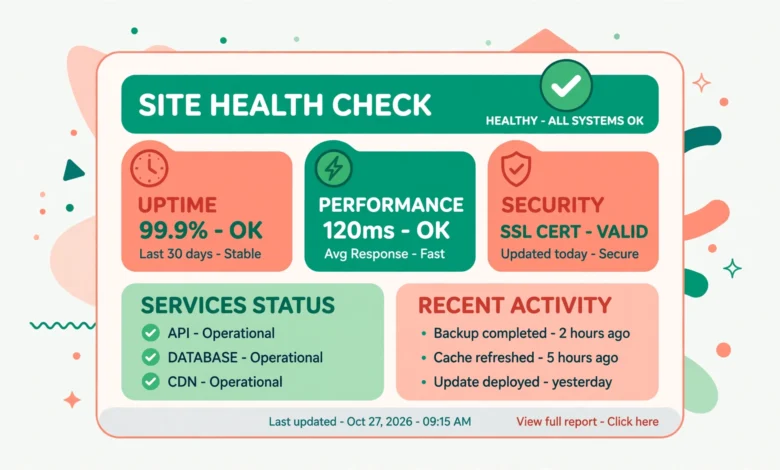
Open your WordPress dashboard one day and you may see a message about your site health. It might say your site has critical issues, or it might list recommended improvements. If you have never seen these messages before, they can look alarming. The good news is that Site Health is a built in diagnostic tool, not a warning that your site is broken. It checks a list of common settings and tells you what could be better.
This guide explains Site Health in plain language. You will learn where to find it, what each part of the Status tab means, what the most common messages actually mean, how to use the Info tab, and what to fix yourself versus what to ask your hosting provider about. By the end, a red message should feel like useful information, not a reason to panic.
What Is Tools Then Site Health?
Site Health is a free tool built into WordPress itself. You do not need to install anything to use it. It runs a series of tests on your site, covering areas such as your PHP version, your HTTPS setup, background updates, and whether WordPress can talk to itself and to the wider internet. Each test passes, or it produces a recommendation.
Where Do You Find Site Health?
Log in to your WordPress dashboard. In the left hand menu, hover over Tools, then click Site Health. The page opens on the Status tab by default. At the top you will see an overall result, such as Good, Should be improved, or a similar summary, followed by the lists of issues and passed tests below it. If you are still learning your way around the dashboard, our WordPress dashboard explained for beginners guide shows where each menu item lives.
There is also an Info tab at the top of the page. The Status tab tells you what to fix, while the Info tab gives the details behind your site, such as your WordPress version, theme, plugins, and server setup. You will use it when you need a specific detail, or when a support person asks you for it.
What Does the Status Tab Mean?
The Status tab groups its results into three kinds of messages. Understanding the difference between them is the key to staying calm when you open the page.
- Critical issues: problems that should be fixed soon because they affect security, performance, or core function. Treat these as your priority list, but still read each one before acting, since some have simple fixes.
- Recommended improvements: things that would make your site better, but are not urgent. Work through these when you have time, starting with the ones that affect security.
- Passed tests: checks that your site already passes. These are good news. They confirm that a whole list of settings is already in good shape, which is easy to forget when you only notice the red items.
Each issue and improvement can be expanded to read a longer explanation. Always expand it and read it fully before you act. The short title alone can sound scarier than the detail underneath. The expanded text usually explains what the test checks, why it matters, and what a fix looks like. That detail is often enough to tell you whether the fix is a five minute job or a question for your host.
The Most Common Messages Explained in Plain Language
Most beginners see the same handful of messages. Here is what each one usually means, in plain language, without technical jargon.
Your PHP Version Is Out of Date
PHP is the programming language WordPress runs on. Newer versions are faster and safer, and WordPress recommends a recent version. If Site Health says your PHP version is old, your host is running an older version on your server. The fix is usually to change the PHP version in your hosting control panel, or to ask your host to do it. Before you change it, back up your site and check that your theme and plugins support the newer version. Most modern themes and plugins do, but a backup protects you if one does not. For help choosing a good host in the first place, see our web hosting guide.
Your Site Is Not Using HTTPS
HTTPS is the secure version of the web address system. A site using HTTPS shows a padlock in the browser and encrypts data between the visitor and the server. If Site Health flags this, your site is still using plain HTTP. Most hosts now offer a free SSL certificate, often through a one click setup in the hosting panel. Once the certificate is active, you may need to update your site address in WordPress settings from http to https. This is a security improvement worth doing promptly, but it is a standard setup task, not an emergency.
Background Updates Are Not Working
WordPress can update itself in the background for minor security releases. If Site Health says background updates are not working, something is blocking that process, such as a file permission problem or a setting added by your host or a plugin. The practical result is that you need to check for updates yourself more often until the cause is fixed. Open Dashboard, then Updates, on a regular basis, and keep WordPress, your theme, and your plugins up to date by hand in the meantime.
Loopback Requests and the REST API
Loopback means WordPress trying to connect to itself, for example to run a scheduled task. The REST API is a built in way for WordPress to share data with the editor and other tools. If Site Health says a loopback request failed or the REST API returned an unexpected result, it usually points to a server setting, a strict security plugin, or a firewall rule. Check whether a security plugin is blocking the request. If the problem persists with a default theme and no plugins, raise it with your host, with the exact message copied from Site Health.
Scheduled Events and File Uploads
Scheduled events are tasks WordPress runs on a timetable, such as publishing a scheduled post or checking for updates. If a scheduled event is late, it often means the site gets very little traffic, because WordPress checks its timetable when someone visits, or a loopback problem is blocking the check. A failed file upload test usually points to a folder permission problem or a server upload limit. The expanded text usually names the specific event or folder involved, which tells you where to look next.
How to Use the Info Tab
The Info tab is a reference sheet for your whole site. It lists your WordPress version, your active theme, your plugins, your server details, your database details, and more. You do not need to understand every line. The lines beginners use most are the WordPress version, the PHP version under the Server section, and the list of active plugins.
To find your PHP version, open Site Health, click the Info tab, expand the Server section, and look for the PHP version line. The Info tab also has a Copy site info to clipboard button. When you contact support, paste that info into your message. It saves several rounds of questions and helps the support team answer faster.
If you want to learn more about the building blocks behind these details, our things to do after installing WordPress guide covers the early setup steps that prevent many Site Health messages from appearing in the first place. You can also learn more from the official documentation at WordPress.org and the developer documentation at developer.wordpress.org.
What to Fix Yourself Versus What to Ask Your Host About
A useful rule is this: if the fix lives in your WordPress dashboard, try it yourself. If the fix lives on the server, ask your host. Updating WordPress, themes, and plugins, turning on HTTPS after your host has installed the certificate, and deactivating a plugin that is causing a conflict are dashboard jobs. Changing the PHP version is sometimes a hosting panel job and sometimes a host job, depending on your provider. Fixing server permissions, firewall rules, and loopback problems is usually a host job, especially on shared hosting where you do not control the server directly.
When you contact your host, include three things: the exact Site Health message, copied word for word, what you have already tried, and your site info from the Info tab. A message with those details will get a much faster answer than a message that just says your site is broken.
Never fix a Site Health message by installing a random plugin that promises a one click fix, especially if you do not understand what it changes. Some such plugins alter database or server settings that are hard to undo. A careful fix, or a question to your host, is slower but safer. If a message mentions a not found page, our guide on how to create a custom 404 page in WordPress is useful, and our WordPress permalink structure guide explains the address settings behind such issues.
How Often Should You Check Site Health?
For most small sites, checking once a month is enough, plus a check after any major change, such as a theme change, a PHP version change, or moving to a new host. A monthly check fits well with a monthly update routine: update everything, check Site Health, fix anything new, and move on.
Keep a simple note of what you find each time. Over time, that note shows you whether a message keeps coming back, which is a sign of a deeper server issue worth raising properly. Most importantly, do not chase a perfect score for its own sake. Some recommendations do not apply to every site. A healthy site is one that is updated, backed up, and secure in practice, not one with every box ticked.
Frequently Asked Questions
Does a red Site Health message mean my site is hacked?
No. A red or critical message means a test failed, not that your site has been hacked. Most critical messages are about versions, HTTPS, updates, or server settings. Read the expanded message to see what it actually checks before you worry. If you see unexpected admin users or strange content, that is a separate security issue, and you should deal with it as one.
Should I aim for a perfect Site Health score?
It is a nice goal, but not a requirement. Fix critical issues first, then work through recommended improvements that apply to your site. Some recommendations are not relevant to every setup, and forcing them can break something else. A site with a few sensible recommendations left in place can still be fast, secure, and reliable.
Can Site Health fix problems automatically?
No, Site Health only reports problems. It does not change your settings for you. That is a good thing, because automatic server changes could break your site without warning. Use Site Health as a checklist, then make each fix yourself or ask your host, one at a time, so you know what changed.
What should I do first when I see a new critical issue?
Expand the message and read it fully, then back up your site before you change anything. If the fix is a dashboard job you understand, do it and recheck Site Health. If the fix mentions the server, permissions, or a loopback problem, copy the message and your site info and send them to your host. Do one fix at a time, and recheck after each one, so you know which change solved the problem.
Last updated: October 2026.