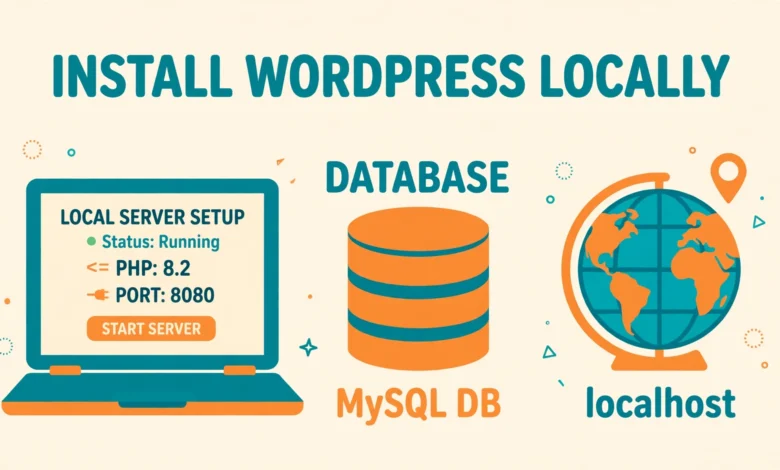
Installing WordPress on localhost is one of the smartest moves a beginner can make before touching a live website. A localhost setup lets you build, break, and experiment freely, because nobody else can see your mistakes. With XAMPP, a free local server package, you can run a complete WordPress site on your own computer in about twenty minutes.
In this guide, you will learn how to install WordPress on localhost with XAMPP on Windows, macOS, and Linux. We cover everything from downloading the software to creating a database, running the WordPress installer, and fixing the most common startup problems.
Why Should You Run WordPress on Localhost?
Localhost simply means your own computer acting as the server. Instead of paying for hosting and uploading files over the internet, your site lives in a folder on your machine and opens in your browser at an address like localhost/mysite. For a beginner, the advantages are hard to beat.
- Zero cost while learning: you practice theme customization, plugins, and settings without buying a domain or hosting plan.
- Safe place to experiment: try risky changes, test new plugins, or rewrite your theme, and a broken page affects nobody but you.
- Blazing fast: pages load instantly because nothing travels over the internet, which makes development and testing much quicker.
- Works offline: once everything is downloaded, you can keep building on a plane, in a cafe with bad wifi, or during a power-saving internet outage.
- Perfect for client demos: build a full site locally, then move it to the client’s hosting when it is ready.
Many developers test updates on localhost first and push to the live server only when everything works. Adopt this habit early and it will save you from embarrassing outages.
What Exactly Is XAMPP?
XAMPP is a free, open source package that installs everything WordPress needs to run, in one go. The name is an acronym: X for cross-platform, A for Apache (the web server), M for MariaDB/MySQL (the database), P for PHP (the language WordPress is written in), and P for Perl. It is maintained by Apache Friends and available for Windows, macOS, and Linux.
WordPress needs PHP to execute its code and MySQL (or MariaDB) to store posts, settings, and user accounts. XAMPP bundles both, plus Apache to serve pages and phpMyAdmin for managing databases. Instead of configuring each piece separately, you install XAMPP once and get a working local server stack from apachefriends.org.
What Do You Need Before You Start?
The requirements are modest. Any computer from the last decade can run a local WordPress site comfortably. Here is your checklist before you begin.
- A computer running Windows 10 or 11, macOS, or a common Linux distribution.
- At least 1 GB of free disk space for XAMPP, WordPress, and your database.
- An internet connection for the initial downloads only. After that, everything runs offline.
- Administrator access on your computer, because XAMPP needs permission to install services and use network ports.
- A modern browser such as Chrome, Firefox, or Edge to run the installer and manage your site.
How Do You Download and Install XAMPP?
Head to apachefriends.org and click the download button for your operating system. The site lists separate installers for Windows, macOS, and Linux. Pick the version with the newest PHP release, since modern WordPress versions need PHP 7.4 or higher. The download is roughly 150 to 160 MB.
Run the installer and follow the wizard. On the component selection screen, keep the defaults: Apache, MySQL, PHP, and phpMyAdmin are all required. You can skip extras like Tomcat or Mercury mail server unless you know you need them. Choose the default installation folder (C:\xampp on Windows, /Applications/XAMPP on macOS, /opt/lampp on Linux) so that tutorials and file paths match what you read online.
On Windows, approve the User Account Control prompt. On macOS, drag the mounted volume into Applications. On Linux, make the downloaded .run file executable and run it with sudo. Then allow the wizard to launch the XAMPP Control Panel.
How Do You Start Apache and MySQL?
Open the XAMPP Control Panel. You will see a list of modules with Start buttons next to each one. Click Start next to Apache, then Start next to MySQL. Within a few seconds, both should show a green “Running” status with process IDs.
To confirm Apache works, open your browser and visit localhost. You should see the XAMPP welcome page. On Linux, start the stack from a terminal with sudo /opt/lampp/lampp start, and stop it with sudo /opt/lampp/lampp stop. If either module refuses to start, do not panic. The troubleshooting section near the end of this guide covers the usual causes.
How Do You Create a Database in phpMyAdmin?
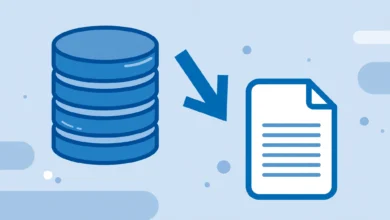
WordPress stores all its content in a MySQL database, so you must create an empty one before running the installer. With Apache and MySQL running, click the Admin button next to MySQL in the control panel, or visit localhost/phpmyadmin in your browser. This opens phpMyAdmin.
Click the Databases tab at the top, type a name for your new database (something clear like wordpress_local or mysite_db), choose the utf8mb4_general_ci collation, and click Create. That is all. You do not need to create any tables; the WordPress installer builds them automatically. Remember the exact database name, because you will enter it in the next stage.
How Do You Download WordPress and Move It Into htdocs?
Download the latest WordPress zip from wordpress.org/download. Extract the zip on your computer. Inside, you will find a folder named wordpress containing all the core files.
Now open the htdocs folder inside your XAMPP installation (C:\xampp\htdocs on Windows). Create a new folder here for your site, for example mysite. Copy everything from inside the extracted wordpress folder into C:\xampp\htdocs\mysite. The folder name you choose becomes part of your local address, so your site will live at localhost/mysite. You can repeat this process to run several WordPress sites side by side, each in its own folder with its own database.
How Do You Run the WordPress Installer?
With Apache and MySQL running and the files in place, visit localhost/mysite in your browser (replace mysite with your folder name). WordPress detects that it is not configured yet and launches its famous five minute installation wizard. Choose your language and click Continue.
The next screen asks for database connection details. Fill it in exactly like this for a default XAMPP setup:
- Database Name: the name you created in phpMyAdmin, for example
wordpress_local. - Username:
root. This is the default MySQL user in XAMPP. - Password: leave this blank. XAMPP sets no password for root by default.
- Database Host:
localhost. - Table Prefix: leave as
wp_, or change it to something unique if you like.
Click Submit, then Run the installation. On the final screen, enter your site title, choose a username and password for the WordPress admin account, and add your email address. Important: this username and password are for logging in to your WordPress dashboard, and they are completely separate from the database credentials above. Pick a strong password even for a local site, so good habits stick. Uncheck the “discourage search engines” option only if you want, since a localhost site is invisible to Google anyway. Click Install WordPress, and you are done.
How Do You Log In to Your Local WordPress Site?
Visit localhost/mysite/wp-admin and enter the admin username and password you just created. You will land in the WordPress dashboard, the control center of your site. Your public facing site is at localhost/mysite. From here, everything works exactly like a hosted WordPress site: you can install themes and plugins, write posts, and change settings. If the dashboard looks unfamiliar, our beginner walkthrough of the WordPress dashboard explained for beginners will get you oriented quickly.
What Should You Do If Apache or MySQL Will Not Start?
Startup failures are the most common headache with XAMPP, and almost all of them have simple fixes. Work through these in order.
Apache will not start: port 80 is blocked
Apache needs port 80 (and 443 for HTTPS). If another program already uses port 80, Apache cannot bind to it and shuts down immediately. On Windows, the usual culprits are Skype (which grabs ports 80 and 443 by default), Microsoft IIS, or the World Wide Web Publishing Service. Open Skype settings and disable its use of ports 80 and 443, or stop the IIS service from the Services panel. Alternatively, change Apache’s listening port: in the control panel, click Config next to Apache, open httpd.conf, change Listen 80 to Listen 8080, and also update the ServerName line. Then reach your site at localhost:8080/mysite.
MySQL shuts down unexpectedly
If MySQL starts and then stops within seconds, another MySQL or MariaDB instance is probably running on your machine, often installed by a different tool. Stop the other instance first. If the problem persists, check the error log via the Logs button for the real cause. In stubborn cases, a corrupted data folder is to blame: back up your databases from the mysql/data folder, reinstall XAMPP, and restore them.
“Error establishing a database connection”
This WordPress error almost always means a wrong database name, username, or password in the installer screen, or that MySQL is simply not running. Double check that MySQL shows green in the control panel, verify the database name spelling in phpMyAdmin, and confirm the username is root with a blank password on a fresh XAMPP install.
How Do Permalinks Work on a Localhost Install?
Pretty permalinks (like localhost/mysite/hello-world instead of localhost/mysite/?p=123) need Apache’s rewrite module, which XAMPP enables by default. If you switch to Post name permalinks under Settings, Permalinks and your pages return 404 errors, the .htaccess file probably was not created. Create an empty .htaccess file in your site folder, make it writable, and save the permalink settings again so WordPress can write its rules. For a deeper explanation of each structure, see our WordPress permalink structure guide.
What Should You Do Next on Your Local Site?
Your local WordPress site is now a fully working playground. Treat it like a real project so the skills transfer. Start with our checklist of things to do after installing WordPress: set your site title and tagline, pick a clean theme, install only the plugins you need, and configure your timezone and discussion settings.
Then enable WordPress debug mode on your local install. Debug mode surfaces PHP errors and warnings directly, which is exactly what you want while learning theme or plugin development. When your site is polished and ready for the world, follow our guide to move WordPress from localhost to a live server without losing content.
Frequently Asked Questions
Is it free and legal to install WordPress on localhost?
Yes. Both WordPress and XAMPP are free and open source, and running them on your own computer for learning or development is completely legal. You can build unlimited local sites without paying anything.
Can I use XAMPP to host a live website?
Technically yes, but you should not. XAMPP is configured for convenience, not security: default accounts have blank passwords and debugging is wide open. A live site needs a properly secured hosting environment. When you are ready to go public, compare real options in our web hosting guide.
Do I need an internet connection to use my local site?
Only for the initial downloads of XAMPP and WordPress. After installation, your localhost site runs entirely on your computer and works offline. Plugin and theme downloads from wordpress.org will need a connection, of course.
Can I run multiple WordPress sites on one XAMPP install?
Absolutely. Create a separate folder inside htdocs and a separate database in phpMyAdmin for each site, then run the installer in each folder. Many developers keep a folder per client or per experiment this way.
Last updated: October 2026.